
 Sukhdev Kamboj
If you use OneDrive to collaborate with coworkers, classmates, or family members, you probably rely on shared folders to keep everyone working from the same files. But every so often, a folder that was shared with you simply refuses to show up in File Explorer. You know the folder exists. You might even be able to see it when you log into OneDrive through your web browser. Yet when you open File Explorer on your Windows PC, the folder is nowhere to be found.
This is a surprisingly common problem, and it can happen for a handful of different reasons. Sometimes it’s a simple sync glitch that clears up after a restart. Other times it’s a permissions issue, an outdated OneDrive client, or a setting that’s quietly preventing shared content from syncing to your desktop at all. Whatever the cause, a missing shared folder can bring a workflow to a halt, especially if you were counting on offline access to those files.
The good news is that this issue is almost always fixable without any advanced technical knowledge. In this guide, we’ll walk through why shared folders sometimes fail to appear in File Explorer, then cover four practical methods you can use to bring them back. We’ll also answer some of the most frequently asked questions about OneDrive syncing and sharing, so you can troubleshoot with confidence the next time something goes missing.
Before diving into the fixes, it helps to understand what’s actually happening behind the scenes. OneDrive shared folders don’t automatically sync to your computer the way folders you create yourself do. When someone shares a folder with you, it typically appears in the “Shared” section of OneDrive online, but it won’t show up in File Explorer until you deliberately add it to your OneDrive by choosing “Add shortcut to My files” (or, on older setups, “Sync”). If that step was skipped, missed, or interrupted, the folder will exist in the cloud but stay invisible on your desktop. Beyond that, things like account sync errors, storage limits, outdated software, and even antivirus interference can all prevent a properly added shared folder from displaying correctly. With that context in mind, let’s get into the fixes.
Methods to Fix OneDrive Shared Folders Not Showing in File Explorer
Method 1: Add the Shared Folder as a Shortcut in OneDrive Online
The single most common reason a shared folder doesn’t appear in File Explorer is that it was never actually added to your OneDrive in the first place. Being shared with you and being synced to your files are two different things, and it’s an easy step to overlook.
Here’s how to fix it:
Go to onedrive.com and sign in with the account that the folder was shared with.
In the left-hand navigation pane, click “Shared.” This shows everything other people have shared with you, regardless of whether it’s synced locally.
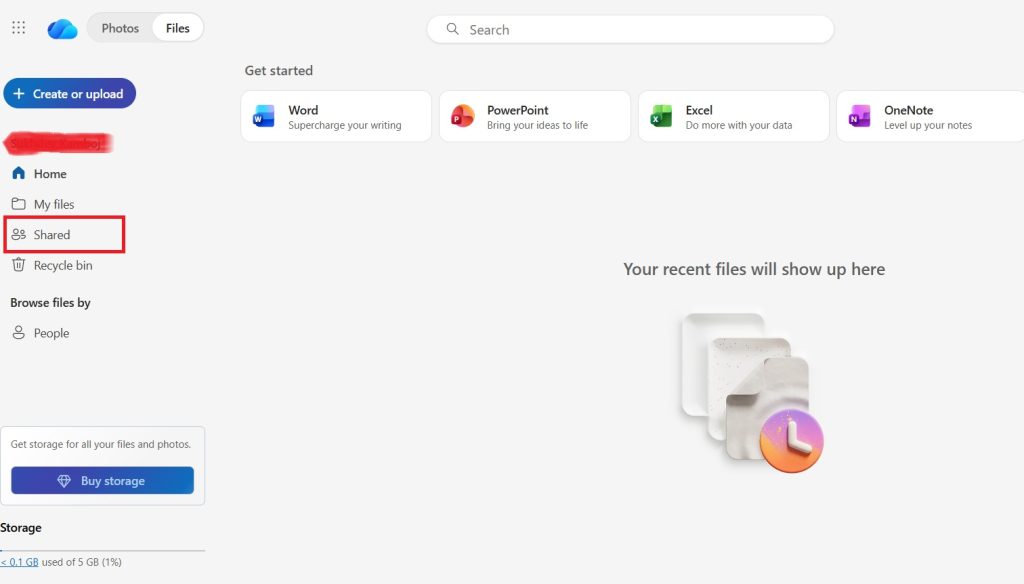
Locate the folder that’s missing from File Explorer. Right-click it (or select it and use the toolbar options).
Choose “Add shortcut to My files.” This creates a shortcut inside your own OneDrive root folder that points to the shared content.
Give OneDrive a minute or two to sync. Then open File Explorer and check your OneDrive folder. The shared folder should now appear, marked with a small shortcut arrow icon to indicate it’s linked content rather than a folder you created yourself.
If you don’t see the “Add shortcut to My files” option, it may mean the folder owner has restricted re-sharing or shortcut creation. In that case, you’ll need to ask them to adjust the sharing permissions before you can proceed.
It’s worth noting that this shortcut method replaced OneDrive’s older direct-sync behavior for shared folders. If you’re used to an older version of OneDrive where shared folders synced automatically without this extra step, this change is likely the reason things feel different now.
Method 2: Check and Restart the OneDrive Sync Client
Even after a folder has been properly added as a shortcut, it may not appear in File Explorer if the OneDrive desktop app isn’t syncing correctly. A stalled or crashed sync process is one of the most frequent causes of “missing” files and folders that actually do exist in the cloud.
To check your sync status and restart the client:
- Look for the OneDrive cloud icon in your Windows system tray (bottom-right corner of the screen, near the clock). You may need to click the small upward arrow to reveal hidden icons.
- Click the OneDrive icon and check the current status. If it says “Up to date,” sync is working normally. If you see messages like “Syncing,” “Paused,” or an error icon (often a red X or exclamation mark), that’s your clue.
- If sync is paused, click “Resume.” If there’s an error, click on it for more details, since OneDrive usually provides a short explanation and sometimes a one-click fix.
- If nothing seems obviously wrong but the folder still isn’t showing, try a full restart of the OneDrive process. Right-click the OneDrive icon, select “Close OneDrive,” then reopen it from the Start menu by searching for “OneDrive.”
- Alternatively, restart sync more forcefully by opening Task Manager (Ctrl+Shift+Esc), finding “Microsoft OneDrive” under the Processes tab, right-clicking it, and selecting “End task.” Then relaunch OneDrive from the Start menu.
After restarting, give the client a few minutes to reconnect and resync your files. Shared folders that were stuck should reappear in File Explorer once the sync queue clears.
Method 3: Verify Your Selective Sync and Storage Settings
OneDrive includes a feature called “Files On-Demand,” along with selective sync settings, that let you choose which folders actually download to your PC. If a shared folder was accidentally excluded from sync, or if your local storage is running low and OneDrive has paused downloads to conserve space, the folder may be technically present in your account but hidden from File Explorer.
Here’s how to check:
- Click the OneDrive icon in the system tray, then click the gear/settings icon and choose “Settings.”
- Go to the “Account” tab and click “Choose folders.”
- Review the list of folders shown. Make sure the shared folder (or the parent folder it lives in) isn’t unchecked. If it is, check the box and click “OK” to trigger a resync.
- While you’re in Settings, check the “Storage” section (this may also appear as a notification in the OneDrive activity center). If your OneDrive storage quota is full, new files and folders, including shared ones, may fail to sync until you free up space or upgrade your plan.
- It’s also worth confirming that Files On-Demand is functioning as expected. Under the “Settings” tab, look for “Save space and download files as you use them.” If this setting was recently toggled, it can sometimes cause a temporary sync hiccup that resolves after a refresh.
If storage is the culprit, you can either delete unneeded files, empty your OneDrive recycle bin, or upgrade to a plan with more space. Once storage is available, previously blocked shared folders typically sync within a few minutes.
Method 4: Update OneDrive and Check Account/Permission Issues
If the folder still isn’t showing after trying the methods above, the issue may be tied to an outdated OneDrive client or a permissions change made by the folder owner.
- Update the app. Click the OneDrive icon, go to Settings, then the “About” tab, and click “Check for updates.” Microsoft periodically fixes sync bugs in updates, and running an old version can cause exactly this kind of inconsistent behavior.
- Confirm you’re signed into the correct account. If you use multiple Microsoft accounts (for example, a personal account and a work or school account), it’s easy to end up looking in the wrong one. Click the OneDrive icon and check which account is currently active; add the correct account if needed via “Add an account” in Settings.
- Ask the folder owner to confirm your access. Permissions can be changed or accidentally revoked. Have the owner open the folder’s sharing settings and confirm your email address still has access, and that the access level (view or edit) is what you expect.
- Try unlinking and relinking your PC. As a last resort, go to Settings > Account > “Unlink this PC,” then sign back in. This forces OneDrive to rebuild its sync relationship from scratch, which often resolves stubborn issues that smaller fixes can’t touch. Note that this doesn’t delete any files; it simply resets the local sync connection.
- Check for conflicting security software. In rare cases, third-party antivirus or firewall software interferes with OneDrive’s background processes. Temporarily disabling such software (or checking its logs for blocked OneDrive activity) can help confirm whether it’s the source of the problem.
Between these two steps, most permission- and software-related causes of missing shared folders get resolved.
Conclusion
A shared OneDrive folder that won’t show up in File Explorer is frustrating, but it’s rarely a sign of lost data. In almost every case, the files are still safely stored in the cloud; they’re just not linked, synced, or displayed correctly on your local machine. Working through the methods above in order, starting with adding the folder as a shortcut, then checking your sync client, reviewing your selective sync and storage settings, and finally updating OneDrive or verifying permissions, will resolve the vast majority of cases.
If you regularly collaborate through OneDrive, it’s worth periodically checking your sync status and storage usage so small issues don’t compound into bigger headaches down the line. And if a folder still won’t appear after trying everything here, reaching out to Microsoft Support with details about your OneDrive version and account type is a reasonable next step, since they can check for account-specific sync flags that aren’t visible from the client side.
Frequently Asked Questions
Why can I see a shared folder on OneDrive online but not in File Explorer? This usually means the folder hasn’t been added to your local OneDrive yet. Being shared with you only makes the folder visible in the “Shared” section of the website; it won’t sync to your PC until you click “Add shortcut to My files.” Once added, it will typically appear in File Explorer within a few minutes.
Does adding a shortcut to a shared folder use up my own OneDrive storage? No. A shortcut is a link to the folder owner’s files, not a duplicate copy. It doesn’t count against your personal storage quota, although any files you download for offline use will use local disk space on your device.
Why did a shared folder disappear from File Explorer after previously working fine? This can happen if the folder owner revoked your access, changed sharing permissions, deleted or moved the folder, or if your OneDrive client hit a sync error. Restarting the OneDrive app and checking the activity center for error messages is usually the fastest way to diagnose which of these applies.
Is there a difference between shared folders on OneDrive for personal accounts versus OneDrive for Business? Yes, to some extent. OneDrive for Business (part of Microsoft 365) integrates more closely with SharePoint, and shared folders often originate from a SharePoint site rather than an individual’s personal OneDrive. The “Add shortcut to My files” process works similarly, but permission structures are typically managed by an organization’s IT administrator, so persistent issues may need to be escalated to them rather than resolved through personal account settings alone.





