Olivia Harper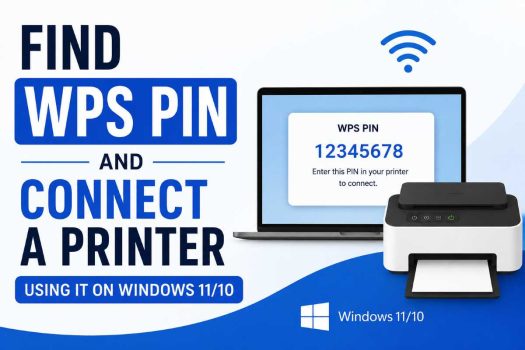
Connecting a wireless printer to your Wi-Fi network doesn’t always require manually entering the network password. Many modern printers support Wi-Fi Protected Setup (WPS), a feature that allows compatible devices to join a wireless network quickly using either a WPS Push Button or an 8-digit WPS PIN. This method is especially useful if your printer doesn’t have a full keyboard or if you want a faster way to connect it to your wireless router.
When using the WPS PIN method, the printer generates a unique PIN that you enter into your router’s WPS settings. Once the PIN is verified, the router securely shares the Wi-Fi credentials with the printer, allowing it to connect to the network automatically. After the printer is connected, you can easily add it to Windows 11 or Windows 10 and begin printing over Wi-Fi.

In this guide, you’ll learn how to find the WPS PIN on your printer, use it to connect the printer to your wireless network, and add the printer to Windows 11 or Windows 10.
What Is a WPS PIN?
A WPS PIN (Wi-Fi Protected Setup Personal Identification Number) is an eight-digit code generated by a compatible wireless printer. Instead of entering your Wi-Fi password on the printer, you enter the WPS PIN into your wireless router, allowing the printer to connect securely.
There are two common WPS connection methods:
- Push Button (PBC): Press the WPS button on both the router and the printer.
- PIN Method: Enter the printer’s generated WPS PIN into the router.
The PIN method is often used when the printer has a display but the router doesn’t have an easily accessible WPS button.
Before You Begin
Before connecting your printer using WPS, make sure:
- Your printer supports WPS.
- Your Wi-Fi router supports WPS.
- The printer is powered on.
- The printer is within range of your wireless router.
- Your Windows PC is connected to the same Wi-Fi network.
- WPS is enabled on your router.
If your router doesn’t support WPS or has the feature disabled, you’ll need to connect the printer by manually entering the Wi-Fi password.
Method 1: Find the WPS PIN on the Printer Screen
Many modern printers with a touchscreen can display a temporary WPS PIN.
To find it:
Turn on the printer.
Open Settings, Network, or Wireless Settings.
Select Wi-Fi Setup or Wireless Setup Wizard.
Choose WPS.
Select WPS PIN.
The printer displays an 8-digit PIN.
Leave this screen open because the PIN may expire after a few minutes.
Method 2: Print a Network Configuration Page
Some printers without touchscreens print the WPS PIN on a network information page.
The steps vary by manufacturer, but generally:
- Press the Wireless or Information button.
- Hold it for several seconds.
- The printer prints a network configuration page.
Review the printed page for:
- WPS PIN
- Wireless PIN
- Device PIN
If no PIN appears, your printer may generate one only when you start the WPS setup process.
Method 3: Use the Printer’s Embedded Web Server (EWS)
Many network printers include a built-in web management interface.
To access it:
- Find the printer’s IP address.
- Open a web browser.
- Type the printer’s IP address into the address bar.
- Press Enter.
Navigate to:
- Wireless Settings
- Network
- Wi-Fi
- WPS
If supported, the current WPS PIN will be displayed.
Method 4: Find the WPS PIN Using the Manufacturer’s Software
Some manufacturers provide desktop software that displays wireless settings.
Examples include:
- HP Smart
- Canon PRINT
- Epson Smart Panel
- Brother iPrint&Scan
Install the appropriate software and navigate to the printer’s network settings. If supported, the WPS PIN will be displayed.
Method 5: Connect the Printer Using the WPS PIN
After obtaining the WPS PIN:
- Open your router’s administration page in a web browser.
- Sign in using the router’s administrator credentials.
- Navigate to the Wireless or WPS settings.
- Choose the WPS PIN connection option.
- Enter the printer’s 8-digit PIN.
- Save the settings.
The router and printer will establish a secure wireless connection.
Wait until the printer confirms that it has joined the Wi-Fi network.
Method 6: Connect Using the WPS Push Button
If your router has a physical WPS button, you can connect without using a PIN.
- Put the printer into WPS mode.
- Press the WPS button on your router.
- Wait for the printer to connect.
This process usually completes within two minutes.
Method 7: Add the Printer to Windows 11
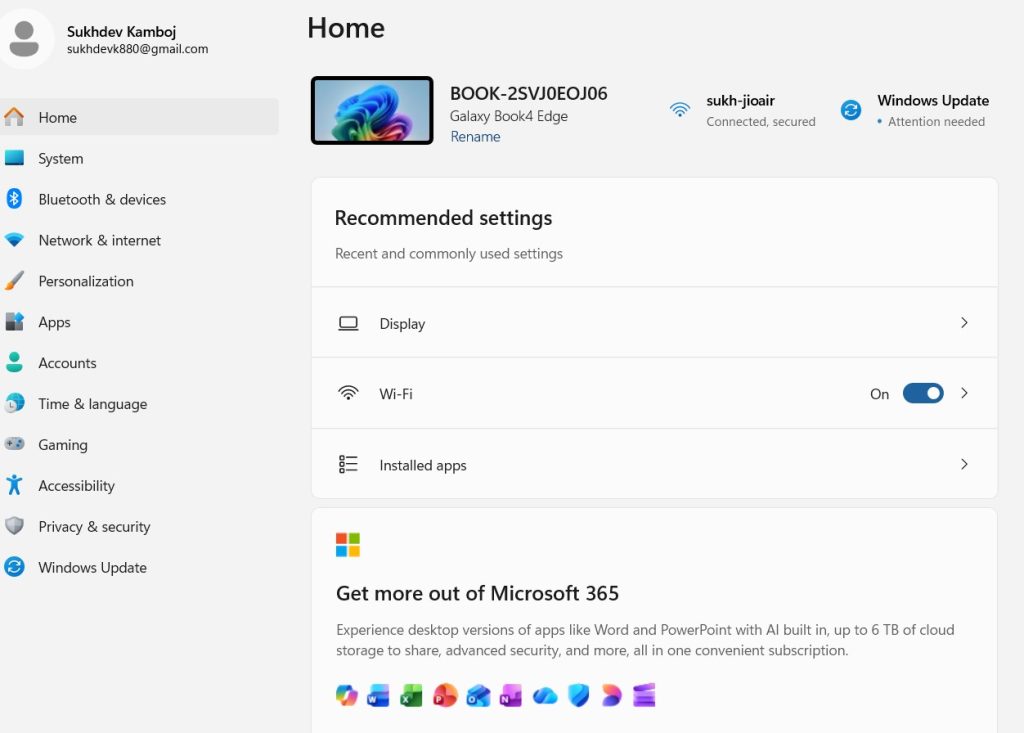
Once the printer is connected to Wi-Fi:
Press Windows + I to open Settings.
Select Bluetooth & devices.
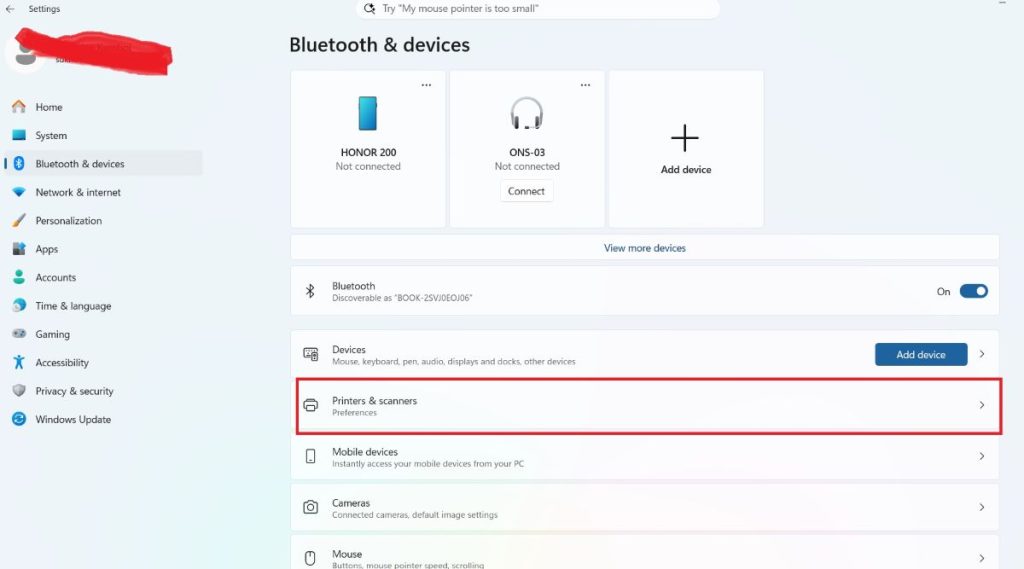
Click Printers & scanners.
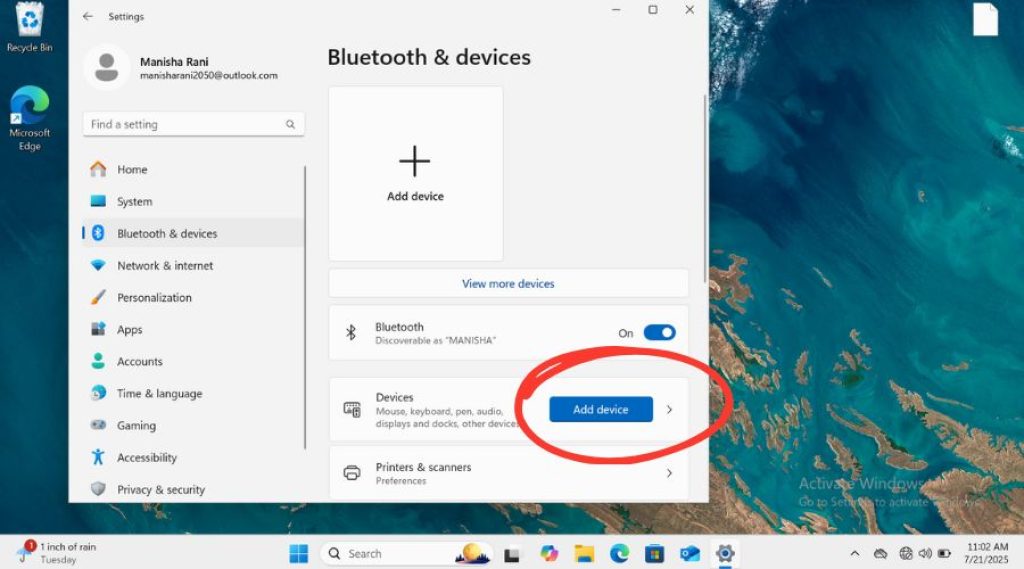
Select Add device.
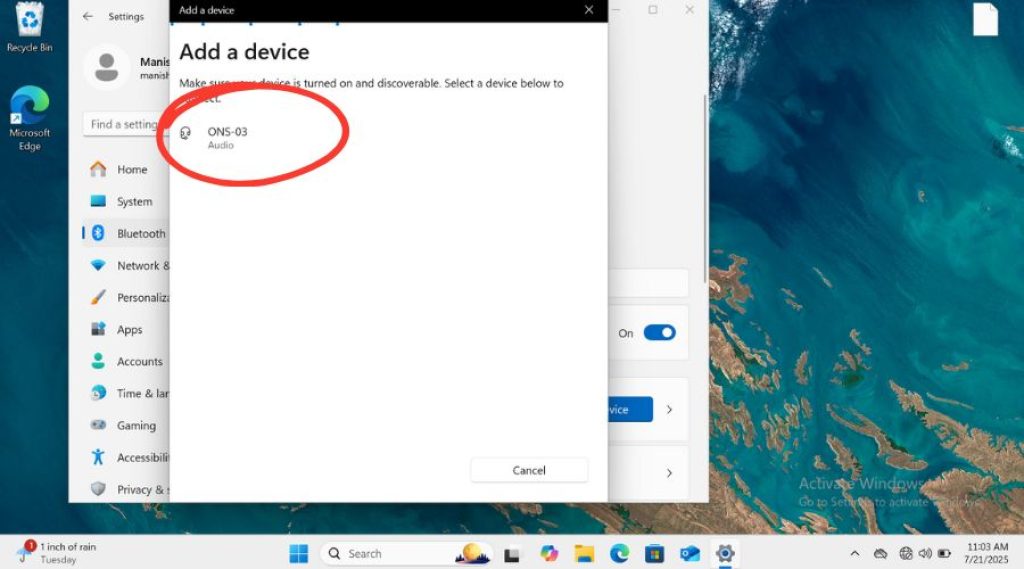
Wait for Windows to find the printer.
Click Add device beside your printer.
Windows installs the required drivers automatically if available.
Method 8: Add the Printer to Windows 10
For Windows 10:
- Open Settings.
- Select Devices.
- Click Printers & scanners.
- Select Add a printer or scanner.
- Wait for Windows to discover the printer.
- Click Add device.
If Windows cannot find the printer, select The printer that I want isn’t listed and add it using its IP address.
Method 9: Verify the Connection
After installation:
- Open Settings > Printers & scanners.
- Select the printer.
- Click Print a test page.
If the page prints successfully, the printer is correctly connected to your wireless network.
You can also verify the connection by checking the printer’s display or network status page.
Method 10: Reset the Printer’s Network Settings
If the WPS connection repeatedly fails:
- Open the printer’s Network or Wireless Settings.
- Select Restore Network Defaults or Reset Network Settings.
- Restart the printer.
- Repeat the WPS setup process.
Resetting the network settings removes old Wi-Fi configurations that may interfere with a new connection.
Common Reasons the WPS PIN Doesn’t Work
If the connection fails, consider these possibilities:
- The WPS PIN has expired.
- WPS is disabled on the router.
- The router doesn’t support the PIN method.
- The printer is too far from the router.
- Incorrect PIN entered.
- Router firmware needs updating.
- The printer’s firmware is outdated.
Generating a new PIN and trying again often resolves the issue.
WPS PIN vs WPS Push Button
Both methods use Wi-Fi Protected Setup but work differently.
WPS PIN
- Requires entering an 8-digit PIN.
- More suitable when no WPS button is available.
- Offers an additional verification step.
- May expire after a short time.
WPS Push Button
- Doesn’t require entering a PIN.
- Faster to use.
- Requires physical access to the router.
- Usually completes within two minutes.
Both methods securely connect the printer to your wireless network.
Tips for a Successful Connection
To improve the chances of a successful setup:
- Place the printer close to the router during setup.
- Restart the printer and router before connecting.
- Ensure both devices support WPS.
- Keep the printer firmware updated.
- Use the latest router firmware.
- Avoid entering an expired WPS PIN.
- Wait for the printer to finish connecting before turning it off.
Conclusion
Using a WPS PIN is one of the easiest ways to connect a compatible wireless printer to your Wi-Fi network without manually entering the wireless password. Whether the PIN is displayed on the printer’s touchscreen, printed on a network configuration page, or available through the printer’s web interface or companion software, the process is quick and secure. After the printer joins your network, Windows 11 and Windows 10 can automatically detect and install it for wireless printing.
If the WPS PIN method doesn’t work, you can try the WPS Push Button option or manually configure the printer using your Wi-Fi credentials. Keeping both your printer and router firmware up to date can also help prevent connection issues.
Frequently Asked Questions
Where can I find my printer’s WPS PIN?
The WPS PIN is typically available in the printer’s Wireless, Network, or Wi-Fi Settings menu. Some printers also print it on a network configuration page or display it in their embedded web server.
Does the WPS PIN stay the same?
Not always. Many printers generate a temporary WPS PIN each time you start the WPS PIN setup process. If the connection times out, you’ll usually need to generate a new PIN.
Can I connect my printer without WPS?
Yes. If your router doesn’t support WPS, you can connect the printer by manually entering your Wi-Fi network name (SSID) and password during the printer’s wireless setup process.
Why isn’t Windows finding my wireless printer?
Ensure the printer is connected to the same Wi-Fi network as your PC, restart both devices, and check that network discovery is enabled. If necessary, add the printer manually using its IP address.