 Geeksdigit Team
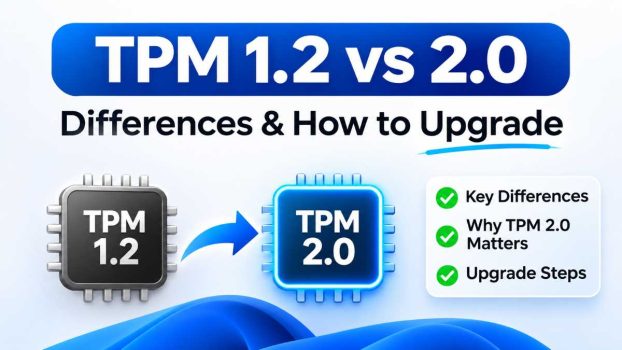
If you have ever tried to install Windows 11 and hit the dreaded message “This PC can’t run Windows 11,” there is a good chance the Trusted Platform Module (TPM) was the culprit. The TPM 1.2 vs 2.0 question has become one of the most common hardware puzzles for PC owners, IT administrators and anyone who builds their own machine.
In this guide you will learn what a TPM is, how TPM 1.2 and TPM 2.0 differ, how to check which version your computer has, and the practical ways to upgrade from TPM 1.2 to TPM 2.0 (or enable it) without replacing your whole system.
What Is a TPM (Trusted Platform Module)?
A Trusted Platform Module is a security chip, or a piece of secure firmware, that lives on your computer’s motherboard or inside its processor. Its job is to perform cryptographic operations and store sensitive secrets in a way that software alone cannot easily tamper with. Those secrets include encryption keys, certificates, passwords and measurements of your system’s boot process.
The TPM is standardized by the Trusted Computing Group (TCG) and is also published as the international standard ISO/IEC 11889. Common tasks a TPM handles include:
- Secure key storage: Private keys are generated and kept inside the chip and are never exposed to the operating system in plain form.
- Disk encryption: Tools such as Windows BitLocker use the TPM to release the drive’s decryption key only when the system boots in a trusted state.
- Platform integrity (measured boot): The TPM records hashes of firmware and boot components so that tampering can be detected.
- Device authentication: Certificates and credentials, such as those used by Windows Hello, can be bound to the specific device.
- Attestation: The device can prove to a remote server that it is running trusted software.
TPM comes in several forms. A discrete TPM (dTPM) is a separate physical chip. An integrated TPM sits inside another chip, such as the chipset. A firmware TPM (fTPM) runs in a protected environment inside the CPU, and Intel’s version is called Platform Trust Technology (PTT). A virtual TPM (vTPM) is provided to virtual machines by a hypervisor. Both TPM 1.2 and 2.0 can exist in more than one of these forms, although firmware TPMs are almost always version 2.0.
TPM 1.2 vs 2.0 at a Glance
| Feature | TPM 1.2 | TPM 2.0 |
|---|---|---|
| First published | 2003 (revised through 2011) | 2014 (library spec; ISO standard in 2015) |
| Hash algorithms | SHA-1 only | SHA-1, SHA-256, SHA-384, SHA-512, SM3 |
| Asymmetric crypto | RSA | RSA and elliptic curve (ECC) |
| Symmetric crypto | Limited | AES and others |
| Algorithm flexibility | Fixed | Agile; algorithms can be added or swapped |
| Key hierarchy | One storage hierarchy | Platform, storage, endorsement and null hierarchies |
| Authorization | Passwords and HMAC | Passwords, HMAC, policy-based (flexible) |
| Windows 11 support | Not supported | Required |
| Operating mode | Typically one TPM per device | Library specification with multiple profiles |
The Key Differences Between TPM 1.2 and TPM 2.0
1. Cryptographic algorithms
This is the most important technical difference. TPM 1.2 is locked to the SHA-1 hashing algorithm and RSA public-key cryptography. SHA-1 has been considered weak for years because researchers have demonstrated practical collision attacks, and major standards bodies have deprecated it for most security uses.
TPM 2.0 supports SHA-256 and stronger hashes, plus elliptic curve cryptography, which delivers equivalent security with much smaller keys. It also supports modern symmetric algorithms such as AES. For anyone concerned about long-term security, this alone is a compelling reason to prefer TPM 2.0.
2. Algorithm agility
TPM 2.0 was designed around the idea of cryptographic agility. Instead of baking specific algorithms into the specification, TPM 2.0 uses a flexible framework in which algorithms are identified by IDs and can be added over time. If a cipher becomes obsolete, the ecosystem can move to a stronger one without redefining the whole standard. TPM 1.2 has no such flexibility, so once SHA-1 aged, there was no clean way forward.
3. Authorization and policy model
TPM 1.2 relies mostly on passwords and HMAC-based authorization to protect objects. TPM 2.0 adds an enhanced authorization (EA) model that lets administrators build detailed policies. For example, a key can be usable only when specific platform measurements match, when a certain time window applies, or when multiple conditions are met together. This makes TPM 2.0 far better suited to enterprise security scenarios.
4. Multiple hierarchies
TPM 2.0 introduces separate hierarchies for different owners: the platform hierarchy (controlled by firmware or the manufacturer), the storage hierarchy (for the user or OS), the endorsement hierarchy (for device identity) and a null hierarchy for temporary, reset-on-reboot objects. This separation improves privacy and lets different parties manage their own keys independently.
5. Platform and OS support
Microsoft requires TPM 2.0 for Windows 11. Windows 10 reached end of support in October 2025, so many users who stayed on TPM 1.2 hardware have been pushed to decide whether to upgrade the module, change the firmware setting, or replace the PC. Modern Linux distributions support both versions, but tooling such as tpm2-tools, systemd-cryptenroll and measured boot features are designed around TPM 2.0. Newer features such as Secure Boot-linked attestation and passkey device binding also assume TPM 2.0.
6. Compatibility
The two versions are not backward compatible. TPM 2.0 uses a different command set and structure, so software written only for TPM 1.2 will not talk to a 2.0 chip, and vice versa. Some TPM chips can be switched between 1.2 and 2.0 modes through a firmware update, but this depends on the manufacturer and model.
Why Windows 11 Requires TPM 2.0
Microsoft made TPM 2.0 a hard requirement for Windows 11 to establish a consistent hardware security baseline. Features such as BitLocker device encryption, Windows Hello for Business, Credential Guard, virtualization-based security (VBS) and Secure Boot all work best with the stronger cryptography and flexible policies that TPM 2.0 provides. Because the OS can assume a TPM 2.0 is present, it can enable these protections by default, which reduces the attack surface for ransomware, credential theft and firmware attacks.
If your PC reports TPM 1.2 or no TPM at all, the Windows 11 setup will block installation unless you use unsupported workarounds, which Microsoft does not recommend because they can affect updates and support.
How to Check Your TPM Version
Before upgrading, confirm what you actually have. There are three easy methods.
Method 1: The TPM Management console
- Press Win + R, type
tpm.mscand press Enter. - Look at the Specification Version under TPM Manufacturer Information. It will show 1.2 or 2.0.
- If you see “Compatible TPM cannot be found,” the TPM may be disabled in firmware or absent.
Method 2: Windows Security
- Open Windows Security and select Device security.
- Click Security processor details.
- Check the specification version listed there.
Method 3: PowerShell
Open PowerShell as administrator and run Get-Tpm. To see the specification version, run (Get-CimInstance -Namespace root/cimv2/Security/MicrosoftTpm -ClassName Win32_Tpm).SpecVersion. The output begins with the version, such as “2.0” or “1.2.”
You can also run Microsoft’s PC Health Check app for a quick pass or fail on Windows 11 eligibility, although it will not tell you how to fix a failure.
How to Upgrade from TPM 1.2 to TPM 2.0
You cannot simply install software to turn TPM 1.2 into 2.0. Which option works depends on your hardware. Work through these approaches in order, from easiest to most involved.
Option 1: Enable fTPM or Intel PTT in the BIOS/UEFI
Many PCs built after about 2016 already contain a firmware TPM 2.0 that is simply switched off. This is the most common fix and costs nothing.
- Restart your PC and enter the BIOS/UEFI setup (usually by pressing Del, F2, F10 or Esc during startup).
- Look under Security, Advanced or Trusted Computing settings.
- On Intel systems, enable Intel Platform Trust Technology (PTT). On AMD Ryzen systems, enable AMD fTPM (sometimes labeled “AMD CPU fTPM” or “Security Device Support”).
- If you see a TPM device option, choose the firmware TPM rather than a discrete one, or set the device type to 2.0 if offered.
- Save changes and reboot, then verify with
tpm.msc.
If you also enabled TPM after BitLocker was active, make sure you have your recovery key saved first, because changing TPM settings can trigger recovery mode.
Option 2: Update the BIOS/UEFI firmware
Some motherboards ship with the capability but need a newer BIOS to expose it. Visit your motherboard or laptop manufacturer’s support page, download the latest BIOS for your exact model, and follow their update procedure. After updating, return to the BIOS and look again for PTT or fTPM options. Never interrupt a BIOS update, and plug laptops into power before starting.
Option 3: Switch a discrete TPM from 1.2 to 2.0 mode
Some systems use a discrete TPM chip from vendors such as Infineon, Nuvoton or STMicroelectronics that can be converted with a firmware update. Dell, HP and Lenovo, among others, have historically published TPM firmware update tools for specific business models. The process generally looks like this:
- Identify your TPM manufacturer and firmware version in
tpm.msc. - Check your PC vendor’s support site for a TPM 1.2 to 2.0 firmware or mode-switch utility for your model.
- Suspend BitLocker and back up your recovery key and any data.
- Clear ownership of the TPM and run the vendor’s update tool.
- Reboot, re-enable the TPM in BIOS if required, and confirm the new version.
Note that many TPM firmware upgrades are limited in the number of times they can be performed, and some are one-way. Follow the vendor’s instructions exactly, since a failed update can leave the module unusable.
Option 4: Install a TPM 2.0 module
If your motherboard has a TPM header (often a 12-pin or 14-pin connector, sometimes 20-pin) and no built-in fTPM, you can buy a discrete TPM 2.0 add-on module.
- Check your motherboard manual for the exact header layout and pin count.
- Buy a module that is specifically compatible with your board. Pin layouts differ between manufacturers, and a mismatched module can fail or even damage components.
- Power off the PC, unplug it, and install the module on the header.
- Boot into BIOS, enable the TPM device and set it to 2.0 if prompted.
- Verify in Windows.
This is a good solution for desktop builders with older boards, but it is not available on most laptops, where the TPM is soldered on.
Option 5: Replace the motherboard or computer
If your hardware has no firmware TPM and no header, or the vendor offers no conversion path, the realistic choice is replacing the board or the system. This is also a good moment to check the other Windows 11 requirements, including a supported processor, UEFI firmware with Secure Boot, at least 4 GB of RAM and 64 GB of storage.
Important: avoid unsupported workarounds
Guides online describe registry edits and modified installation media that bypass the TPM 2.0 check. These approaches can leave a PC without full security features, may be blocked from some updates, and are not supported by Microsoft. For business machines or anything handling sensitive data, a real TPM 2.0 is the right fix.
Best Practices Before You Upgrade
- Back up your data and create a full system image.
- Save your BitLocker recovery key to your Microsoft account, a USB drive or a printed copy. Changing TPM settings can lock you out otherwise.
- Suspend BitLocker before BIOS or TPM firmware changes, then resume it afterward.
- Document your BIOS settings so you can restore them if needed.
- Check your vendor’s documentation first. Model-specific instructions beat generic advice.
- Update Windows and drivers afterward so the new TPM is recognized and all security features can use it.
Troubleshooting Common TPM Problems
“Compatible TPM cannot be found.” The TPM is probably disabled in BIOS, or the board lacks one. Enter firmware setup and enable PTT, fTPM or the discrete TPM device.
TPM shows version 2.0 but Windows 11 still blocks installation. Another requirement may be failing. Check Secure Boot, the UEFI boot mode (legacy BIOS/CSM mode will fail), and CPU compatibility.
The TPM shows “not ready for use.” Open tpm.msc and choose Prepare the TPM, or run Initialize-Tpm in an elevated PowerShell window. A reboot may be needed.
BitLocker asks for a recovery key after the change. This is expected when the TPM’s measurements change. Enter the key, then re-enable protection so the new TPM seals the key.
TPM 1.2 vs 2.0: Which Should You Choose?
The answer is straightforward: choose TPM 2.0 whenever you have the option. It supports stronger hashing and encryption, offers algorithm agility, provides richer authorization policies, and is the version required by Windows 11 and increasingly assumed by modern security software. TPM 1.2 remains in older machines and legacy systems, but its reliance on SHA-1 and its lack of flexibility make it a poor foundation for new deployments.
For most people, the easiest path to TPM 2.0 is not buying anything at all: it is switching on Intel PTT or AMD fTPM in the BIOS. If that is not available, a BIOS update, a vendor firmware tool or a compatible add-on module may do the job. Only when none of these work should you consider replacing the hardware.
Frequently Asked Questions
Can I upgrade TPM 1.2 to 2.0 with software only?
Not generally. The change requires either enabling a firmware TPM in BIOS, flashing vendor-supplied TPM firmware, or installing new hardware. Windows itself cannot convert the version.
Is TPM 2.0 backward compatible with TPM 1.2?
No. The command structures differ, so software must be written for the specific version, although many modern operating systems and tools support both.
Does Windows 10 need TPM?
Windows 10 does not strictly require a TPM, but features like BitLocker work better with one. Windows 10 is also out of mainstream support, so moving to Windows 11 with TPM 2.0 is the recommended long-term path.
Is fTPM as secure as a discrete TPM?
A discrete chip offers stronger physical isolation, while a firmware TPM is protected by the CPU’s secure environment. For typical home and business use, fTPM and PTT meet Microsoft’s requirements and provide solid protection, though high-security environments may prefer discrete or certified hardware.
Will clearing the TPM delete my files?
Clearing the TPM removes keys stored inside it, which can make encrypted data unrecoverable if you do not have your recovery key. It does not delete ordinary files, but always back up first.
Can I run Windows 11 on a virtual machine without a physical TPM?
Yes. Hypervisors such as Hyper-V, VMware and VirtualBox provide a virtual TPM 2.0 that satisfies the Windows 11 requirement.
Final Thoughts
Understanding the difference between TPM 1.2 and 2.0 helps you make smarter decisions about security and hardware. TPM 2.0 is the modern standard, and with Windows 11 depending on it, knowing how to check your version and enable or upgrade your TPM can save you time and money.
Start with a quick tpm.msc check, look for fTPM or PTT in your BIOS, and follow your manufacturer’s guidance for anything beyond that. Back up your recovery keys, take your time, and you will have a safer, future-ready PC.