 Geeksdigit Team
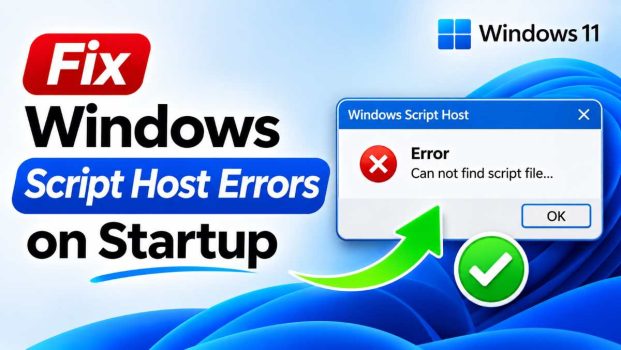
You restart your PC, wait for the desktop to load, and instead of a clean start you get a small, annoying pop-up: “Windows Script Host – Can’t find script file,” “Loading your script failed,” or “Access is denied.” Click OK and it may come back the next time you sign in. It is one of the most common startup irritations on both Windows 10 and Windows 11.
The good news is that these errors are rarely a sign of serious damage. Windows Script Host (WSH) is the built-in component that runs script files such as .vbs and .js. When Windows tries to launch a script at startup and something is wrong, such as the file is missing, blocked, corrupted, or the host itself is disabled, WSH shows an error dialog.
This guide explains why the error appears and walks you through ten tested methods, from the quickest checks to deeper repairs. Work through them in order and stop as soon as the pop-up disappears.
What Causes Windows Script Host Errors at Startup?
Before fixing anything, it helps to know what you are dealing with. The most common causes are:
- Leftover startup entries. A program you uninstalled left behind a startup entry that still points to a script that no longer exists. This is the number one cause of “Can’t find script file.”
- Malware or adware remnants. Many malicious programs use .vbs or .js files to launch at boot. Even after an antivirus cleans the script, the registry entry that called it can remain.
- Disabled Windows Script Host. A registry setting, a security tool, or a system “tweaker” may have switched WSH off, causing “Windows Script Host access is disabled on this machine.”
- Corrupted system files or script libraries. Damaged system files or unregistered scripting engines such as vbscript.dll can break script execution.
- Permission problems. The script exists, but your account cannot read or run it, producing “Access is denied.”
- Third-party software conflicts. Some tools, including older utilities and drivers, run helper scripts at login that are no longer compatible with your Windows build.
The error message usually tells you the script’s file name and path. Write this down before you do anything else. It is the most valuable clue you have.
Before You Start
A few precautions will save you trouble:
- Sign in with an administrator account.
- Create a restore point. Press Win + S, type “Create a restore point,” open it, and click Create.
- Note the exact error text and script path shown in the pop-up.
- If you plan to edit the registry, back it up first (File > Export in Registry Editor).
Method 1: Check the Startup Apps List
The simplest fix is to stop the offending item from launching in the first place.
- Press Ctrl + Shift + Esc to open Task Manager.
- Open the Startup apps tab (called Startup in Windows 10).
- Look for anything with an unfamiliar name, a blank publisher, or a name matching the script in your error message.
- Right-click it and choose Disable.
- Restart your PC.
On Windows 11 you can also go to Settings > Apps > Startup and toggle off suspicious entries. If the pop-up is gone after the restart, you are finished. If the item is not listed here, move on to the next method.
Method 2: Clear the Startup Folders
Scripts placed directly in a startup folder run automatically at sign-in, and they will not always show in Task Manager.
- Press Win + R, type
shell:startup, and press Enter. This opens the startup folder for your account. - Look for .vbs, .js, .vbe, .jse, or .wsf files, or shortcuts pointing to them.
- Delete anything you do not recognize or that matches the error message.
- Repeat the process with
shell:common startup, which controls startup items for all users.
If you are unsure about a file, move it to your desktop instead of deleting it, so you can restore it if needed.
Method 3: Remove Broken Entries from the Registry Run Keys
If the script is not in the startup folders, it is probably launched from the registry. This is the most common source of “Can’t find script file” errors after software has been removed.
- Press Win + R, type
regedit, and press Enter. - Navigate to each of these locations in turn:
HKEY_CURRENT_USER\Software\Microsoft\Windows\CurrentVersion\RunHKEY_CURRENT_USER\Software\Microsoft\Windows\CurrentVersion\RunOnceHKEY_LOCAL_MACHINE\SOFTWARE\Microsoft\Windows\CurrentVersion\RunHKEY_LOCAL_MACHINE\SOFTWARE\Microsoft\Windows\CurrentVersion\RunOnceHKEY_LOCAL_MACHINE\SOFTWARE\WOW6432Node\Microsoft\Windows\CurrentVersion\Run
- In the right pane, look for values whose data contains
wscript.exe,cscript.exe, or a path ending in .vbs or .js. - Right-click the suspicious value and select Delete.
- Close Registry Editor and restart.
Be careful to delete only entries you are confident are broken or unwanted. Legitimate programs such as your audio driver or cloud storage client also live here.
Method 4: Use Autoruns for a Complete Picture
Task Manager and the Run keys do not show everything that starts with Windows. Microsoft’s free Autoruns tool, part of the Sysinternals suite, lists every auto-start location, including scheduled tasks, services, and shell extensions.
- Download Autoruns from Microsoft’s official Sysinternals page.
- Extract it and run Autoruns64.exe as administrator.
- Open the Logon tab and look for entries highlighted in yellow (file not found) or pink (no publisher information).
- Match the entry to the script path from your error message.
- Uncheck it to disable, or right-click and choose Delete.
Autoruns is the most reliable way to track down a stubborn startup script because it checks locations most users never think about.
Method 5: Delete or Disable the Task in Task Scheduler
Scheduled tasks configured to run “At log on” or “At startup” are another frequent culprit.
- Press Win + S, type Task Scheduler, and open it.
- Select Task Scheduler Library in the left pane.
- Browse the list for tasks you do not recognize, then check the Actions tab of each one for a call to
wscript.exeor a script path. - Right-click the matching task and choose Disable (or Delete if you are sure).
- Restart your PC.
Pay special attention to tasks with random-looking names, as these are commonly created by adware.
Method 6: Re-enable Windows Script Host
If your error says that Windows Script Host access is disabled, WSH has been turned off, either by a registry value or by third-party software. To switch it back on:
- Open Registry Editor as described above.
- Go to
HKEY_CURRENT_USER\Software\Microsoft\Windows Script Host\Settings. - If a DWORD value named Enabled exists and is set to 0, double-click it and change it to 1, or delete it entirely.
- Repeat the check at
HKEY_LOCAL_MACHINE\SOFTWARE\Microsoft\Windows Script Host\Settings. - Restart your computer.
If a work or school IT department manages your PC, this setting may be controlled by policy. In that case, contact your administrator rather than overriding it.
Method 7: Scan for Malware
Because scripts are a favorite tool of malware authors, a persistent WSH error that you cannot trace to a known program deserves a thorough scan.
- Open Windows Security from the Start menu.
- Go to Virus & threat protection > Scan options.
- Choose Microsoft Defender Offline scan and click Scan now. Your PC will restart and scan before Windows loads, which helps catch threats that hide while the system is running.
- Review and remove anything found.
For a second opinion, run a reputable on-demand scanner. After cleanup, repeat Methods 1 through 5, since malware often leaves orphaned entries behind that continue to trigger errors.
Method 8: Repair System Files with SFC and DISM
If the error mentions a missing or corrupt scripting component, such as “Loading script engine VBScript failed,” damaged system files may be the cause.
- Press Win + S, type cmd, right-click Command Prompt, and select Run as administrator.
- Run the DISM repair first:
DISM /Online /Cleanup-Image /RestoreHealth - When it finishes, run the System File Checker:
sfc /scannow - Wait for both to complete, which can take 15 to 30 minutes, then restart.
DISM repairs the component store that SFC relies on, so running them in this order gives the best chance of success.
Method 9: Re-register the Scripting Engines
If the VBScript or JScript engines are unregistered, scripts will fail with errors such as “Can not find script engine.” Re-registering them is quick.
- Open Command Prompt as administrator.
- Run these commands one at a time:
regsvr32 vbscript.dllregsvr32 jscript.dll - You should see a message that the registration succeeded. Restart your PC.
Note for Windows 11 users: Microsoft is phasing out VBScript, and on recent builds it is a Feature on Demand. If vbscript.dll is missing, go to Settings > System > Optional features, search for VBScript, and install it if you need it. If you do not use any VBScript-based software, you can leave it removed, but then any leftover startup entry that calls a .vbs file will keep failing, which makes cleaning those entries (Methods 1 to 5) even more important.
Method 10: Perform a Clean Boot
When you still cannot identify the source, a clean boot helps you isolate it.
- Press Win + R, type
msconfig, and press Enter. - On the Services tab, check Hide all Microsoft services, then click Disable all.
- Open Task Manager’s Startup tab and disable every item.
- Restart the PC. If the error is gone, a third-party service or app is responsible.
- Re-enable items in small groups, restarting each time, until the error returns. The last group you enabled contains the culprit.
Once you find it, update, reinstall, or remove that program. When finished, return to msconfig and select Normal startup.
Bonus: Use System Restore as a Last Resort
If the problem began recently, for example after installing a program or a driver, and nothing above works, roll your PC back. Search for Create a restore point, click System Restore, and choose a restore point dated before the errors began. Your personal files are not affected, but programs installed after that date will be removed.
If even this fails, a Reset this PC (Settings > System > Recovery) with the “Keep my files” option is the final fix. Make sure you back up important data first.
Conclusion
Windows Script Host startup errors look alarming, but they almost always trace back to a simple cause: a script that Windows tries to run at login but cannot find, cannot access, or cannot execute. Start with the easy wins, which are checking Startup apps, startup folders, registry Run keys, and Task Scheduler, since most people solve the problem there. If the error mentions that WSH is disabled, re-enable it in the registry. If it points to missing engines or corruption, run DISM, SFC, and re-register the scripting DLLs.
And if the source is still a mystery, scan for malware and use a clean boot or Autoruns to hunt it down. Keep a restore point handy before making changes, and your PC should be back to a clean, error-free startup in no time.
Frequently Asked Questions (FAQ)
1. Is the Windows Script Host error a virus?
Not by itself. The error simply means that Windows tried to run a script and failed. However, malware commonly uses scripts to start with Windows, so a WSH error with an unfamiliar file name deserves a full scan with Microsoft Defender Offline. If the script name matches software you recognize, it is more likely a leftover entry from an uninstalled program.
2. Is it safe to disable Windows Script Host completely?
For most home users, yes. Disabling WSH can reduce the risk of script-based attacks, and everyday apps like browsers and Office do not depend on it. However, some older software, admin tools, and login scripts do rely on it, so disabling it can cause new errors. If you only want to stop a single script from running, remove that startup entry instead of turning off WSH globally.
3. Why do I get “Access is denied” for a script at startup?
This usually means your account lacks permission to read or run the script, the file is blocked by security software, or WSH has been restricted by policy. Right-click the script file, open Properties > Security, and make sure your account has Read & execute permission. Also check the General tab for an Unblock checkbox, and check whether your antivirus is quarantining the file. If the script is unwanted, simply remove the startup entry that calls it.
4. The error returns after every restart even after I delete the script. Why?
Deleting the script file does not remove whatever launches it. The startup entry, which may be in the registry Run keys, a startup folder, or Task Scheduler, remains and will keep calling a file that no longer exists. Use Autoruns to find and delete the entry. If it keeps reappearing, malware or a misbehaving program is recreating it, so run a full offline malware scan and check recently installed software.