 Geeksdigit Team
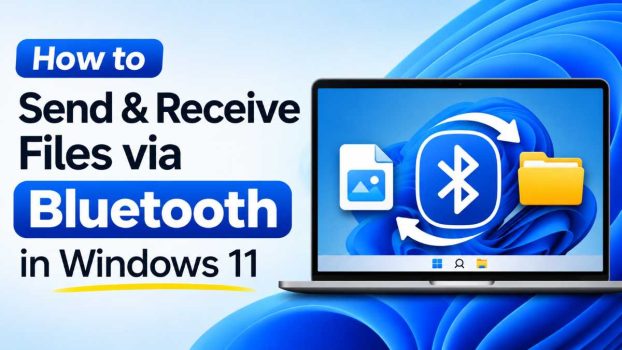
When you need to move a photo, a PDF, or a short video between devices, you don’t always have a USB cable, a fast Wi-Fi network, or a cloud account at hand. That’s where Bluetooth still earns its place. It is built into almost every modern laptop, tablet, and phone, it needs no internet connection, and it works over short distances without any extra hardware.
Windows 11 supports Bluetooth file transfer through a classic tool called the Bluetooth File Transfer Wizard, as well as through newer options such as Nearby Sharing. The catch is that Microsoft has tucked the older feature away in a few places, so many people can’t find it or assume it was removed. It wasn’t. It’s still there, and it works well for small and medium-sized files.
This guide walks you through everything: how to check that Bluetooth is ready, how to pair your devices, and several ways to send and receive files. You’ll also find troubleshooting steps for the most common problems and answers to four frequently asked questions.
Before You Start: Check Bluetooth and Pair Your Devices
Bluetooth file transfer only works between devices that can see and trust each other. Before sending anything, make sure the basics are in place.
Confirm your PC has Bluetooth
Most laptops and tablets have Bluetooth built in. Many desktop PCs do not, in which case you’ll need a small USB Bluetooth adapter. To check:
- Press Windows + I to open Settings.
- Select Bluetooth & devices from the left sidebar.
- Look for a Bluetooth toggle at the top of the page.
If you see the toggle, your PC has a Bluetooth radio. If the toggle is missing entirely, open Device Manager (right-click the Start button and choose Device Manager) and look for a Bluetooth category. If it isn’t there, your PC either lacks Bluetooth hardware or the driver is not installed.
Turn Bluetooth on
You can switch Bluetooth on in two quick ways:
- In Settings > Bluetooth & devices, flip the Bluetooth toggle to On.
- Click the network, sound, and battery icons in the taskbar to open Quick Settings, then click the Bluetooth tile. If you don’t see it, click the pencil (Edit) icon, choose Add, and select Bluetooth.
Also make sure Airplane mode is off, because it disables Bluetooth along with Wi-Fi.
Pair your PC with the other device
Pairing creates a trusted link between the two devices. You only need to do it once per device.
- On the other device (phone, tablet, or another PC), turn Bluetooth on and make it discoverable. On most phones, simply keeping the Bluetooth settings screen open does this.
- On your Windows 11 PC, go to Settings > Bluetooth & devices and click Add device.
- Choose Bluetooth in the dialog that appears.
- Wait for the other device to show up in the list, then click its name.
- Compare the passcode shown on both screens. If they match, confirm on both devices.
Once the status changes to Connected or Paired, you’re ready to transfer files.
Method 1: Send Files Using the Bluetooth File Transfer Wizard
This is the classic, most reliable method and works with phones, other PCs, and many other Bluetooth-capable devices.
Open the wizard
There are two easy ways to reach it:
Through Settings:
- Open Settings > Bluetooth & devices > Devices.
- Scroll to Related settings and click More Bluetooth settings.
- In the window that opens, go to the Options tab.
- Click Send or receive files via Bluetooth.
Through the Run box (faster):
- Press Windows + R.
- Type
fsquirtand press Enter.
The wizard titled Bluetooth File Transfer opens with two choices: Send files and Receive files.
Send the files
- Click Send files.
- Select the paired device you want to send to and click Next.
- Click Browse, choose one or more files, and click Open.
- Click Next to begin the transfer.
- Accept the incoming file on the receiving device when prompted.
A progress bar shows the transfer status. When it finishes, click Finish.
Tip: send from File Explorer
You can skip the wizard’s file browser entirely:
- Right-click the file in File Explorer.
- Choose Show more options (or press Shift + F10).
- Select Send to > Bluetooth device.
- Pick the target device and click Next.
This is the quickest path when you already know which file you want to send.
Method 2: Receive Files via Bluetooth on Windows 11
Receiving works in the opposite direction, and the order of steps matters. Start the receiving side first so your PC is listening when the other device begins sending.
- Open the Bluetooth File Transfer Wizard using
fsquirtin the Run box. - Click Receive files. The wizard displays Waiting for a connection.
- On your phone or the other PC, select the file, tap Share, and choose Bluetooth.
- Pick your Windows 11 PC from the list of devices.
- When the file arrives, Windows asks where to save it. Click Browse, choose a folder, and click Finish.
If you skip the Receive step, the incoming transfer will usually fail or time out, which is one of the most common causes of the dreaded “transfer failed” message.
Let your PC be discoverable
Some devices can’t find your PC unless it’s set to be visible. To adjust this:
- Go to Settings > Bluetooth & devices > Devices > More Bluetooth settings.
- On the Options tab, tick Allow Bluetooth devices to find this PC.
- Optionally tick Alert me when a new Bluetooth device wants to connect so you are notified of pairing requests.
- Click Apply, then OK.
For security, consider switching discoverability off again after you finish.
Method 3: Transfer Files Between an Android Phone and Windows 11
Android phones work smoothly with the wizard, and the flow is nearly identical.
Android to Windows:
- Pair the phone with your PC as described above.
- On the PC, run
fsquirtand choose Receive files. - On the phone, open the Gallery or Files app, select the item, and tap Share > Bluetooth.
- Choose your PC from the list.
- Save the file on the PC when prompted.
Windows to Android:
- Run
fsquirtand choose Send files. - Select your phone and browse to the file.
- Accept the incoming transfer on the phone’s notification.
Received files usually land in a Bluetooth folder in the phone’s internal storage or in the Downloads folder, depending on the manufacturer.
A note about iPhones
iPhones do not support standard Bluetooth file transfer with Windows. Apple restricts the feature to its own AirDrop system. If you use an iPhone, rely on iCloud Drive, a USB cable, or an app-based option such as Phone Link instead.
Method 4: Use Nearby Sharing
Nearby Sharing is Microsoft’s modern alternative. It uses Bluetooth to discover nearby Windows PCs and can use Wi-Fi to speed up the transfer, so it is usually faster than a pure Bluetooth connection, especially for bigger files.
Turn it on
- Open Settings > System > Nearby sharing.
- Choose Everyone nearby or My devices only.
- Make sure both PCs have Bluetooth and Wi-Fi turned on.
Share a file
- In File Explorer, right-click the file and choose Share (the icon at the top of the context menu).
- Wait for nearby PCs to appear under Nearby Sharing.
- Select the target PC.
- On the receiving PC, click Save or Save & open in the notification.
Nearby Sharing only works between Windows 10 and Windows 11 PCs, so it is not a replacement for the wizard if you are working with phones or other device types.
Method 5: Use Phone Link as an Alternative
If you mostly move files between an Android phone and your PC, Phone Link (built into Windows 11) can be more convenient. After you link your phone with the Phone Link app, you can drag and drop files, view recent photos, and send files without repeating the Bluetooth steps each time.
It does require an account sign-in and an internet connection during setup, so it is a less “pure” offline option, but it is a good fit if you transfer files regularly.
Troubleshooting Common Problems
Bluetooth is generally dependable, but problems do come up. Work through these fixes in order.
Bluetooth toggle is missing or greyed out
- Check that Airplane mode is off.
- Restart your PC.
- Open Device Manager, expand Bluetooth, right-click your adapter, and choose Enable device if it is disabled.
- Install the latest driver from your PC or adapter manufacturer’s website.
Device won’t pair
- Remove the device from Settings > Bluetooth & devices, then re-pair it from scratch.
- Delete the PC from the phone’s saved Bluetooth list as well.
- Move the devices closer together, ideally within a few feet, and away from other wireless interference.
Transfer fails or gets stuck
- Start the Receive files step before sending.
- Try sending a smaller file to rule out size or format issues.
- Make sure the receiving device’s screen is on and it isn’t in a battery-saving mode that blocks Bluetooth.
Restart the Bluetooth service
- Press Windows + R, type
services.msc, and press Enter. - Find Bluetooth Support Service.
- Right-click it and choose Restart. If its startup type isn’t Automatic, double-click it and change it.
Run the built-in troubleshooter
Open Settings > System > Troubleshoot > Other troubleshooters, find Bluetooth, and click Run. Windows will scan for common issues and attempt to repair them automatically.
Tips for Faster and Safer Transfers
- Keep devices close. Range and speed both drop quickly with distance and obstacles such as walls.
- Send fewer files at once. Large batches can stall, so split them into smaller groups.
- Compress folders. Bluetooth handles individual files, not folders. Zip a folder first, then send the zip file.
- Know the limits. Real-world Bluetooth speeds are usually a few megabits per second at best. A multi-gigabyte video can take a very long time, so use Nearby Sharing, a USB drive, or a cloud service for large files.
- Stay secure. Only accept files from devices and people you trust, and turn off discoverability when you are done.
- Keep drivers updated. Newer Bluetooth drivers often improve both stability and speed.
Conclusion
Sending and receiving files over Bluetooth in Windows 11 is straightforward once you know where the tools live. After pairing your devices, the Bluetooth File Transfer Wizard (reached by typing fsquirt in the Run box) handles both sending and receiving with just a few clicks. File Explorer’s right-click menu offers a shortcut for sending, Nearby Sharing gives you faster transfers between Windows PCs, and Phone Link is handy for regular Android users.
Bluetooth isn’t the fastest option for large files, but for documents, photos, and small media it is convenient, private, and independent of any internet connection. Keep your drivers updated, start the receiving side first, and use the troubleshooting steps above whenever something refuses to cooperate.
Frequently Asked Questions
1. Why can’t I find the “Send or receive files via Bluetooth” option in Windows 11?
Microsoft moved it. In Windows 11 it sits under Settings > Bluetooth & devices > Devices > More Bluetooth settings, on the Options tab. The fastest way to reach it is to press Windows + R, type fsquirt, and press Enter. If even that doesn’t work, your Bluetooth driver may be missing or disabled, so check Device Manager.
2. Can I send files from my iPhone to a Windows 11 PC using Bluetooth?
No. Apple does not allow standard Bluetooth file transfer from iPhones to Windows. You can still pair an iPhone with a PC for accessories like headphones, but for files you’ll need an alternative such as iCloud Drive, email, a USB cable, or a third-party app that transfers over Wi-Fi.
3. How fast is Bluetooth file transfer, and what size of file is practical?
Bluetooth is slow compared with Wi-Fi or USB. Although newer versions have higher theoretical speeds, real-world transfers typically run at around one to a few megabits per second, depending on distance, interference, and the devices involved. That makes it ideal for documents, images, and short audio clips, but impractical for large videos or software installers. For anything over a few hundred megabytes, Nearby Sharing, a USB drive, or a cloud service will save you a lot of time.
4. Why does my Bluetooth transfer keep failing on Windows 11?
The most common reasons are starting the transfer before the PC is set to Receive files, an unstable pairing, outdated drivers, or the devices being too far apart. Try removing and re-pairing the devices, update your Bluetooth driver, restart the Bluetooth Support Service, and run the built-in Bluetooth troubleshooter. Testing with a small file can also help you tell whether the problem is the connection or the file itself.