Geeksdigit Team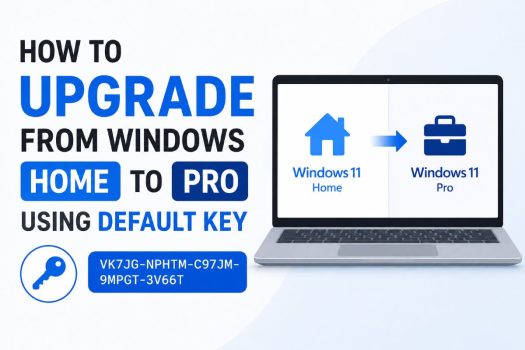
Windows 11 Home includes all the essential features required for everyday computing, making it suitable for most home users. However, Windows 11 Pro offers additional capabilities designed for professionals, businesses, and advanced users. Features such as BitLocker Drive Encryption, Hyper-V virtualization, Remote Desktop Host, Group Policy Editor, Windows Sandbox, Assigned Access, and Azure Active Directory support are only available in the Pro edition.
If you already have Windows 11 Home installed, you don’t need to perform a clean installation to switch to Windows 11 Pro. Microsoft allows users to change the installed edition using a generic (default) product key. This process upgrades Windows from Home to Pro while keeping your installed applications, personal files, and settings intact.

It’s important to understand that the generic product key does not activate Windows Pro. Instead, it simply installs the Pro edition. After the upgrade, you’ll still need a genuine Windows 11 Pro product key or a digital license to activate Windows.
This guide explains the different ways to upgrade from Windows Home to Pro using Microsoft’s default product key, along with how to activate Windows afterward.
What Is the Default Windows Pro Product Key?
Microsoft provides generic product keys for installation, deployment, testing, and edition upgrades. These keys allow Windows to install or switch to a different edition, but they do not grant a valid license.
For Windows 11 Pro, the commonly used generic product key is:
VK7JG-NPHTM-C97JM-9MPGT-3V66TUsing this key changes the installed edition from Windows Home to Windows Pro. Once the upgrade is complete, Windows will continue to function normally, but activation will remain pending until you enter a valid Windows Pro product key or sign in with a Microsoft account that already has a Windows Pro digital license.
Before upgrading, make sure:
- Your PC is running Windows 11 Home.
- You have a stable power source.
- Your important files are backed up.
- You have an internet connection (recommended).
- You have a genuine Windows Pro license if you intend to activate Windows after the upgrade.
Method 1: Upgrade Using the Activation Settings
The easiest way to switch from Windows Home to Pro is through the Activation page in Windows Settings.
Press Windows + I to open Settings.
Select System from the left pane.
Click Activation.
Expand Upgrade your edition of Windows.
Select Change product key.
Click Change.
Enter Microsoft’s generic Windows Pro key:
VK7JG-NPHTM-C97JM-9MPGT-3V66TClick Next.
Windows verifies the key and begins preparing the edition upgrade.
Select Start when prompted.
During the process, Windows installs the additional Pro components and updates the edition information.
The computer automatically restarts once or twice.
After restarting, sign in normally.
To verify the upgrade:
Open Settings > System > Activation.
You should now see:
Edition: Windows 11 Pro
Although the edition has changed, Windows may display Windows is not activated until a genuine Pro license is installed.
Method 2: Upgrade Using the Microsoft Store
If you don’t already own a Windows Pro license, the Microsoft Store provides the easiest method for purchasing one.
Open:
Settings > System > Activation
Locate:
Upgrade your edition of Windows
Click:
Open Store
The Microsoft Store opens directly to the Windows 11 Pro upgrade page.
Purchase the upgrade using your Microsoft account.
Once the purchase is complete, Windows automatically downloads the required edition files.
The installation usually finishes within several minutes.
Restart the computer if prompted.
After restarting, Windows 11 Pro should already be activated because the license is linked to your Microsoft account.
This is Microsoft’s recommended upgrade method for most users.
Method 3: Activate Windows Pro After Using the Generic Key
If you’ve already upgraded the edition using the default key, the next step is activation.
Open:
Settings > System > Activation
Select:
Change product key
Enter your genuine Windows Pro license.
Click:
Next
Select:
Activate
Windows connects to Microsoft’s activation servers and verifies the license.
Once activation completes successfully, the Activation page displays:
Windows is activated
If your Pro license is already linked to your Microsoft account, sign in using the same account and Windows may activate automatically without entering the product key again.
Method 4: Upgrade Using Command Prompt
Advanced users can also change the Windows edition using Command Prompt.
Open Command Prompt as Administrator.
Enter the following command:
changepk.exe /ProductKey VK7JG-NPHTM-C97JM-9MPGT-3V66TPress Enter.
Windows launches the edition upgrade process automatically.
Follow the on-screen instructions.
The system prepares the required files and installs Windows Pro.
Once installation finishes, restart the computer.
After restarting, verify the edition by pressing Windows + R, typing:
winverand pressing Enter.
The dialog should display:
Windows 11 Pro
If Windows still isn’t activated, enter a genuine Windows Pro product key using the Activation settings.
Method 5: Upgrade Using the Settings App with a Digital License
If you’ve previously purchased a Windows 11 Pro license and linked it to your Microsoft account, upgrading may be even easier because Windows can automatically detect your digital entitlement.
Press Windows + I to open Settings.
Navigate to:
System > Activation
If Windows detects an eligible digital license associated with your Microsoft account, you’ll see an option to upgrade your edition.
If you’re using a local account, switch to your Microsoft account by selecting:
Settings > Accounts > Your info
Sign in with the Microsoft account that owns the Windows Pro digital license.
Return to the Activation page and allow Windows a few moments to communicate with Microsoft’s activation servers.
If a digital Pro license is found, Windows upgrades and activates automatically without requiring you to manually enter a product key.
After the upgrade completes, restart your computer if prompted.
Method 6: Upgrade Using the Activation Troubleshooter
Sometimes Windows successfully upgrades to the Pro edition but fails to activate because it cannot immediately detect your digital license.
In these situations, the built-in Activation Troubleshooter can often resolve the issue.
Open:
Settings > System > Activation
If Windows displays Windows isn’t activated, click:
Troubleshoot
Windows begins checking the activation status.
If a matching digital license is found for your Microsoft account or hardware, the troubleshooter automatically applies it.
Follow the on-screen instructions until the process finishes.
Restart the computer if requested.
Return to the Activation page and confirm that Windows now reports:
Windows is activated
Method 7: Upgrade Using PowerShell
PowerShell provides another way to launch the edition upgrade.
Right-click the Start button.
Select:
Windows Terminal (Admin)
or
PowerShell (Admin)
Run the following command:
changepk.exe /ProductKey VK7JG-NPHTM-C97JM-9MPGT-3V66TThe Windows edition upgrade wizard opens.
Continue through the prompts until Windows begins installing the Pro edition.
Restart your computer after the installation completes.
PowerShell uses the same Microsoft upgrade utility as the graphical Settings app, making it a convenient option for administrators and advanced users.
Method 8: Verify That the Upgrade Was Successful
After Windows restarts, it’s important to verify both the edition and activation status.
Open:
Settings > System > About
Under Windows specifications, confirm that the edition is listed as:
Windows 11 Pro
Next, open:
Settings > System > Activation
Review the activation status.
Possible results include:
- Windows is activated – The upgrade and activation completed successfully.
- Windows isn’t activated – The edition changed successfully, but a valid Windows Pro license is still required.
You can also verify the edition using the Run dialog.
Press Windows + R.
Type:
winverPress Enter.
The About Windows window should display:
Windows 11 Pro
This confirms that the edition upgrade was successful.
Method 9: Roll Back to Windows Home (If Necessary)
If you upgraded accidentally or no longer require Windows Pro, you should know that Windows doesn’t include a built-in option to downgrade directly from Pro to Home while keeping your installed applications.
The supported methods are:
- Restore a system image or backup created before the upgrade.
- Use Reset this PC with Windows Home installation media.
- Perform a clean installation of Windows 11 Home.
Because of this limitation, it’s recommended to create a system backup or restore point before changing editions.
Although most upgrades complete without issues, having a backup makes it much easier to recover if something unexpected occurs.
Method 10: Common Upgrade Problems and Solutions
Most edition upgrades complete in just a few minutes, but occasionally Windows may report an error or refuse to change editions.
Here are some common issues and possible solutions.
The generic key is rejected
Ensure you’re running Windows 11 Home. The generic Pro key is intended for supported Windows Home editions.
Windows remains on the Home edition
Restart the computer after entering the key and check Windows Update for pending updates. Installing the latest updates can resolve edition upgrade issues.
Windows Pro isn’t activated
Remember that the generic key only changes the installed edition. Enter a genuine Windows Pro product key or sign in with a Microsoft account that owns a Windows Pro digital license.
Error during edition upgrade
Disconnect unnecessary external devices, temporarily disable third-party antivirus software, and ensure at least 20 GB of free storage is available before trying again.
Upgrade gets stuck
Restart the computer and attempt the upgrade again. If the problem persists, run Windows Update to install all available updates before retrying.
What Features Do You Get with Windows 11 Pro?
Upgrading from Home to Pro unlocks several advanced features designed for professional and business environments.
Some of the most notable additions include:
- BitLocker Drive Encryption for protecting data on internal and external drives.
- Hyper-V for creating and managing virtual machines.
- Remote Desktop Host, allowing other computers to connect to your PC remotely.
- Windows Sandbox for safely testing applications in an isolated environment.
- Group Policy Editor, providing advanced system configuration options.
- Assigned Access for creating kiosk-style devices.
- Azure Active Directory and domain join support for business networks.
- Additional management and security capabilities intended for enterprise deployments.
If you don’t need these features, Windows 11 Home remains an excellent operating system for everyday use.
Conclusion
Upgrading from Windows 11 Home to Pro is straightforward and doesn’t require reinstalling Windows or deleting your personal files. Microsoft’s generic product key makes it possible to switch editions quickly by installing the Windows Pro feature set while preserving your applications, documents, and settings. However, it’s important to remember that this default key does not activate Windows Pro. After the edition upgrade is complete, you’ll need a genuine Windows Pro product key or a digital license linked to your Microsoft account to activate the operating system.
For most users, upgrading through Settings > System > Activation is the simplest approach. Advanced users and administrators can also initiate the process using Command Prompt or PowerShell. After the upgrade, verify both the Windows edition and activation status to ensure everything completed successfully. With Windows 11 Pro installed, you’ll gain access to advanced features such as BitLocker, Hyper-V, Remote Desktop Host, Windows Sandbox, and Group Policy Editor, making it an excellent choice for professionals, developers, and business users.
Frequently Asked Questions
1. Does the default Windows Pro product key activate Windows?
No. The generic Microsoft product key only upgrades the installed edition from Home to Pro. You’ll still need a genuine Windows Pro license for activation.
2. Will upgrading from Home to Pro delete my files?
No. An edition upgrade preserves your personal files, installed applications, user accounts, and most Windows settings.
3. Can I go back to Windows Home after upgrading?
Windows doesn’t provide a direct downgrade option while keeping apps and settings. Returning to Windows Home generally requires restoring a backup or performing a clean installation.
4. Is the generic Windows Pro key legal to use?
Yes. Microsoft’s generic product keys are publicly documented and intended for installation, deployment, evaluation, and edition upgrades. They do not provide a valid license or bypass Windows activation requirements.