Olivia Harper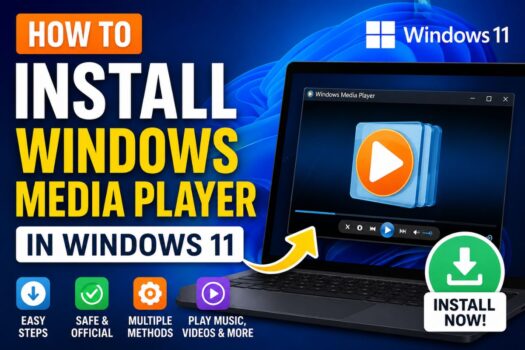
Windows 11 includes many modern apps and updated entertainment features, but some users quickly notice that Windows Media Player may not be installed by default on their device. This can be confusing, especially for those who have used Windows Media Player for years to watch videos, organize music libraries, rip CDs, or play older media formats. Although Microsoft has introduced a newer Media Player app for Windows 11, the classic Windows Media Player still remains useful for many users due to its familiar interface and reliable playback features.
In some cases, Windows Media Player may be disabled, missing because of system settings, or unavailable due to using Windows 11 N editions, which exclude media-related features. Fortunately, installing it is usually simple and can be done through Windows settings, optional features, or Microsoft’s Media Feature Pack.
This guide explains how to install Windows Media Player in Windows 11 using multiple safe and effective methods. Whether you are looking for the classic version or the newer Media Player app, this article will provide step-by-step instructions, troubleshooting solutions, and helpful tips to ensure successful installation.
What Is Windows Media Player?
Windows Media Player is Microsoft’s long-standing media playback application designed to handle digital audio, video, and image files. For many years, it served as the default media solution for Windows users.
Key Features of Windows Media Player:
- Music playback and organization
- Video playback
- CD ripping and burning
- Playlist creation
- Library management
- DVD playback support (on older systems)
- Equalizer and audio enhancement tools
Windows Media Player vs New Media Player App
Windows 11 now promotes the newer Media Player app, which offers:
- A modern interface
- Improved music library management
- Streaming integration
- Better support for updated file formats
- Enhanced design
However, classic Windows Media Player remains valuable for compatibility with legacy media tasks and traditional workflows.
Why Windows Media Player May Be Missing in Windows 11
Several reasons can explain why Windows Media Player is not available:
1. Windows 11 N Edition
N editions sold in Europe exclude media technologies to comply with regulatory requirements.
2. Optional Feature Disabled
Windows Media Player may simply be turned off in system settings.
3. Clean Windows Installation
Fresh installations sometimes omit older optional apps.
4. Corrupted System Files
Missing components may occur after update issues or software conflicts.
5. Microsoft Shift to New Media Player
Windows 11 prioritizes the newer app over the classic version.
Check If Windows Media Player Is Already Installed
Before installing, verify whether it already exists on your system.
Method 1: Search Start Menu
- Click Start
- Type Windows Media Player
- Open if found
Method 2: Run Command
- Press
Windows + R - Type:
wmplayer- Press Enter
Method 3: Check Optional Features
- Open Settings
- Go to Apps
- Select Optional Features
- Search for Windows Media Player
System Requirements
| Feature | Requirement |
|---|---|
| OS Version | Windows 11 21H2 or later |
| Architecture | x64 or ARM64 |
| RAM | Minimum 4 GB |
| Disk Space | Around 100 MB for installation |
| Microsoft Store | Version 22110.1401.0.0 or later |
If your PC runs the latest version of Windows 11, you should be good to go.
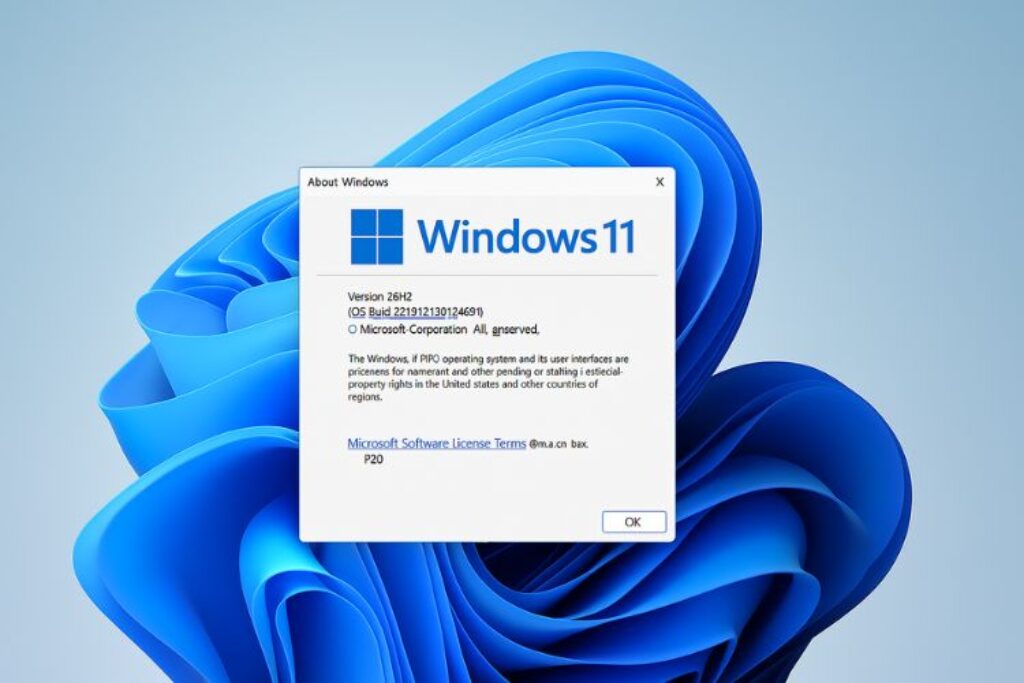
How to Check Your Windows 11 Version
Before downloading Media Player, it’s smart to verify your version of Windows 11.
- Press
Win + Rto open the Run dialog. - Type
winverand press Enter. - A dialog will show your Windows version. Look for 21H2 or later.
How to Install the Modern Media Player on Windows 11
Method 1: Install via Microsoft Store (Recommended)
This is the most reliable way to install the new Media Player.
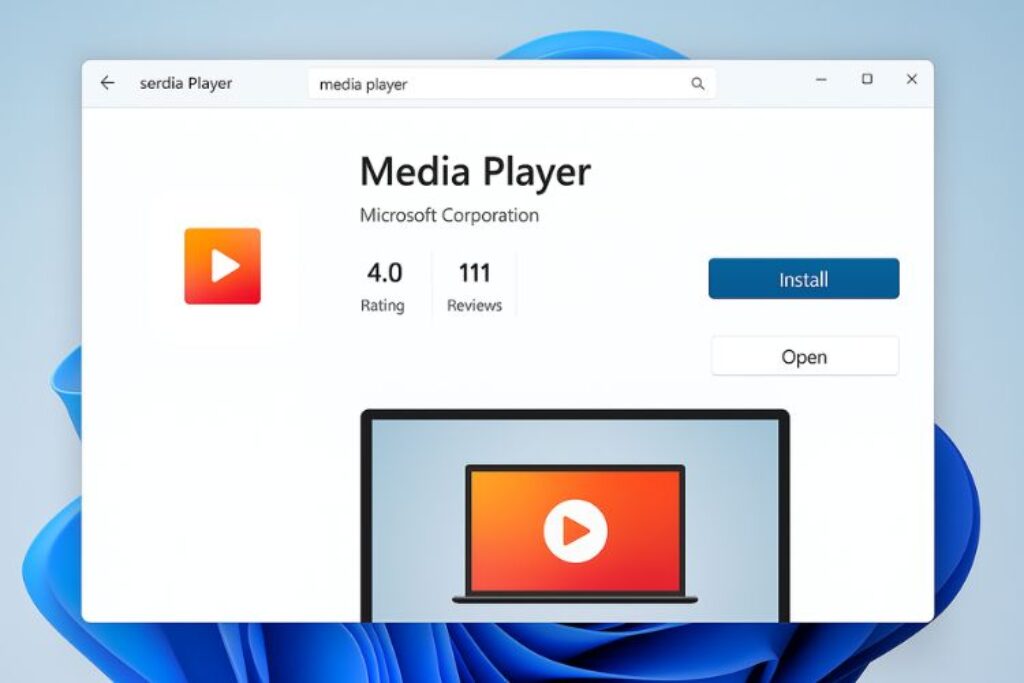
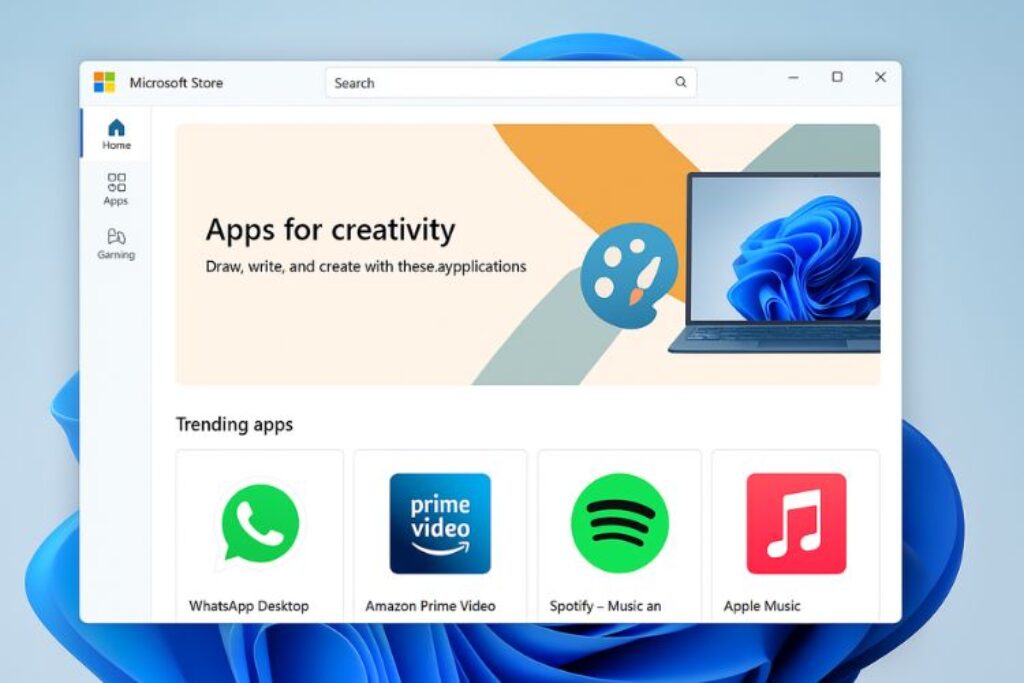
- Open Microsoft Store from the Start menu
- Type Media Player in the search bar
- Click the app from Microsoft Corporation
- Click Install
- Click Open when done (or find it from Start menu)
Method 2: Get Media Player via Windows Update (Alternative)
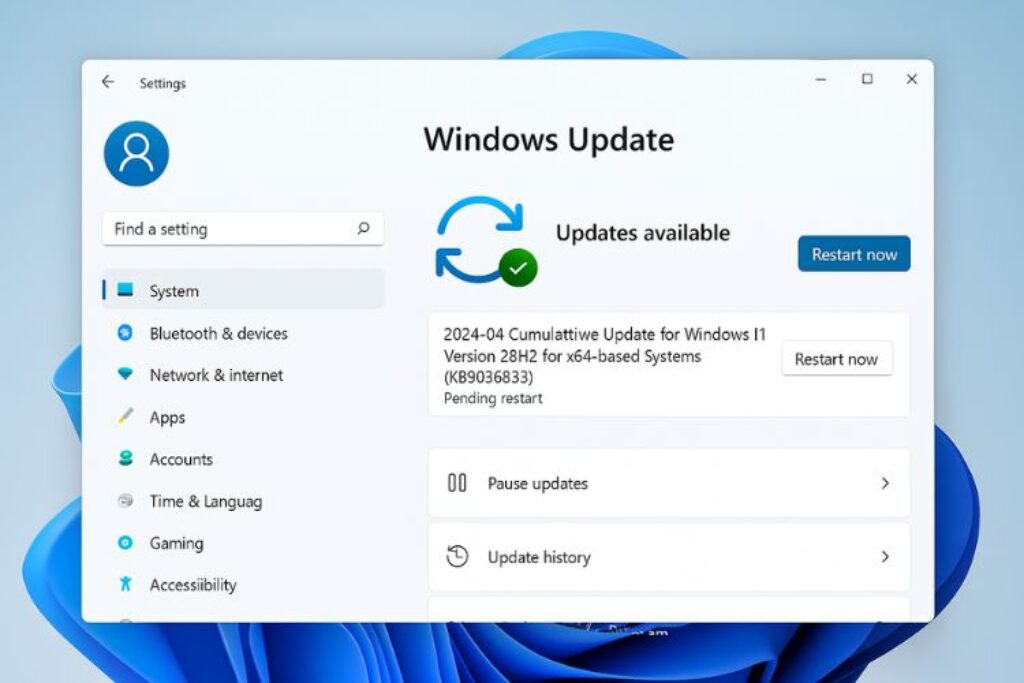
Some builds of Windows 11 receive the Media Player through a cumulative update.
- Go to Settings > Windows Update.
- Click Check for updates.
- If available, Media Player will install as part of a feature update.
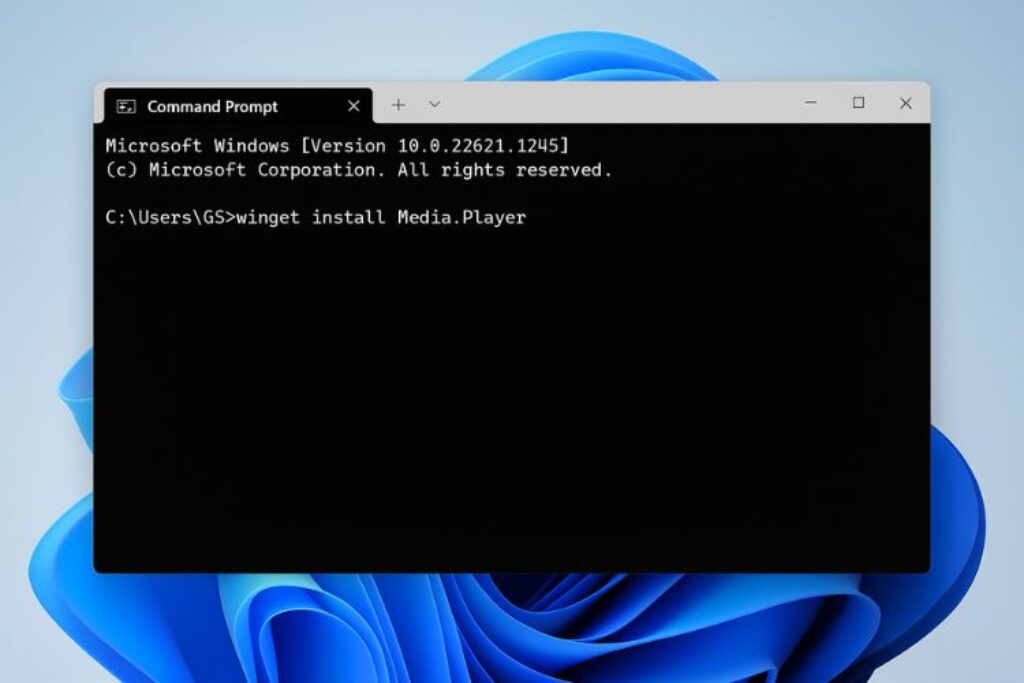
Method 3: Use Winget (For Advanced Users)
If you prefer command-line tools, you can install Media Player via the Windows Package Manager.
Open Command Prompt as Administrator.
Type the following command:
winget install --id=9WZDNCRFJ3PT -ePress Enter and wait for the app to install.
Features of the New Windows Media Player
The new Media Player app in Windows 11 comes with several new features and improvements over the previous version, enhancing the media experience for users. Here are the key features:
1. Modern and Sleek User Interface
The most striking change is the UI overhaul. The new Media Player has a fluent design language that aligns perfectly with Windows 11’s aesthetics. Rounded corners, soft animations, and a dark/light theme toggle provide a visually cohesive experience. Album art, artist photos, and background effects are now more immersive, offering a richer look without overwhelming the interface.
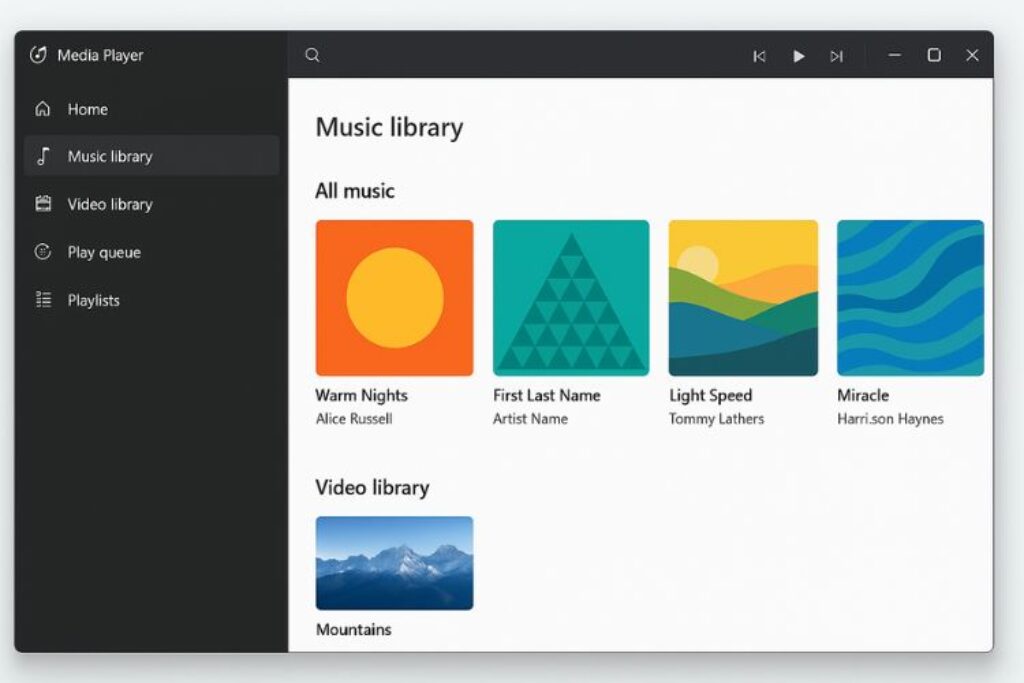
2. Unified Music and Video Playback
Previously, users had to juggle between Groove Music and the legacy Media Player depending on file type. The new app merges both functionalities, letting users play both audio and video files in one place. Whether it’s MP3, FLAC, MP4, MKV, or AVI, the app supports a wide range of formats, ensuring compatibility without the need for codecs or plug-ins.
3. Enhanced Library Management
Media Player automatically scans and organizes your music and video libraries. It fetches metadata, album art, and artist information, creating a polished collection. You can browse content by album, artist, genre, or folder view, and easily edit tags to keep your library clean and consistent.
Playlists are also much easier to manage. Drag-and-drop support, recently played history, and a streamlined playlist editor make curation a breeze. The app even integrates with your existing Groove Music playlists if you’re migrating from that service.
4. Improved Playback Controls and Queue Management
Playback features have received thoughtful updates. Users can now access a mini player that stays on top of other windows, allowing for multitasking while watching videos or listening to music. The playback queue is easier to navigate, with options to shuffle, repeat, or reorder tracks on the fly.
Keyboard shortcuts are intuitive and customizable for power users, and volume normalization ensures consistent audio levels across different media files.
5. Accessibility and Performance Enhancements
Microsoft has paid attention to accessibility. The app includes support for narrator, keyboard navigation, and high contrast themes. It’s also highly responsive, launching quickly and using minimal system resources—ideal for low-power systems or background playback during work sessions.
6. Integration with Windows 11 Ecosystem
Another great advantage is how seamlessly the Media Player integrates with Windows 11 features. It supports media keys on keyboards, integrates with the Windows Share menu, and respects the system-wide dark/light theme. Media playback also shows up in the media overlay panel accessible from the volume control and taskbar, giving you quick access to controls without switching apps.
How to Set Windows Media Player as Default
For Music:
- Settings > Apps > Default Apps
- Choose file types like MP3
- Select Windows Media Player
For Videos:
- Assign MP4, AVI, WMV formats
For CDs/DVDs:
- Set autoplay preferences
Common Installation Problems and Fixes
Problem 1: Feature Missing
Fix: Update Windows and search again.
Problem 2: Installation Fails
Fix: Run:
sfc /scannowProblem 3: Media Feature Pack Unavailable
Fix: Verify Windows edition.
Problem 4: Microsoft Store Errors
Fix: Reset Store cache:
wsreset.exeProblem 5: Corrupted System Files
Fix: Use:
DISM /Online /Cleanup-Image /RestoreHealthAlternatives to Windows Media Player
VLC Media Player
- Free
- Broad codec support
- DVD compatible
PotPlayer
- Lightweight
- Advanced settings
Media Player Classic
- Simple
- Classic feel
KMPlayer
- High-resolution support
Groove Music / New Media Player
- Native Windows integration
Security Tips
- Download only from Microsoft
- Keep Windows updated
- Avoid unofficial installers
- Scan downloaded media
- Maintain system backups
Frequently Asked Questions (FAQs)
What is the new Windows Media Player in Windows 11?
The new Windows Media Player is Microsoft’s modern replacement for the legacy Windows Media Player and Groove Music apps. It offers a refreshed UI and supports both music and video playback in one unified app.
How is it different from the old Windows Media Player?
Unlike the old version, the new Media Player features a modern interface, better performance, improved library management, and integrated support for video files. It’s designed to blend with Windows 11’s look and feel while offering a smoother user experience.
Can I still use the old Windows Media Player?
Yes, the legacy Windows Media Player is still available in Windows 11. You can search for it via the Start menu, though Microsoft encourages users to switch to the new app for better performance and compatibility.
What file formats does the new Media Player support?
The new Media Player supports a wide range of audio and video formats including MP3, AAC, FLAC, WAV, MP4, MKV, AVI, and more.
Is the new Media Player free?
Absolutely. The app is free to use and comes pre-installed with newer versions of Windows 11. If it’s not installed, you can get it from the Microsoft Store.
Can I customize the appearance or enable dark mode?
Yes, the new Media Player respects your system’s dark or light theme. You can switch your theme in Windows settings, and the app will follow suit automatically.
Final Thoughts
The new Windows Media Player isn’t just a facelift—it’s a thoughtful reinvention that combines modern design with practical enhancements. For users who want a lightweight yet capable media player without venturing outside the Windows ecosystem, this app is a strong contender.
While it may not offer the depth of VLC or specialized music players, its ease of use, integration, and visual appeal make it a worthy daily driver for most users. Whether you’re rediscovering your digital library or simply enjoying a clean interface for media playback, the new Windows Media Player in Windows 11 strikes a great balance between familiarity and freshness.
Which is better: Old or New Media Player?
It depends on your needs:
- Classic: Better for legacy features
- New: Better for modern interface