Sukhdev Kamboj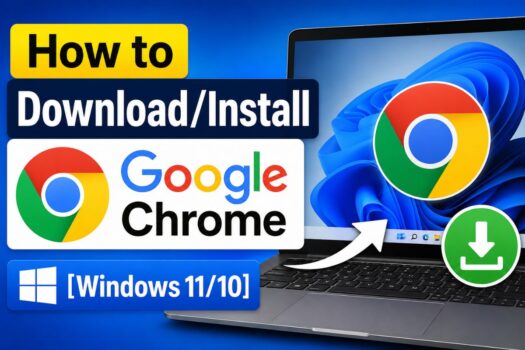
Google Chrome is one of the most widely used web browsers, known for its speed, simplicity, and security. Whether you’re setting up a new Windows PC or replacing your current browser, installing Chrome is a smart choice for an enhanced internet experience. With its seamless integration with Google services, powerful extension support, and user-friendly interface, Chrome offers everything a modern web user needs. The process to download and install Chrome is straightforward, even for beginners.
In just a few steps, you can have Chrome up and running on your device, ready to browse the web, stream content, manage tasks, or sync data across multiple devices. This comprehensive guide will walk you through the entire installation process on a Windows PC—from downloading the installer to customizing your browser. If you’re ready to take advantage of one of the best browsers available, follow along to get Chrome installed on your system the right way.
System Requirements
To install and run Google Chrome properly, your computer should meet the following minimum specifications:
- Operating System: Windows 7, Windows 8, Windows 10, or Windows 11 (64-bit recommended)
- Processor: Intel Pentium 4 or later with SSE2 support
- RAM: At least 2 GB (4 GB or more recommended for smooth performance)
- Hard Disk Space: Minimum of 500 MB of free space
- Display Resolution: 1024×768 or higher
- Internet Connection: Required to download and install Chrome
Step-by-Step Guide to Download Google Chrome
Step 1: Open Your Current Web Browser
You need a browser to download Google Chrome. If you’re using a new PC, Microsoft Edge is likely the default browser.
- Click the Start Menu.
- Search for Edge or Internet Explorer, and open it.
Step 2: Go to the Official Google Chrome Website
In the browser’s address bar, type:
https://www.google.com/chrome/
Or search for Google Chrome download on your search engine and click the link that leads to the official Chrome website.
Avoid downloading Chrome from third-party websites to prevent malware or fake installers.
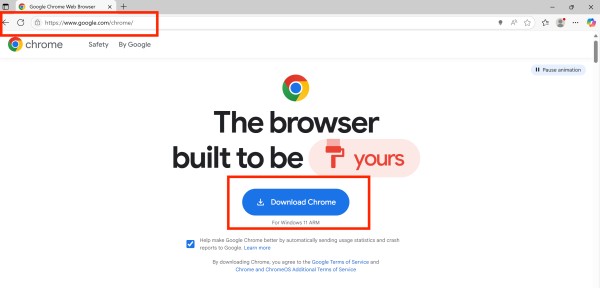
Step 3: Click “Download Chrome”
On the Chrome homepage, you will see a blue Download Chrome button.
- Click it.
- A popup page will appear by saying “Thanks for downloading! Just a few steps left”
- The file will be automatically downloaded.
- If the file is’t yet download, just click on “Download chrome Manually.”
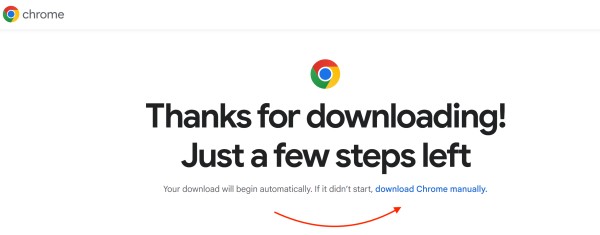
Step 4: Save the Chrome Installer File
- Your browser will begin downloading a file named
ChromeSetup.exe. - You might be prompted to Save File or choose a download location.
- Select Save, and the file will appear in your Downloads folder.
Installing Google Chrome on Your Windows PC
Step 5: Run the Installer
- Open File Explorer.
- Go to your Downloads folder.
- Double-click the file
ChromeSetup.exe.
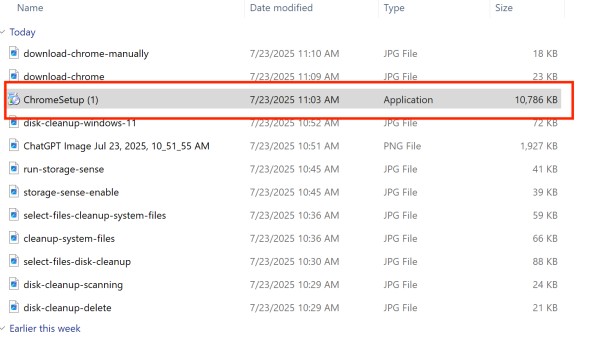
A User Account Control (UAC) prompt may appear:
“Do you want to allow this app to make changes to your device?”
Click Yes.
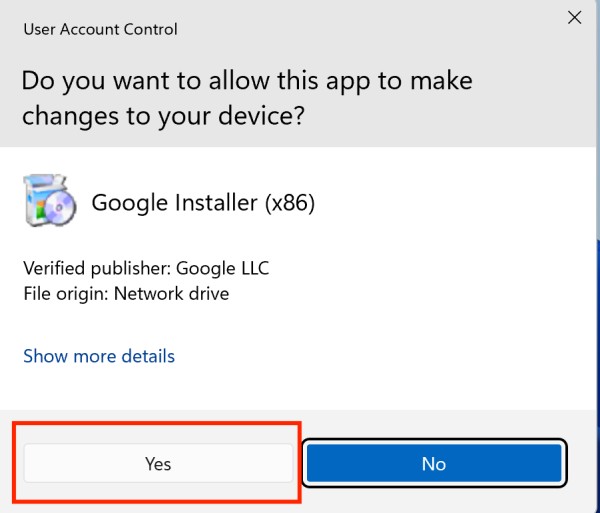
Step 6: Wait for Chrome to Install
The installer will download additional files from Google and begin the installation.
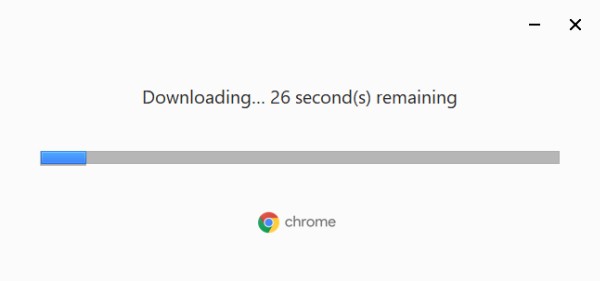
- A progress bar will appear.
- This process may take 1–5 minutes depending on your internet speed.
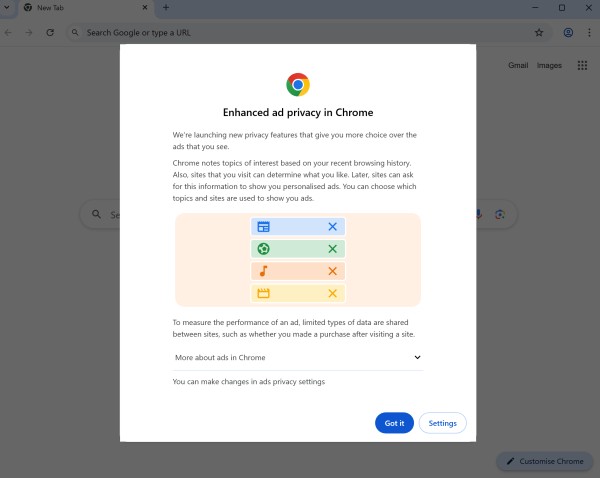
Once installation is complete, Google Chrome will open automatically.
A privacy warning will appear to tell you how Google collects data as soon as you opens up Chrome first time.
Step 7: Set Chrome as Your Default Browser (Optional)
You’ll see a prompt:
“Do you want to make Google Chrome your default browser?”
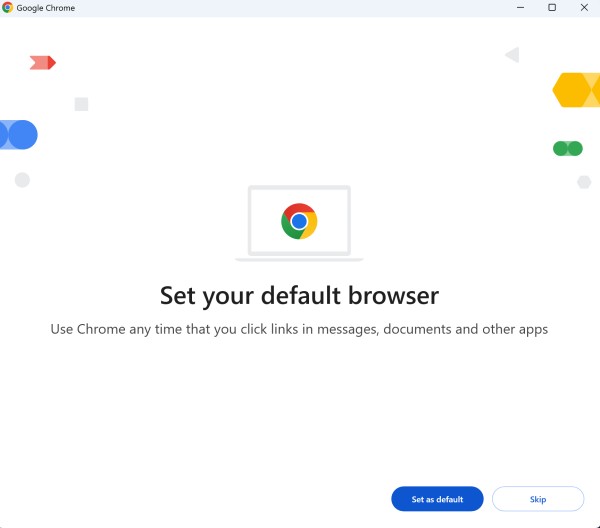
Click Yes if you want Chrome to be your primary web browser.
You can also change this setting later from:
Settings > Apps > Default Apps > Web browser
First-Time Setup and Customization
Once Chrome opens for the first time, you’ll be asked if you want to:
- Sign in to Chrome using your Google Account
- Import bookmarks and settings from other browsers
- Enable sync across devices
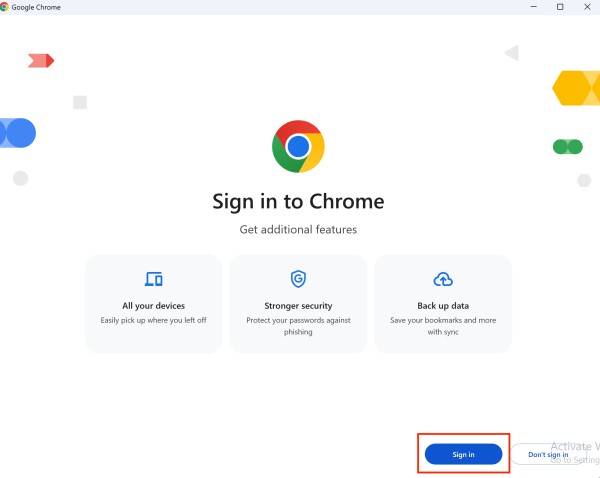
Signing into Chrome
Click the Profile icon in the top right and sign in using your Google credentials. This will allow you to sync bookmarks, passwords, extensions, and history across devices.
Import Settings (Optional)
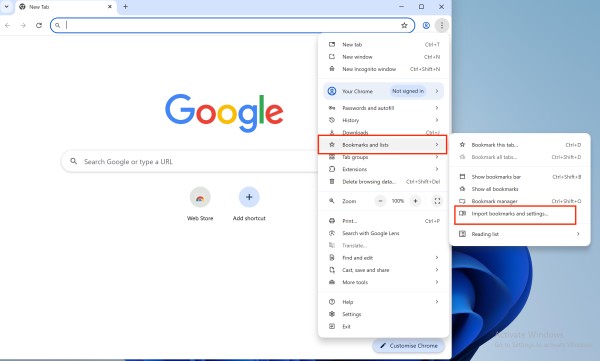
To import bookmarks, history, and saved passwords:
- Click the three-dot menu (⋮) in the top right.
- Go to Bookmarks and lists > Import Bookmarks and Settings.
- Select your old browser and choose what to import.
Installing Extensions
- Go to the Chrome Web Store: https://chrome.google.com/webstore
- Browse or search for extensions like ad blockers, grammar checkers, etc.
- Click Add to Chrome to install.
Is Chrome Safe to Use?
Yes, Google Chrome is safe, provided you download it from the official site. It includes:
- Built-in phishing and malware protection
- Sandboxing of browser processes
- Automatic updates
- Safe Browsing technology
Always keep Chrome updated to the latest version to ensure maximum security.
How to Update Chrome After Installation
Chrome updates automatically in the background, but you can also do it manually:
- Click the three-dot menu (⋮) in the top-right corner.
- Go to Help > About Google Chrome.
- Chrome will check for updates and install them if available.
- Restart Chrome to apply changes.
Uninstalling Chrome (If Needed)
If you ever want to remove Chrome:
- Go to Settings > Apps > Installed apps.
- Scroll and find Google Chrome.
- Click the three-dot menu, then click Uninstall.
- Follow the on-screen prompts.
Benefits of Using Google Chrome
- Speed: Fast browsing, quick page loads, and optimized for performance.
- Simplicity: Clean user interface with intuitive design.
- Security: Safe Browsing, sandboxing, and frequent updates.
- Syncing: Access bookmarks, passwords, and history across devices.
- Extensions: Thousands of add-ons available through the Chrome Web Store.
- Developer Tools: Built-in tools for developers and power users.
Alternative Chrome Versions (Optional)
Google offers other versions of Chrome for different use cases:
- Chrome Beta: Preview upcoming features.
- Chrome Dev: For developers.
- Chrome Canary: Most experimental, daily builds.
- Chrome Enterprise: For IT-managed environments.
Download these from:
https://www.google.com/chrome/dev/
Troubleshooting Common Installation Issues
While downloading and installing Google Chrome on a Windows PC is typically straightforward, you might occasionally encounter problems that prevent a successful installation. This section covers the most common issues and how to resolve them so you can get Chrome up and running without frustration.
Issue 1: Chrome Installer Won’t Launch
Symptoms:
- Double-clicking
ChromeSetup.exedoes nothing - You see a brief loading cursor, then nothing happens
Solutions:
- Run as Administrator:
Right-click the installer and choose “Run as administrator.” This ensures the installer has the necessary permissions to make system changes. - Check File Corruption:
The file might have been corrupted during download. Delete it, then re-download from the official site. - Disable Antivirus Temporarily:
Some antivirus software can block new installations. Disable real-time protection temporarily, install Chrome, and re-enable your antivirus afterward.
Issue 2: Installation Is Stuck or Freezes
Symptoms:
- Installer hangs at a certain percentage
- No progress for several minutes
Solutions:
- Check Internet Connection:
A weak or unstable connection can interrupt Chrome’s background download. Switch to a wired connection or stronger Wi-Fi. - Close Background Apps:
Other programs may interfere. Close all unnecessary applications and retry the installation. - Reboot Your PC:
Restart your computer and try running the installer again. - Use the Offline Installer:
Visit https://support.google.com/chrome/answer/126299?hl=en and download the offline Chrome installer. This version doesn’t require an internet connection during setup.
Issue 3: Error Messages During Installation
Common Errors:
- “Installation failed. Please check your internet connection.”
- “Installation couldn’t start.”
- Error code 0x80070005 or 0x80040902
Solutions:
- Error 0x80070005 (Access Denied):
Make sure you’re logged in as an administrator. Right-click the installer > Run as Administrator. - Check Windows Updates:
Outdated Windows components may block the installer. Go to Settings > Windows Update and install all pending updates. - Temporarily Turn Off Firewall:
In rare cases, your firewall may block Chrome’s installer from accessing the internet.
Issue 4: Can’t Set Chrome as the Default Browser
Symptoms:
- Chrome opens normally but remains secondary
- Default browser stays as Microsoft Edge or Internet Explorer
Solutions:
- Open Settings > Apps > Default Apps
- Scroll down to Web browser
- Click the current browser (e.g., Edge) and select Google Chrome from the list
If Chrome doesn’t appear in the list, restart your computer and try again.
Issue 5: Chrome Installs But Won’t Open
Symptoms:
- Chrome appears installed, but nothing happens when you open it
- Chrome crashes immediately
Solutions:
- Check for Conflicting Software:
Remove any browser toolbars, third-party antivirus tools, or system optimizers that might interfere. - Create a New Chrome User Profile:
Sometimes Chrome’s user profile can become corrupt:- Press Windows + R, type
appdata, and press Enter. - Navigate to Local > Google > Chrome > User Data.
- Rename the
Defaultfolder toDefault_Backup. - Launch Chrome again.
- Press Windows + R, type
- Reinstall Chrome Completely:
Uninstall Chrome via Settings > Apps, then reinstall using the offline installer.
Issue 6: Download Blocked by Group Policy (for Work PCs)
Symptoms:
- Installation is blocked with a message like “Your administrator has blocked this application”
Solutions:
- This usually occurs on work or school PCs. Contact your IT administrator to allow installation, or request installation through the official software distribution channel used in your organization.
Still Not Working? Try These Final Tips
- Use Windows built-in Troubleshooter:
Go to Settings > System > Troubleshoot > Other troubleshooters, and run Program Compatibility Troubleshooter. - Check the Event Viewer for errors:
Typeeventvwrin the Run dialog (Windows + R) > Windows Logs > Application, and look for any errors related to Chrome. - Use Google’s Help Resources:
Visit the Chrome Help Center for more solutions and official troubleshooting.
With these troubleshooting steps, most Chrome installation issues can be easily fixed. If you still experience problems, you may be facing a deeper system-level issue, in which case a full system scan or support from Microsoft may be necessary.
Bottom Line
Installing Google Chrome on a Windows PC is a quick and easy process that opens the door to a faster, more customizable web experience. Whether you’re browsing, streaming, working, or studying, Chrome offers the performance, stability, and security you need in a modern web browser. From its sleek interface and extension support to seamless syncing with your Google account, Chrome continues to be a top choice for users worldwide.
By following the detailed steps outlined in this guide, even beginners can successfully install and configure Chrome in under 10 minutes. Remember to always download Chrome from the official source and keep it updated for the best performance and protection. If you’re migrating from another browser, the import and sync features ensure a smooth transition.
If you’re ready for speed, flexibility, and top-tier features, Chrome is just a few clicks away. Happy browsing!
![How to Download/Install Google Chrome on Windows 11 [2026]](https://www.geeksdigit.com/wp-content/uploads/thumbs_dir/use-cmd-windows-11-rcnn9av4s47ybc6k03hzy057fsaiwhvb3qbz960wu4.jpg)
![How to Download/Install Google Chrome on Windows 11 [2026]](https://www.geeksdigit.com/wp-content/uploads/thumbs_dir/update-edge-windows-11-rhi3pi4qewvjrqu0zf9zjexvd4w41w49s12auuxlbw.jpg)