Olivia Harper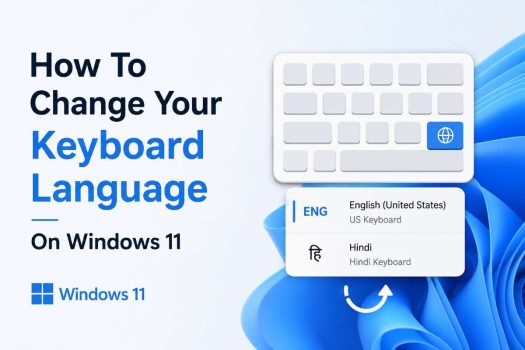
Windows 11 is designed to support users from all around the world. One of the most useful features in the operating system is the ability to change your keyboard language. This feature allows you to type in different languages, switch between layouts, and work comfortably whether you are writing emails, creating documents, or browsing the internet. Many people use multiple languages daily, especially students, professionals, and content creators. Windows 11 makes it easy to add and switch keyboard languages without installing complicated software.
Changing the keyboard language in Windows 11 can help you type characters that are not available on the standard keyboard layout. For example, if you want to type in Hindi, Spanish, French, German, or any other language, you can easily add the keyboard layout and switch between them while typing. This feature is also useful for bilingual users who frequently change languages when writing messages or documents.

In this detailed guide, you will learn how to change the keyboard language on Windows 11 step by step. The article will explain multiple methods, including using Settings, keyboard shortcuts, the language bar, and the taskbar. You will also learn how to add new keyboard languages, remove unwanted layouts, and customize your typing experience.
Understanding Keyboard Language in Windows 11
Before changing the keyboard language, it is important to understand what keyboard language means. A keyboard language determines how characters appear when you press keys on your keyboard. Different languages use different keyboard layouts. For example, the English keyboard layout may be QWERTY, while other languages may use AZERTY or different character placements.
Windows 11 allows users to install multiple keyboard layouts. Each layout corresponds to a specific language or region. When you switch the keyboard language, the function of certain keys may change so you can type the correct characters for that language.
For instance, when using a French keyboard layout, some punctuation marks and letters may appear in different positions compared to an English keyboard. This allows users to type accented characters like é, à, and ç easily.
Why You Might Need to Change Keyboard Language
There are several reasons why users change their keyboard language in Windows 11. Some of the most common situations include typing in multiple languages, working with international clients, learning a new language, or using a keyboard designed for another region.
Students often change keyboard languages to type assignments or research papers in different languages. Writers and bloggers may also switch layouts when creating multilingual content. Developers sometimes change keyboard layouts when working with coding environments that require specific characters.
Another reason is when a user accidentally adds another keyboard language and wants to remove or change it. Windows 11 sometimes installs additional keyboard layouts automatically when you add another display language.
Changing the keyboard language ensures that typing becomes easier and more accurate for the language you are using.
Method 1: Change Keyboard Language Using Windows Settings
The easiest and most common way to change your keyboard language in Windows 11 is through the Settings app. The Settings app allows you to add new languages, modify keyboard layouts, and manage your preferred language settings.
Follow these steps to change your keyboard language using Settings:
Open the Start menu
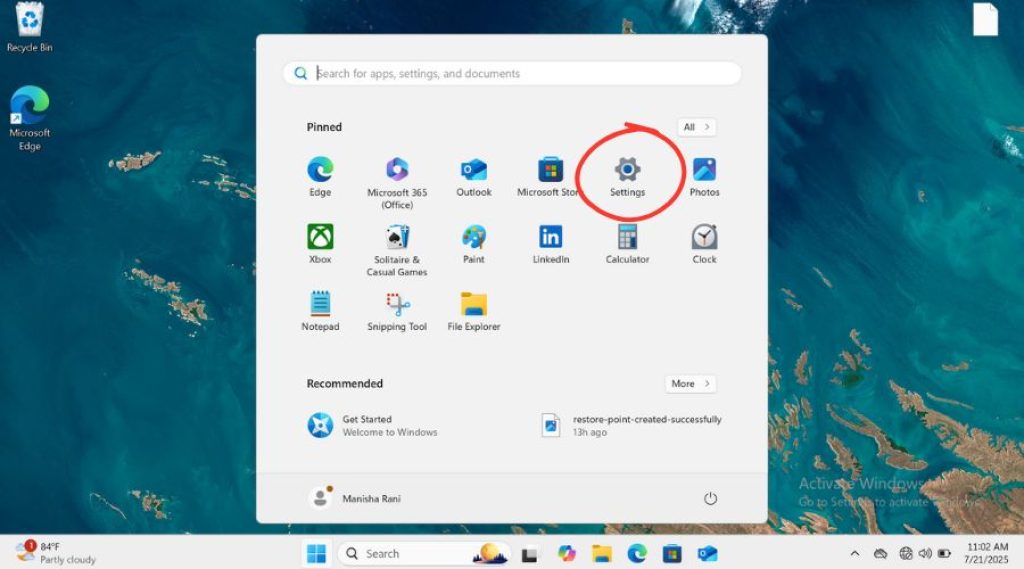
Click on Settings
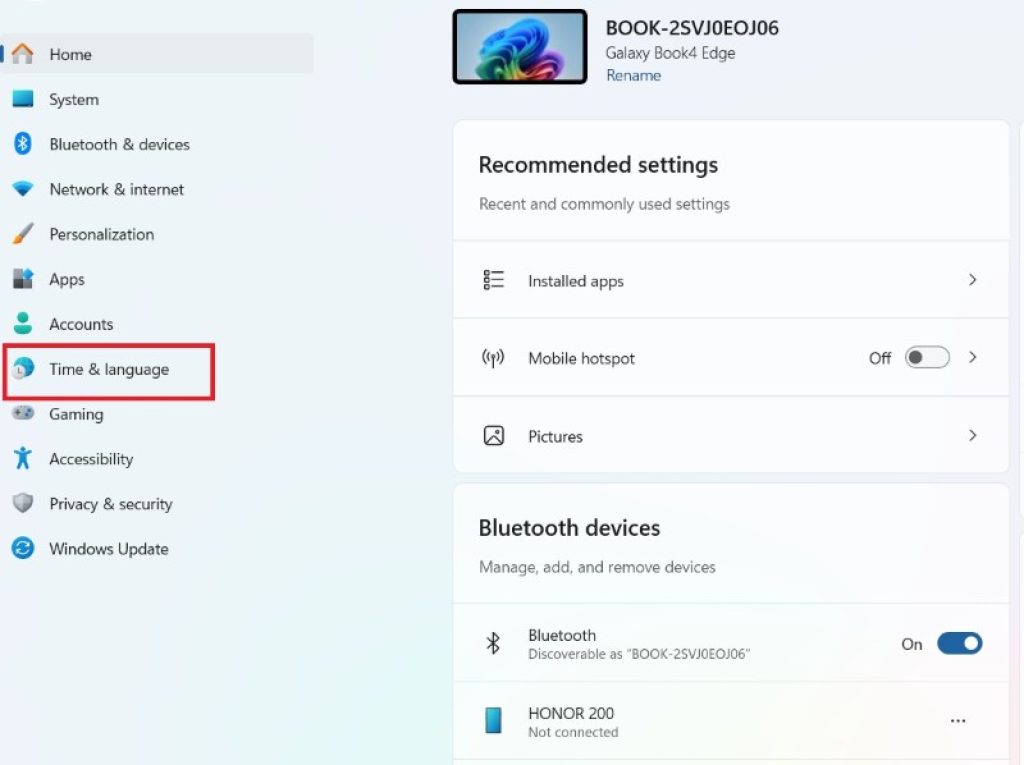
Select Time & Language
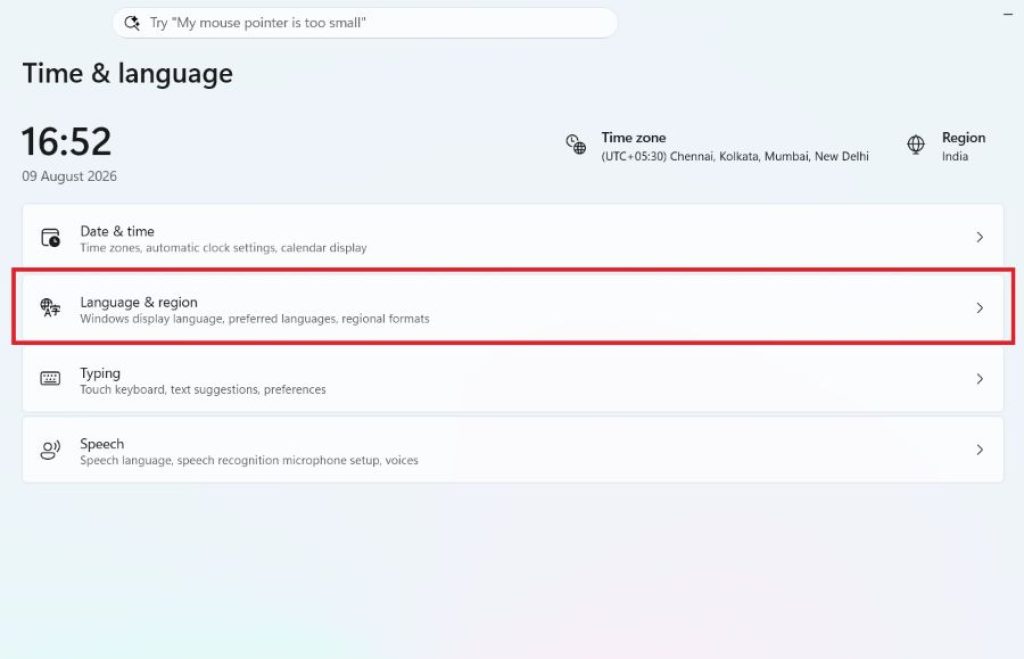
Click on Language & Region
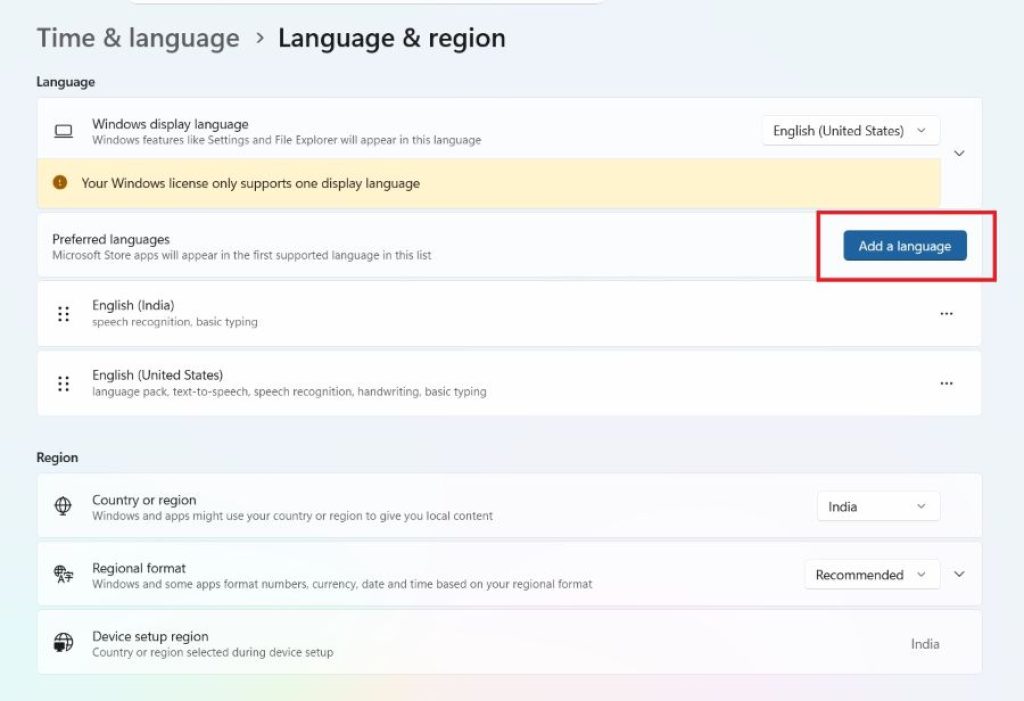
Under the Preferred Languages section, choose the language you want
Click the three dots next to the language
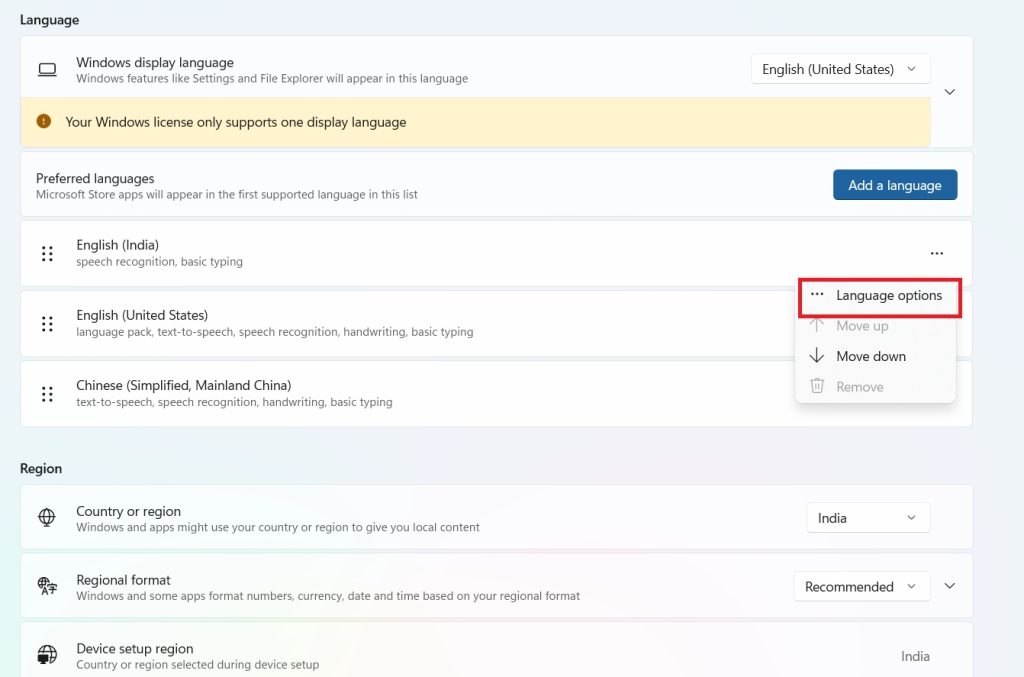
Select Language options
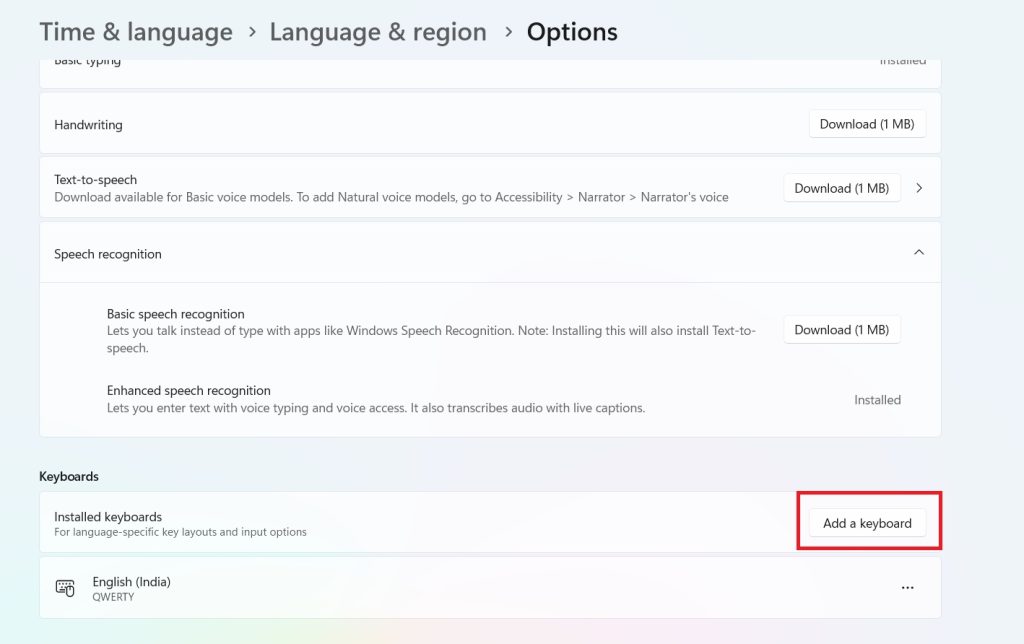
Under Keyboards, click Add a keyboard
Choose the keyboard layout you want
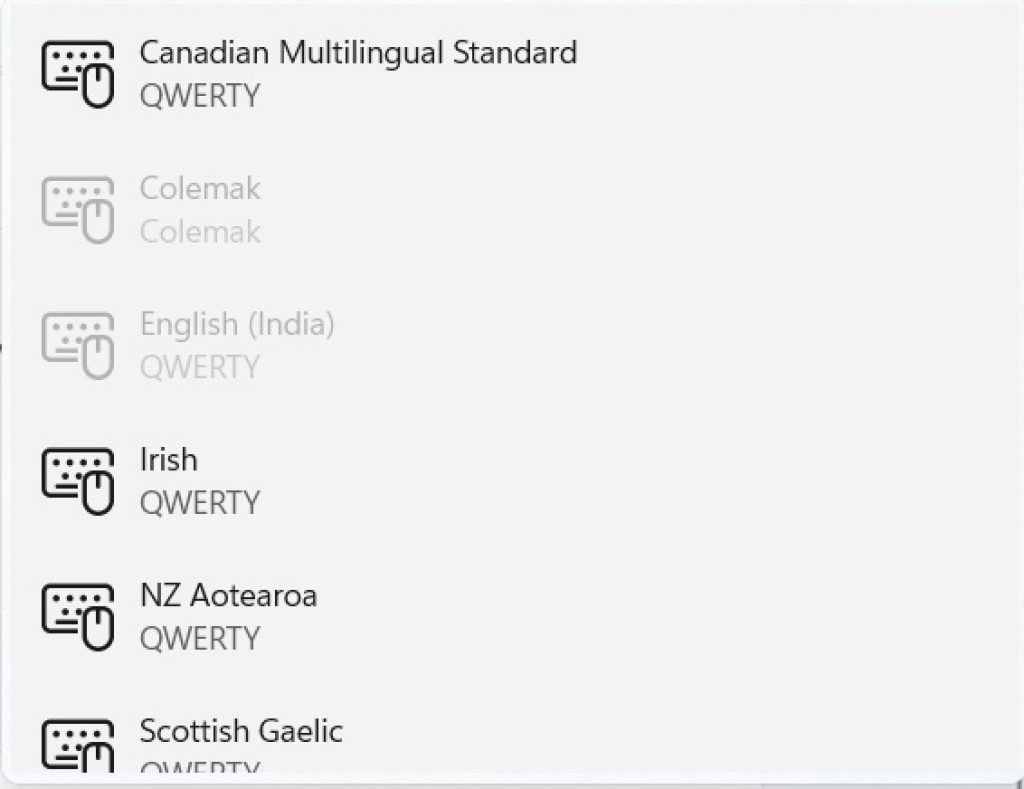
Once the keyboard is added, you can easily switch between layouts from the taskbar.
If the language you want is not already installed, you can add it by clicking Add a language in the Preferred Languages section and selecting the language from the list.
Method 2: Switch Keyboard Language Using Keyboard Shortcut
Windows 11 provides quick keyboard shortcuts that allow users to change keyboard languages instantly without opening the Settings app. This is the fastest method if you frequently switch between languages.
The default shortcut for switching keyboard layouts is:
Windows Key + Spacebar
When you press this shortcut, a small language selection menu appears on the screen. You can continue pressing the spacebar while holding the Windows key to cycle through available keyboard layouts.
Another shortcut is:
Alt + Shift
This shortcut also switches between installed keyboard languages in Windows.
These shortcuts are especially helpful for people who type in multiple languages throughout the day.
Method 3: Change Keyboard Language from the Taskbar
Windows 11 includes a language indicator on the taskbar. This indicator shows the current keyboard language or layout you are using. It usually appears as a two or three letter abbreviation such as ENG for English.
You can change the keyboard language directly from the taskbar by following these steps:
• Locate the language icon on the right side of the taskbar
• Click the language abbreviation (such as ENG)
• A list of available keyboard layouts will appear
• Select the keyboard layout you want to use
Once selected, the keyboard layout will immediately change.
This method is simple and convenient because it only requires a single click.
Method 4: Add a New Keyboard Language
If the language you want is not available on your computer, you can install it easily through the Windows 11 language settings.
Follow these steps to add a new keyboard language:
• Open Settings
• Go to Time & Language
• Click Language & Region
• Click Add a language
• Search for the language you want to install
• Select the language
• Click Next
• Click Install
After installing the language, you can add keyboard layouts for that language through the Language Options section.
Windows may also install additional typing tools, speech recognition features, and handwriting support depending on the language you choose.
Method 5: Remove Unwanted Keyboard Languages
Sometimes users accidentally add extra keyboard layouts that they do not need. Having too many keyboard languages can make switching between layouts confusing.
You can remove unnecessary keyboard layouts using the following steps:
• Open Settings
• Click Time & Language
• Select Language & Region
• Find the language you want to remove
• Click the three dots next to the language
• Select Remove
If you only want to remove a keyboard layout but keep the language, open Language Options and remove the specific keyboard from the list.
This helps keep your language settings organized.
How to Change Default Keyboard Language
Windows 11 allows you to set a default keyboard language. This language will automatically be used whenever you start your computer or open new applications.
To change the default keyboard language:
• Open Settings
• Go to Time & Language
• Click Typing
• Select Advanced keyboard settings
• Under Override for default input method, choose your preferred keyboard language
After selecting the default language, Windows will automatically use that layout for typing.
Using the Language Bar in Windows 11
The Language Bar is another feature that allows users to switch keyboard languages easily. Although it is hidden by default in Windows 11, you can enable it from the advanced keyboard settings.
To enable the language bar:
• Open Settings
• Go to Time & Language
• Click Typing
• Select Advanced keyboard settings
• Enable Use the desktop language bar when available
Once enabled, the language bar appears on the desktop and allows quick switching between languages.
This feature is useful for users who prefer a floating language selection tool instead of the taskbar option.
How to Change Keyboard Layout Without Changing Display Language
Some users want to type in another language but keep the Windows interface in English. Windows 11 allows you to add keyboard layouts without changing the display language.
When installing a new language, you can choose to install only the keyboard layout. This means the menus, system settings, and interface will remain in your current display language.
To do this, add the language normally but do not change it as the Windows display language.
This is useful for people who type in multiple languages but prefer the operating system interface in a single language.
How to Fix Keyboard Language Not Changing
Sometimes users may experience issues where the keyboard language does not change properly. This can happen due to incorrect settings or system glitches.
Here are a few solutions you can try:
First, restart your computer. Restarting often fixes temporary glitches.
Second, check your installed keyboard layouts. Make sure the correct layouts are installed and enabled.
Third, verify keyboard shortcuts. Ensure the language switching shortcut is working properly.
Fourth, update Windows 11. System updates often fix bugs related to language settings.
Finally, remove and reinstall the keyboard layout if the problem continues.
These steps usually resolve most keyboard language issues.
Final Thoughts
Changing the keyboard language on Windows 11 is a simple but powerful feature that allows users to type in different languages easily. Whether you are writing emails, preparing documents, or communicating with international contacts, having the ability to switch keyboard layouts can make your work much easier.
Windows 11 provides several ways to change keyboard languages, including the Settings app, keyboard shortcuts, the taskbar language indicator, and the language bar. These options ensure that users can quickly switch layouts whenever needed.
Adding new keyboard languages is also straightforward, and removing unnecessary layouts helps keep your system organized. By learning how to manage keyboard languages properly, you can improve your typing efficiency and adapt your computer to your language needs.
If you frequently work with multiple languages, mastering these keyboard language settings will help you work faster and more comfortably on Windows 11.