
 Olivia Harper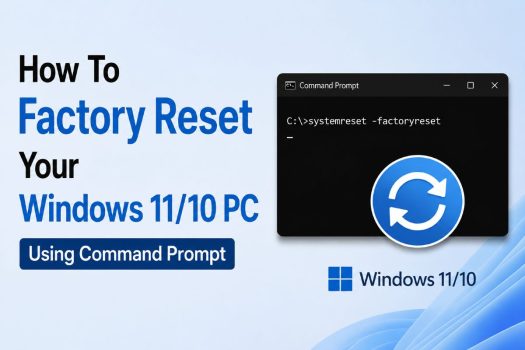
If your Windows 11 or Windows 10 computer has become sluggish, riddled with errors, or you’re preparing to sell or give it away, a factory reset is often the fastest fix. While most people reach for the Settings app, there’s a faster, more reliable way to wipe your PC back to its original state: Command Prompt.
Using Command Prompt to factory reset your PC is especially useful when your system won’t boot properly, the Settings app is frozen or corrupted, or you simply prefer the speed and control that command-line tools offer. In this guide, you’ll learn four proven methods to factory reset Windows 11 or Windows 10 using Command Prompt — whether you’re inside Windows, in the Advanced Startup Recovery Environment, or booting from installation media.
Before you begin, back up any important files. A factory reset erases installed programs and can erase personal data too, depending on the method and options you choose.
What Does a Factory Reset Actually Do?
A factory reset restores your PC to its original, out-of-the-box software state. Depending on the method you choose, it can:
- Remove installed apps and programs
- Reset system settings to default
- Optionally delete personal files, photos, and documents
- Reinstall or refresh core Windows system files
- Clear malware, corrupted files, or persistent errors
Command Prompt gives you direct access to the built-in Windows tools that power this process — without needing to click through multiple Settings menus.
Before You Start: Important Precautions
- Back up your data. Copy important files to an external drive or cloud storage.
- Charge your laptop or keep it plugged in. A factory reset can take 30 minutes to a few hours; a power interruption can corrupt the installation.
- Have your Windows product key handy (if applicable), especially for Method 4.
- Note down installed software and license keys you’ll need to reinstall afterward.
- Run Command Prompt as Administrator. Every method below requires elevated privileges.
With that covered, let’s walk through the four methods.
Method 1: Factory Reset Using the systemreset Command
This is the quickest way to trigger Windows’ built-in “Reset this PC” tool directly from Command Prompt, bypassing the Settings app entirely.
Steps:
- Press Windows + S, type
cmd, right-click Command Prompt, and select Run as administrator. - In the elevated Command Prompt window, type the following command and press Enter:
systemreset -factoryreset- Windows will launch the Reset this PC wizard automatically.
- Choose one of two options:
- Keep my files – removes apps and settings but keeps personal files
- Remove everything – wipes apps, settings, and personal files completely
- If prompted, choose between Cloud download (downloads a fresh copy of Windows) or Local reinstall (uses existing files on your PC).
- Confirm your selections and click Reset.
- Your PC will restart several times during the process. Avoid interrupting it.
Why Use This Method?
This command is ideal when you want the standard Windows reset experience but prefer launching it via Command Prompt — useful for scripting, remote troubleshooting, or when Settings won’t open due to a system glitch.
Method 2: Factory Reset Using systemreset -cleanpc (Fresh Start)
This lesser-known command triggers Windows’ Fresh Start feature, which reinstalls the latest version of Windows while removing most pre-installed manufacturer software (bloatware) — something the standard reset doesn’t always do.
Steps:
- Open Command Prompt as Administrator.
- Type the following command and press Enter:
systemreset -cleanpc- A Fresh Start or Clean Install Windows window will open.
- Read the on-screen summary of what will be removed and kept.
- Click Get Started.
- Confirm the action; Windows will begin downloading a clean copy of the OS (an internet connection is required) and reinstalling it.
- Your PC restarts automatically and completes the process, which can take significantly longer than a standard reset since it re-downloads Windows.
Why Use This Method?
Choose this option if your goal is not just a reset but a genuinely clean, bloatware-free installation of Windows 11 or Windows 10 — great for older laptops that came loaded with manufacturer trial software.
Note: systemreset -cleanpc always removes personal files. There’s no “keep my files” option with this command, so back up your data first.
Method 3: Factory Reset Using reagentc in the Recovery Environment
If your PC won’t boot into Windows normally, you can still factory reset it using Command Prompt from the Windows Recovery Environment (WinRE). This method uses the reagentc tool, which manages the Windows Recovery Agent.
Steps:
- Boot into the Recovery Environment:
- If Windows won’t start, it usually boots into WinRE automatically after 2–3 failed boot attempts.
- Alternatively, from a working PC: Settings > System > Recovery > Advanced startup > Restart now.
- Or hold Shift and click Restart from the Start menu power options.
- Once in the Choose an option screen, go to:
Troubleshoot > Advanced options > Command Prompt- In the Command Prompt window that opens, type:
reagentc /infoThis confirms the recovery agent is enabled and shows its status. 4. To trigger the factory reset process, type:
reagentc /factoryreset- Press Enter and confirm any prompts.
- The system will restart and launch the Reset this PC wizard, where you can choose to keep or remove your files, just as in Method 1.
Why Use This Method?
This is the go-to solution when Windows won’t boot normally, when you’re locked out, or when malware has disabled access to Settings. Because it runs from the recovery partition rather than the main OS, it works even on a badly damaged Windows installation.
Method 4: Factory Reset Using Bootable Installation Media and DiskPart
For a true “wipe and reinstall from scratch” reset — useful when you’re selling a PC, dealing with severe corruption, or want to completely erase the drive including hidden recovery partitions — you can boot from a USB installation drive and use Command Prompt’s diskpart utility.
What You’ll Need:
- A USB drive (8GB or larger)
- Windows 11/10 installation media created using the Media Creation Tool from another working PC
- Your Windows product key (if not digitally linked to your device)
Steps:
- Insert the USB installation drive and boot your PC from it (you may need to change the boot order in BIOS/UEFI settings, commonly accessed via F2, F12, DEL, or ESC during startup).
- On the Windows Setup screen, press Shift + F10 to open Command Prompt.
- Type
diskpartand press Enter to launch the disk partitioning tool. - List all available disks:
list disk- Select the disk you want to wipe (replace
0with your actual disk number):
select disk 0- Completely erase the disk, including all partitions:
clean- Exit DiskPart:
exit- Close the Command Prompt window and return to the Windows Setup screen.
- Click Install Now and follow the on-screen instructions to reinstall Windows on the now-empty drive.
- Enter your product key when prompted, select your edition, and choose Custom: Install Windows only.
- Select the unallocated space you just created and click Next to begin installation.
Why Use This Method?
This is the most thorough reset possible. Unlike Methods 1–3, which use Windows’ built-in reset mechanisms, this approach completely erases the drive at the partition level — removing every trace of data, including recovery partitions, before installing a completely fresh copy of Windows. It’s the recommended method before selling, donating, or recycling a PC.
Warning: The clean command in DiskPart is irreversible and erases everything on the selected disk. Double-check you’ve selected the correct disk number before proceeding, especially if multiple drives are connected.
Comparing the Four Methods
| Method | Best For | Requires Boot Into Windows? | Removes Recovery Partition? |
|---|---|---|---|
systemreset -factoryreset | Standard reset, quick and simple | Yes | No |
systemreset -cleanpc | Removing bloatware, clean install | Yes | No |
reagentc /factoryreset | PC won’t boot normally | No (uses WinRE) | No |
| DiskPart + installation media | Selling/donating PC, deepest clean | No (uses bootable USB) | Yes |
Frequently Asked Questions
1. Will factory resetting my Windows 11/10 PC using Command Prompt delete all my files?
It depends on the method and the options you choose. systemreset -factoryreset and reagentc /factoryreset both let you choose Keep my files or Remove everything. systemreset -cleanpc always removes personal files, since it’s designed for a truly fresh installation. The DiskPart method (Method 4) also erases everything on the drive, since it wipes the disk entirely before reinstalling Windows. Regardless of which method you use, it’s strongly recommended to back up important files beforehand, since interruptions or misclicks can lead to unintended data loss.
2. Can I factory reset my PC using Command Prompt if Windows won’t boot?
Yes. If your PC won’t start normally, you can still perform a factory reset using Method 3 (reagentc /factoryreset) from the Windows Recovery Environment, or Method 4 using bootable installation media. Both approaches don’t require a functioning Windows installation to run, since they operate from the recovery partition or an external USB drive rather than the main operating system. This makes them ideal for PCs affected by corrupted system files, boot loops, or severe malware infections that prevent normal startup.
Final Thoughts
Factory resetting your Windows 11 or Windows 10 PC using Command Prompt gives you more flexibility and reliability than navigating through Settings menus alone — particularly when your PC is malfunctioning or won’t boot. For everyday resets, systemreset -factoryreset is fast and effective. If you want a genuinely clean slate free of manufacturer bloatware, systemreset -cleanpc is the better choice. When Windows won’t start at all, reagentc /factoryreset from the Recovery Environment comes to the rescue. And for the deepest possible clean — ideal before selling or donating your PC — booting from installation media and using DiskPart’s clean command ensures nothing is left behind.
Whichever method you choose, always back up your data first, keep your PC connected to power throughout the process, and avoid interrupting the reset once it begins.





