Geeksdigit Team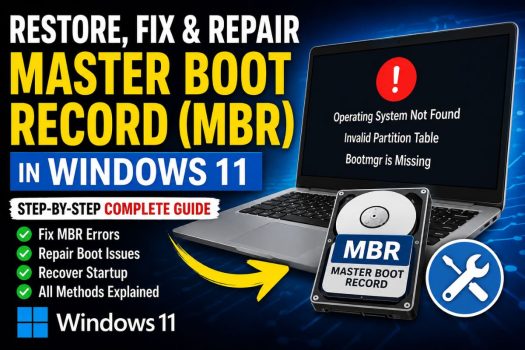
The Master Boot Record (MBR) is one of the most important parts of a storage drive. It contains the information Windows needs to locate the active partition and begin the startup process. If the MBR becomes corrupted, damaged, or overwritten, your Windows 11 PC may fail to boot properly, displaying errors such as Operating System Not Found, Invalid Partition Table, Missing Operating System, or Bootmgr Is Missing. In some cases, the computer may simply remain on a black screen after turning it on.
MBR corruption can happen for several reasons, including sudden power failures, malware infections, failed operating system installations, disk cloning errors, hard drive problems, or accidental changes made during partition management. Fortunately, Windows 11 includes several built-in tools that can repair boot problems without requiring third-party software.

In this guide, you’ll learn the best ways to restore, fix, and repair the Master Boot Record in Windows 11. The methods begin with simple built-in repair options and progress to more advanced solutions using Command Prompt. Follow them in order until your computer starts normally again.
What Is the Master Boot Record (MBR)?
The Master Boot Record, commonly known as MBR, is located in the very first sector of a traditional hard drive or SSD. It contains a small boot loader program along with the partition table, which tells the computer where Windows is installed.
When you press the power button, your computer’s firmware reads the MBR before loading Windows. If this information is damaged or missing, the firmware cannot locate the operating system, preventing Windows from starting.
Modern computers often use GPT (GUID Partition Table) together with UEFI firmware instead of MBR and Legacy BIOS. However, many systems still use MBR, especially older PCs, cloned drives, virtual machines, and systems configured in Legacy Boot mode. Before attempting MBR repair, it’s helpful to know whether your computer actually uses MBR or GPT.
Some common signs of MBR corruption include:
- Operating System Not Found
- Invalid Partition Table
- Missing Operating System
- Bootmgr Is Missing
- Black screen immediately after startup
- Windows stuck before the loading animation
- Endless reboot loop
If you’re experiencing any of these issues, the following methods can help repair the boot record and restore normal startup.
Method 1: Run Startup Repair
Startup Repair is the easiest method to try because Windows automatically detects and fixes many boot-related problems without requiring manual commands.
If Windows cannot boot several times in succession, it often enters the Windows Recovery Environment automatically. If not, you’ll need a Windows 11 installation USB.
To launch Startup Repair:
- Boot from the Windows 11 installation media.
- Select your language and keyboard layout.
- Click Next.
- Select Repair your computer instead of Install now.
- Choose Troubleshoot.
- Open Advanced options.
- Select Startup Repair.
- Choose your Windows installation.
- Allow Windows to scan and repair startup problems.
During this process, Windows checks boot configuration files, startup settings, and several boot-related components. If it finds damaged boot information, it automatically repairs it.
After Startup Repair finishes, restart your computer and check whether Windows starts normally.
If Startup Repair reports that it couldn’t repair your PC, continue with the next method.
Method 2: Repair the MBR Using Bootrec Commands
The Bootrec utility is Microsoft’s primary tool for repairing damaged boot records. It can rebuild the MBR, repair the boot sector, scan for Windows installations, and recreate Boot Configuration Data.
Boot into the Windows Recovery Environment again.
Navigate to:
Troubleshoot → Advanced options → Command Prompt
Once Command Prompt opens, type the following command:
bootrec /fixmbrPress Enter.
This command writes a fresh Master Boot Record without modifying your existing partitions or deleting personal files. It is safe to use when only the MBR itself has become corrupted.
Next, run:
bootrec /fixbootThis repairs the boot sector.
If you receive Access is denied, don’t worry. This is relatively common on newer Windows installations and can often be resolved using later methods in this guide.
Now run:
bootrec /scanosWindows searches all connected drives for operating system installations that aren’t currently included in the boot configuration.
Finally, execute:
bootrec /rebuildbcdIf Windows finds an installation, type:
Yand press Enter to add it to the Boot Configuration Data.
Once all commands have completed successfully, restart your PC.
In many cases, this restores the MBR and allows Windows 11 to boot normally again.
Method 3: Use the Bootsect Command to Rewrite the Boot Sector
Sometimes the Master Boot Record itself isn’t damaged, but the boot sector has become corrupted. This often happens after installing another operating system, using third-party partition software, or restoring disk images.
The Bootsect utility can rewrite the boot sector using Windows-compatible boot code.
Open Command Prompt from the Windows Recovery Environment.
Enter:
bootsect /nt60 sysThis updates the system partition’s boot code.
To update every compatible partition on the system, run:
bootsect /nt60 allIf you’re asked for confirmation, type:
Yand press Enter.
After Bootsect finishes, restart the computer.
This method frequently resolves startup problems caused by damaged boot sectors without affecting installed programs or personal files.
Method 4: Rebuild the Boot Configuration Data (BCD)
Even with a healthy Master Boot Record, Windows may still refuse to boot if the Boot Configuration Data (BCD) store is damaged or missing. The BCD contains the information Windows Boot Manager uses to locate installed operating systems and determine how they should start.
A corrupted BCD can occur after interrupted Windows updates, failed operating system upgrades, malware infections, partition changes, or disk cloning. Fortunately, Windows includes commands that allow you to rebuild the BCD store from scratch.
Start by booting into the Windows Recovery Environment using a Windows 11 installation USB or by accessing the Advanced Startup options.
Open Troubleshoot, select Advanced options, and then launch Command Prompt.
First, scan your drives for Windows installations by entering:
bootrec /scanosIf Windows detects an installation that is not listed in the current boot configuration, continue with the following command:
bootrec /rebuildbcdThe tool scans all attached storage devices for Windows installations. If one or more installations are found, you’ll be prompted to add them to the boot list.
Type:
Yand press Enter.
If the rebuild process completes successfully, restart your computer and check whether Windows starts correctly.
Sometimes the BCD store becomes so badly damaged that rebuilding it fails. In those situations, you can rename the existing BCD and create a completely new one.
Enter the following commands one at a time:
bcdedit /export C:\BCD_Backupattrib C:\boot\bcd -h -r -sren C:\boot\bcd bcd.oldbootrec /rebuildbcdThis creates a fresh Boot Configuration Data store while preserving the old one as a backup.
After restarting, Windows often boots normally if the damaged BCD was the cause of the startup problem.
Method 5: Repair Disk Errors Using CHKDSK
Sometimes the Master Boot Record appears to be corrupted when the actual problem is bad sectors or file system errors on the drive. If Windows cannot reliably read the beginning of the disk, boot failures may occur even though the MBR itself is intact.
The Check Disk (CHKDSK) utility scans the drive for logical file system errors and physical bad sectors, repairing readable data wherever possible.
Boot into the Windows Recovery Environment and open Command Prompt.
Type the following command:
chkdsk C: /f /rPress Enter.
If Windows is installed on another drive letter within the recovery environment, replace C: with the appropriate letter.
The parameters have different purposes:
- /f fixes logical file system errors.
- /r locates bad sectors and attempts to recover readable information.
Depending on the size and condition of your storage drive, the scan may take anywhere from several minutes to several hours. Interrupting the process is not recommended.
Once CHKDSK completes, review the results displayed in Command Prompt. If numerous file system errors were repaired, restart the computer before attempting additional repair methods.
If the scan reports many bad sectors, the storage device itself may be failing. In that case, you should back up important data as soon as possible and consider replacing the drive before reinstalling Windows.
Method 6: Repair Corrupted System Files Using SFC and DISM
In some situations, the Master Boot Record is functioning correctly, but Windows still refuses to boot because essential system files have become corrupted. Damaged operating system files can interfere with the startup process, making it appear as though the MBR is at fault. Running the System File Checker (SFC) and Deployment Image Servicing and Management (DISM) tools can repair these files without affecting your personal data.
If you can access Safe Mode or the Windows Recovery Environment, open Command Prompt with administrative privileges.
Start by running the System File Checker:
sfc /scannowThe utility scans all protected Windows system files and automatically replaces corrupted versions with clean copies stored in the Windows component cache.
The scan may take 15 to 30 minutes depending on your system’s performance. Once it finishes, you’ll receive one of several messages indicating whether Windows found and repaired any integrity violations.
If SFC reports that it could not repair some files, continue with DISM.
Run the following command:
DISM /Online /Cleanup-Image /RestoreHealthIf Windows cannot boot normally, you may need to run DISM using an offline Windows image from installation media. In that case, the command becomes:
DISM /Image:C:\ /Cleanup-Image /RestoreHealthReplace C: with the correct Windows drive letter if necessary.
DISM compares damaged Windows components against a healthy source and restores missing or corrupted files. Depending on the amount of corruption, the repair process may take several minutes.
After DISM completes successfully, restart your computer and run the SFC scan once again. This second scan often repairs files that could not be fixed before the Windows image was restored.
Many startup issues disappear after repairing damaged system files, especially when the boot process fails shortly after the Windows logo appears.
Method 7: Restore Windows Using System Restore
If your PC started experiencing boot problems after installing new drivers, Windows updates, third-party software, or making significant system changes, System Restore can return Windows to a previous working state without deleting your personal documents, photos, or other files.
System Restore works by restoring system files, installed drivers, registry settings, and configuration data from a restore point that was created earlier.
To access System Restore, boot into the Windows Recovery Environment.
Navigate to:
Troubleshoot → Advanced options → System Restore
Select your Windows installation and sign in if prompted.
A list of available restore points appears. Choose a restore point that was created before the startup problem began.
Click Next and review the confirmation page carefully before selecting Finish.
Windows warns that the restoration process cannot be interrupted once it begins. Confirm your choice and allow the computer to complete the restoration automatically.
The process may take several minutes, during which the computer restarts one or more times.
Once completed, Windows should load using the earlier system configuration. Programs and drivers installed after the selected restore point may need to be reinstalled, but your personal files remain untouched.
If no restore points are available, proceed to the next method.
Method 8: Reset or Reinstall Windows 11
If none of the previous methods repair the Master Boot Record or restore Windows startup, resetting or reinstalling Windows may be the most effective solution.
Before choosing this option, ensure you’ve attempted Startup Repair, Bootrec commands, Bootsect, CHKDSK, SFC, DISM, and System Restore. A clean installation should generally be considered the final troubleshooting step.
Windows 11 provides a Reset this PC feature that allows you to reinstall the operating system while optionally keeping your personal files.
Boot into the Windows Recovery Environment and choose:
Troubleshoot → Reset this PC
You’ll see two options.
Keep my files
This option reinstalls Windows while preserving your personal documents, pictures, videos, and other user data. Installed desktop applications and custom settings will be removed, so you’ll need to reinstall them afterward.
Remove everything
This option completely erases Windows, applications, settings, and personal files before installing a fresh copy of Windows 11. It’s recommended only if you’re planning to sell the computer or if severe corruption cannot be repaired.
If Windows Recovery is unavailable, create a bootable Windows 11 installation USB using another computer.
Boot from the USB drive, select Install now, choose the appropriate partition, and follow the on-screen instructions to perform a clean installation.
A fresh installation recreates the boot partition, boot sector, Boot Configuration Data, and Master Boot Record (where applicable), eliminating virtually all software-related boot problems.
However, if Windows still fails to boot even after a clean installation, the issue is likely hardware-related. Common causes include:
- A failing hard drive or SSD.
- Loose SATA or power cables.
- Faulty RAM.
- Motherboard problems.
- Incorrect BIOS or UEFI settings.
- A defective storage controller.
In such cases, hardware diagnostics or component replacement may be necessary.
How to Prevent MBR Corruption in the Future
Although MBR corruption is relatively uncommon, following a few best practices can significantly reduce the chances of encountering boot-related problems.
Always shut down your computer properly instead of forcing it to power off. Sudden power interruptions while Windows is writing boot information can damage startup files.
Keep Windows 11 updated so that security patches and reliability improvements are installed regularly.
Use a trusted antivirus solution to protect against malware capable of modifying boot records.
Avoid interrupting Windows updates or disk partition operations. If you’re resizing partitions or cloning drives, use reputable software and ensure the process completes successfully.
Create regular system restore points and maintain periodic backups of important files. Having a recent backup makes recovery much easier if boot problems occur unexpectedly.
Monitor your storage drive’s health using SMART diagnostic tools. Replacing a failing drive before it completely stops working can prevent serious data loss and repeated boot failures.
If your computer uses GPT with UEFI firmware, avoid unnecessarily switching between Legacy BIOS and UEFI modes, as mismatched firmware settings can prevent Windows from booting.
Conclusion
A damaged Master Boot Record can prevent Windows 11 from starting, but in most situations it doesn’t mean your operating system or personal files are permanently lost. Windows includes several built-in recovery tools capable of repairing startup problems without requiring third-party utilities.
Begin with Startup Repair, as it automatically fixes many common boot issues. If that doesn’t resolve the problem, use the Bootrec commands to rebuild the Master Boot Record and Boot Configuration Data. The Bootsect utility can repair damaged boot sectors, while CHKDSK repairs file system errors and bad sectors that may interfere with startup. Running SFC and DISM restores corrupted Windows system files, and System Restore can reverse recent software changes that caused the issue. If all repair methods fail, resetting or reinstalling Windows 11 provides a clean operating system and recreates the required boot files.
Following these methods in order gives you the best chance of restoring a non-booting Windows 11 PC while preserving your data whenever possible.
Frequently Asked Questions
1. Can repairing the MBR delete my files?
No. Commands such as bootrec /fixmbr rewrite only the Master Boot Record and do not erase your personal files or installed programs. However, it’s always recommended to back up important data whenever possible before performing disk repairs.
2. How do I know if my computer uses MBR or GPT?
Open Disk Management, right-click your system disk, choose Properties, open the Volumes tab, and check the Partition style field. It will display either Master Boot Record (MBR) or GUID Partition Table (GPT).
3. Why does bootrec /fixboot show “Access is denied”?
This usually occurs on UEFI-based systems or when the EFI System Partition requires additional repair. Rebuilding the BCD, assigning a drive letter to the EFI partition, or using the Bootsect command often resolves the issue.
4. Can a failing SSD or hard drive cause MBR errors?
Yes. If the drive contains bad sectors or is beginning to fail, Windows may be unable to read the Master Boot Record or other startup files. Running CHKDSK and checking the drive’s SMART health can help determine whether hardware failure is the underlying cause.