
 Sukhdev Kamboj
Few things trigger panic quite like realizing you just deleted a file you actually needed. Maybe you cleared out a folder in a hurry, a sync glitch wiped something unexpectedly, or someone else with shared access removed a document you were counting on. Whatever the cause, the good news is that OneDrive was built with exactly this scenario in mind.
Unlike a simple “delete means gone” system, OneDrive uses a layered safety net. When you delete a file, it doesn’t vanish instantly — it moves through a series of holding areas first, giving you multiple chances to bring it back before it’s truly gone for good. Understanding how that system works, and knowing which method fits your situation, is the difference between a five-minute fix and a permanently lost file.
This guide walks through every practical way to recover deleted files from OneDrive, from the simplest first step to the more advanced options for when standard recovery doesn’t cut it. Along the way, you’ll learn how long you actually have before a deleted file becomes unrecoverable, and what to do if you’re already past that window.
Methods to Recover Deleted Files From OneDrive
1. Check the OneDrive Recycle Bin First
This is where almost every recovery journey should start. When you delete a file from OneDrive — whether from the website, a synced folder, or a mobile app — it’s moved into OneDrive’s own Recycle Bin rather than being erased immediately.
You can restore files from your Recycle Bin by opening the Recycle Bin, selecting the files or folders you want to recover, then choosing Restore, which returns the item to its original folder. Here’s the general process:
Sign in to OneDrive on the web.
Select Recycle bin in the left-hand navigation pane.
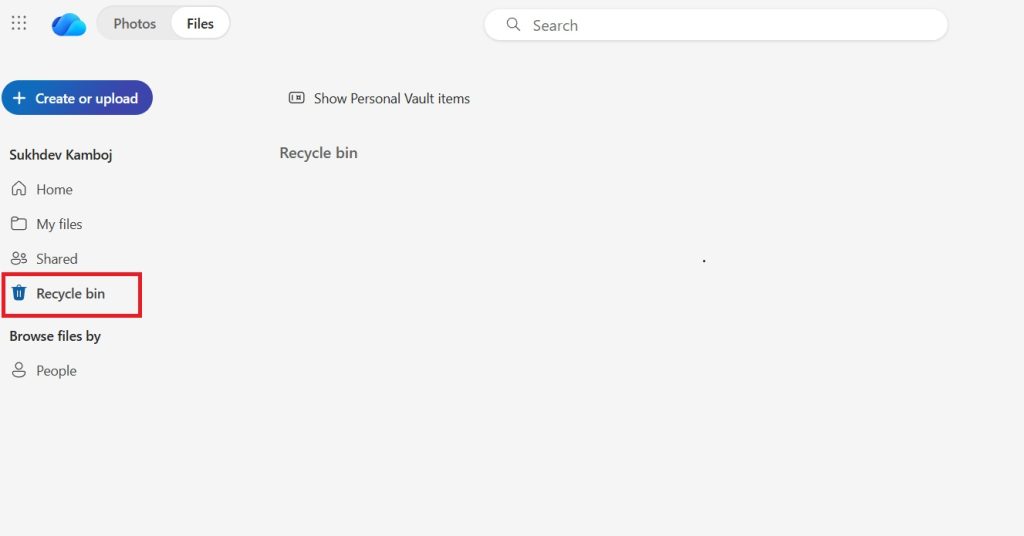
Hover over each item you want back and click the checkbox that appears (or select Restore all items to recover everything at once).
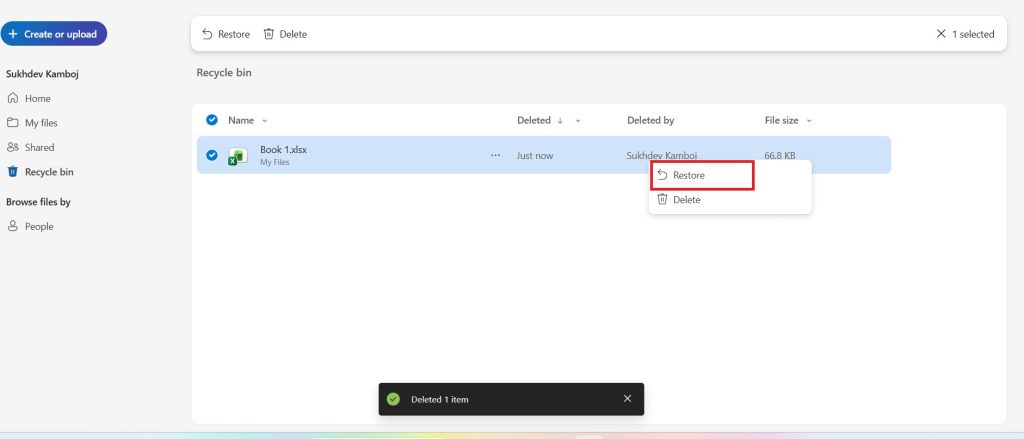
Click Restore.
It’s worth knowing that retention windows differ depending on your account type. If you’re signed into OneDrive with a Microsoft personal account, items in the recycle bin are automatically deleted 30 days after they’re placed there, while work or school accounts typically keep items for 93 days unless an administrator has changed that setting. There’s also a nuance around Personal Vault: files deleted from your Personal Vault will only show up in the recycle bin if the Personal Vault is unlocked first, though you can use the “Show Personal Vault items” command to unlock it and view those files.
One important distinction: this cloud-based Recycle Bin is separate from your device’s own Recycle Bin or Trash. A file can be missing from one and still present in the other, so don’t assume it’s gone just because it’s not where you first looked.
2. Check Your Device’s Recycle Bin or Trash
Because OneDrive syncs a local copy of your files to your computer (unless they’re set to “online-only”), deleting a synced file can also send it to your device’s own recycle system.
To restore files from your Recycle Bin in Windows, open the Recycle Bin, select the files or folders you want to recover, then right-click them and select Restore, which returns the file or folder to its original folder; on a Mac, you’d open Trash, select the items, and use the equivalent restore option.
There’s a catch, though: this only works for files that had a local, on-disk presence. If a file was marked “online-only” in OneDrive — meaning it lived in the cloud and hadn’t been downloaded to your device — deleting it won’t create a local copy in your device’s bin, because there was never a local copy to begin with. In that case, the OneDrive web Recycle Bin is your only native option.
3. Use the Second-Stage Recycle Bin
If a file has already been removed from the standard OneDrive Recycle Bin — either manually or because time ran out — there’s often one more safety net, particularly for work or school accounts tied to SharePoint.
Once items pass the standard retention window, they’re temporarily moved to a Second-Stage Recycle Bin, which is accessible via a link at the bottom of the Recycle Bin page. This second stage functions similarly to the first: once a file is deleted from the primary Recycle Bin, it moves here and stays until it’s either restored or the remaining retention time runs out.
For organizational accounts, this second tier is essentially the SharePoint site collection Recycle Bin. When you delete items from a site Recycle Bin, they’re sent to the site collection Recycle Bin, and a site collection administrator can view and restore deleted items from there back to their original locations. The default retention period for any item in this second stage is 30 days, and that clock starts from the original deletion — not from when the item moved into this second bin.
If you’re on a personal Microsoft account without SharePoint infrastructure, this second-stage option is generally not available, which makes catching mistakes within the first 30 days especially important.
4. Restore a Previous Version of a File
Sometimes the problem isn’t that a file was deleted, but that it was overwritten, corrupted, or edited in a way you didn’t want. For that, OneDrive’s version history feature can help — even though the file itself was never technically deleted.
You can use OneDrive version history to restore older versions of a file by going to the OneDrive website, right-clicking the document, and selecting Version history, which opens the file in a viewer where you can pick an earlier version to restore.
This is especially useful for shared documents that multiple people edit, where an unwanted change might otherwise look like “lost” content rather than an outright deletion.
5. Use “Restore Your OneDrive” to Roll Back Everything
If the damage is widespread — a sync error deleted dozens of files, a ransomware-style event altered your library, or you simply can’t pinpoint every individual item that’s missing — OneDrive’s full restore feature is built for exactly this. This option is available to Microsoft 365 subscribers.
<cite index=”6-1″>Files that were modified or deleted within the last 30 days, and haven’t been permanently deleted using the “Empty the recycle bin” option, can typically be recovered using this rollback tool.</cite> The process works like this:
- Go to Settings and select Restore your OneDrive.
- Verify your identity if prompted.
- Select a date from the dropdown — such as “Yesterday,” “One week ago,” or a custom date and time — and use the activity chart to identify exactly when the unwanted changes or deletions happened.
- Review the activity feed carefully, since selecting a point in time automatically selects everything that happened after it.
- Select Restore. Any files or folders created after the restore point will be moved to your OneDrive Recycle Bin, though you can still recover those from there regardless of the restore point date.
This is a powerful but somewhat blunt tool — it’s considered “destructive” for newer data, since anything you created after the restore point gets swept into the Recycle Bin, so it’s wise to make sure your most recent work is backed up separately before running a full rollback. The good news is it’s reversible if you change your mind: you can undo a restore by running Restore again and selecting the restore action you just performed.
6. Contact Microsoft Support or Your IT Administrator
If a file has been fully removed from every available Recycle Bin — first stage, second stage, and it’s outside the restore window — native self-service tools generally can’t bring it back. Microsoft’s own documentation is direct about this: if a file has been permanently deleted from your OneDrive Recycle Bin, it can never be recovered through standard means.
There are two narrow exceptions worth checking, both relevant mainly to work or school accounts:
- SharePoint’s extended window. SharePoint Online can retain backups for up to 14 additional days beyond deletion, during which an administrator can contact Microsoft Support to request a restore of the entire site collection — though this applies to the whole collection rather than individual files.
- Microsoft 365 Backup. Organizations can also use Microsoft 365 Backup, which offers a longer protection window and faster recovery options than the standard Recycle Bin system.
If you manage a business account, it’s worth asking your IT team whether either of these applies before assuming a file is truly gone.
7. Try Third-Party Data Recovery Software (Last Resort)
For files that synced locally and were deleted from both OneDrive and your device — and are now unrecoverable through Microsoft’s own tools — there’s one more avenue, though it’s far from guaranteed. When a file is deleted from a local drive, the space it occupied isn’t always overwritten immediately; in that window, the data effectively sits in what’s called “unallocated space” on the drive, where specialized recovery software may still be able to piece it back together.
This approach only works on local, on-disk copies (not files that were purely cloud-hosted), success isn’t guaranteed, and the more you use the drive afterward, the lower your odds get. It’s a genuine last resort — treat every other method above as your first line of defense, and treat this one as damage control after everything else has failed.
Conclusion
Losing a file in OneDrive feels worse than it usually is, because the platform is genuinely designed to give you several chances to undo a mistake. Start with the basics: check the OneDrive Recycle Bin, then your device’s own Recycle Bin or Trash. If those come up empty, look for a second-stage bin, try restoring a previous version, or roll back your entire OneDrive to a point before the deletion happened. For business accounts, extended SharePoint retention or Microsoft 365 Backup can sometimes stretch that window even further. Only when all of those options are exhausted should third-party recovery tools enter the picture, and even then, results aren’t guaranteed.
The bigger lesson here is about timing. Every recovery method in OneDrive has a clock attached to it — 30 days for personal accounts, 93 for most work and school accounts, sometimes a bit more with extended backup features. The sooner you notice a file is missing and act on it, the better your odds of getting it back. If file loss has been a recurring headache, it’s also worth looking into a dedicated backup solution or enabling stricter retention policies, so you’re not relying on the clock every time.
FAQ
1. How long do I have to recover a deleted file from OneDrive? If you’re signed in with a personal account, items in the Recycle Bin are kept for up to 30 days, though they may be removed sooner if the Recycle Bin exceeds 10% of your total OneDrive storage. Work and school accounts generally get 93 days, though administrators can adjust that setting. After that window, or after the second-stage bin also expires, native recovery typically isn’t possible.
2. Can I recover a file I deleted from the Recycle Bin itself? Usually not through OneDrive directly. If the deleted items are no longer visible in the OneDrive Recycle Bin, including via the web, they generally cannot be restored using OneDrive’s own features. Work or school accounts may still have a second-stage bin or backup options worth checking; personal accounts typically don’t.
3. Does the OneDrive Recycle Bin count against my storage quota? No — the Recycle Bin doesn’t count against your OneDrive storage limit, since a deleted file no longer uses your available space once it’s removed from your active library. It does, however, have its own separate capacity limit, which is why very large batches of deleted files can sometimes be purged early.
4. What’s the difference between “Restore your OneDrive” and the Recycle Bin? The Recycle Bin restores individual files or folders you select. “Restore your OneDrive” is a broader, date-based rollback that undoes a whole range of activity across your account — useful for mass deletions or accidental overwrites, but riskier since it can also affect files you created more recently. Anything created after your chosen restore point gets moved to the Recycle Bin rather than deleted outright, so it remains recoverable from there afterward.





