
 Geeksdigit Team
Remote Desktop Protocol (RDP) is one of the most convenient ways to access a Windows machine from anywhere, whether you’re troubleshooting a server, working from home, or managing a shared office PC. By default, however, Windows 11 (like Windows 10 before it) restricts Remote Desktop to a single active session at a time. If someone is already logged in — either locally or remotely — a second person trying to connect will either boot the first user out or be denied access entirely.
This limitation makes sense from Microsoft’s licensing perspective: true multi-user concurrent RDP sessions are officially a feature reserved for Windows Server editions, which use Remote Desktop Services (RDS) and Client Access Licenses (CALs) to manage multiple simultaneous remote users. Windows 11 Home and Pro, by contrast, are designed as single-user client operating systems.
That said, there are legitimate scenarios where enabling multiple concurrent RDP sessions on a Windows 11 machine is useful — for example, small teams sharing a workstation, developers testing multi-session behavior, home lab setups, or businesses that can’t yet justify a full server deployment. Fortunately, there are a few tested methods to unlock this functionality, ranging from registry tweaks and third-party tools to proper server-grade solutions.
This guide walks through the most reliable methods to enable RDP for multiple users on Windows 11, along with the pros, cons, and risks of each approach, so you can choose the one that best fits your needs.
A quick note on licensing: Modifying system files or using third-party patches to unlock multi-session RDP on a client OS may violate Microsoft’s Windows licensing terms. This guide is intended for educational, lab, and personal-use purposes. For production or commercial environments, using Windows Server with proper RDS CALs is the compliant and supported path.
Methods to Enable Multiple RDP Sessions on Windows 11
Method 1: Enable Remote Desktop (Baseline Setup)
Before attempting any multi-user workaround, make sure Remote Desktop itself is turned on.
Open Settings → System → Remote Desktop.
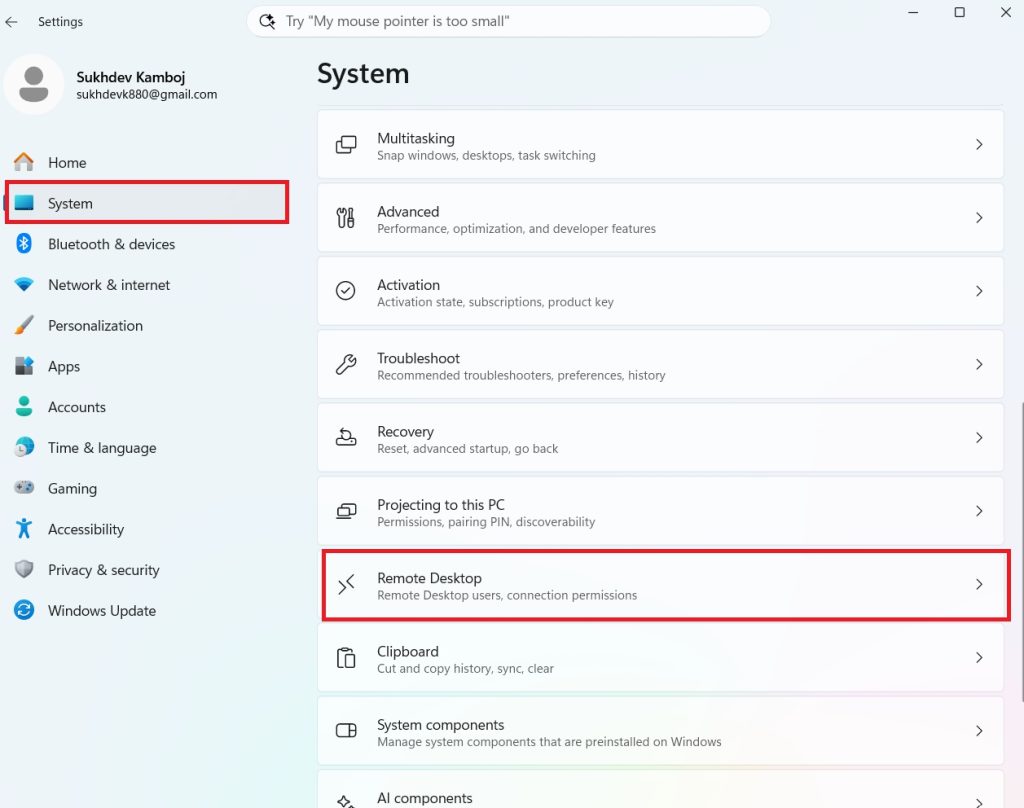
Toggle Remote Desktop to On.
Confirm the change in the pop-up dialog.
Note the PC name shown here — you’ll need it to connect later.
Click Remote Desktop Users if you want to add specific non-administrator accounts that should be allowed to connect.
By default, only accounts in the Administrators group and any accounts you explicitly add to the Remote Desktop Users group can connect. This step alone does not enable concurrent multi-user sessions — it only allows remote access in general (still limited to one active session).
Method 2: Use RDP Wrapper Library (RDPWrap)
The most popular community solution for unlocking multi-session RDP on client Windows versions is RDP Wrapper Library (RDPWrap), an open-source tool that acts as a layer between the Windows RDP service and the underlying session-management logic, effectively unlocking concurrent connections without modifying core system files (like termsrv.dll) directly.
Steps:
- Download RDP Wrapper Library from its official GitHub repository (search for “RDP Wrapper Library GitHub” to find the maintained fork, since the original project has had periods of inactivity).
- Extract the files to a folder such as
C:\Program Files\RDP Wrapper. - Run
install.batas Administrator. - Run
RDPConf.exeto verify installation — it should show a green status labeled “[Fully supported]” if the install matched your Windows build. - If the status shows “[Not supported],” you’ll need an updated
rdpwrap.inifile matching your specific Windows 11 build, which the community regularly updates. - Reboot the machine.
- Test by connecting with two different user accounts from two separate devices simultaneously.
Pros:
- Free and widely documented
- No core system file replacement
- Actively maintained by a large community
Cons:
- Breaks after major Windows feature updates until the
.iniconfig is refreshed - Not officially supported by Microsoft
- Can trigger antivirus or Windows Defender warnings (false positives are common, but always verify the source)
- Not appropriate for regulated or enterprise production environments
Method 3: Modify termsrv.dll Directly (Advanced/Legacy Method)
Before tools like RDPWrap became popular, users manually patched the termsrv.dll file (the Terminal Services core file) to remove the single-session restriction. This method is riskier and less recommended today because:
- It requires taking ownership of a protected system file and disabling Windows File Protection temporarily
- Windows Updates frequently overwrite the patched file, requiring you to redo the process
- A failed patch can cause Remote Desktop Services to stop working entirely, sometimes requiring a system repair
If you still want to pursue this route (mainly useful in isolated lab environments with no internet-connected Windows Update), the general process involves:
- Taking ownership of
C:\Windows\System32\termsrv.dllviatakeownandicaclscommands in an elevated Command Prompt. - Stopping the Remote Desktop Services service.
- Using a hex editor to change specific byte values that control the session limit check.
- Replacing the original file with the patched version.
- Restarting the Remote Desktop Services service.
Because this process varies by Windows build and carries real risk of breaking your system, most users today prefer RDP Wrapper Library, which achieves the same result more safely and reversibly.
Method 4: Use Windows Server with Remote Desktop Services (Officially Supported)
If multi-user concurrent RDP access is a genuine business requirement — not just a convenience for a lab or home setup — the fully supported and licensed path is to deploy Windows Server with the Remote Desktop Services (RDS) role.
High-level steps:
- Set up a Windows Server instance (physical, virtual, or cloud-hosted).
- Install the Remote Desktop Session Host (RDSH) role via Server Manager.
- Configure a Remote Desktop Licensing server and install the appropriate RDS CALs (per-user or per-device, depending on your needs).
- Add users or groups who should have RDP access.
- Configure session collections, load balancing (if using multiple hosts), and any group policies for session timeouts, printer redirection, etc.
- Connect using the standard Remote Desktop Connection client — multiple users can now log in concurrently without any hacks.
Pros:
- Fully supported by Microsoft, no licensing gray areas
- Stable across Windows updates
- Scales properly for teams, with centralized user and policy management
- Compatible with Remote Desktop Gateway for secure external access
Cons:
- Requires purchasing Windows Server and RDS CALs — an ongoing cost
- More complex initial setup compared to a simple client-side tweak
- Overkill for a single home PC or small personal lab
Method 5: Third-Party Remote Access Alternatives
If your goal is simply to let multiple people access a shared computer remotely — not necessarily via native RDP — tools like Parsec, AnyDesk, Chrome Remote Desktop, or TeamViewer can offer multi-session-like functionality without touching Windows’ core RDP limitations. These tools run as regular applications rather than modifying system session management, so they sidestep the single-session restriction entirely, though performance and feature sets vary by product and some require paid licenses for concurrent/business use.
Conclusion
Enabling multiple concurrent RDP sessions on Windows 11 is achievable, but the right method depends on your context. For personal projects, home labs, or small non-commercial setups, RDP Wrapper Library offers the best balance of functionality and ease of use, provided you keep its configuration file updated after Windows updates. Directly patching termsrv.dll is a legacy, higher-risk approach best reserved for isolated test environments. For any business, production, or compliance-sensitive use case, the only fully supported and licensed solution is deploying Windows Server with Remote Desktop Services, paired with proper CAL licensing. And if native RDP isn’t a strict requirement, third-party remote access tools can sidestep the whole issue.
Whichever path you choose, weigh the trade-offs between convenience, stability, licensing compliance, and long-term maintenance before committing — especially if the machine in question is used for anything beyond personal experimentation.
Frequently Asked Questions
1. Why doesn’t Windows 11 support multiple RDP users by default? Microsoft intentionally limits Remote Desktop on client operating systems (Home and Pro) to a single session to differentiate them from Windows Server, which is licensed and designed for multi-user remote access through Remote Desktop Services. This is a licensing and product-segmentation decision, not a technical impossibility.
2. Is using RDP Wrapper Library legal? RDP Wrapper Library itself is open-source software, but using it to bypass Microsoft’s session limitations may conflict with the terms of your Windows license. It’s commonly used in home labs and personal projects, but it isn’t officially sanctioned by Microsoft and carries some risk of being flagged by security software. For business or production environments, Windows Server with RDS CALs is the compliant alternative.
3. Will enabling multi-user RDP slow down my computer? Yes, to some extent. Each additional concurrent session consumes CPU, RAM, and disk resources, since every logged-in user runs their own desktop environment and applications in the background. On a typical consumer-grade Windows 11 PC, supporting more than two or three simultaneous sessions can noticeably degrade performance unless the hardware is well-equipped with ample RAM and a capable CPU.
4. What happens after a Windows 11 feature update if I’m using RDP Wrapper? Major feature updates often replace or alter the underlying Terminal Services files, which can break RDP Wrapper’s compatibility until the community releases an updated configuration file. After any significant Windows update, it’s good practice to re-run RDPConf.exe to check the support status and download the latest rdpwrap.ini if needed.





