
 Geeksdigit Team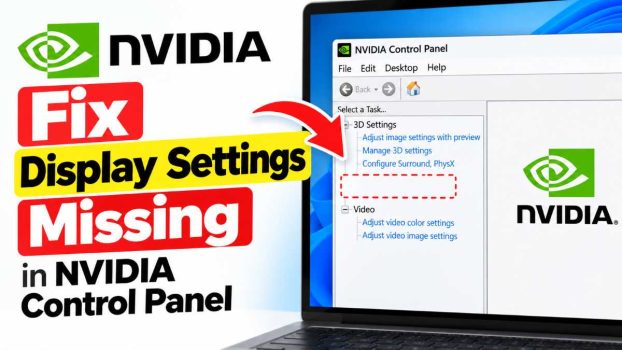
You right-click your desktop, open the NVIDIA Control Panel, and something is wrong. The “Display” section, which normally holds Change Resolution, Adjust Desktop Color Settings, Rotate Display, and Set Up G-SYNC, is gone. In some cases you only see “3D Settings” or a stripped-down menu. In others, the Control Panel opens with an error saying it can’t find display settings.
This problem is common, and it is rarely a sign of dead hardware. It usually comes down to a corrupted or mismatched driver, a stopped background service, a monitor plugged into the wrong port, or a laptop that has handed display control to its integrated graphics. Windows Update can also quietly replace your NVIDIA driver with a generic one, which strips out features.
This guide walks through the fixes in order, from the quickest checks to the more thorough ones. Work through them one at a time and test the Control Panel after each. Most people find the cause within the first four.
Why Display Settings Disappear
Knowing the likely cause helps you pick the right fix:
- The monitor is connected to the motherboard, not the graphics card. The NVIDIA Control Panel only shows Display options for screens driven by the NVIDIA GPU.
- A required NVIDIA service has stopped. The Control Panel depends on background services to communicate with the driver.
- The driver is corrupted, outdated, or was replaced by Windows Update. A generic Microsoft driver doesn’t expose the full feature set.
- Hybrid graphics on laptops. On Optimus systems, the integrated GPU (Intel or AMD) often controls the built-in screen, so the NVIDIA panel hides those settings.
- A damaged Control Panel app. The Microsoft Store version can break independently of the driver.
- Remote sessions or virtual displays. Remote Desktop and some screen-sharing tools hide display options.
Method 1: Restart Your PC and Check Your Cable Connection
It sounds basic, but it resolves a surprising number of cases.
Restart first. A full restart (not just sleep or hibernate) reloads the driver and its services. If you use Windows Fast Startup, shut down completely by holding Shift while clicking Shut Down, or restart instead.
Then check where your monitor is plugged in. On a desktop PC, you’ll see video ports in two places: on the motherboard’s I/O panel, and lower down on the graphics card itself. The graphics card ports are usually in a horizontal row or stacked on an expansion bracket. If your monitor is connected to the motherboard, it’s being driven by your CPU’s integrated graphics, and NVIDIA’s Display options won’t appear.
- Shut down and unplug the PC.
- Move your HDMI or DisplayPort cable to a port on the graphics card.
- Power on and open the NVIDIA Control Panel again.
If the Display section returns, you’re done.
Method 2: Restart the NVIDIA Services
The Control Panel can’t show display data if its supporting services aren’t running.
- Press Windows + R, type
services.msc, and press Enter. - Scroll to find these entries:
- NVIDIA Display Container LS
- NVIDIA LocalSystem Container (on some driver versions)
- Right-click each one and choose Restart. If it’s stopped, choose Start.
- Double-click each service, and set Startup type to Automatic. Click Apply and OK.
- Open the NVIDIA Control Panel again.
You can also restart the Control Panel process itself. Press Ctrl + Shift + Esc to open Task Manager, find any NVIDIA Control Panel or NVIDIA Container entries, right-click, and choose End task. Then reopen the panel from the desktop context menu.
Method 3: Run the Control Panel as Administrator
Permission problems can cause the app to load in a limited state.
- Click Start, search for NVIDIA Control Panel.
- Right-click the result and choose Run as administrator.
- Check whether Display settings now appear.
If this works, you can make it permanent by right-clicking the app (or its shortcut), opening Properties, going to the Compatibility tab, and ticking Run this program as an administrator. This option isn’t always available for the Microsoft Store version, in which case use Method 6.
Method 4: Update Your NVIDIA Graphics Driver
An outdated or incomplete driver is the most frequent culprit.
Option A: GeForce Experience or the NVIDIA app
Open the NVIDIA app (or GeForce Experience), go to the Drivers section, and install the latest version. Choose Custom (Advanced) during installation if offered and make sure the display driver and the Control Panel are both selected.
Option B: Manual download
- Visit the official NVIDIA driver download page.
- Select your product type, series, and model, plus your Windows version.
- Download the latest Game Ready or Studio driver.
- Run the installer and restart your PC afterward.
Option C: Device Manager
- Right-click Start and choose Device Manager.
- Expand Display adapters.
- Right-click your NVIDIA GPU and choose Update driver, then Search automatically for drivers.
Manual installation from NVIDIA is generally more reliable than the Device Manager route, which sometimes reports that the best driver is already installed when a newer one exists.
Method 5: Perform a Clean Driver Installation
If updating didn’t help, leftover files from old drivers may be conflicting with the new one. A clean install wipes the old settings.
Using NVIDIA’s built-in option
- Download the latest driver from NVIDIA.
- Run the installer and select Custom (Advanced).
- Tick Perform a clean installation.
- Finish the installation and restart.
Using Display Driver Uninstaller (DDU)
For stubborn cases, DDU is the more thorough option. It’s a free third-party tool widely used by PC enthusiasts.
- Download the latest NVIDIA driver and DDU, and save both somewhere you can find them.
- Disconnect from the internet (unplug Ethernet or turn off Wi-Fi) so Windows can’t automatically install a generic driver.
- Boot into Safe Mode. (Hold Shift while clicking Restart, then go to Troubleshoot > Advanced options > Startup Settings > Restart, and choose Safe Mode.)
- Run DDU, select GPU and NVIDIA, then click Clean and restart.
- After the restart, install the NVIDIA driver you downloaded earlier.
- Reconnect to the internet.
Create a restore point before using DDU, as it makes deep changes to your system.
Method 6: Reinstall or Repair the NVIDIA Control Panel App
On modern drivers, the NVIDIA Control Panel is delivered as a Microsoft Store app. It can fail even when the driver is fine.
- Open Settings > Apps > Installed apps.
- Find NVIDIA Control Panel, click the three dots, and choose Advanced options.
- Click Repair. If that doesn’t help, click Reset.
- If it still doesn’t work, choose Uninstall.
- Open the Microsoft Store, search for NVIDIA Control Panel, and reinstall it.
Note that the Store version requires a DCH-type driver, which is what NVIDIA now ships by default. If you’re on a very old driver, update it first (Method 4).
Method 7: Check Device Manager for Disabled or Faulty Adapters
If Windows isn’t recognizing the GPU properly, the Control Panel will lack data.
- Right-click Start and open Device Manager.
- Expand Display adapters.
- Look at your NVIDIA GPU:
- A down-arrow icon means it’s disabled. Right-click and choose Enable device.
- A yellow warning triangle means a driver or hardware error. Right-click, choose Properties, and read the device status message.
- Only “Microsoft Basic Display Adapter” is listed means no proper driver is installed. Install one using Method 4 or 5.
- If the device looks fine, right-click it and choose Disable device, wait a few seconds, then Enable device to reset it.
Method 8: Fix Hybrid Graphics Issues on Laptops
Many laptops have both an integrated GPU and an NVIDIA GPU. In these systems, the built-in display is often wired through the integrated graphics, so the NVIDIA Control Panel hides display settings that don’t apply to it. External monitors connected through HDMI or USB-C are sometimes the opposite.
Try the following:
- Check your laptop’s graphics mode. Many gaming laptops offer a switch (in the manufacturer’s software, such as Armoury Crate, MyASUS, Legion Vantage, or Alienware Command Center) between Hybrid, Discrete-only, and Optimus modes. Switching to Discrete GPU or Ultimate Performance mode often makes Display settings appear, though it increases battery use and usually requires a restart.
- Plug in an external monitor. Connecting a display to an HDMI or DisplayPort output wired to the NVIDIA GPU may restore the Display section.
- Check the BIOS. Some systems have a graphics mode option (Discrete, Hybrid, or MUX switch) in the BIOS or UEFI.
- Set the preferred GPU. In the NVIDIA Control Panel’s 3D Settings > Manage 3D settings, set the preferred graphics processor to High-performance NVIDIA processor for global or program-specific settings. This doesn’t change the display routing, but it helps confirm the GPU is active.
Be aware that on some Optimus laptops, missing display settings for the internal screen is normal behavior rather than a fault.
Method 9: Stop Windows Update From Replacing Your Driver
If the problem keeps returning after reboots or updates, Windows may be overwriting your NVIDIA driver with a generic one.
- Press Windows + R, type
sysdm.cpl, and press Enter. - Open the Hardware tab and click Device Installation Settings.
- Choose No (your device might not work as expected) and save changes.
Alternatively, if you use Windows Pro, the Group Policy Editor (gpedit.msc) lets you exclude drivers from Windows Update under Computer Configuration > Administrative Templates > Windows Components > Windows Update. Updating your NVIDIA driver manually from then on keeps you in control.
Method 10: Rule Out Remote Sessions and Software Conflicts
Remote Desktop. If you’re connected through Remote Desktop, the session uses a virtual display driver, so NVIDIA’s Display options won’t appear. Connect physically to the machine or use a remote tool that captures the real GPU output.
Virtual display or screen-capture software. Programs that create virtual monitors can confuse the Control Panel. Temporarily close or uninstall them to test.
Third-party overlays and tuning tools. Utilities that hook into the graphics driver can occasionally interfere. Perform a clean boot (via msconfig, selecting Selective startup and disabling non-Microsoft services) to see if the Display settings return.
Windows corruption. Run these commands in an elevated Command Prompt, in order:
sfc /scannow
DISM /Online /Cleanup-Image /RestoreHealth
Restart afterward and test again.
Quick Troubleshooting Checklist
If you want a fast routine, try this order:
- Restart fully and reconnect the monitor to the graphics card.
- Restart NVIDIA services.
- Run the Control Panel as administrator.
- Install the latest driver with a clean installation.
- Repair or reinstall the Control Panel app.
- Check Device Manager.
- On a laptop, check graphics mode and BIOS options.
- Run SFC and DISM if nothing else works.
Conclusion
When the NVIDIA Control Panel’s Display settings go missing, the cause is almost always software or connection related, not a failing graphics card. Start with the simple steps: restart, confirm the monitor is plugged into the GPU, and check that the NVIDIA services are running. If those don’t work, a clean driver installation resolves the majority of remaining cases, with a Control Panel reinstall covering the rest. Laptop users should pay particular attention to their graphics mode, since hybrid setups hide display options by design.
Keep your drivers current, avoid letting Windows silently replace them, and create a restore point before making deep changes. If you’ve tried everything here and the Display section still won’t show, test the GPU in another system or contact NVIDIA support, as a hardware or firmware issue may be responsible.
Frequently Asked Questions
1. Why is the Display option missing from my NVIDIA Control Panel?
The most common reasons are that your monitor is connected to the motherboard instead of the graphics card, the NVIDIA driver is corrupted or was replaced by a generic Windows driver, or a required NVIDIA service isn’t running. On laptops with hybrid graphics, the integrated GPU may control the built-in screen, which hides the Display section.
2. Will reinstalling the NVIDIA driver delete my games or files?
No. Reinstalling or cleaning the driver affects only the driver and its settings. Your games, documents, and personal files stay untouched. You may lose custom NVIDIA Control Panel settings, such as color adjustments and per-game profiles, so note them down if you have a detailed setup.
3. Is it safe to use Display Driver Uninstaller (DDU)?
DDU is widely used and generally safe when followed correctly, but it makes deep system changes. Download it from its official source, create a restore point first, use Safe Mode, and disconnect from the internet during the process so Windows doesn’t install a generic driver before you’ve installed NVIDIA’s.
4. Why does the Display setting disappear on my laptop but not on a desktop?
Most gaming and creator laptops use hybrid graphics, where the integrated GPU drives the built-in screen and the NVIDIA GPU renders heavy workloads. Since the NVIDIA GPU isn’t directly connected to the internal display, the Control Panel hides display options for it. Switching the laptop to discrete GPU mode (through your manufacturer’s software or BIOS), or using an external monitor wired to the NVIDIA GPU, often brings the Display settings back.





