Geeksdigit Team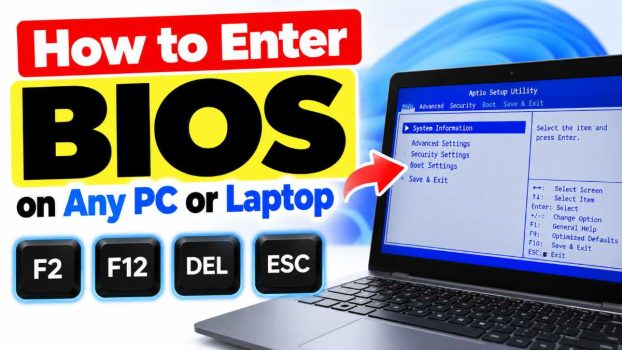
You’re trying to boot from a USB drive, enable virtualization, change the boot order, or turn on Secure Boot and TPM for Windows 11. Whatever the reason, every one of those tasks starts in the same place: the BIOS (or its modern replacement, UEFI firmware). The problem is that there is no single universal way in. Dell wants one key, HP wants another, and your custom-built gaming rig might want a third.
This guide walks you through every reliable method for entering the BIOS on a Windows PC, including a complete list of access keys by manufacturer, a few tricks for modern machines that boot too fast to catch a key press, and a troubleshooting section for when nothing seems to work. By the end, you’ll be able to get into the firmware settings on practically any computer.
What Are the BIOS and UEFI?
The BIOS (Basic Input/Output System) is the low-level software stored on a chip on your motherboard. It runs before your operating system loads, initializes your hardware, and then hands control to Windows, Linux, or whatever else you have installed.
Almost every PC made in the last decade actually uses UEFI (Unified Extensible Firmware Interface), a more modern successor to the legacy BIOS. UEFI offers a graphical interface, mouse support, faster boot times, support for drives larger than 2 TB, and security features such as Secure Boot. Manufacturers still commonly call it “BIOS” in menus and documentation, so the two terms are used interchangeably in practice. Everything in this guide applies to both.
There are two broad ways to get in: pressing a specific key during startup, or asking Windows to restart directly into the firmware settings. We’ll cover both.
Method 1: Press the BIOS Key During Startup
This is the classic method and works on every PC, whether or not Windows is installed or even working.
- Shut down your PC completely. Use Shut Down rather than Restart if you can.
- Press the power button.
- Immediately start tapping the BIOS key (see the table below) repeatedly, about once per second, until the setup screen appears.
- If you see the Windows logo, you were too late. Let it boot, shut down, and try again.
The key is usually briefly displayed on the splash screen with a message such as “Press F2 to enter Setup.” Because that screen can flash by in under a second on modern machines, tapping the key repeatedly from the moment you press the power button is more reliable than waiting to read the prompt.
BIOS Access Keys by Manufacturer
The table below lists the most common keys. Where a manufacturer lists more than one, the first is the most likely to work on recent models.
| Manufacturer | BIOS/UEFI Setup Key | Boot Menu Key |
|---|---|---|
| Acer | F2 or Del | F12 |
| Alienware (Dell) | F2 | F12 |
| ASRock | F2 or Del | F11 |
| ASUS | F2 or Del | F8 or Esc |
| Dell | F2 | F12 |
| Fujitsu | F2 | F12 |
| Gigabyte / Aorus | Del or F2 | F12 |
| HP | Esc, then F10 | F9 |
| Huawei | F2 | F12 |
| Intel NUC | F2 | F10 |
| Lenovo (ThinkPad) | Enter, then F1 | F12 |
| Lenovo (IdeaPad, Legion, desktops) | F2 or Fn + F2 | F12 |
| LG | F2 | F10 |
| Microsoft Surface | Hold Volume Up while powering on | Hold Volume Down while powering on |
| MSI | Del | F11 |
| Samsung | F2 | F10 or Esc |
| Sony VAIO | F2 or the ASSIST button | F11 |
| Toshiba / Dynabook | F2 | F12 |
A few notes on this list:
- Setup key versus boot menu key. The setup key opens the full BIOS/UEFI settings. The boot menu key opens a smaller one-time menu that lets you choose which device to boot from, such as a USB installer, without changing any permanent settings. If all you need is to boot from a flash drive, the boot menu key is faster and safer.
- Custom-built desktops use the key of the motherboard manufacturer, not the case or the PC’s brand. Check whether your board is made by ASUS, MSI, Gigabyte, or ASRock, then use the matching key. On most desktop boards, Del is the safest bet.
- Laptop function keys. Many laptops treat F1–F12 as multimedia keys by default. If tapping F2 does nothing, try Fn + F2.
Method 2: Use Windows Settings (Windows 11 and Windows 10)
If Windows boots normally, this is the most reliable approach for modern PCs, because it doesn’t depend on timing at all. It works only on UEFI systems, which covers nearly every computer sold since about 2012.
On Windows 11
- Open Settings (Windows key + I).
- Go to System > Recovery.
- Next to Advanced startup, click Restart now and confirm.
- When the blue “Choose an option” screen appears, select Troubleshoot.
- Choose Advanced options.
- Select UEFI Firmware Settings. If you don’t see this option, your PC either uses legacy BIOS or the option is hidden; fall back to Method 1.
- Click Restart. Your PC will reboot straight into the firmware interface.
On Windows 10
- Open Settings > Update & Security > Recovery.
- Under Advanced startup, click Restart now.
- Follow the same path: Troubleshoot > Advanced options > UEFI Firmware Settings > Restart.
Method 3: Shift + Restart Shortcut
This is a quicker variation on Method 2 that skips the Settings app.
- Click the Start button and then the Power icon.
- Hold down the Shift key and click Restart.
- Keep holding Shift until the blue recovery menu appears.
- Choose Troubleshoot > Advanced options > UEFI Firmware Settings > Restart.
You can do the same from the sign-in screen: click the Power icon in the bottom-right corner, hold Shift, and click Restart. That’s handy if you’ve forgotten your password but still need to change a firmware setting.
Method 4: Use a Command
Power users can skip the menus entirely. Open Command Prompt, PowerShell, or the Run dialog (Windows key + R) and enter:
shutdown /r /fw /t 0This restarts the computer immediately (/t 0) and tells the firmware to open its setup screen (/fw). Make sure you’ve saved your work first, because there is no confirmation prompt. If you get an error saying the system doesn’t support this, you’re on a legacy BIOS machine and need to use the keyboard method.
A related command, shutdown /r /o /t 0, restarts into the blue Advanced Startup menu, where you can then choose UEFI Firmware Settings.
Method 5: Use a Dedicated Button (Some Laptops)
Some laptops include a physical shortcut that bypasses the key-timing problem altogether:
- Lenovo Novo button: A tiny pinhole button, usually next to the power button or on the side of the laptop. With the laptop powered off, press it with a paperclip to open the Novo Button Menu, then choose BIOS Setup.
- Sony VAIO ASSIST button: Press it while the laptop is off to open VAIO Care, which includes a firmware setup option.
- Microsoft Surface: Shut the device down fully, then press and hold Volume Up while pressing the power button. Release Volume Up when the Surface logo disappears and the UEFI screen loads.
Troubleshooting: When You Can’t Get In
If you’ve tried the key and nothing happens, work through these fixes.
Fast Startup is getting in the way. Windows’ Fast Startup feature saves a hibernation state, so a normal shutdown doesn’t truly power the machine off and the firmware never shows its prompt. Either use Method 2, 3, or 4, or turn off Fast Startup in Control Panel > Power Options > Choose what the power buttons do > Change settings that are currently unavailable, then untick Turn on fast startup.
The screen is too fast. Some monitors take a couple of seconds to wake up, by which point the prompt is gone. Start tapping the key the instant you press the power button, and try a different display port or the laptop’s built-in screen if you’re using an external monitor.
Wrong keyboard type. Older BIOS versions don’t always recognize USB keyboards that connect through hubs or wireless dongles. Plug a wired keyboard directly into a USB port on the back of the computer. On some very old systems, a PS/2 keyboard is required.
Fn key lock. If function keys only trigger media controls, hold Fn while tapping, or toggle Fn Lock (often Fn + Esc).
Wrong key. If you’re not sure which key applies, check the manual, search for your exact model number plus “BIOS key,” or look at the first screen after power-on for a prompt. Typing your laptop’s model number into the manufacturer’s support site almost always turns up the answer.
Corrupted or password-protected firmware. If the BIOS asks for a password you don’t know, you’ll need to contact the manufacturer or, on desktops, reset the firmware by removing the CMOS battery or using the motherboard’s clear-CMOS jumper. Check your manual first, and note that this clears all custom settings.
Safety Tips Before You Change Anything
The BIOS is powerful, and a wrong setting can stop your PC from booting. A few precautions will keep you out of trouble:
- Change one setting at a time and write down the original value so you can revert it.
- Don’t flash a BIOS update unless you need to. Interrupting a firmware update can leave a machine unusable. Keep a laptop plugged in and don’t touch the power during the process.
- Use Save and Exit correctly. Most firmware uses F10 to save and exit, and Esc to leave without saving. Read the on-screen legend to confirm.
- Know the reset option. Almost every BIOS has a “Load Setup Defaults” or “Load Optimized Defaults” option, typically bound to F9 or F5. It’s your safety net if something goes wrong.
Conclusion
Getting into the BIOS comes down to two ideas: either press the right key at the right moment, or have Windows restart straight into the firmware for you. The key depends on the manufacturer. F2 is the most common on laptops, Del dominates on desktop motherboards, and brands like HP and Lenovo have their own quirks. If the timing is too tricky, the Advanced Startup route (or the shutdown /r /fw /t 0 command) works reliably on any UEFI machine and takes less than a minute.
Bookmark the manufacturer table above, keep the troubleshooting list handy, and remember to change settings carefully. With those in hand, you can confidently adjust boot order, enable virtualization, set up Secure Boot and TPM, or tune your hardware on virtually any PC.
Frequently Asked Questions
1. What is the most common key to enter the BIOS?
There is no single universal key, but F2 and Del are the most common. F2 is typical for Dell, Acer, Samsung, Toshiba, and many Lenovo and ASUS laptops, while Del is standard on most desktop motherboards from ASUS, MSI, Gigabyte, and ASRock. HP uses Esc followed by F10, and Lenovo ThinkPads use Enter followed by F1. If you aren’t sure, watch for an on-screen prompt right after powering on, or use the Windows Advanced Startup method, which doesn’t require knowing the key.
2. Why can’t I enter the BIOS on my Windows 10 or 11 PC?
The most frequent cause is Fast Startup, which keeps Windows in a hibernation-like state and skips the normal startup sequence, so the firmware prompt is never shown. Other causes include pressing the key too late, using a wireless or hub-connected keyboard, or function keys being locked to media controls. Try restarting via Settings > System > Recovery > Advanced startup > UEFI Firmware Settings, disable Fast Startup, or use a wired keyboard plugged directly into the computer.
3. Is the BIOS the same as UEFI?
Not exactly, though people use the terms interchangeably. UEFI is the modern replacement for the legacy BIOS. It supports larger drives, faster boot times, a graphical interface with mouse control, and features like Secure Boot. Nearly all PCs built since around 2012 use UEFI, even if the menus or the manufacturer’s documentation still refer to “BIOS.” The methods in this guide work for both.
4. Can I get into the BIOS without restarting my computer?
No. The BIOS or UEFI firmware runs before your operating system loads, so the computer must restart (or be powered on from off) to access it. The closest thing to a shortcut is the command shutdown /r /fw /t 0, which restarts the PC and goes straight into the firmware setup screen. Be sure to save and close your work before running it.