Sukhdev Kamboj
Microsoft Edge has rapidly evolved into one of the best web browsers for Windows 11. Built on the Chromium engine, Edge combines performance, privacy, security, and a clean interface. However, most users overlook the powerful settings available that can significantly improve their browsing experience.
Whether you’re concerned about speed, battery life, data usage, privacy, or productivity, customizing the right Edge settings can make a noticeable difference. From managing permissions and startup preferences to enabling efficiency mode and turning off tracking, there are dozens of tweaks you can make.
This article will guide you through the best Microsoft Edge settings for Windows 11. These settings are categorized to help you navigate easily — from performance and privacy to accessibility and customization. By the end, your browser will not only be faster and more secure but also tailored to your exact preferences.
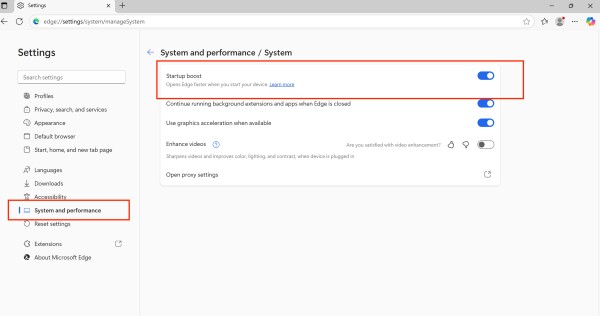
Enable Startup Boost for Faster Launch
Startup Boost helps Microsoft Edge open faster by running some background processes even after you close the browser. It’s especially useful if you use Edge frequently throughout the day.
Step 1: Open Microsoft Edge and go to Settings
- Click on the Microsoft Edge icon from your desktop, taskbar, or Start menu to open the browser.
- Click the three dots (⋯) in the top-right corner of Edge.
- From the menu, click on Settings.

Step 2: Turn On Startup Boost
- In the left-hand panel, click on System and performance.
- If the menu is hidden, click the ☰ menu icon at the top-left to expand it.
- Look for the Startup boost option.
- Toggle the switch On.
Step 3: (Optional) Restart Your PC
- While not always necessary, restarting your PC ensures the setting takes full effect.
Now Microsoft Edge will start much faster the next time you open it, thanks to background optimization.
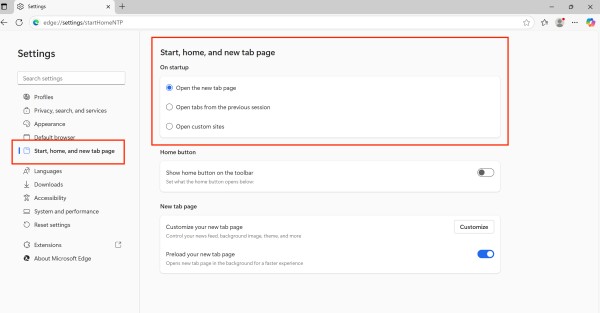
Customize the Home Page and New Tab Page
You can personalize your startup behavior:
- Go to
Settings>Start, home, and new tabs. - Under When Edge starts, select:
- Open the new tab page,
- Open tabs from the previous session, or
- Open specific pages.
Clear Browsing Data on Exit
Microsoft Edge allows you to automatically delete browsing history, cookies, cache, and other data every time you close the browser. This is great for privacy, especially on shared or public computers.
Step 1: Open Microsoft Edge and go to Settings
- Click the Microsoft Edge icon from the desktop, taskbar, or Start menu.
- Click the three dots (⋯) in the top-right corner.
- Select Settings from the drop-down menu.
Step 2: Open “Clear browsing data”
- On the left panel, click Privacy, search, and services.
- If the side menu is hidden, click the ☰ menu icon to expand it.
- Scroll down until you see the Clear browsing data section.
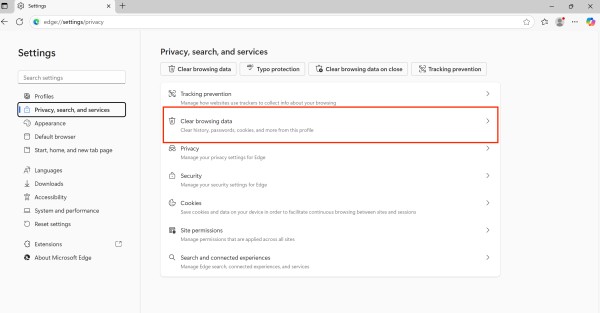
Step 3: Click “Choose What to Clear Every Time You Close the Browser”
- Click the option: Choose what to clear every time you close the browser.
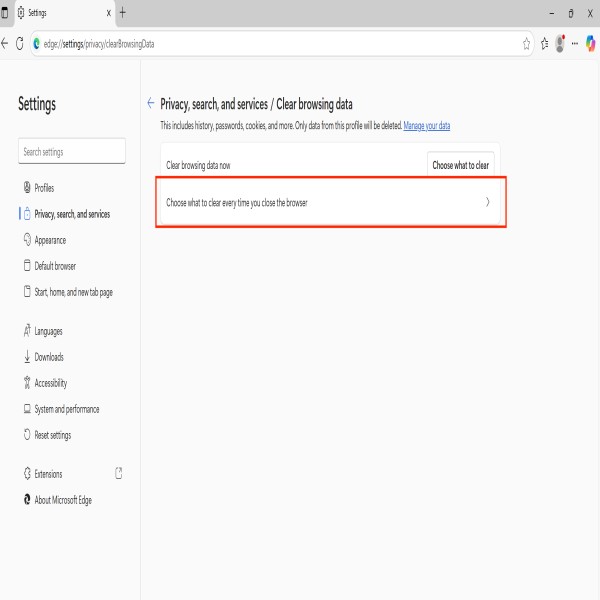
Step 4: Turn On the Data Types You Want to Clear
- You’ll see several options. Toggle ON the items you want Edge to clear on exit:
- Browsing history
- Download history
- Cookies and other site data
- Cached images and files
- Passwords (optional – only if you don’t want them saved)
- Autofill form data
- Site permissions
- Hosted app data
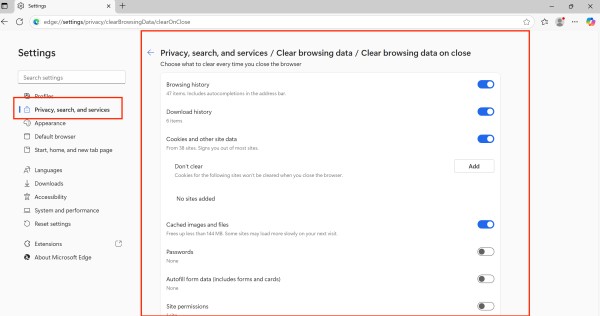
Recommended: At least enable Cookies and site data, Cached images and files, and Browsing history for privacy and cleaner performance.
Step 5: Close and Relaunch Edge
- From now on, every time you close Edge, the selected data will be cleared automatically.
Why Use This Feature?
- Keeps your browsing private
- Frees up storage space
- Prevents tracking and personalized ads
- Helps maintain a clean browser
Enable Tracking Prevention (Set to Strict)
Edge offers 3 levels of tracking prevention: Basic, Balanced, and Strict.
Step 1: Open Edge Settings
- Click the three dots (⋯) in the upper-right corner of the Edge window.
- From the dropdown menu, click on Settings.
Step 3: Go to Tracking prevantion
- In the left sidebar, click on Privacy, search, and services.
If you don’t see the sidebar, click the ☰ menu icon to expand it.
At the top of this page, you’ll see the Tracking prevention section.
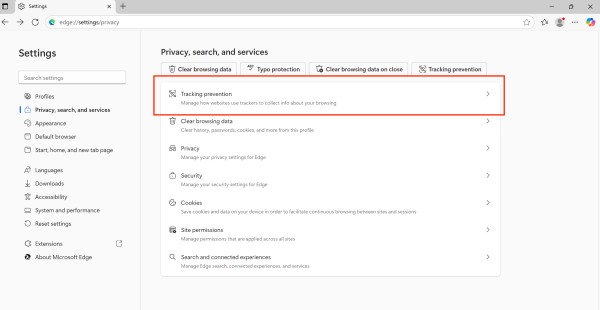
Step 4: Select Strict Mode
Make sure the switch next to Tracking prevention is toggled ON (blue).
- Under the tracking prevention levels, choose:
- Basic – Allows most trackers.
- Balanced – Blocks trackers from sites you haven’t visited (default).
- Strict – Blocks the majority of trackers and provides the best privacy.
- Click on the Strict option.
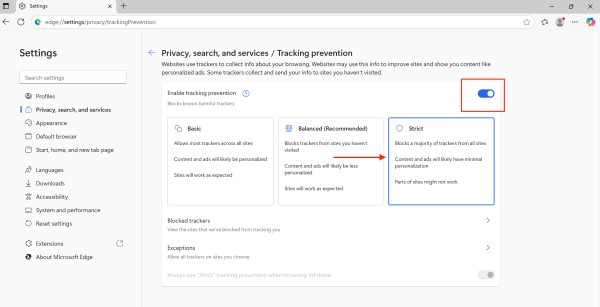
Benefits:
- Blocks most third-party trackers.
- Reduces personalized ads.
- Improves privacy across websites.
Turn on Efficiency Mode for Battery Saving
Microsoft Edge is designed with performance and energy efficiency in mind. One of its best built-in features for laptop users is Efficiency Mode, which helps reduce power usage when your device is running on battery. This mode limits background activity and lowers system resource consumption, helping you extend battery life — especially during long work sessions or travel.
What Is Efficiency Mode in Edge?
Efficiency Mode is a performance setting in Microsoft Edge that optimizes system resource usage. When it’s turned on, Edge reduces CPU and memory use, pauses background activities like animations or unnecessary timers, and puts inactive tabs to sleep more aggressively. These changes significantly reduce power consumption, making it ideal for laptops and tablets running Windows 11.
Not only does it help your battery last longer, but it also reduces heat generation and fan noise — a big plus for users working in quiet environments or on the go.
Benefits of Enabling Efficiency Mode
- Extended battery life on laptops
- Lower CPU and memory usage
- Less heat and quieter operation
- More aggressive sleeping of inactive tabs
- Eco-friendly computing
Whether you’re browsing the web, reading articles, or managing emails, Efficiency Mode helps your device stay cooler and last longer without sacrificing too much on performance.
How to Turn On Efficiency Mode in Microsoft Edge
Follow these simple steps to enable Efficiency Mode:
Step 1: Open Settings
- Start by clicking the Microsoft Edge icon from your taskbar, desktop, or Start menu.
- Click the three dots (⋯) in the top-right corner of the Edge window.
- From the dropdown menu, choose Settings.
Step 3: Go to Performance
- On the left sidebar of the Settings page, click System and performance.
- Scroll down to the Performance section on the page.
- Just Click on it and you will see the Efficiency Mode option listed here.
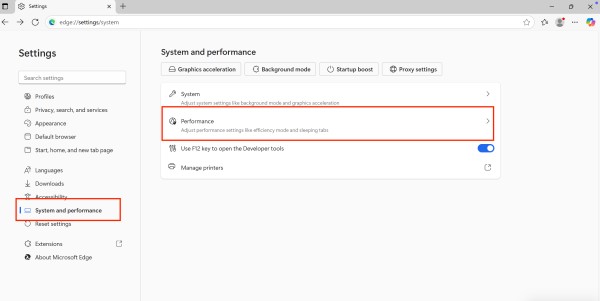
Step 5: Turn on Efficiency Mode
- Toggle the switch next to Efficiency mode to the On position.
- You’ll also see a dropdown next to it with options:
- Balanced Saving
- Maximum Savings
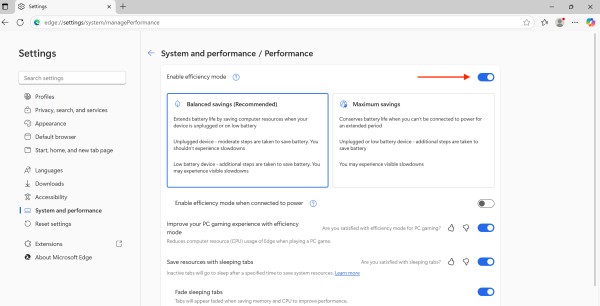
Choose as per your convinient!
Enable Sleeping Tabs to Save RAM
Sleeping tabs automatically unload inactive tabs to save system resources.
To enable:
- Go to
Settings>System and performance. - Turn on Save resources with sleeping tabs.
- Set a time duration (e.g., 5 minutes of inactivity).
- You can also add exceptions for important sites.
Use the Built-in Password Manager
Edge can store and auto-fill passwords securely.
Enable it via:
Settings>Profiles>Passwords.- Turn on Offer to save passwords and Auto sign-in.
- Optional: Enable Password Monitor to be notified if a saved password is found in a breach.
Customize Site Permissions
Control what websites are allowed to access — like location, camera, microphone, and notifications.
Steps:
- Go to
Settings>Cookies and site permissions. - Click on each permission and set to:
- Ask before accessing
- Block
- Allow (for trusted sites)
Change the Default Search Engine
Prefer Google or DuckDuckGo over Bing?
- Go to
Settings>Privacy, search, and services. - Scroll down and click Address bar and search.
- Change the Search engine used in the address bar to your preference.
- You can add new search engines too.
Enable Vertical Tabs for Better Organization
If you’re working with many tabs, this is a game changer.
To turn on vertical tabs:
- Click the tab icon (top left corner) beside the first tab.
- Select Turn on vertical tabs.
Benefits:
- Cleaner UI
- Easier tab management
- More screen space for content
Conclusion
Microsoft Edge on Windows 11 is more than just a browser — it’s a powerful platform filled with customization options for speed, security, and productivity. By taking the time to explore and fine-tune these settings, you can transform your browsing experience.
Whether it’s optimizing performance with Startup Boost and Sleeping Tabs, protecting your data through Strict Tracking Prevention, or simply organizing your tabs with Vertical Tabs, each tweak contributes to a smoother experience.
The beauty of Edge lies in its flexibility. You can make it as light or as feature-rich as you want, with powerful extension support, cross-platform syncing, and top-tier privacy controls. Explore these settings one by one and customize Microsoft Edge into a tool that truly works for you.
![These Microsoft Edge Settings You Must Try [Windows 11]](https://www.geeksdigit.com/wp-content/uploads/thumbs_dir/file-manager-windows-11-rhhxraosy3n5ytzbstypbgw9w0otx1qdnsytosjfb0.jpg)
![These Microsoft Edge Settings You Must Try [Windows 11]](https://www.geeksdigit.com/wp-content/uploads/thumbs_dir/best-messages-apps-rhi4z48s2hbh6ikrmn381ek55a2cl47cdsrk99atdo.jpg)