sukh22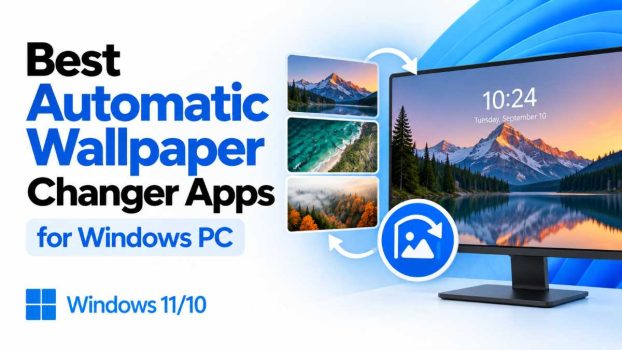
Windows lets you set a slideshow of your own pictures, but it has no built-in way to pull in fresh, high-quality wallpapers from the internet or run animated, interactive backgrounds. That gap is filled by a small but mature ecosystem of third-party wallpaper changers — some are lightweight photo rotators that grab a new image from Bing, NASA, or Unsplash every day, while others are full “wallpaper engines” that turn your desktop into a living, animated scene.
Below are the best automatic wallpaper changer apps for Windows PC in 2026, covering free photo rotators, Microsoft’s own tools, and premium animated wallpaper engines — with what each one does well, its drawbacks, and a download link.
1. Wallpaper Engine
Best for: Animated, interactive, and video wallpapers
Wallpaper Engine is the most popular animated wallpaper app on Windows, distributed through Steam. Instead of just rotating still photos, it lets you run video clips, WebGL/GLSL shader scenes, Unity-based interactive scenes, and even simple mini-games as your desktop background. It ships with a built-in Workshop containing hundreds of thousands of community-made wallpapers you can browse and apply with a click, and it also supports a scheduled “playlist” mode so your background rotates automatically on a timer, similar to a traditional wallpaper changer.
Key features
- Massive Steam Workshop library of free, user-made wallpapers
- Supports video, 3D scenes, audio-reactive visuals, and web-based wallpapers
- Automatically pauses playback during full-screen games or on battery power to save resources
- Per-monitor wallpaper assignment for multi-monitor setups
- Playlist/scheduling feature to auto-rotate wallpapers
Pros: Huge content library; very polished; low idle resource use thanks to smart pausing. Cons: One-time paid purchase (not free); heavier on system resources than simple photo rotators, especially with video/3D wallpapers on older hardware.
Download: https://store.steampowered.com/app/431960/Wallpaper_Engine/
2. Lively Wallpaper
Best for: Free, open-source animated wallpapers
Lively Wallpaper is essentially the free, open-source answer to Wallpaper Engine. Built as a native WinUI 3 app, it lets you set videos, GIFs, web pages, and interactive WebGL/Shadertoy scenes as your desktop background, with hardware-accelerated playback powered by mpv and a lightweight Chromium engine. Because it’s fully open source with no features locked behind a paywall, it’s a favorite among users who want Wallpaper Engine–style visuals without paying for them.
Key features
- Drag-and-drop support for video, GIF, HTML/web, and shader wallpapers
- Automatically pauses wallpapers when a full-screen app or game is running, or when on battery power
- Full multi-monitor support, including spanning one wallpaper across all screens
- Command-line control, so it can be paired with tools like AutoHotkey for automation and scheduling
- Audio-reactive visualizer support
Pros: Completely free and open source; actively developed; surprisingly light on resources thanks to pause-on-fullscreen behavior. Cons: No giant curated marketplace like Wallpaper Engine’s Workshop; some advanced setup (like scheduled photo rotation) requires digging into settings or scripting.
Download: https://github.com/rocksdanister/lively
3. John’s Background Switcher (JBS)
Best for: Rotating photos from multiple online sources
If what you actually want is a classic “change my wallpaper every so often” tool rather than animated visuals, John’s Background Switcher is one of the most flexible options available. It can pull images from local folders, or reach out to online sources such as Flickr, Instagram, 500px, Google Image Search, and RSS feeds, then cycle through them on a schedule you control — anywhere from once a minute to once a day. It also supports true multi-monitor rotation, showing a different image on each screen, and can build photo collages instead of single images.
Key features
- Pulls wallpapers from local folders and online services (Flickr, Instagram, 500px, RSS, Google Images)
- Fully configurable rotation interval
- Independent wallpapers per monitor, or spanned/collage layouts across screens
- Can also update the Windows lock screen
- Available as a standard installer, a portable ZIP, or via
winget install johnsadventures.JohnsBackgroundSwitcher
Pros: Extremely flexible source options; free; very lightweight; long track record of reliable updates. Cons: Interface feels a bit dated; online-source features (Flickr, Instagram, etc.) depend on those services’ APIs remaining available.
Download: https://johnsad.ventures/software/backgroundswitcher/windows/
4. Bing Wallpaper
Best for: A simple, official “new photo every day” tool
Bing Wallpaper is Microsoft’s own lightweight app that automatically sets your desktop background to the same striking photo featured on the Bing homepage each day. It’s about as close to “set it and forget it” as this category gets: install it, and every day you get a new professionally shot photo of a landscape, city, or natural landmark, along with a short write-up about the location if you click through.
Key features
- Automatic daily wallpaper pulled directly from Bing’s homepage image
- Runs quietly from the system tray
- Lets you browse recent Bing images and see background info about each photo
- Backed and maintained directly by Microsoft
Pros: Genuinely “set and forget”; official, trustworthy source; zero configuration needed. Cons: No control over image source variety (you only get Bing’s picks); during setup it will try to nudge you into making Bing your homepage/default search engine, which you can decline.
Download: https://apps.microsoft.com/detail/xpfp7f8rl7mb1w
5. Dynamic Theme (Microsoft Store)
Best for: Bing and Windows Spotlight images with lock screen sync
Dynamic Theme is a free Microsoft Store app built specifically to bridge the gap between Windows’ Lock Screen (which already gets rotating Spotlight images) and the desktop (which normally doesn’t). It automatically applies the daily Bing or Windows Spotlight image to your desktop, keeps your desktop and lock screen in sync, and can also run a slideshow using your own custom images if you’d rather not rely on Bing/Spotlight at all.
Key features
- Syncs desktop wallpaper with daily Bing or Windows Spotlight images
- Can mirror the same image across desktop and lock screen
- Supports custom image slideshows from your own picture library
- Runs natively as a UWP app from the Microsoft Store, so it’s sandboxed and easy to uninstall
Pros: Simplest way to get Spotlight-style variety on the desktop; free; official Store distribution means automatic updates. Cons: Can’t change Windows’ accent color to match (a Windows OS limitation, not the app’s fault); fewer deep customization options than JBS or Wallpaper Engine.
Download: Search “Dynamic Theme” on the Microsoft Store, or via https://apps.microsoft.com
6. TweakNow Auto Wallpaper Changer
Best for: Bing, NASA, and Wikipedia image feeds in one free app
TweakNow’s Auto Wallpaper Changer is a small, free desktop utility (not a Store app) that automatically refreshes your wallpaper from a choice of curated feeds: daily Bing images, NASA’s space photography, or Wikipedia’s featured pictures. You can also build a custom playlist from your own image collection and let the app rotate through it on your chosen interval. It’s designed to run quietly in the background with a minimal resource footprint.
Key features
- Choice of Bing, NASA, or Wikipedia as automatic image sources
- Custom wallpaper playlists from your own files
- Adjustable rotation interval
- Lightweight, low-resource background process
Pros: Free; NASA and Wikipedia options are a nice change from the usual Bing/Unsplash pool; simple setup. Cons: Interface is fairly basic; fewer social/photo-service integrations than JBS.
Download: https://www.tweaknow.com/AutoWallpaper.php
7. DisplayFusion
Best for: Power users with multi-monitor setups
DisplayFusion is best known as a multi-monitor management tool, but its wallpaper features are strong enough to double as a full wallpaper changer — especially if you run two, three, or more displays. It supports independent wallpapers per monitor, wallpaper spanning across your entire desktop, scheduled rotation, and pulling images from online sources like Bing, Flickr, and RSS feeds, on top of its broader toolkit for taskbar customization, window management, and hotkeys.
Key features
- Per-monitor and spanned wallpaper modes built for multi-display setups
- Scheduled auto-rotation from local folders or online sources
- Extra multi-monitor tools (per-monitor taskbars, window snapping, function-key shortcuts) bundled in
- Free version covers basic wallpaper functions; Pro license unlocks scheduling and advanced features
Pros: Best-in-class for anyone with more than one monitor; wallpaper changing is just one part of a genuinely useful multi-monitor toolkit. Cons: Full feature set requires a paid Pro license; overkill if you only want simple wallpaper rotation on a single screen.
Download: https://www.displayfusion.com
8. DeskScapes (Stardock)
Best for: Premium animated desktop themes with fine-grained control
DeskScapes, from Stardock (the makers of Fences and WindowBlinds), is a long-running premium animated wallpaper engine. It supports video wallpapers, “DreamScene” style animated scenes, and interactive desktops, with tight integration into Stardock’s other desktop customization products if you already use them. It’s a solid alternative to Wallpaper Engine if you want a more traditional desktop-customization-suite feel, with paid support and regular updates from an established developer.
Key features
- Animated and video wallpaper support with a curated content library
- Deep integration with other Stardock desktop tools
- Performance settings to control CPU/GPU usage of animated wallpapers
- Scheduling for combining animated scenes with rotating still images
Pros: Backed by an established, long-term software company; polished settings for balancing visuals against performance. Cons: Paid software with a smaller wallpaper library than Wallpaper Engine’s Workshop.
Download: https://www.stardock.com/products/deskscapes
Quick Comparison
| App | Price | Wallpaper type | Multi-monitor | Best for |
|---|---|---|---|---|
| Wallpaper Engine | Paid (one-time) | Animated/video/interactive | Yes | Biggest animated wallpaper library |
| Lively Wallpaper | Free, open source | Animated/video/web | Yes | Free Wallpaper Engine alternative |
| John’s Background Switcher | Free | Static photos | Yes | Most flexible photo sources |
| Bing Wallpaper | Free | Static photos | No | Zero-effort daily photo |
| Dynamic Theme | Free | Static photos | Limited | Syncing desktop + lock screen |
| TweakNow Auto Wallpaper | Free | Static photos | No | Bing/NASA/Wikipedia feeds |
| DisplayFusion | Free/Paid | Static photos | Yes (best-in-class) | Power users with multiple monitors |
| DeskScapes | Paid | Animated/video | Yes | Polished animated themes |
How to Choose
If you just want your desktop to feel a little fresher every day without fuss, Bing Wallpaper or Dynamic Theme are the easiest, lowest-maintenance picks — both are free and require virtually no setup. If you want more control over where your photos come from — Flickr albums, Instagram, your own folders, or a mix of everything — John’s Background Switcher is the most capable free option. For multi-monitor rigs specifically, DisplayFusion offers the most polished per-screen control.
If static photos feel boring and you want your desktop to actually move — video loops, audio-reactive scenes, interactive shader art — go with Wallpaper Engine if you’re willing to pay a small one-time fee for its huge content library, or Lively Wallpaper if you want the same idea for free and don’t mind a smaller community library. DeskScapes sits in between as a paid, more curated take on animated wallpapers from an established desktop-customization developer.
A couple of practical notes regardless of which app you pick: none of these third-party tools can change your Windows accent color automatically, since that’s a Windows-level restriction — set accent color to “automatic” in Windows’ Colors settings if you want it to follow your wallpaper. It’s also worth creating a System Restore Point before installing any new desktop-customization software, since these apps hook fairly deeply into how Windows renders your desktop.