Sukhdev Kamboj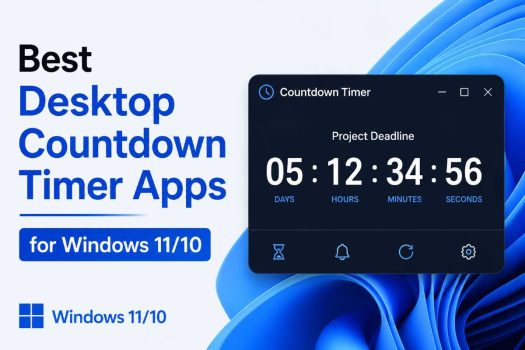
A countdown timer can be surprisingly useful on a Windows PC. Whether you are working on a deadline, studying with the Pomodoro technique, preparing for a presentation, cooking, exercising, taking breaks, or simply waiting for an event, a dedicated desktop timer can make it much easier to keep track of the remaining time.
Windows 11 and Windows 10 already provide basic timer functionality through the Clock or Alarms & Clock application. However, dedicated countdown timer apps can offer features that the built-in option does not always provide, including multiple simultaneous timers, always-on-top windows, custom sounds, portable versions, full-screen displays, customizable layouts, and advanced controls.
In this guide, we look at some of the best desktop countdown timer apps available for Windows 11 and Windows 10. The list includes lightweight utilities, Microsoft Store apps, open-source projects, and specialized timers for presentations and productivity.
What Makes a Good Countdown Timer for Windows?
Before choosing an app, it is worth considering how you intend to use it. A simple five-minute timer does not require the same features as a presentation timer or a productivity application.
The most useful countdown timer apps generally offer some combination of:
- Simple time entry
- Large, easy-to-read countdown displays
- Custom alarm sounds
- Multiple simultaneous timers
- Always-on-top mode
- Background operation
- Portable versions
- Custom labels
- Repeat or looping timers
- Full-screen mode
- Keyboard shortcuts
- Low memory and CPU usage
- Windows 10 and Windows 11 compatibility
Some applications focus on simplicity, while others are designed for professional presentations or productivity workflows.
1. Free Countdown Timer — Best Overall for Multiple Timers
Best for: Everyday use, multiple countdowns, reminders, events, and customizable alarms
Price: Free
Windows: Windows 10 and Windows 11
If you want a traditional desktop countdown timer with plenty of practical features, Free Countdown Timer is one of the best choices.
The application is designed around creating and managing countdown timers. Instead of having to create a new timer every time, you can maintain multiple timers for different activities. This makes it particularly useful if you regularly need reminders for meetings, breaks, cooking, study sessions, appointments, or other events.
The developer’s current information lists support for Windows 11 and Windows 10, and version 5.3 is available as both an installation package and a portable version.
Key Features
- Multiple countdown timers
- Custom alarm sounds
- Portable version
- Always-on-top option
- Timer labels and messages
- Startup option
- Repeat functionality
- Command-line parameters
- Custom notification behavior
One particularly useful feature is the ability to keep the timer window visible above other applications. This is helpful when you are working in a browser, Word, Excel, or another full-screen application and still need to see the countdown.
The application also supports an unlimited number of alarms according to the developer’s documentation.
Download Free Countdown Timer
Download Free Countdown Timer from Microsoft Store
You can also use the developer’s download page:
Free Countdown Timer official download page
Why Choose It?
Free Countdown Timer is probably the best option if you want a dedicated timer without sacrificing useful features. It is especially good for users who need several timers running at the same time.
Rating: 9/10
2. Hourglass — Best Simple Countdown Timer
Best for: Minimalists, quick countdowns, keyboard users
Price: Free
Windows: Windows
Hourglass takes a very different approach. Instead of providing a large collection of productivity features, it concentrates on doing one job: counting down time.
The original project describes Hourglass as a simple countdown timer for Windows. It evolved from the developer’s earlier Orzeszek Timer project, which is now officially marked as replaced by Hourglass.
This makes Hourglass an excellent choice if you want something lightweight and uncomplicated.
You can enter a duration and start the countdown without navigating through complicated menus. This is particularly convenient when you frequently need short timers while working.
Key Features
- Simple interface
- Fast time entry
- Lightweight design
- Countdown display
- Windows desktop application
- Installer and portable versions
- Open-source project
The source code is available on GitHub under the MIT license, which is another advantage for users who prefer transparent and open-source software.
Download Hourglass
Hourglass official download page
Why Choose It?
Choose Hourglass when you do not need complicated scheduling or productivity features. It is particularly attractive for people who simply want to type something like “25 minutes” and start working.
Rating: 8.8/10
3. Catime — Best Lightweight Modern Timer
Best for: Minimal resource usage, customization, Pomodoro sessions, and modern desktop use
Price: Free and open source
Windows: Windows
Catime is one of the more interesting choices for users who want a lightweight but highly customizable timer.
According to its GitHub project, Catime is written in pure C and is designed to use very little system memory. The project currently describes it as a tiny Windows timer supporting clock, countdown, stopwatch, and Pomodoro functionality.
The application can also provide customizable tray animations and display information such as CPU usage, memory usage, battery status, and Caps Lock status.
Key Features
- Countdown timer
- Stopwatch
- Clock
- Pomodoro mode
- Transparent interface
- Tray integration
- Customizable appearance
- Keyboard shortcuts
- Very low resource usage
- Open source
The project also provides installation through WinGet and Scoop, making it convenient for technically inclined users.
For example, you can install it using:
winget install --id VladElaina.Catime
Download Catime
Why Choose It?
Catime is a great option if you want something substantially lighter and more customizable than a conventional timer application.
It is particularly appealing for users who like desktop customization and want a timer that can remain unobtrusive in the system tray.
Rating: 9/10
4. SnapTimer — Best Portable Countdown Timer
Best for: Portable use, older PCs, USB drives, and simple countdowns
Price: Free
Windows: Windows
SnapTimer is another excellent choice when simplicity and portability are more important than a modern interface.
The project describes SnapTimer as a simple, free, portable countdown timer. It does not require internet access and does not write to the Windows registry. The application can simply be extracted and launched.
This makes it particularly useful if you frequently work on different computers or want to carry your timer on a USB drive.
Key Features
- Portable
- Free
- No installation required
- No internet connection required
- Lightweight
- Dockable window
- Keyboard controls
- Countdown and count-up modes
- Simple interface
You can enter the number of minutes and press Enter to start the countdown. The timer can also be paused or reset directly from its interface or tray icon.
Download SnapTimer
SnapTimer official GitHub repository
The project’s documentation also provides the original download location.
Why Choose It?
SnapTimer is a good choice for users who want a small utility that can be carried between computers without going through a conventional installation.
Rating: 8.5/10
5. MultiTimer — Best for Running Multiple Timers
Best for: Multiple simultaneous countdowns, cooking, classrooms, workouts, and multitasking
Price: Free with optional in-app purchases
Windows: Windows
As the name suggests, MultiTimer is designed for people who need more than one timer.
Rather than repeatedly opening separate timer applications, you can create several timers and manage them together. This is useful in situations where different activities have different durations.
For example, imagine that you are cooking dinner and need separate timers for pasta, vegetables, bread, and sauce. A multi-timer application can display all of them in one place.
MultiTimer is available through the Microsoft Store, where it is listed as a free app with optional in-app purchases.
Key Features
- Multiple timers
- Timer grouping
- Custom names
- Custom icons
- Notification sounds
- Background operation
- Timer sequences
- Windows integration
The application has also been highlighted for its ability to run several timers simultaneously and organize them into groups.
Download MultiTimer
Why Choose It?
If your primary requirement is running multiple countdowns at once, MultiTimer is a more natural choice than a basic single-timer utility.
Rating: 8.7/10
6. Stagetimer — Best for Presentations and Events
Best for: Presentations, conferences, live events, meetings, classrooms, and streaming
Price: Free basic desktop app; paid features available
Windows: Windows 10/11
Stagetimer is designed for a very different audience from Hourglass or SnapTimer. It focuses on professional countdowns for presentations and events.
The application can be used through a browser, but it also has a native desktop application for Windows and macOS. Its desktop version is particularly useful when internet connectivity is unavailable or unreliable.
The desktop application supports offline operation and includes features designed for event environments. It also provides NDI output for integration with production software such as OBS and vMix.
Key Features
- Professional countdown displays
- Event and presentation support
- Offline desktop application
- Windows installer
- Multiple timer functionality
- Remote control capabilities
- OBS integration
- NDI output
- Web and desktop versions
The official site currently lists Windows installers for the desktop application, including the regular setup executable and MSI package.
Download Stagetimer
Stagetimer desktop app download
Why Choose It?
If you are preparing a presentation, conference, webinar, classroom session, or live production, Stagetimer offers capabilities that ordinary desktop timers generally do not.
Rating: 9.2/10 for presentations
7. Windows Clock — Best Built-In Option
Best for: Users who do not want to install anything
Price: Free
Windows: Windows 10/11
Before installing a third-party application, do not forget that Windows already includes a timer.
Windows 11’s Clock application includes timers, alarms, stopwatch functionality, world clock features, and Focus sessions. For many users, this is all that is required.
The biggest advantage is that you do not need to download or trust additional software. You can simply open the Start menu, search for Clock, and select Timer.
Why Use Windows Clock?
- Already installed
- No third-party software
- Simple interface
- Multiple timer support
- Focus sessions
- Windows notifications
- Microsoft-maintained application
The main disadvantage is that it is not as flexible as some dedicated applications. If you need an always-on-top floating timer, advanced customization, extensive alarm controls, or professional presentation features, another option may be better.
Rating: 8.5/10
Quick Comparison
| App | Best For | Multiple Timers | Portable | Pomodoro | Presentation Use | Price |
|---|---|---|---|---|---|---|
| Free Countdown Timer | Overall use | Yes | Yes | No | Good | Free |
| Hourglass | Simple countdowns | Limited | Yes | No | Basic | Free |
| Catime | Lightweight customization | Yes | — | Yes | Basic | Free/Open Source |
| SnapTimer | Portable use | No | Yes | No | Basic | Free |
| MultiTimer | Multiple timers | Yes | No | No | Good | Free+ |
| Stagetimer | Presentations/events | Yes | No | No | Excellent | Free+ |
| Windows Clock | Basic everyday use | Yes | No | Focus | Basic | Free |
How to Choose the Right Countdown Timer
The best application depends primarily on what you need the timer to do.
Choose Free Countdown Timer if…
You want a traditional desktop timer with multiple alarms, custom sounds, labels, and useful configuration options.
Choose Hourglass if…
You want the simplest possible dedicated countdown timer. It is particularly good for short work sessions and quick reminders.
Choose Catime if…
You care about low resource usage, customization, Pomodoro functionality, and open-source software.
Choose SnapTimer if…
You need a portable timer that can be copied to a USB drive and launched without a conventional installation.
Choose MultiTimer if…
You frequently need several timers running at the same time.
Choose Stagetimer if…
You are timing presentations, conferences, meetings, live streams, classrooms, or other events where a professional countdown display is important.
Choose Windows Clock if…
You simply want a reliable timer and do not want to install another application.
How to Install a Countdown Timer on Windows 11
Most of these applications are straightforward to install.
Step 1: Choose an App
Select a timer based on your requirements. For general use, Free Countdown Timer is a good starting point. For a lightweight solution, try Hourglass or Catime.
Step 2: Download From a Trusted Source
Whenever possible, download the application from the developer’s official website, Microsoft Store, or official GitHub repository.
Avoid downloading executable files from random websites or advertisements.
Step 3: Install the Application
If you downloaded an .exe installer, open it from your Downloads folder and follow the setup instructions.
Portable applications such as SnapTimer can simply be extracted and launched without a traditional installation.
Step 4: Create Your First Countdown
Open the application and enter a duration such as:
25 minutes
or:
1 hour 30 minutes
Depending on the application, you may also be able to enter a specific date and time.
Step 5: Configure the Alert
Before relying on the timer, check its notification settings. You may be able to select a sound, message, visual alert, or repeat behavior.
Frequently Asked Questions
1. What is the best free countdown timer for Windows 11?
For most users, Free Countdown Timer is one of the best overall choices because it supports multiple timers, custom alerts, portable operation, and useful desktop options. Windows Clock is the best choice if you do not want to install third-party software.
2. Is there a countdown timer built into Windows 11?
Yes. Windows 11 includes the Clock application, which provides a Timer feature along with alarms, stopwatch functionality, world clock features, and Focus sessions.
3. Which countdown timer uses the least resources?
For users who prioritize minimal resource usage, Catime is worth considering. Its project describes it as a very lightweight timer written in pure C with a tiny footprint.
4. Can I run multiple countdown timers at once?
Yes. Free Countdown Timer and MultiTimer are particularly suitable for this purpose. MultiTimer is specifically designed around managing several timers simultaneously.
Final Thoughts
A good countdown timer does not need to be complicated. For many Windows 11 and Windows 10 users, the built-in Windows Clock application is sufficient. However, dedicated applications can provide much more flexibility when you need multiple timers, custom sounds, portable operation, persistent desktop displays, or professional event controls.
Free Countdown Timer is the best all-around choice for most users because it combines multiple timers with customization and portable support. Hourglass is an excellent minimalist alternative, while Catime stands out for its extremely lightweight design and Pomodoro functionality. SnapTimer is ideal for portable use, and MultiTimer is a strong option when several countdowns need to run simultaneously.