
 Sukhdev Kamboj
DeepSeek V3 is a large language model built for advanced reasoning, natural language understanding, and code generation. The “coder” side of DeepSeek V3 refers to using the model specifically for programming tasks — writing functions, debugging existing code, explaining unfamiliar logic, and speeding up everyday development work. Because it can be reached through several different channels, DeepSeek V3 Coder fits a wide range of workflows on Windows 11, whether you want a quick browser-based assistant, a service you call from your own scripts, or a fully offline setup that never sends your code anywhere.
This guide walks through the main ways to get DeepSeek V3 Coder running on a Windows 11 machine, so you can pick the approach that matches your hardware, your privacy needs, and how deeply you want it integrated into your coding workflow. We’ll cover the web interface, the API, a local installation with Ollama, and setting it up as an assistant inside Visual Studio Code, followed by a short FAQ section for the questions that come up most often.
Before diving in, it’s worth deciding what you actually want from DeepSeek V3 Coder. If you just need occasional help with a snippet of code, the web interface is the fastest route. If you’re building an app or script that calls the model programmatically, the API is the better fit. If privacy, offline access, or avoiding per-token costs matters to you, running a local model through Ollama is the way to go — though it does ask more of your hardware. And if you want AI assistance without leaving your editor, connecting DeepSeek to VS Code keeps everything in one place. The sections below cover each of these paths in turn.
Methods
Method 1: Use DeepSeek V3 Coder Through the Web Interface
The simplest way to try DeepSeek V3 Coder requires no installation at all.
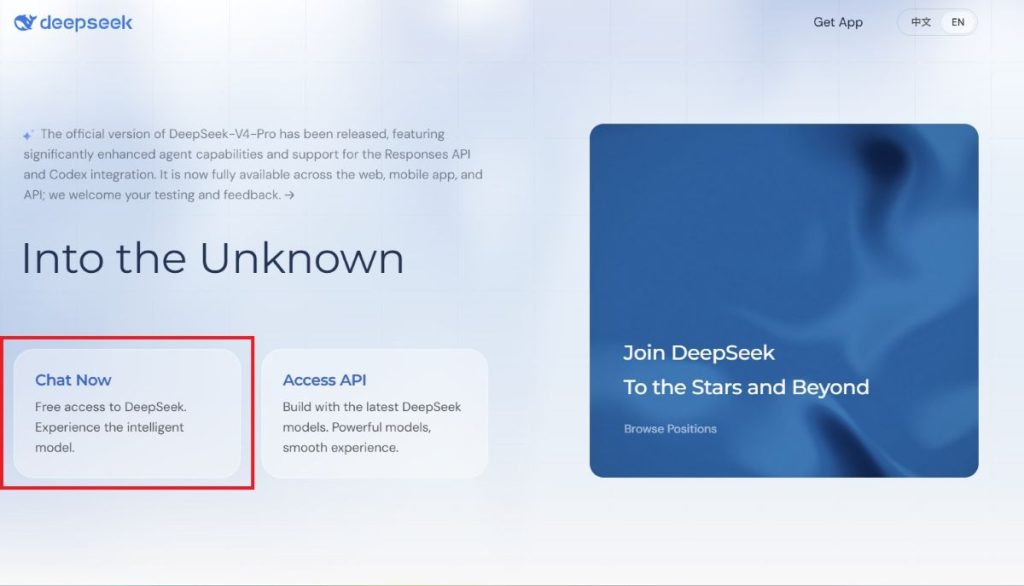
Open your browser and go to DeepSeek’s official chat platform and click on “Chat Now”.
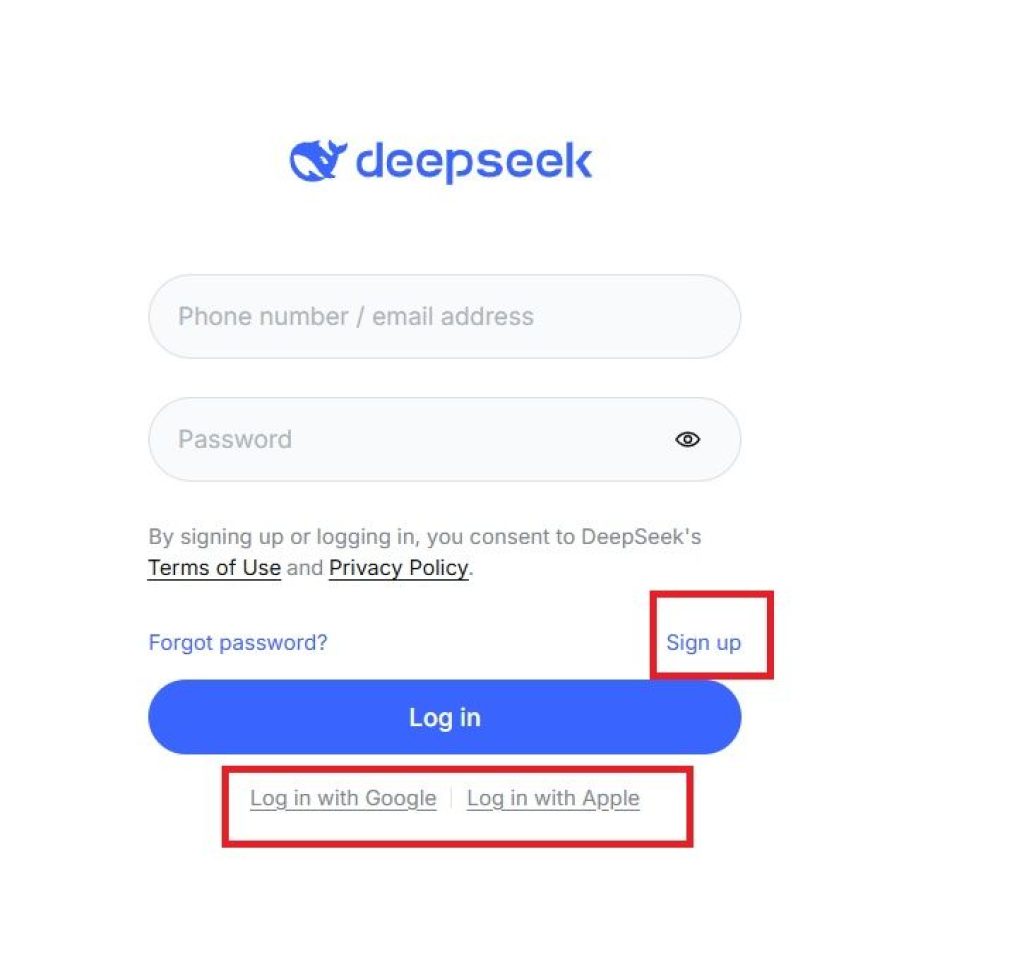
Create an account if you don’t already have one — a free sign-up is all that’s needed to start chatting.
Start a new chat and describe what you need: paste a function you want optimized, ask for a script to be written from scratch, or paste an error message along with the surrounding code for debugging help.
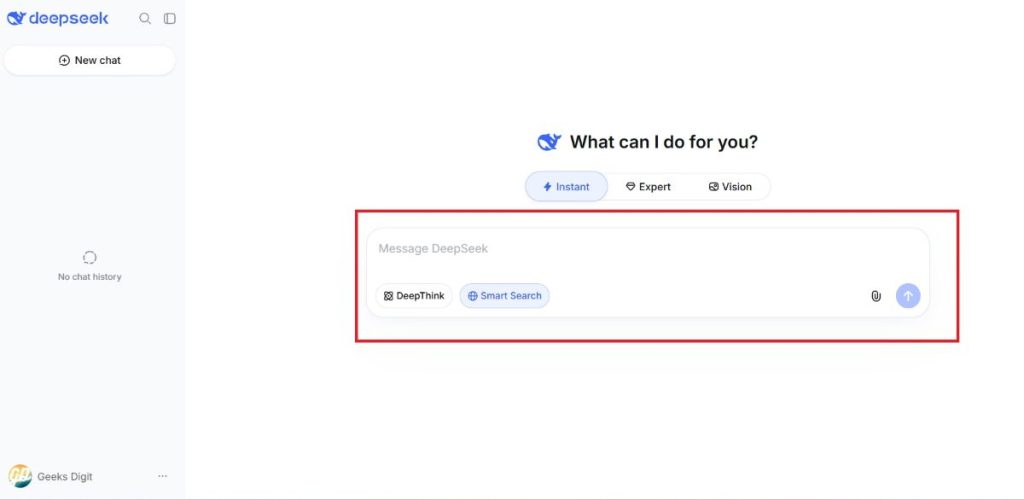
Iterate on the response. Like most chat-based coding assistants, you’ll usually get better results by refining your prompt — specifying the language, the framework, and any constraints (performance, style, compatibility) rather than accepting the first answer as final.
This method is ideal for quick one-off tasks, learning how the model behaves, or working from a machine where you don’t want to install anything. The trade-off is that your code and prompts are sent to DeepSeek’s servers, so it isn’t the right choice if you’re working with sensitive or proprietary code.
Method 2: Access DeepSeek V3 Coder via the API
If you want to call DeepSeek V3 Coder from your own applications, notebooks, or automation scripts, the API is the right tool.
- Register for an API key on DeepSeek’s developer platform. You’ll need an account, and the key is generated from your dashboard.
- Install Python from python.org if it isn’t already on your system, making sure to check the “Add Python to PATH” option during setup so you can run Python from any terminal.
- Install the required package by opening PowerShell or Command Prompt and running a pip install command for the
openai-compatible client library (DeepSeek’s API follows a familiar chat-completions format, so most existing OpenAI-style client code needs only small changes — mainly the base URL and model name). - Write a short test script that sends a prompt to the coder model and prints the response. Once that works, you can build more complex logic around it: feeding in file contents, chaining multiple requests, or wiring it into a larger tool.
- Watch your usage. API access is billed by token count (input and output tokens are priced separately), so it’s worth keeping an eye on usage if you’re running the model in a loop or over large files.
This approach is best for developers who want to embed DeepSeek V3 Coder into their own tools, build a custom coding assistant, or automate repetitive code-generation tasks.
Method 3: Run DeepSeek V3 Locally With Ollama
For full privacy and offline access, you can run a distilled version of the model directly on your Windows 11 PC using Ollama, a tool that packages and serves open models locally.
- Check your hardware first. The full-size DeepSeek V3 model is enormous — it needs hundreds of gigabytes of memory and multiple high-end GPUs, which is out of reach for a typical desktop. What most people run locally instead are the smaller distilled variants (for example, versions in the 7B–8B parameter range), which are compact enough to run on a single consumer GPU or even a CPU, at the cost of somewhat reduced capability compared to the full model.
- Download and install Ollama for Windows from its official site, then run the installer with the default options.
- Open PowerShell and pull the model you want. For a lightweight variant, this is typically a single command such as
ollama pull deepseek-coder:6.7b(swap in whichever tag matches the model size you want to try — Ollama’s model library lists the available options). - Run the model with a corresponding
ollama runcommand. This drops you into an interactive chat session right in your terminal, running entirely on your own machine. - Optional: install NVIDIA CUDA drivers if you have a compatible GPU and want faster responses. Ollama will still work on CPU alone, just more slowly.
- Optional: build a simple interface. If you’d rather not work purely from the terminal, Ollama exposes a local API on
127.0.0.1that you can connect to from a lightweight front end, or you can pair it with a tool like Gradio to get a browser-based chat window running entirely offline.
This is the method to choose if you want a coding assistant that never sends data off your machine, don’t want to pay per token, or simply want to experiment with running a large language model locally. The trade-off is setup complexity and the fact that local distilled models won’t match the reasoning quality of the full DeepSeek V3 hosted online.
Method 4: Use DeepSeek Inside Visual Studio Code
For developers who want AI assistance without switching windows, DeepSeek can be connected directly to VS Code.
- Install Visual Studio Code if you don’t already have it, accepting the default installation options.
- Open the Extensions panel inside VS Code (usually the icon that looks like four squares in the sidebar, or
Ctrl+Shift+X). - Search for the DeepSeek extension and click Install.
- Sign in to your DeepSeek account from the extension’s sidebar icon — this opens a browser window for authentication, after which VS Code will show a confirmation that it’s connected.
- Start using it inline. Once connected, you can highlight code and ask for explanations, request refactors, generate new functions from a comment, or open a chat panel to ask general programming questions — all without leaving your editor.
This method works well for day-to-day development, since suggestions and explanations appear right next to the code you’re working on rather than in a separate browser tab.
Which Method Should You Choose?
- Just exploring or need occasional help: the web interface is the fastest way in.
- Building your own tool or automating tasks: the API gives you programmatic control.
- Care about privacy, offline use, or avoiding usage costs: run a distilled model locally with Ollama.
- Want AI help built into your daily coding environment: the VS Code extension keeps everything in one window.
Many developers end up using more than one of these — for example, the VS Code extension for daily work and a local Ollama setup for anything sensitive that shouldn’t leave the machine.
Conclusion
DeepSeek V3 Coder is flexible enough to fit almost any Windows 11 setup, from a lightweight browser tab to a fully offline installation running on your own hardware. The web interface is the quickest way to get a feel for what the model can do, the API lets you build it into your own applications, running it locally through Ollama trades some setup effort for full privacy and no per-token costs, and the VS Code extension brings the assistant directly into your editor. There’s no single “correct” method — the right choice comes down to how you work, what hardware you have, and how much you care about keeping code off external servers. Whichever path you pick, expect a bit of trial and error early on: refining prompts, tuning model size for your hardware, or adjusting how you feed context to the model will make a noticeable difference in the quality of what you get back.
FAQ
1. Do I need a powerful GPU to use DeepSeek V3 Coder on Windows 11? Only if you plan to run the full-size model locally, which realistically isn’t practical on a home PC — it requires enterprise-grade GPU clusters. If you use the web interface or the API, all the heavy computation happens on DeepSeek’s servers, so your own hardware barely matters. If you want to run something locally, the smaller distilled models (in the 7B–8B parameter range) can run on a single consumer GPU, or even on CPU alone at slower speeds, so a dedicated high-end GPU is helpful but not strictly required.
2. Is DeepSeek V3 Coder free to use? The web chat interface is free to use for general access, while the API is billed based on the number of input and output tokens processed, with rates that can change over time and sometimes include promotional discounts. Running a distilled model locally through Ollama is free beyond the cost of your own electricity and hardware, since no data is sent to a paid service.
3. Is it safe to use DeepSeek V3 Coder with proprietary or sensitive code? When you use the web interface or the API, your prompts — including any code you paste in — are sent to DeepSeek’s servers, so you should treat it the same way you would any cloud-based service and avoid submitting confidential code unless you’re comfortable with that. If keeping code entirely local is important, running a distilled model offline through Ollama is the safer option, since nothing leaves your machine.
4. Can DeepSeek V3 Coder work with languages other than Python? Yes. DeepSeek V3 Coder is trained on a broad mix of programming languages and can generate, explain, and debug code in most mainstream languages, including JavaScript, TypeScript, Java, C++, C#, Go, and more, in addition to Python. Results tend to be strongest for widely used, well-documented languages, and as with any AI coding assistant, it’s worth reviewing and testing generated code rather than trusting it blindly, especially for less common languages or niche frameworks.





