Geeksdigit Team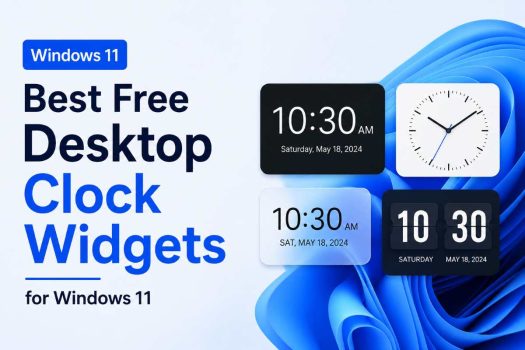
Windows 11 tucks the clock away in the corner of the taskbar, and while it’s functional, it isn’t exactly convenient. If you’re working across multiple monitors, tracking time zones for remote teammates, streaming, studying, or just like a clean, personalized desktop, a small taskbar clock doesn’t cut it. That’s where free desktop clock widgets come in.
Unlike Windows 7 and Vista, which had a native Desktop Gadgets sidebar, Windows 11 doesn’t ship with a built-in floating clock you can drag anywhere on your wallpaper. Microsoft’s own Widgets board offers quick access to news, weather, and calendar snippets, but it isn’t designed to sit permanently on your desktop the way a classic clock gadget does. To get that always-visible, fully customizable clock experience back, you need a third-party app.
The good news is that the Windows widget ecosystem is alive and well in 2026. Whether you want a minimalist digital readout, a retro analog dial, a fully skinnable Rainmeter clock, or a taskbar fix for multi-monitor setups, there’s a free tool built for it. In this guide, we’ll walk through the best free desktop clock widgets for Windows 11, what makes each one worth installing, and how to pick the right one for your workflow. We’ll close with a quick comparison, a conclusion, and answers to four of the most common questions people ask about desktop clocks on Windows 11.
Why Use a Desktop Clock Widget on Windows 11?
Before diving into the list, it’s worth understanding what a dedicated clock widget actually adds over the default taskbar clock:
- Always-on-top visibility: A floating widget stays visible even when apps are maximized, unlike the taskbar clock which can be hidden by full-screen windows.
- Larger, easier-to-read displays: Great for high-resolution monitors, presentations, or anyone who wants to check the time from across the room.
- World clocks and time zones: Useful if you collaborate with people in different cities, since you can see multiple time zones at a glance instead of switching apps.
- Personalization: Most widgets let you adjust fonts, colors, transparency, clock hands, date formats, and overall skin to match your desktop theme.
- Extra functionality: Some tools bundle alarms, countdown timers, hourly chimes, or calendar integration alongside the clock itself.
- Multi-monitor support: A handful of tools specifically fix the Windows 11 quirk where the taskbar clock doesn’t always appear on secondary monitors.
With that context, here are the best free options available right now.
The Best Free Desktop Clock Widgets for Windows 11
1. Rainmeter
Rainmeter is the gold standard for desktop customization on Windows, and it remains one of the most powerful free options for a clock widget in 2026. It isn’t a single app so much as a customizable engine that runs “skins” — small, community-built widgets that can include clocks, system monitors, weather, and more.
Why it’s great: Because Rainmeter is skin-based, you have virtually unlimited design options. You can find analog clocks, minimalist digital displays, retro pixel clocks, or elaborate dashboard-style clocks that combine the time with weather and system stats. Once installed, skins can be repositioned, resized, and layered anywhere on the desktop.
Best for: Users who want deep visual customization and don’t mind a small learning curve.
Watch out for: Only install skins from trusted sources using .rmskin files, since Rainmeter’s flexibility also means poorly made or unofficial skins can look unpolished or behave unpredictably.
2. ElevenClock
ElevenClock is a lightweight, open-source utility built specifically to fix one of Windows 11’s most annoying clock quirks: the taskbar clock not showing up properly on secondary monitors. If you run a multi-monitor setup, this is often the first tool people recommend.
Why it’s great: ElevenClock adds a clean, customizable clock to every taskbar across all your monitors, with options for 12-hour or 24-hour format, seconds display, and font adjustments. It’s actively maintained, free, and available through the Microsoft Store or GitHub.
Best for: Multi-monitor users who mainly want a consistent, reliable taskbar clock rather than a floating desktop widget.
Watch out for: It enhances the taskbar clock rather than giving you a freely draggable clock on the wallpaper itself, so it’s a different use case than Rainmeter or 8GadgetPack.
3. 8GadgetPack
8GadgetPack essentially resurrects the old Windows Vista and Windows 7 Sidebar gadget system, bringing back the classic desktop gadgets many long-time Windows users grew up with — including several clock styles.
Why it’s great: If you miss the nostalgic look of Windows 7 gadgets, this is the closest free option available. It includes multiple analog and digital clock designs, along with calendar, weather, and CPU meter gadgets, all draggable and resizable directly on the desktop.
Best for: Users who want a nostalgic, all-in-one gadget experience rather than just a clock.
Watch out for: Because it revives an older gadget framework, it’s worth downloading only from the official 8GadgetPack site to avoid bundled or outdated installers.
4. ClocX
ClocX is a dedicated, no-frills analog clock widget that sits on your desktop and can be customized with different skins, transparency levels, and always-on-top behavior.
Why it’s great: It’s extremely lightweight, easy to install, and focused entirely on being a clock — no bloat, no extra features you don’t need. You can choose from a variety of analog clock faces to match your desktop aesthetic.
Best for: Users who specifically want an analog clock rather than a digital readout, without installing a larger customization suite.
Watch out for: It’s more limited in features compared to Rainmeter or XWidget, since it’s built to do one thing well rather than serve as a full widget platform.
5. Microsoft Widgets Board
Windows 11’s native Widgets board (accessible from the taskbar) includes a clock-style widget alongside weather, news, and calendar cards.
Why it’s great: It requires no third-party download since it’s built into the OS, and it integrates cleanly with your Microsoft account for calendar and to-do list syncing.
Best for: Users who want a quick-glance clock without installing anything extra, and who don’t mind that it opens as a panel rather than sitting permanently on the desktop.
Watch out for: It’s not a persistent desktop clock — you have to open the Widgets panel to see it, which makes it less convenient than a floating or taskbar-based option if you want constant visibility.
6. Widget Launcher
Widget Launcher is a Microsoft Store app designed to give Windows 11 users an easy way to add floating widgets, including several clock styles, directly onto the desktop.
Why it’s great: It’s straightforward: browse the available widgets, add a clock, and drag it wherever you like on the wallpaper. Because it’s Store-based, installation and updates are handled automatically, which appeals to users who don’t want to deal with third-party installers.
Best for: Beginners who want a floating clock without learning a skinning system like Rainmeter.
Watch out for: Customization options are generally more limited than Rainmeter’s, since it favors simplicity over deep personalization.
7. BeWidgets
BeWidgets is another Microsoft Store option that focuses on delivering simple, attractive floating widgets — including digital and analog clocks — with minimal setup.
Why it’s great: Like Widget Launcher, it’s an easy on-ramp for anyone who wants a clock on their desktop without downloading anything outside the Store. It typically offers a handful of clock styles that can be resized and repositioned freely.
Best for: Users who want a fast, no-fuss way to get a floating clock up and running in a couple of clicks.
Watch out for: As with most Store-based widget apps, the design options are narrower than a full skinning engine like Rainmeter.
8. XWidget
XWidget is a free (with a paid upgrade tier) desktop customization tool that lets you build a personalized dashboard of widgets, including highly stylized clocks, calendars, and system monitors.
Why it’s great: It offers a large library of pre-made widget skins, including some visually striking analog and digital clocks, and a drag-and-drop editor so you can tweak layouts without coding.
Best for: Users who want something more visually polished than ClocX but easier to set up than Rainmeter.
Watch out for: Some of the more advanced skins and features are locked behind the premium version, so the free tier is somewhat limited compared to Rainmeter’s fully open skin library.
Quick Comparison: Which One Should You Choose?
- Want maximum customization and don’t mind a learning curve? Go with Rainmeter.
- Running multiple monitors and just want the taskbar clock fixed? Go with ElevenClock.
- Miss the old Windows 7 gadget sidebar? Go with 8GadgetPack.
- Want a simple analog clock and nothing else? Go with ClocX.
- Prefer everything built into Windows with no downloads? Use the Microsoft Widgets Board.
- Want the easiest possible floating clock setup? Try Widget Launcher or BeWidgets from the Microsoft Store.
- Want a polished, dashboard-style clock widget? Try XWidget.
Conclusion
Windows 11 may not include a native, freely movable desktop clock the way older versions of Windows did, but the free widget ecosystem more than makes up for it. If customization is your priority, Rainmeter remains unmatched for building a clock that truly fits your desktop’s look and feel. If you just need a practical fix for multi-monitor taskbar clocks, ElevenClock is a quick, reliable install. For a nostalgic touch, 8GadgetPack brings back the classic gadget sidebar experience, while ClocX and XWidget offer lighter, more focused clock experiences for users who want something simple but stylish.
There’s no single “best” option for everyone — it really comes down to how much control you want over the design, whether you need extra features like world clocks or alarms, and whether you’re solving a specific problem like multi-monitor visibility. Try one or two from this list, see how they feel on your desktop, and don’t be afraid to swap them out until you find the setup that fits your workflow best.
Frequently Asked Questions
1. Does Windows 11 have a built-in desktop clock widget?
Not exactly. Windows 11 has a taskbar clock and a Widgets board that includes a clock-style card, but neither functions as a freely movable, always-visible clock sitting directly on your desktop wallpaper the way Windows 7’s Desktop Gadgets did. For that kind of experience, you need a third-party tool like Rainmeter, 8GadgetPack, or a Microsoft Store widget app.
2. Are free desktop clock widgets safe to install on Windows 11?
Generally, yes, as long as you download them from official sources — the Microsoft Store, the developer’s official website, or verified GitHub repositories. Tools like Rainmeter, ElevenClock, and 8GadgetPack are well-established and actively maintained. Avoid third-party download aggregator sites, and with Rainmeter specifically, only install skins packaged as .rmskin files from trusted skin communities.
3. Can I show a clock on all my monitors in Windows 11?
Yes. This is one of the most common reasons people look for a clock widget, since Windows 11’s default taskbar clock doesn’t always display consistently across multiple monitors. ElevenClock is built specifically to solve this, adding a synced, customizable clock to the taskbar on every connected display. Alternatively, floating widgets from Rainmeter or 8GadgetPack can be manually placed on each monitor.
4. What’s the difference between a taskbar clock fix and a desktop clock widget?
A taskbar clock fix, like ElevenClock, improves or extends the clock that already lives in your taskbar — useful if your main issue is visibility across monitors or formatting options. A desktop clock widget, like those from Rainmeter, ClocX, or 8GadgetPack, is a separate, freely draggable element that floats directly on your wallpaper, independent of the taskbar. If you want a big, stylized clock as a centerpiece of your desktop, you want the widget approach; if you just want the taskbar to work better, a fix-focused tool is the simpler choice.
![Best Free Desktop Clock Widgets for Windows 11 [2026]](https://www.geeksdigit.com/wp-content/uploads/thumbs_dir/how-to-reset-or-change-login-pin-windows-11-rs305zikzqfmzgvbk73apfu1pccqbzdl560b83en98.jpg)
![Best Free Desktop Clock Widgets for Windows 11 [2026]](https://www.geeksdigit.com/wp-content/uploads/thumbs_dir/enable-windows-sandbox-windows-11-rs31lsedn1cittmh2l744d8k9t0yjh11lkbnd2lkcc.jpg)