Sukhdev Kamboj
Forgetting your Windows 11 PIN can feel like being locked out of your own digital life. Unlike a password, your PIN is tied specifically to your device, which means a forgotten or malfunctioning PIN can stop you from accessing your files, apps, and settings entirely. The good news is that Windows 11 offers several reliable, built-in ways to reset or change your login PIN, whether you’re locked out completely, want to update it for security reasons, or your PIN option has mysteriously vanished from the sign-in screen.
In this guide, you’ll learn exactly how to reset or change your Windows 11 PIN using four proven methods, along with answers to the most common questions users have about PIN issues.
Why Windows 11 Uses a PIN Instead of a Password
Before diving into the fixes, it helps to understand why Windows 11 pushes PINs so heavily. A PIN is part of Windows Hello, Microsoft’s biometric and hardware-backed authentication system. Unlike a password, a PIN is:
- Device-specific: It only works on the device where it was created, so even if someone learns your PIN, they can’t use it to access your Microsoft account elsewhere.
- Hardware-secured: PINs are tied to the Trusted Platform Module (TPM) chip on your computer, making them more resistant to phishing and remote attacks than passwords.
- Faster to use: A 4-6 digit PIN is quicker to type than a complex password, especially on touchscreens.
Because the PIN is hardware-bound, resetting it doesn’t compromise your Microsoft account password — it simply creates a new local credential for that specific device.
Before You Start: Things to Know
- You’ll need internet access and your Microsoft account credentials (email and password) for most reset methods.
- If you use a local account instead of a Microsoft account, some reset options will look slightly different (covered in Method 3).
- Changing your PIN doesn’t affect your Microsoft account password, OneDrive files, or installed apps.
- If Windows Hello face or fingerprint recognition is also failing, a PIN reset often fixes that too, since they share the same underlying security enrollment.
Now let’s walk through each method.
Method 1: Change Your PIN from Settings (When You’re Already Logged In)
This is the simplest method and works if you’re currently signed in but want to update your PIN for routine security maintenance.
Click the Start menu and open Settings (or press Windows key + I).
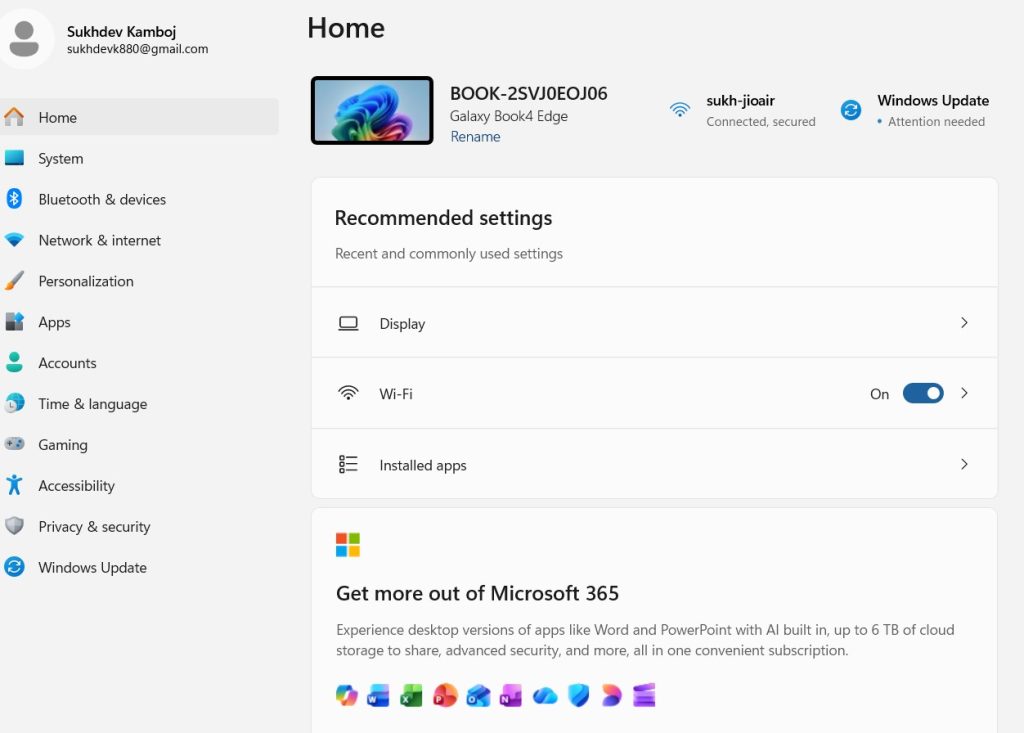
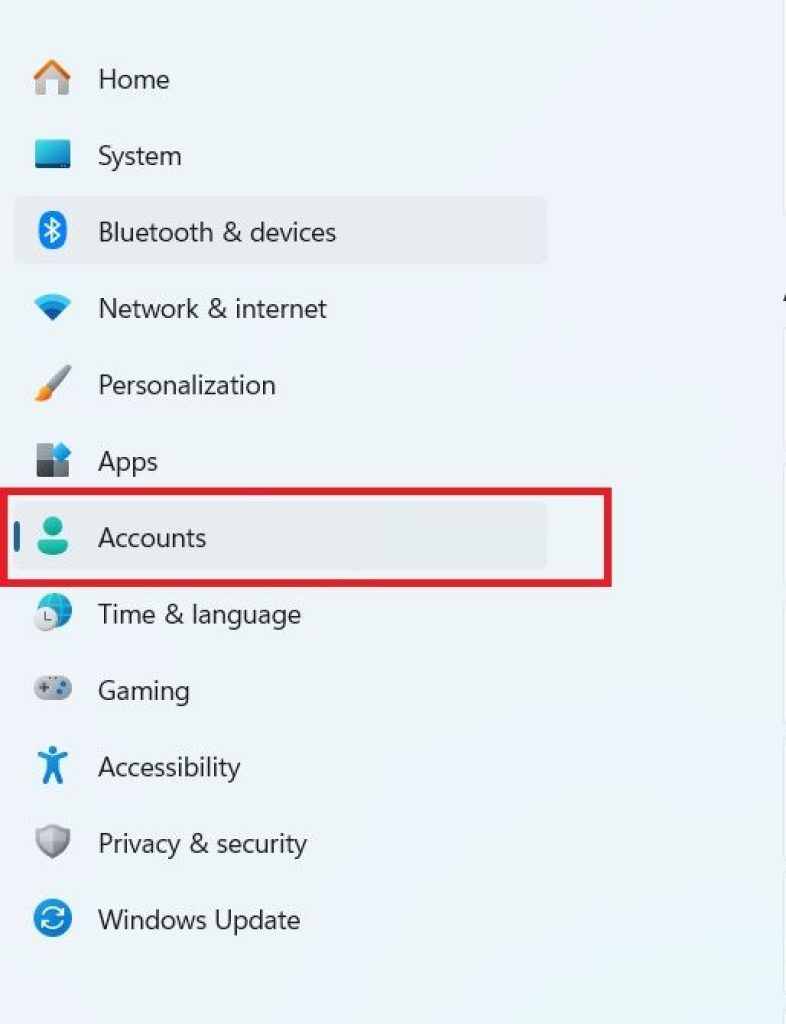
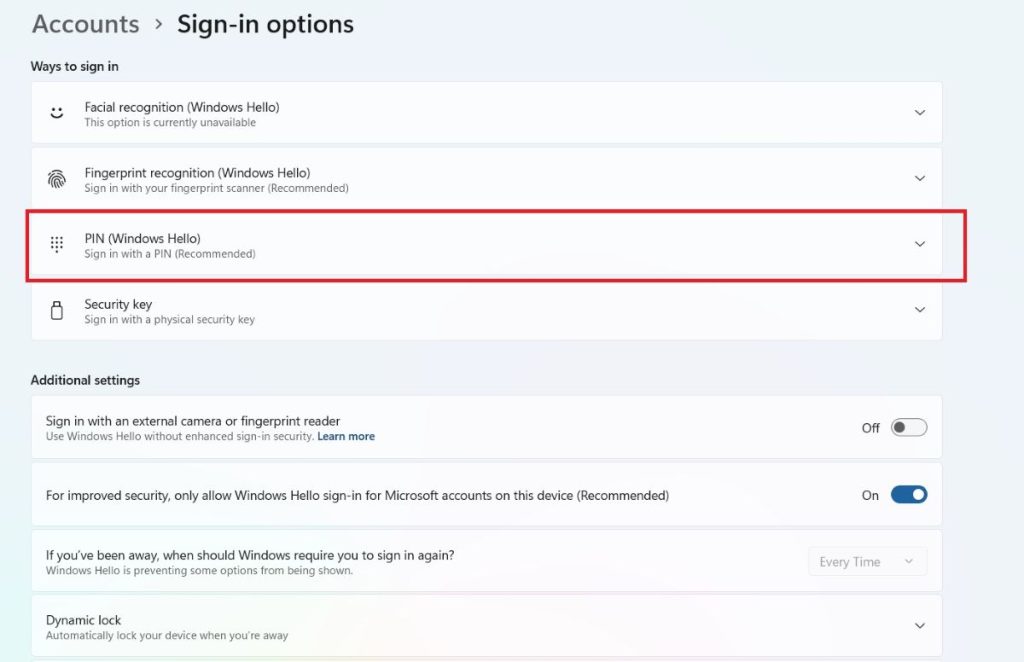
Navigate to Accounts in the left sidebar.
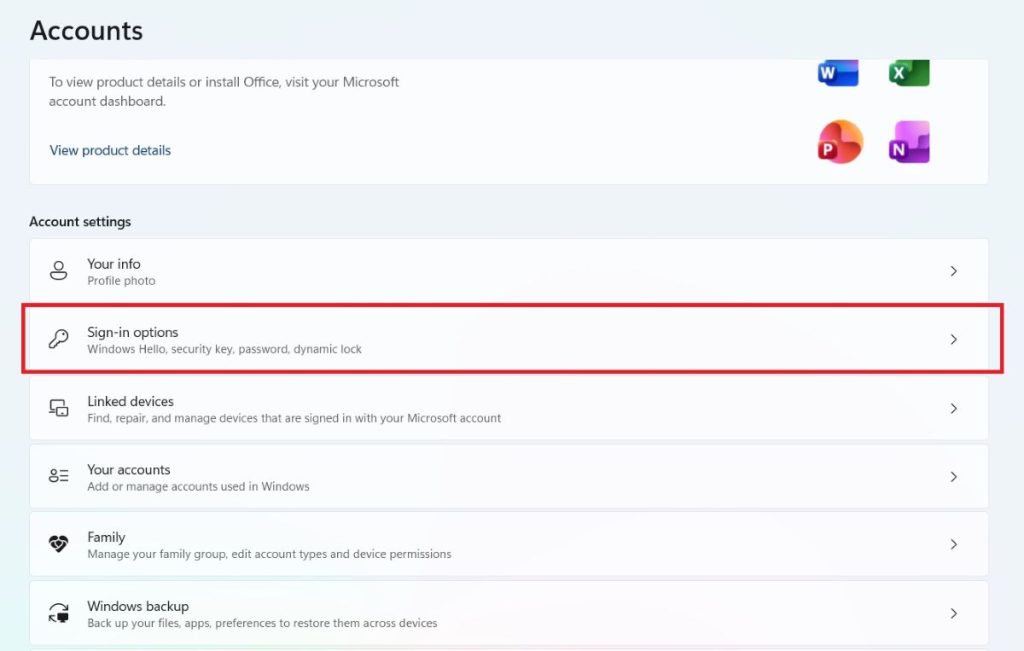
Select Sign-in options.
Under “Ways to sign in,” click on PIN (Windows Hello).
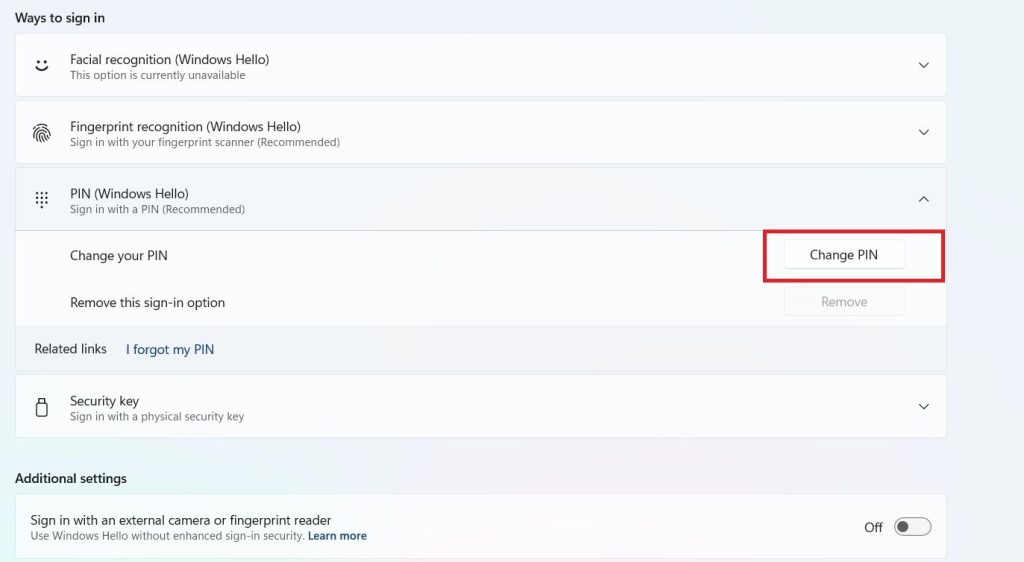
Click Change PIN.
Enter your current PIN to verify your identity.
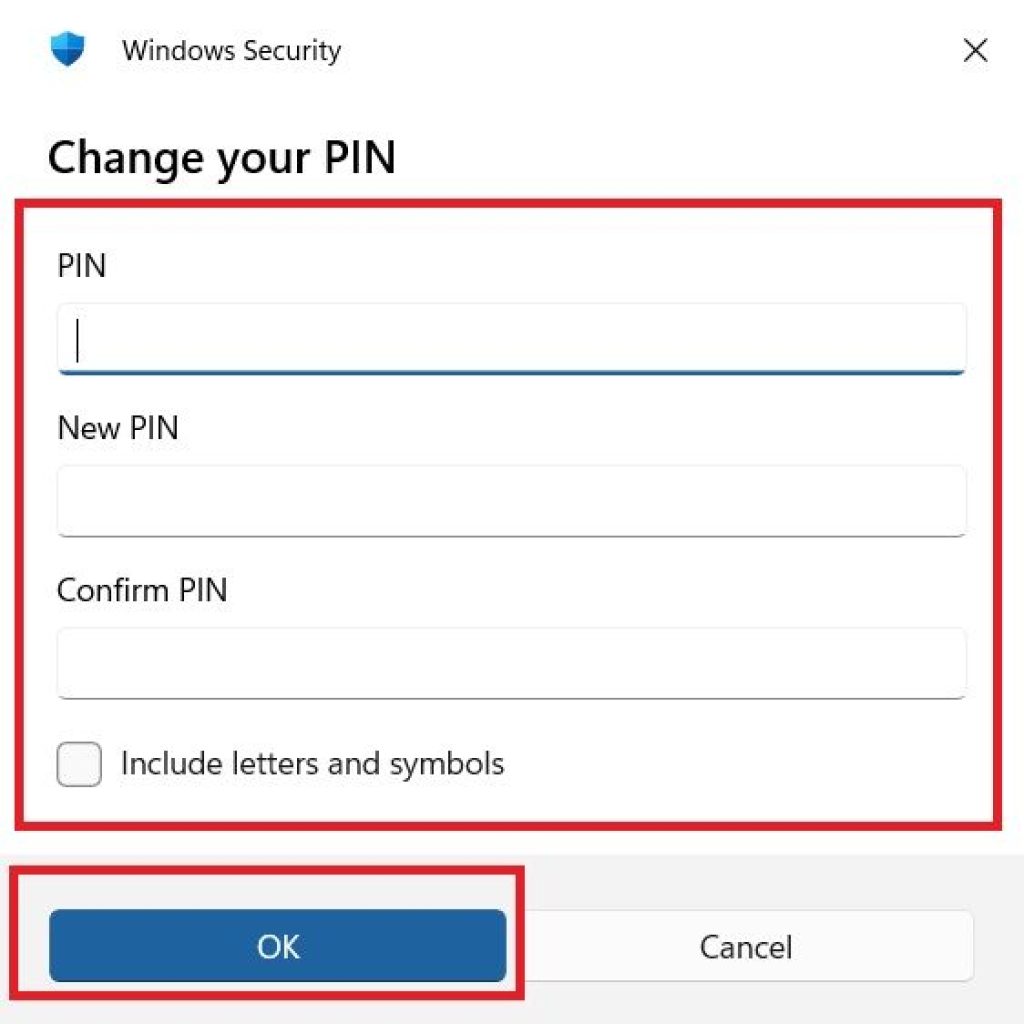
Type your new PIN twice to confirm it, then click OK.
If you’d like to use letters and symbols in addition to numbers, check the box for “Include letters and symbols” before setting your new PIN. This creates a more complex passcode while still using the PIN sign-in method.
Method 2: Reset a Forgotten PIN from the Lock Screen
If you can’t remember your PIN and are locked out at the sign-in screen, Windows 11 has a built-in recovery option that doesn’t require a full account reset.
- On the Windows 11 lock/sign-in screen, click on the PIN field.
- Click the “I forgot my PIN” link that appears below the PIN entry box.
- Windows will prompt you to sign in with your Microsoft account password instead.
- Enter your Microsoft account password when prompted.
- You may be asked to complete two-factor verification (a code sent to your phone or email) to confirm your identity.
- Once verified, you’ll be prompted to create a new PIN. Enter and confirm it.
- Click OK, and you’ll be signed in with your new PIN active immediately.
This method is ideal because it doesn’t require any downloads, external tools, or advanced troubleshooting — it’s built directly into the Windows Hello recovery flow.
Note: This option only appears if your device has an active internet connection and you’re using a Microsoft account. If you’re offline or using a local account, skip to Method 3.
Method 3: Reset PIN via Settings for Local Accounts
Local accounts don’t have the same cloud-based recovery options as Microsoft accounts, but you can still reset a PIN if you know your local account password.
- From the sign-in screen, click Sign-in options (the small link below the password field).
- Select the password icon to sign in using your local account password instead of the PIN.
- Once logged in, go to Settings > Accounts > Sign-in options.
- Under PIN (Windows Hello), click Remove, then confirm.
- Click Add to set up a brand-new PIN.
- Enter your local account password to verify, then create and confirm your new PIN.
If you’ve also forgotten your local account password, you’ll need to use a password reset disk (if you created one in advance) or perform a more advanced system recovery, since local accounts don’t offer the same remote verification as Microsoft accounts.
Method 4: Reset PIN Through Windows Recovery Environment (When Completely Locked Out)
If you can’t access the desktop at all — for example, the “I forgot my PIN” link isn’t appearing, or your device won’t boot to the normal sign-in screen — you can use the Windows Recovery Environment (WinRE) to regain access.
- On the sign-in screen, click the Power icon in the bottom-right corner.
- Hold Shift on your keyboard and click Restart simultaneously.
- Your PC will boot into the blue Windows Recovery Environment screen.
- Select Troubleshoot > Advanced options > Command Prompt (you may need administrator credentials).
- In some configurations, you can also select Reset this PC, though this is a more drastic option and may remove apps depending on the choice you make (keep files vs. remove everything).
- If accessing via Command Prompt, you can navigate to account management tools to remove the corrupted Windows Hello PIN data, forcing Windows to prompt for a new PIN setup on next boot.
- Restart your PC normally. At the sign-in screen, follow the prompts to set up Windows Hello and create a new PIN.
This method is more technical and is best used as a last resort when other options fail, such as after a corrupted update or system file issue affecting Windows Hello.
Common Reasons Your PIN Might Stop Working
Understanding why PIN issues happen can help you prevent them in the future:
- Recent Windows updates: Updates occasionally reset or corrupt Windows Hello credentials.
- TPM chip resets or firmware updates: Since your PIN is hardware-bound, a TPM reset (sometimes triggered by BIOS updates) can invalidate your existing PIN.
- Account sync delays: If you recently changed your Microsoft account password on another device, it can take a few minutes to sync and may temporarily disrupt sign-in options.
- Group Policy or organizational restrictions: On work or school devices, IT administrators sometimes disable or reset PIN options remotely for security compliance.
Conclusion
Losing access to your Windows 11 PIN doesn’t have to mean losing access to your PC. Whether you’re simply updating your PIN for better security, troubleshooting a forgotten code, or recovering from a more serious lockout, Windows 11 provides multiple built-in pathways to get you back in. For most users, Method 1 (changing the PIN through Settings) or Method 2 (the “I forgot my PIN” lock screen recovery) will resolve the issue in just a few minutes. Local account holders and users facing deeper system issues can rely on Methods 3 and 4 as reliable fallbacks.
As a general best practice, consider setting up a secondary sign-in method — such as a fingerprint, facial recognition, or a backup Microsoft account recovery email — so that future PIN issues are even easier to resolve.
Frequently Asked Questions (FAQ)
1. Can I remove my PIN completely and just use a password to sign in?
Yes, in most cases. Go to Settings > Accounts > Sign-in options, select PIN (Windows Hello), and click Remove. However, some organization-managed devices or newer Windows 11 configurations may require a PIN or another Windows Hello method for security purposes, in which case the option to remove it may be greyed out.
2. Will resetting my PIN delete my files or apps?
No. Resetting or changing your PIN only affects your sign-in credentials — it has no impact on your personal files, installed applications, or system settings. Even the “Reset this PC” option in Method 4 offers a “Keep my files” choice that preserves your personal data.
3. Why doesn’t the “I forgot my PIN” option appear on my sign-in screen?
This option typically requires an active internet connection and a Microsoft account (not a local account). If you’re offline, connect to Wi-Fi or Ethernet before attempting the reset. If you’re using a local account, this option won’t appear at all — use Method 3 instead.
4. Is it safe to use letters and symbols in my Windows 11 PIN?
Yes. Windows 11 allows you to enable an “Include letters and symbols” option when creating your PIN, effectively turning it into a more complex passcode. This is a great option if you want extra security while still benefiting from the speed and device-specific protection of a PIN over a traditional password.