
 Geeksdigit Team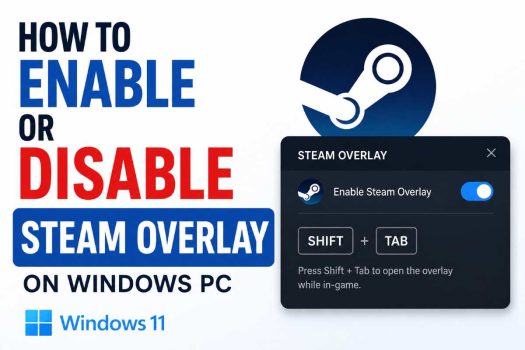
Steam is one of the world’s most popular gaming platforms, offering access to thousands of games along with community features, achievements, cloud saves, screenshots, voice chat, and more. One of its most useful features is the Steam Overlay, which lets you access Steam’s interface while playing a game without minimizing it. With a simple keyboard shortcut, you can chat with friends, browse guides, take screenshots, view achievements, open the web browser, or make purchases without leaving your game.
Although the Steam Overlay is enabled by default for most users, there are situations where you may want to disable it. Some games perform better without the overlay, certain anti-cheat systems may conflict with it, or you may simply prefer a distraction-free gaming experience. Likewise, if the overlay has been turned off accidentally, you’ll need to know how to enable it again.
In this guide, you’ll learn several ways to enable or disable the Steam Overlay on a Windows PC. These methods cover global Steam settings, per-game configuration, launch options, keyboard shortcuts, and advanced settings so you can easily manage the overlay according to your preferences.
What Is the Steam Overlay?
The Steam Overlay is an in-game interface that appears on top of your game while it is running. By default, you can open it by pressing Shift + Tab.
The overlay provides quick access to several Steam features, including:
- Friends list
- Steam Chat
- Web browser
- Game guides
- Achievements
- Screenshot manager
- Community discussions
- Notes
- Music controls (supported games)
- Steam purchases
Since the overlay runs in the background, it allows you to interact with Steam without closing or minimizing your game.
Method 1: Enable or Disable Steam Overlay Globally
The easiest way to control the Steam Overlay is through Steam’s main settings. This enables or disables the feature for all supported games.
- Launch Steam.
- Click Steam in the upper-left corner.
- Select Settings.
- Click the In Game tab from the left pane.
- Locate Enable the Steam Overlay while in-game.
- Check the box to enable the overlay.
- Uncheck the box to disable it.
- Click OK or simply close the Settings window to save the change.
The new setting takes effect the next time you launch a game.
Method 2: Enable or Disable Steam Overlay for a Specific Game
If you only want to disable the overlay for one game while keeping it enabled for others, Steam allows you to configure individual game settings.
- Open Steam.
- Click the Library tab.
- Right-click the game.
- Select Properties.
- Stay on the General tab.
- Locate Enable the Steam Overlay while in-game.
- Check the option to enable it.
- Clear the checkbox to disable it.
- Close the Properties window.
This setting overrides the global preference only for the selected game.
Method 3: Change the Steam Overlay Shortcut
If the default Shift + Tab shortcut conflicts with another application or in-game controls, you can assign a different hotkey.
- Open Steam.
- Click Steam > Settings.
- Select In Game.
- Find the Overlay shortcut keys section.
- Click inside the shortcut field.
- Press your preferred key combination.
- Close the Settings window.
The new shortcut will be used to open the overlay in supported games.
Method 4: Verify That Steam Overlay Is Running
Sometimes the overlay appears to be disabled when it simply isn’t loading correctly.
To verify:
- Launch Steam.
- Start a Steam game.
- Press Shift + Tab (or your custom shortcut).
- If the overlay opens, it is enabled.
- If nothing happens, review your Steam settings and the game’s overlay setting.
Testing with multiple Steam games can help determine whether the issue is game-specific.
Method 5: Enable Steam Overlay for Non-Steam Games
Steam allows you to add non-Steam games to your library. While the overlay may work with many of them, support depends on how the game launches.
- Open Steam.
- Click Games.
- Select Add a Non-Steam Game to My Library.
- Choose the application.
- Click Add Selected Programs.
- Right-click the newly added game.
- Select Properties.
- Ensure Enable the Steam Overlay while in-game is checked.
- Launch the game from Steam.
Some non-Steam games may not fully support the overlay, particularly if they use launchers or anti-cheat software.
Method 6: Enable Hardware Acceleration in Steam
Steam’s interface uses hardware acceleration to improve performance on many systems. If it has been disabled, certain interface features, including the overlay, may not behave as expected.
- Open Steam.
- Go to Steam > Settings.
- Open the Interface section.
- Review the available display and performance options.
- Enable hardware acceleration if the option is available.
- Restart Steam.
The overlay may perform more smoothly after Steam reloads.
Method 7: Restart Steam After Changing Overlay Settings
Although most changes apply automatically, restarting Steam ensures that new settings are fully loaded.
- Close all running games.
- Exit Steam completely.
- Open Task Manager.
- Verify no Steam processes remain.
- Launch Steam again.
- Start your game.
Restarting the client is often enough for new overlay settings to take effect.
Method 8: Disable Overlay Using Launch Options (When Needed)
Some advanced users prefer to launch certain games with custom options to reduce background features.
- Open Steam Library.
- Right-click the game.
- Select Properties.
- Locate the Launch Options field.
- Enter the launch parameters recommended by the game developer, if any.
- Close the window.
- Launch the game.
Not all games support launch options that affect the Steam Overlay directly, but developers occasionally recommend specific parameters for compatibility or performance.
Method 9: Enable Steam Overlay After Reinstalling Steam
If you’ve recently reinstalled Steam, verify that the overlay is still enabled.
- Open Steam.
- Sign in to your account.
- Go to Steam > Settings > In Game.
- Enable Steam Overlay while in-game.
- Launch a game.
- Press Shift + Tab.
A fresh installation may restore Steam to its default settings, so it’s worth checking the overlay preference.
Method 10: Reset Steam Settings
If the overlay behaves unexpectedly and configuration changes don’t help, resetting Steam settings can restore default behavior.
- Close Steam.
- Reopen it.
- Navigate to Steam > Settings.
- Review the In Game settings.
- Restore any customized overlay settings to their defaults.
- Restart Steam.
- Test the overlay again.
If you’ve customized multiple Steam options over time, returning the overlay settings to their defaults can help eliminate configuration-related issues.
Why You Might Want to Disable the Steam Overlay
Although the Steam Overlay is useful, there are situations where turning it off makes sense.
Common reasons include:
- Improving performance on older computers
- Reducing memory usage
- Avoiding conflicts with game modifications
- Preventing interference with anti-cheat systems
- Eliminating accidental shortcut activation
- Using third-party overlays such as Discord or GeForce Experience
- Playing games that recommend disabling overlays
Most modern PCs handle the Steam Overlay with little to no performance impact, but disabling unnecessary background features can still benefit some systems.
Frequently Asked Questions
Does disabling Steam Overlay affect game saves?
No. Steam Cloud saves, local save files, and your game progress remain unaffected. Disabling the overlay only removes the in-game Steam interface.
Can I enable the overlay for one game only?
Yes. Steam allows you to override the global setting for individual games through each game’s Properties > General page.
Why doesn’t Shift + Tab open the Steam Overlay?
The overlay may be disabled globally, turned off for that specific game, assigned to a different shortcut, or unsupported by the game you’re running.
Does Steam Overlay reduce FPS?
On most modern systems, the performance impact is minimal. However, in graphically demanding games or on lower-end hardware, disabling the overlay may provide a small improvement in performance.
Conclusion
The Steam Overlay is a convenient feature that lets you access chats, achievements, guides, screenshots, and other Steam tools without leaving your game. For most players, keeping it enabled provides a smoother and more connected gaming experience. However, there are valid reasons to disable it, such as improving compatibility, reducing background processes, or avoiding shortcut conflicts.
Whether you choose to enable the overlay globally, configure it for individual games, customize its shortcut, or temporarily disable it for performance reasons, Steam provides straightforward controls to manage the feature. By understanding these settings, you can tailor the Steam Overlay to match your gaming preferences and enjoy a more seamless experience on your Windows PC.





