Geeksdigit Team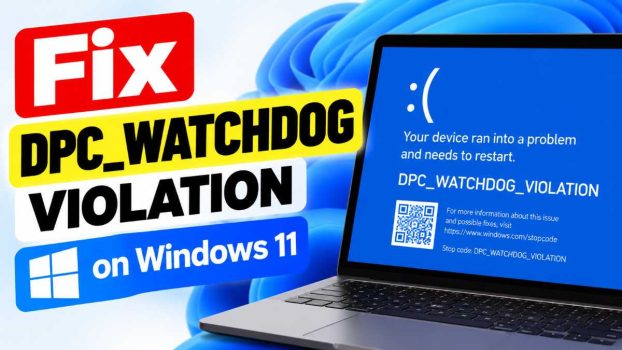
Few things are more frustrating than a Windows 11 PC that suddenly freezes and drops to a blue screen reading DPC_WATCHDOG_VIOLATION. The error can appear while you’re gaming, streaming, installing software, or doing nothing at all. Sometimes it shows up once and never returns. Other times it sends your PC into a restart loop.
The stop code has the bug check value 0x133. It means a Deferred Procedure Call (DPC), a low-level task that drivers use to finish work at a lower priority, ran too long or got stuck. Windows keeps a watchdog timer for this, and when a single DPC exceeds its allowed time, or the system spends too long at an elevated interrupt level, the watchdog stops the machine to prevent data corruption.

In plain terms, something, almost always a driver, is hanging the processor. The most common culprits are:
- Outdated or incompatible storage drivers, especially the Intel Rapid Storage Technology driver (iaStorA.sys / iaStorAC.sys) or old SSD firmware
- Faulty graphics, network, or chipset drivers
- Corrupted system files
- Failing hardware such as an SSD, hard drive, or RAM
- Problematic external devices, such as USB hubs, printers, or docks
- A recent Windows update or software installation that introduced a conflict
The fixes below are ordered from quickest and safest to more involved. Work through them one at a time and restart after each, so you know what actually solved the problem.
If your PC can’t boot normally: Interrupt startup three times in a row (hold the power button while Windows loads) to enter the Windows Recovery Environment. Then choose Troubleshoot → Advanced options → Startup Settings → Restart, and press 4 or F4 to boot into Safe Mode. You can perform most of the fixes below from there.
Methods to Fix DPC_WATCHDOG_VIOLATION
Method 1: Disconnect External Devices
A misbehaving peripheral driver can trigger this error, so start with the simplest test.
- Shut down your PC completely.
- Unplug everything non-essential: external drives, USB hubs, printers, webcams, docking stations, game controllers, and adapters. Leave only the keyboard and mouse.
- Boot Windows and use the PC normally for a while.
If the blue screen stops, plug the devices back in one at a time until it returns. Once you find the culprit, update or reinstall its driver, or try a different USB port. Avoid unpowered USB hubs, which can cause instability.
Method 2: Install Pending Windows Updates
Microsoft regularly patches driver conflicts and stability bugs, so a fix may already be available.
- Press Windows + I to open Settings.
- Go to Windows Update and click Check for updates.
- Install everything offered, then click Advanced options → Optional updates and install any driver updates listed there.
- Restart when prompted.
Make sure you’re on a supported build of Windows 11. Older builds that no longer receive updates are more likely to have unpatched driver problems.
Method 3: Change the SATA AHCI Controller Driver
This is one of the most effective fixes, particularly on systems with SSDs. Windows sometimes ships with, or installs, a vendor storage driver that conflicts with the drive. Switching to Microsoft’s built-in driver often resolves it right away.
- Right-click the Start button and choose Device Manager.
- Expand IDE ATA/ATAPI controllers.
- Right-click the entry named SATA AHCI Controller (the name may include a vendor such as Intel) and select Update driver.
- Choose Browse my computer for drivers, then Let me pick from a list of available drivers on my computer.
- Select Standard SATA AHCI Controller and click Next.
- Restart your PC.
To confirm the change worked, open the controller’s properties, go to the Driver tab, and click Driver Details. You should see storahci.sys, the Microsoft driver, in the list.
Note that NVMe drives use a different controller category (Storage controllers), and this specific method applies mainly to SATA devices. For NVMe drives, update the NVMe driver and firmware instead (see Method 5).
Method 4: Update Your Device Drivers
Outdated drivers are the leading cause of this error. Focus on the ones that interact most heavily with the processor and storage:
- Chipset driver: Download it from your motherboard or laptop manufacturer’s support page (or from Intel or AMD directly).
- Graphics driver: Get the latest from NVIDIA, AMD, or Intel. For a clean install, use the “clean installation” option in NVIDIA’s installer, or use Display Driver Uninstaller (DDU) in Safe Mode if problems persist.
- Storage drivers: Intel Rapid Storage Technology, AMD RAID, or NVMe controller drivers.
- Network drivers: Wi-Fi and Ethernet adapters, especially Realtek and Killer adapters, have caused this error in the past.
- Audio drivers: Less common, but Realtek audio drivers occasionally cause DPC latency issues.
To update via Device Manager, right-click the device and choose Update driver → Search automatically for drivers. This only finds drivers in Windows Update, so for best results download directly from the manufacturer. If a problem started right after a driver update, use Properties → Driver → Roll Back Driver instead.
Method 5: Update Your SSD Firmware
Outdated SSD firmware is a well-documented cause of DPC watchdog errors. Some drives had firmware bugs that caused them to stall under load, and manufacturers released updates to fix them.
- Identify your SSD’s model: open Device Manager → Disk drives, or check Task Manager → Performance → Disk.
- Visit the manufacturer’s website or use their utility, for example Samsung Magician, Crucial Storage Executive, WD Dashboard, Kingston SSD Manager, or Intel/Solidigm Storage Tool.
- Check for a firmware update and apply it following the instructions.
Back up your important data before updating firmware. Firmware updates are usually safe, but an interruption, such as a power loss, can render a drive unusable. On a laptop, keep it plugged in throughout.
Method 6: Repair System Files with SFC and DISM
Corrupted system files can cause drivers to hang. Windows has built-in tools to repair them.
- Click Start, type cmd, right-click Command Prompt, and choose Run as administrator.
- Run the Deployment Image Servicing tool first:
DISM /Online /Cleanup-Image /RestoreHealthThis can take 10 to 20 minutes. Don’t close the window if it appears stuck at a percentage. - Then run the System File Checker:
sfc /scannow - Restart when both complete.
If SFC reports that it found and repaired corrupt files, that may well have been your problem. If it found corruption it couldn’t fix, run DISM again and then repeat SFC.
Method 7: Check Your Drive for Errors
A failing or corrupted drive can cause the long delays that trip the watchdog.
- Open Command Prompt as administrator.
- Run:
chkdsk C: /f /r - Type Y to schedule the scan for the next restart, then reboot.
The scan may take a long time on large drives, especially with the /r flag. Afterward, check your drive’s health using the manufacturer’s tool or a utility like CrystalDiskInfo. If it reports “Caution” or “Bad,” or shows reallocated or pending sectors, back up your data immediately and plan to replace the drive.
Method 8: Disable Fast Startup
Fast Startup saves a partial hibernation image of the kernel and drivers to speed up boot. This can carry over a driver’s bad state across shutdowns.
- Open Control Panel → Power Options.
- Click Choose what the power buttons do.
- Click Change settings that are currently unavailable.
- Uncheck Turn on fast startup (recommended) and save changes.
Disabling it adds a few seconds to boot time on most modern systems, but it can improve stability.
Method 9: Uninstall Recent Updates or Software
If the error began after a specific update or program installation, undo it.
To remove a Windows update:
- Go to Settings → Windows Update → Update history → Uninstall updates.
- Select the most recent update and click Uninstall.
To remove software:
- Go to Settings → Apps → Installed apps.
- Sort by install date and uninstall recently added programs, especially:
- Third-party antivirus or security suites
- Virtualization tools and hypervisors
- Overclocking and monitoring utilities
- VPN clients and virtual network adapters
- Drive encryption or disk utilities
Security software and virtualization tools install low-level drivers, which makes them frequent offenders.
Method 10: Test Your RAM
Faulty memory can cause almost any blue screen, including this one.
- Press Windows + R, type
mdsched.exe, and press Enter. - Choose Restart now and check for problems.
- Wait for the test to finish. Windows will restart and show the result.
For a deeper test, run MemTest86 from a bootable USB drive for several passes. If you have multiple RAM sticks, test them one at a time to find a bad module. Also confirm that XMP/EXPO memory profiles are stable, or temporarily disable them in the BIOS.
Conclusion
The DPC_WATCHDOG_VIOLATION error looks alarming, but it’s usually fixable without spending any money. Since the underlying cause is almost always a driver that stalls the processor, the highest-value fixes are switching to the Microsoft SATA AHCI driver, updating storage and chipset drivers, and updating your SSD firmware. Repairing system files, disabling Fast Startup, and removing conflicting software solve most of the remaining cases.
Work methodically: change one thing at a time, restart, and observe. If the blue screen keeps coming back, the crash dump will name the faulting driver, and if the software side is clean, testing your RAM and drive will reveal whether hardware is to blame. Keep regular backups, since blue screens caused by a dying drive can come without warning.
Frequently Asked Questions
1. Is the DPC_WATCHDOG_VIOLATION error dangerous for my PC?
The error itself is a protective shutdown, so it won’t damage your hardware. However, repeated crashes can corrupt files or interrupt writes to disk, and the underlying cause might be a failing drive or memory. Treat repeated occurrences seriously and back up your data.
2. What is the most common cause of this error on Windows 11?
Incompatible or outdated storage drivers and SSD firmware are the most frequent causes. Switching to the Standard SATA AHCI Controller driver and updating your SSD firmware resolve a large share of cases.
3. Can overheating or overclocking cause DPC_WATCHDOG_VIOLATION?
Yes, indirectly. Overclocking a CPU or RAM, or an aggressive XMP profile, can make the system unstable and cause drivers to hang. Overheating can throttle the processor and delay DPC execution. Reset your BIOS to defaults, check temperatures, and see whether the crashes stop.
4. What should I do if the blue screen keeps happening before I can log in?
Boot into the Windows Recovery Environment by interrupting startup three times, then enter Safe Mode with Networking. From there, you can uninstall recent updates, roll back drivers, run SFC and DISM, or perform a System Restore. If Safe Mode is stable but normal mode isn’t, a driver or startup program is the likely cause.