Geeksdigit Team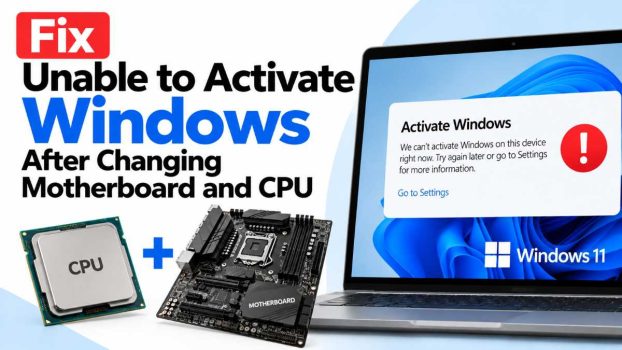
Upgrading your PC’s motherboard and CPU is one of the most impactful hardware refreshes you can do — it’s essentially like getting a new computer while keeping your storage, GPU, RAM, and operating system installation intact. Unfortunately, this exact combination of changes is also the single most common trigger for Windows activation errors. Right after you boot into your freshly upgraded system, you might see a notification that reads “Windows isn’t activated,” or you might dig into Settings and find an error code such as 0x803FA067, 0xC004F074, 0x8007007B, or a generic message stating that “Windows is not genuine.”
This happens because of how Microsoft ties your license to your hardware. When Windows activates on a PC, it generates a unique hardware ID (sometimes called a hardware hash) based on components like your motherboard, CPU, storage controller, and network adapter. This hash is sent to Microsoft’s activation servers and associated with your product key or digital license. When you swap out the motherboard — and especially when you change the CPU at the same time — that hardware ID changes so significantly that Microsoft’s servers can no longer recognize the PC as the same device. As a result, Windows falls back into an unactivated or “not genuine” state, even though you haven’t done anything wrong and your license is still valid.

The severity of the problem and how easy it is to fix largely depends on three factors: whether you’re running Windows 10 or Windows 11, whether your license is a retail key or an OEM key, and whether your Microsoft account was linked to your digital license before you made the hardware change. In most cases — particularly if you had the foresight to link your account — this is a quick fix that takes less than five minutes. In tougher cases, especially with OEM licenses, you may need to contact Microsoft support directly or, in some situations, purchase a new license altogether.
Method 1: Run the Built-In Activation Troubleshooter
This is the first thing you should try, and it resolves the vast majority of cases where the Windows license was previously linked to a Microsoft account.
- Open Settings (Win + I).
- Navigate to System > Activation.
- Under the “Activation” section, look for the link labeled Troubleshoot. If you don’t see it immediately, scroll down — sometimes it’s nested under a “Windows isn’t activated” banner.
- Click Troubleshoot, and when prompted, select “I changed hardware on this device recently.”
- Sign in with the same Microsoft account that was associated with your Windows license before the upgrade. This is critical — if you sign in with the wrong account, or an account that was never linked, the troubleshooter won’t find a matching entitlement.
- Windows will contact Microsoft’s activation servers, verify that your account owns a valid digital license, and reactivate the installation on the new hardware fingerprint.
This entire process usually takes under a minute once you’re signed in with the correct account. If it succeeds, you’ll see a green checkmark and the message “Windows is activated with a digital license linked to your Microsoft account.”
Method 2: Link Your License to a Microsoft Account (If You Haven’t Already)
If the troubleshooter doesn’t offer the “I changed hardware” option, or if it fails to find a matching license, it’s likely because your digital license was never linked to a Microsoft account in the first place. Many people activate Windows and never bother to connect their account, not realizing this step is what protects them from exactly this kind of hardware-change headache in the future.
Unfortunately, if you’re already past the hardware change and were never linked, there’s no way to retroactively link the old hardware’s activation record. However, you can still try:
- If you still have your old motherboard and CPU available, reinstall them temporarily, boot into Windows, and link your Microsoft account under Settings > Accounts > Your info > “Add a Microsoft account instead” (or under Activation settings directly). Once linked and activated on the old hardware, switch back to the new components and run the troubleshooter from Method 1.
- If you no longer have the old hardware, proceed to Method 3 or Method 4.
Going forward, always link your Microsoft account to your Windows license immediately after a fresh install. This single step prevents almost all future activation headaches after hardware upgrades.
Method 3: Use Your Retail Product Key Manually
If you purchased Windows separately — as a boxed retail copy or an official digital download directly from Microsoft — you likely have a 25-character product key that is not tied to a single piece of hardware in the same restrictive way an OEM key is.
- Go to Settings > System > Activation.
- Click Change product key.
- Enter your retail key exactly as provided (Windows will auto-format the dashes).
- Click Next, and Windows will attempt to validate and activate using this key directly, bypassing the need to match a hardware hash from before.
Retail keys can typically be reused on new configurations, including after a motherboard and CPU swap, as long as the same key isn’t already activated on another distinct, currently active installation. If you get an error saying the key has already been used, that usually means it detected an old, still-active installation — see Method 4 for how to resolve that through support.
Method 4: Contact Microsoft Support Through the Automated Activation Phone System
When the troubleshooter and manual key entry both fail, Microsoft provides a legacy but still-functional activation phone system that can manually issue a confirmation ID for your installation.
- Press Win + R to open the Run dialog.
- Type
slui 4and press Enter. - Select your country or region from the list.
- You’ll be given a toll-free number and an Installation ID — a long numeric string specific to your current hardware and Windows copy.
- Call the number and follow the automated prompts, or wait to speak with a representative. Have your installation ID ready, and be prepared to explain that you upgraded your motherboard and CPU.
- If approved, you’ll receive a Confirmation ID to type back into the activation window, which completes the process immediately.
This method works for both automated approval (common for retail keys or minor mismatches) and for cases where a human agent needs to review the request, which is more common with OEM or volume-license keys. Support agents can sometimes manually re-issue activation even when the automated system refuses, particularly if you can demonstrate you’re the legitimate owner of the license.
Method 5: Understand and Work Around OEM License Limitations
OEM (Original Equipment Manufacturer) licenses — the kind that come pre-installed on prebuilt desktops and laptops from manufacturers like Dell, HP, Lenovo, or Acer — are deliberately locked to the original motherboard by Microsoft’s licensing terms. This is by design: OEM licenses are sold at a discount specifically because they’re meant to stay with one piece of hardware for its lifetime, not to be transferred.
If your Windows installation came as an OEM license and you’ve now swapped the motherboard (with or without a CPU change), Microsoft’s official policy is that the license does not carry over to the new board. In practice:
- The activation troubleshooter will often fail or won’t even show the hardware-change option.
- Calling support may result in being told the license is non-transferable.
- Your only fully compliant path forward is typically to purchase a new retail license for the upgraded system.
That said, many users report success reactivating OEM licenses anyway, especially if only the CPU changed or if they call support and explain the situation — Microsoft’s actual enforcement is sometimes more lenient than the written policy. It’s worth attempting Methods 1 and 4 before assuming you need to buy a new key, but budget for the possibility that a new retail license (which typically costs $120–$200 for Windows 11 Home/Pro) may be necessary if your original license was OEM and enforcement doesn’t budge.
Conclusion
An “Unable to Activate Windows” error after changing your motherboard and CPU is a common, well-understood side effect of how Microsoft ties licenses to hardware fingerprints — not a sign that anything is broken or that you’ve lost your legitimate license. For most users, especially those running Windows 10 or 11 with a Microsoft account already linked to their digital license, the built-in activation troubleshooter resolves the issue in a couple of minutes by simply re-verifying ownership through your account. Retail key holders have an even more direct path, since they can re-enter their key manually without needing account verification at all.
The situation becomes more complicated with OEM licenses, which are intentionally restricted to the original motherboard and may require a call to Microsoft support — or, in stubborn cases, a new license purchase — to fully resolve. The most important long-term takeaway is prevention: always link your Windows license to a Microsoft account as soon as you activate a new installation. That single step is what transforms a potential hours-long troubleshooting ordeal into a thirty-second fix the next time you upgrade your hardware.
FAQ
1. Will I lose my files if I reactivate Windows?
No. Activation status is entirely separate from your data. Whether Windows is activated or not, your personal files, installed applications, and system settings remain untouched. An unactivated Windows installation still functions almost normally — you just get persistent watermarks and a few restricted personalization features until it’s reactivated.
2. Can I reuse my Windows key on a new motherboard?
Yes, if it’s a retail key — retail licenses are designed to move with you across hardware changes, within Microsoft’s fair-use limits. OEM keys, on the other hand, are generally locked to the original motherboard and will not transfer to a new one, since they’re licensed to the original system builder rather than to you as a portable product.
3. What if I don’t remember which Microsoft account is linked to my license?
Try signing into the various Microsoft accounts you commonly use, one at a time, through Settings > Accounts, then re-run the activation troubleshooter after each sign-in. Windows will tell you immediately whether a digital license matches the signed-in account, so you can quickly rule accounts in or out without needing to remember in advance.
4. Does upgrading just the CPU, without changing the motherboard, trigger this same issue?
Usually not. Windows’ hardware fingerprinting for activation purposes weighs the motherboard far more heavily than the CPU, since the motherboard is treated as the “core” identifying component of a PC. A CPU-only upgrade, especially within the same brand and socket, rarely causes deactivation on its own — this issue is almost always triggered by a motherboard change, whether or not it’s paired with a new CPU.