Geeksdigit Team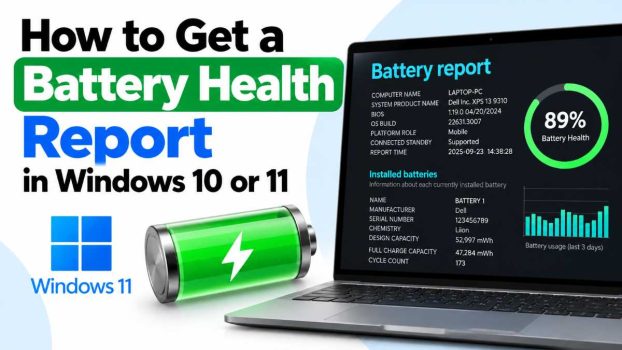
If you own a laptop, your battery is quietly aging every single day — even when you think you’re taking good care of it. Unlike a phone, Windows doesn’t show you a simple “battery health” percentage on the surface. Instead, it hides a powerful diagnostic tool deep inside the operating system that can tell you almost everything you need to know about your battery’s condition: its original design capacity, its current maximum capacity, how much it has degraded over time, and even how long it’s realistically lasting on a full charge compared to when the laptop was new.
This tool is called the Battery Report, and it’s built into both Windows 10 and Windows 11 through the Command Prompt using a command called powercfg. It doesn’t require any third-party software, doesn’t cost anything, and takes less than a minute to generate. Once created, it produces a detailed HTML file you can open in any browser, packed with charts, tables, and historical usage data.

Knowing your battery’s health matters for a few practical reasons. If your laptop suddenly isn’t lasting as long as it used to, the battery report can confirm whether that’s actually a hardware degradation issue or just a software/usage pattern problem. It’s also incredibly useful before buying a used laptop, since it can reveal how much life the previous owner squeezed out of the battery. And for anyone troubleshooting sudden shutdowns, rapid battery drain, or charging issues, this report is usually the very first diagnostic step tech support will ask you to run.
In this guide, we’ll walk through several methods to generate and read a battery health report on Windows 11 and Windows 10, explain what each section of the report actually means, and answer some of the most common questions people have about battery health in Windows.
Method 1: Using Command Prompt (Most Common Method)
This is the standard, most reliable way to generate a battery report, and it works identically on both Windows 10 and Windows 11.
Steps:
- Click the Start button and type
cmdorCommand Promptinto the search bar. - Right-click on Command Prompt and select Run as administrator. Administrator access is required because the tool needs to read low-level hardware and driver data.
- In the Command Prompt window, type the following command and press Enter:
powercfg /batteryreport
- By default, Windows saves the report as an HTML file in your user folder, typically at:
C:\Users\YourUsername\battery-report.html
The exact path will be displayed in the Command Prompt window after the command finishes running.
5. Navigate to that location using File Explorer, and double-click the file to open it in your default web browser.
If you’d like to save the report to a specific folder instead of the default location, you can specify a custom path using the /output parameter:
powercfg /batteryreport /output "C:\Users\YourUsername\Desktop\battery-report.html"This method works even if your laptop battery is fairly new, though the report becomes significantly more useful after your device has accumulated at least a few weeks of usage history, since it tracks charge/discharge cycles over time.
Method 2: Using Windows Terminal
Windows Terminal is the modern replacement for Command Prompt and PowerShell windows, and it comes pre-installed on most Windows 11 systems (it’s also available as a free download for Windows 10 via the Microsoft Store).
Steps:
- Right-click the Start button and select Terminal (Admin) or Windows Terminal (Admin), depending on your Windows version.
- If prompted by User Account Control, click Yes to allow administrative access.
- Make sure you’re in a Command Prompt or PowerShell tab within the Terminal (both support the
powercfgcommand). - Type the same command as before:
powercfg /batteryreport
- Press Enter, and the report will generate and save just like in Method 1.
This method is functionally identical to using Command Prompt directly, but it’s worth mentioning separately since Windows 11 increasingly nudges users toward Terminal instead of the classic Command Prompt app, and some users may not realize the same commands work there.
Method 3: Using PowerShell
PowerShell is another built-in tool that can run the exact same powercfg command, and some users prefer it for its more modern interface and scripting capabilities.
Steps:
- Search for PowerShell in the Start menu.
- Right-click on Windows PowerShell and choose Run as administrator.
- Type the command:
powercfg /batteryreport
- Press Enter. The report will be generated and saved to your user folder, exactly as with Command Prompt.
Since powercfg is a system-level utility rather than a PowerShell-specific cmdlet, it behaves the same way regardless of which command-line tool you use to invoke it. Choose whichever interface you’re most comfortable with.
Method 4: Scheduling Automatic Battery Reports
If you want to monitor your battery’s health over time rather than just checking it once, you can set up a scheduled task that automatically generates a fresh battery report on a regular basis (daily, weekly, or monthly).
Steps:
- Open Task Scheduler by searching for it in the Start menu.
- Click Create Basic Task in the right-hand panel.
- Give it a name, such as “Battery Health Report,” and click Next.
- Choose a trigger — for example, Weekly — and set the day and time you’d like it to run.
- On the “Action” screen, select Start a program.
- In the “Program/script” field, type:
powercfg
- In the “Add arguments” field, type:
/batteryreport /output "C:\Users\YourUsername\Documents\battery-report.html"
- Click Next, review your settings, and click Finish.
Now Windows will automatically regenerate your battery report on the schedule you set, overwriting the previous file each time (unless you modify the script to include a date in the filename). This is especially useful for IT administrators managing fleets of laptops, or for power users who want to track gradual battery degradation over several months.
Reading and Understanding Your Battery Report
Once you’ve opened the HTML report in your browser, you’ll see several key sections worth paying attention to:
- Installed batteries: Basic information about your battery, including its manufacturer, chemical composition (usually Lithium-ion), and serial number.
- Design capacity vs. Full charge capacity: This is the most important comparison in the entire report. “Design capacity” is what your battery could hold when it was brand new, while “Full charge capacity” is what it can currently hold. A significant gap between these two numbers indicates battery wear.
- Battery usage: A chart showing how your battery has been used (on AC power vs. battery power) over recent history.
- Usage history: A table breaking down battery charge levels over recent days.
- Battery capacity history: This shows how your full charge capacity has changed over recent weeks or months, letting you visually track degradation trends.
- Battery life estimates: Based on recent usage patterns, Windows estimates how long your battery currently lasts on a full charge, both currently and when the battery was new — a very telling comparison.
If your “Full charge capacity” has dropped to somewhere between 80–90% of your “Design capacity,” that’s considered fairly normal wear for a battery that’s a year or two old. If it’s dropped below 70–80%, you may want to consider a battery replacement, especially if you’re noticing real-world symptoms like unexpectedly short battery life or unexpected shutdowns at seemingly high charge percentages.
Conclusion
Windows includes a genuinely powerful, no-cost diagnostic tool for battery health that far too few users know about. Whether you’re troubleshooting a laptop that suddenly can’t hold a charge, evaluating a used device before purchase, or simply curious about how much your battery has degraded since you bought your laptop, the powercfg /batteryreport command gives you a detailed, professional-grade report in seconds. It works the same way across Windows 10 and Windows 11, requires no downloads or installations, and can even be automated for ongoing monitoring. The next time your laptop’s battery life feels disappointing, running this report should be your very first troubleshooting step — it will tell you, in hard numbers, whether the problem is your battery itself or something else entirely, like background apps, display brightness, or power settings.
Frequently Asked Questions
1. Does generating a battery report harm or drain my battery?
No. Generating a battery report is completely safe and has no negative impact on your battery whatsoever. It simply reads existing data that Windows has already been quietly logging in the background — it doesn’t run any tests, stress the battery, or consume any meaningful power itself.
2. Why does my battery report show “Design capacity” as unavailable or 0 mWh?
This occasionally happens on certain laptop models, particularly some older devices or ones with non-standard battery firmware, where the manufacturer hasn’t properly reported design capacity data to Windows. Unfortunately, there’s no reliable workaround for this from within Windows itself — you would need to check the manufacturer’s own diagnostic software (like Dell Power Manager, Lenovo Vantage, or HP Support Assistant), if available, for equivalent data.
3. Can I get a battery health report on a desktop PC?
No. The powercfg /batteryreport command only works on devices that have a battery, such as laptops, tablets, and 2-in-1 devices. Running it on a desktop PC without a battery will return an error stating that battery information isn’t available, since there’s no battery hardware for Windows to report on.
4. How often should I check my battery health report?
For most everyday users, checking every few months is more than sufficient to spot meaningful degradation trends. If you’re actively troubleshooting a battery problem, or you’ve set up the scheduled task described in Method 4, checking weekly or monthly gives you a clearer picture of how quickly your capacity is declining and whether any changes you make (like adjusting power settings) are having a measurable effect.