
 Sukhdev Kamboj
If you’ve recently upgraded to Windows 11 and gone looking for Internet Explorer in your Start menu, you’ve probably come up empty-handed — and that’s not a mistake or a bug. Windows 11 is the first version of Windows that does not include Internet Explorer at all. There’s no icon to pin, no hidden folder to dig through, and no way to reinstall the classic browser once it’s gone. Microsoft officially retired the Internet Explorer 11 desktop application in June 2022, and when Windows 11 launched, IE was left out of the operating system entirely.
That might sound like bad news if you rely on an older company intranet site, a government portal, or a legacy business application that was built specifically for Internet Explorer’s rendering engine. Plenty of organizations — banks, schools, healthcare systems, and government agencies among them — still run internal tools that were coded decades ago and never updated for modern browsers. Fortunately, Microsoft anticipated this problem and built a replacement directly into its current browser, Microsoft Edge.
That replacement is called Internet Explorer mode, or IE mode for short. Rather than running the old, insecure IE application, IE mode uses the actual Internet Explorer 11 rendering engine inside the modern, Chromium-based Edge browser. In practice, this means you get the compatibility of Internet Explorer combined with the security and speed of Edge, without ever needing to open a separate program. Microsoft has committed to supporting IE mode through at least 2029, so it’s a durable solution rather than a temporary workaround.
This guide walks through exactly how to turn on IE mode, how to open a page in it, how to make specific sites load in it automatically, and what to do if you’re managing IE mode across a whole office. It also answers some of the most common questions people have once they realize the old IE icon isn’t coming back.
Methods to Open and Use Internet Explorer in Windows 11
Since there’s no standalone Internet Explorer application to launch in Windows 11, every method below works through Microsoft Edge. Pick whichever fits your situation — a one-off visit to an old site, a page you need regularly, or a fleet of office computers that all need the same legacy sites configured automatically.
Method 1: Turn On IE Mode in Edge Settings
Before you can use Internet Explorer mode for the first time, you need to switch it on inside Edge’s settings. It’s off by default.
Open Microsoft Edge from your taskbar, Start menu, or by searching for “Edge.”
Click the three-dot menu (labeled “Settings and more”) in the top-right corner of the window.
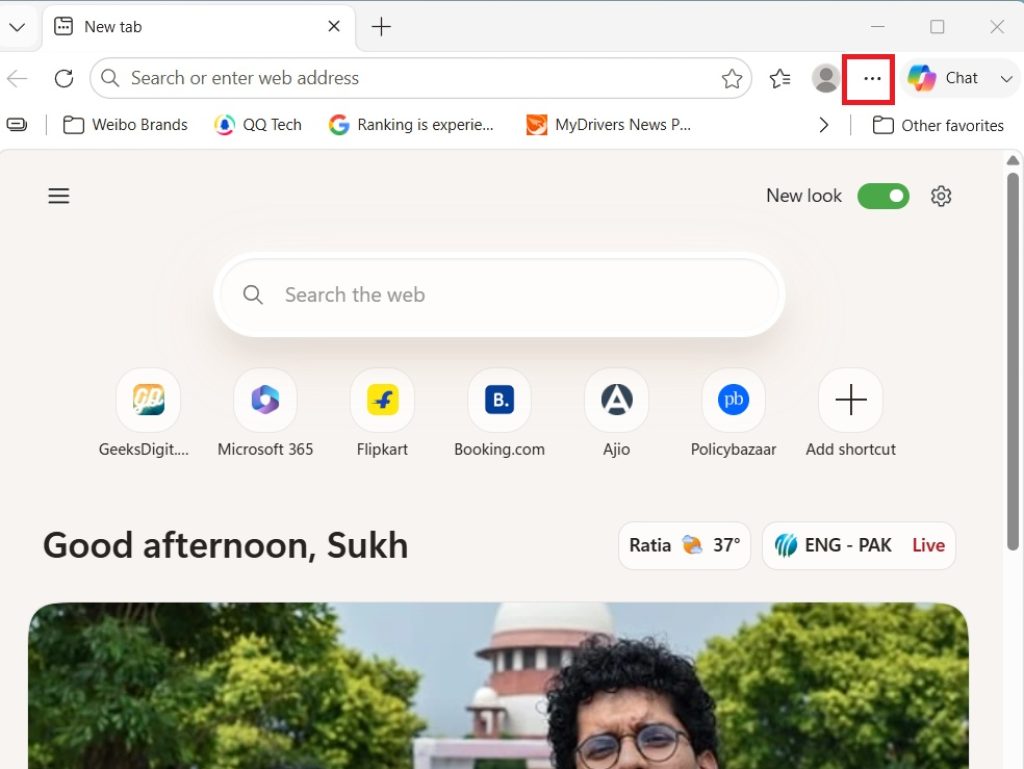
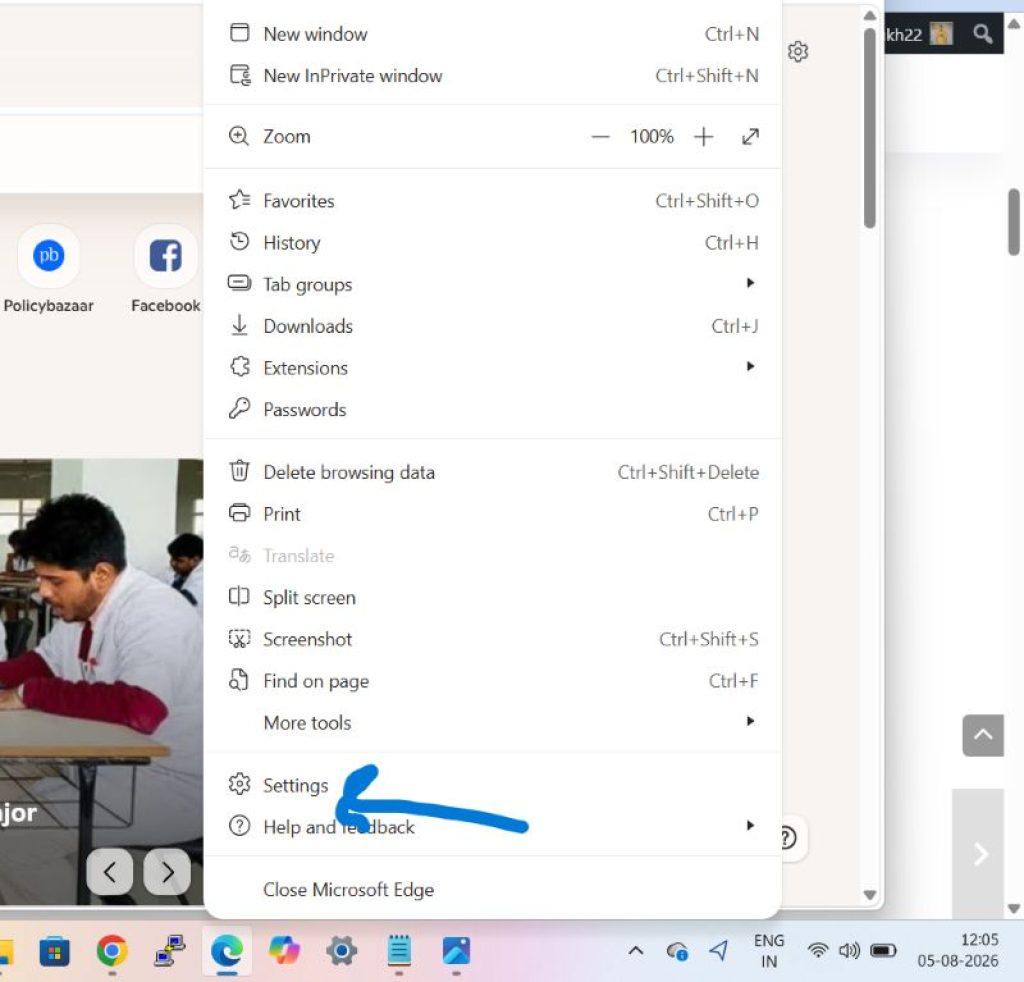
Select Settings from the dropdown.
In the left-hand sidebar, click Default browser.
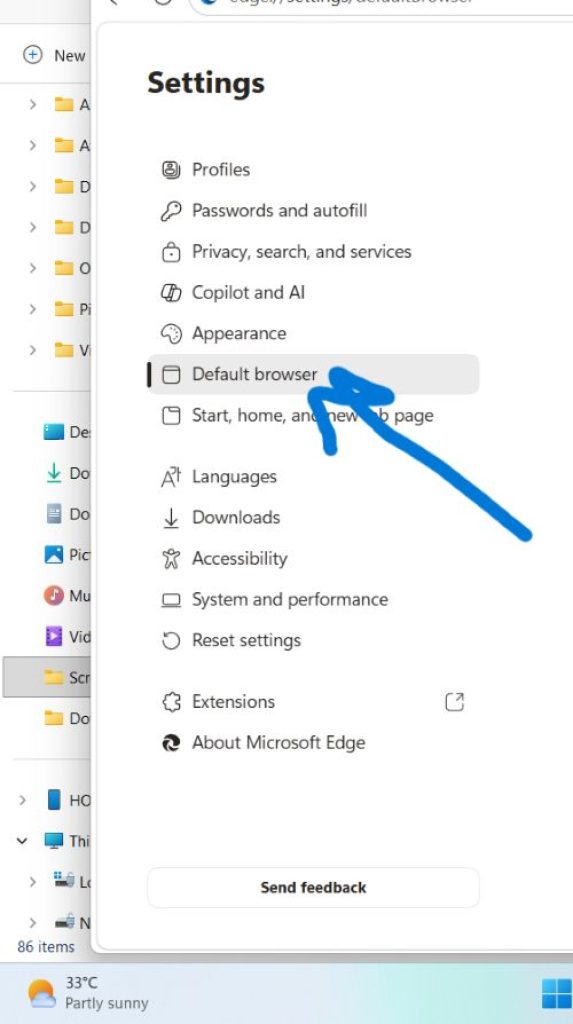
Find the setting labeled “Allow sites to be reloaded in Internet Explorer mode (IE mode)” and switch the dropdown to Allow.
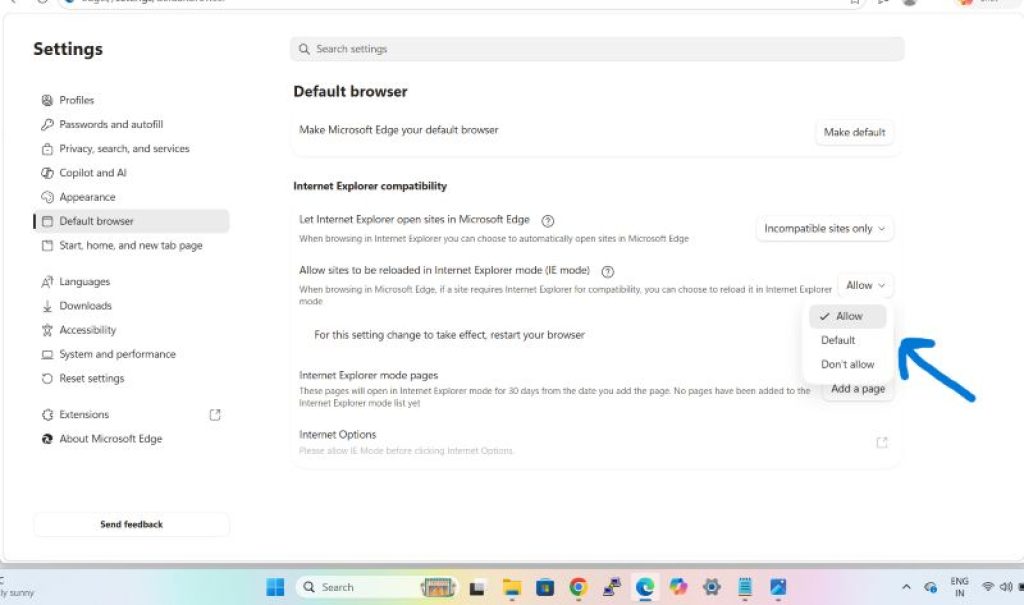
Edge will prompt you to restart the browser for the change to take effect. Click Restart.
Once you’ve done this, the option to load pages in IE mode becomes available anywhere in the browser. You only need to do this setup once — after that, IE mode is ready whenever you need it.
Method 2: Add Specific Sites to Load in IE Mode Automatically
If there’s a particular website or internal tool you visit often — say, a payroll system or an internal helpdesk — you can tell Edge to open that page in IE mode automatically every time, rather than manually reloading it each visit.
Open Edge and go to Settings.
Click Default browser in the sidebar.
Scroll down to the section called Internet Explorer mode pages.
Click Add next to the list.
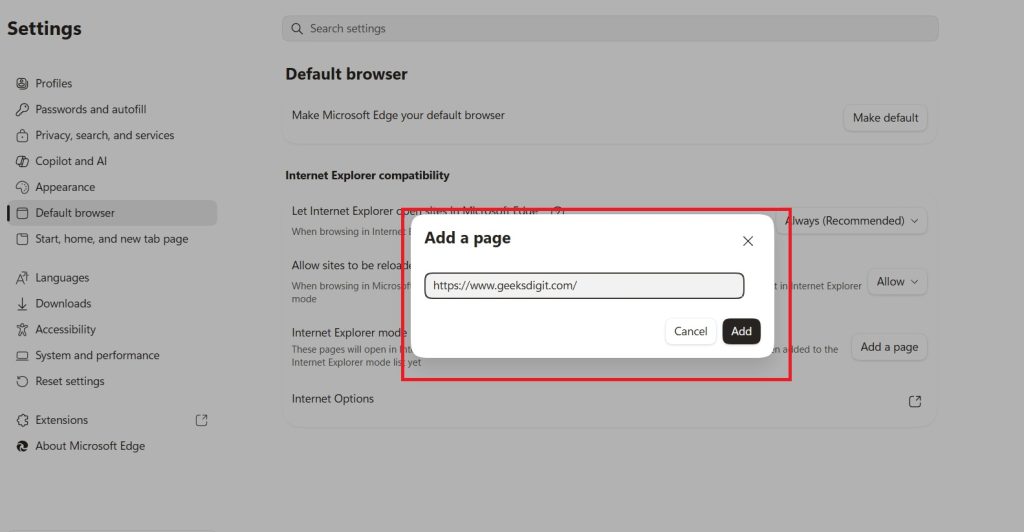
Type or paste the full web address of the site, including http:// or https://.
Click Add to save it.
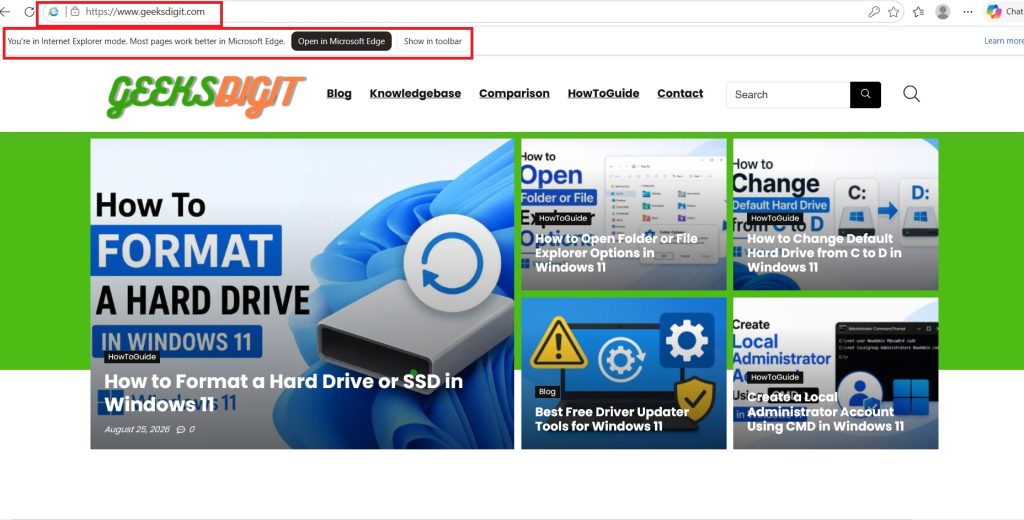
Once a site is added this way, Edge will automatically switch into IE mode whenever you visit that address — no manual reload required. One thing worth noting: pages added through this personal list only stay in effect for 30 days before they expire, at which point you’ll need to re-add them if you still need them. This time limit is meant to nudge organizations toward updating old sites rather than relying on IE mode indefinitely.
Method 3: Configure IE Mode for a Whole Organization (Administrators)
If you’re managing Windows 11 computers for a business, school, or other organization, configuring IE mode individually on every machine isn’t practical. Microsoft provides tools that let IT administrators push IE mode settings and site lists to every managed device at once, so employees never have to think about switching modes manually.
- Use the Enterprise Site List Manager, accessible in Edge at
edge://compat/SiteListManager, to build a list of URLs that require Internet Explorer mode. - Distribute this site list to managed devices using Group Policy Management Console or Microsoft Intune.
- Once deployed, any employee who navigates to a listed site will have it open automatically in IE mode — they won’t need to enable settings or reload pages themselves.
- Administrators can also use the Internet Explorer Driver (IEDriver) to automate testing of legacy sites in IE mode, which is useful for organizations validating that internal tools still work correctly as they plan a longer-term migration away from IE-dependent software.
This centralized approach is the standard way large organizations handle the transition away from classic Internet Explorer while keeping legacy business applications functional in the meantime.
Conclusion
Internet Explorer as a standalone application is gone for good in Windows 11, and there’s no workaround that brings back the original browser — Microsoft has closed that door permanently as part of retiring an aging, less secure piece of software. What you get instead is arguably a better solution: Internet Explorer mode built directly into Microsoft Edge, giving you the same compatibility with legacy websites and internal business tools without sacrificing the security updates and modern features of a current browser.
For most people, the process boils down to three steps: turn on IE mode in Edge’s settings once, then either reload individual pages in IE mode as needed or add frequently visited sites to load in it automatically. Businesses and IT departments have additional tools available to roll this out across many computers at once, ensuring employees can keep using older internal systems without any extra effort on their part.
If you’ve been searching for the Internet Explorer icon expecting to find it missing by accident, know that it’s a deliberate design decision — and IE mode is there specifically to cover the gap it leaves behind.
Frequently Asked Questions
1. Can I still install Internet Explorer on Windows 11?
No. Internet Explorer cannot be installed or run as a standalone application on Windows 11 under any circumstances. Microsoft removed it entirely from the operating system, and there’s no official installer, downgrade path, or workaround that restores it. The supported way to access IE-dependent content is through Internet Explorer mode in Microsoft Edge, which uses the same underlying rendering engine.
2. Is Internet Explorer mode the same as using the real Internet Explorer browser?
Functionally, it’s very close. IE mode uses the actual Internet Explorer 11 (Trident) rendering engine to display pages, so most legacy websites and internal tools behave exactly as they would in the original browser. However, it runs inside Edge rather than as a separate application, and a few IE-specific features aren’t fully supported, such as certain developer tools and some older extensions. For everyday compatibility purposes, most users won’t notice a meaningful difference.
3. Why does a website look broken or behave strangely even in IE mode?
This usually happens when a site wasn’t actually designed for Internet Explorer in the first place, or when it was built for a very old version of IE that behaves slightly differently than IE11. IE mode is intended specifically for legacy sites and internal enterprise applications — using it on modern, general-purpose websites can sometimes cause more display problems than it solves, since those sites are typically coded for current browser standards rather than IE’s older engine.
4. How long will Internet Explorer mode be available in Microsoft Edge?
Microsoft has committed to supporting IE mode in Edge through at least 2029. That gives organizations with legacy, IE-dependent applications a long runway to either keep using IE mode as needed or gradually modernize those systems so they no longer depend on Internet Explorer’s rendering engine at all. Microsoft has not announced plans to extend support beyond that date, so organizations relying heavily on IE mode may want to treat it as a bridge rather than a permanent fixture.





