Geeksdigit Team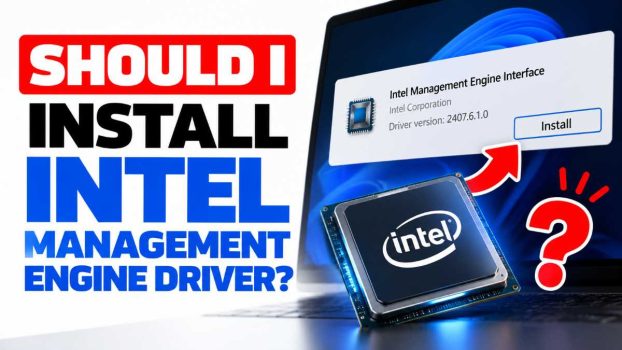
Short answer: In most cases, yes. If you’re on a Windows PC with an Intel processor and Device Manager shows an unknown device called “PCI Simple Communications Controller,” installing the Intel Management Engine (ME) driver is the right move. It’s low-risk and fixes a real gap in your system. But the details matter, because this is one of the most misunderstood components in a PC. The driver, the firmware, and the chip itself are three different things, and the worries people have about “Intel ME” mostly concern the last two, not the driver.
What the Intel Management Engine actually is
The Intel Management Engine is a small, separate embedded subsystem built into Intel chipsets (and, in newer designs, into the processor package). It has its own processor core, its own memory, and its own firmware, and it runs independently of your main operating system. Intel now calls it the Converged Security and Management Engine (CSME), but “Intel ME” is still the name most people use.
It’s present on virtually every Intel desktop and laptop platform from roughly 2008 onward. Its jobs include:
- Platform initialization: helping bring the system up during boot, including part of the security chain that validates firmware.
- Power and thermal management: coordinating with other platform components on power states and sleep/wake behavior.
- Security features: supporting technologies such as Intel Platform Trust Technology (a firmware-based TPM), Boot Guard, and content protection features like HDCP.
- Remote management: on business-class machines, Intel Active Management Technology (AMT) lets IT administrators manage computers remotely, even when the OS is down or the machine is powered off but plugged in.
Most home PCs don’t have AMT provisioned, but the ME firmware is still there doing its other jobs.
Driver vs. firmware: the crucial distinction
When people ask “should I install the Intel ME driver?” they often mix up two separate things:
- The ME firmware lives in your motherboard’s flash chip alongside the BIOS/UEFI. It runs whether or not you install anything in Windows. You can’t prevent it from running by skipping the driver.
- The ME driver (usually called the Intel Management Engine Interface, or MEI, driver, sometimes labeled the Heci driver) is a small piece of Windows software that lets your operating system talk to the ME firmware through a hardware interface called HECI (Host Embedded Controller Interface).
Skipping the driver doesn’t turn off the Management Engine. It only means Windows can’t communicate with it. The ME keeps running either way. The driver just opens the communication channel.
This matters for both the security argument and the privacy argument, which I’ll come back to.
What happens if you don’t install the driver
Without the driver, Device Manager typically shows an unknown device with a yellow warning icon, usually named “PCI Simple Communications Controller” or “PCI Device.” Windows may have installed a generic driver for it, but the full-featured one often comes from your PC or motherboard manufacturer or from Intel.
In practice, leaving it uninstalled can lead to:
- A permanent warning in Device Manager. This is cosmetic, but it can mask other real problems you’re trying to diagnose.
- Missing or flaky features that depend on the ME interface. Examples include certain sleep/wake behaviors, some power-management features, and protected-content playback (for instance, high-resolution streaming from services that require hardware-backed content protection).
- Software that can’t detect or use the ME. Intel’s own tools, such as the Intel Driver & Support Assistant, the ME firmware update utilities, and the detection tools used to check whether your firmware is vulnerable, rely on the interface being available.
- Trouble applying firmware updates. Many OEM ME firmware update packages need the MEI driver in place to function.
- Occasional odd behavior. Some users report problems with sleep, shutdown, or hibernation on systems where the ME interface is unresponsive or the wrong driver is loaded. These are less common than they were years ago, but they do happen, especially after major OS upgrades.
The case for installing it
It completes your driver set. Your system was designed with the MEI driver as part of the platform’s standard software stack. Manufacturers include it in their driver downloads for a reason. A fully populated Device Manager is easier to maintain and troubleshoot.
It enables security update workflows. The ME has had significant vulnerabilities over the years. The most famous batch was disclosed in 2017 (Intel-SA-00086), affecting multiple generations of the firmware, and there have been others since. Fixes are delivered as firmware updates, typically via your OEM or motherboard vendor’s BIOS/firmware packages. Checking whether your machine is affected, and applying the fix, is generally easier with the MEI driver present.
It supports features you may actually use. If you have a laptop, you likely care about reliable sleep and battery behavior. If you watch protected streaming content, you may care about hardware content protection. If you use your PC at work and your employer manages it, AMT or related management features may depend on it.
Risk from the driver itself is low. The driver is a small interface component. The attack surface people worry about is in the firmware, not in the Windows driver. Keeping the driver current is still good hygiene, since drivers can have bugs too, but installing a vendor-supplied driver is not what puts you at risk.
The case for not installing it, and why it’s weaker than it sounds
The skeptical argument usually goes: “The ME is a black box with deep system access. It can’t be audited. It could be a backdoor. So I shouldn’t install anything that talks to it.”
It’s a reasonable concern in the abstract, and the Electronic Frontier Foundation and others have publicly criticized the ME’s opacity. But as a reason to skip the driver, it doesn’t hold up well:
- The firmware runs regardless. As noted, not installing the driver doesn’t disable the ME. You gain no meaningful privacy or security benefit from leaving the interface unconnected.
- The most serious ME vulnerabilities were exploitable in ways that didn’t depend on you installing the Windows driver. Some attacks targeted the firmware’s network-facing services (relevant for provisioned AMT systems), others required local access through the interface. The relevant defense is updated firmware, not a missing driver.
- A missing driver can make you less secure if it prevents you from detecting that your firmware is outdated or from applying updates through standard tools.
There are legitimate edge cases. If you are running a hardened environment, such as a high-security workstation, you may follow organizational guidance about the ME. Some privacy-focused hardware vendors (Purism, System76, and others) ship machines with the ME disabled or minimized to the extent possible. That’s done through firmware-level changes, using the “High Assurance Platform” (HAP) bit or tools like me_cleaner, not by uninstalling a Windows driver. Those approaches carry their own risks, including the possibility of bricking the machine, and aren’t recommended for ordinary users.
When you should definitely install it
- Device Manager shows an unknown device or “PCI Simple Communications Controller” with a warning icon.
- You’ve just done a clean Windows install and are installing the full chipset and platform driver set.
- You’re troubleshooting sleep/wake, hibernation, or shutdown problems on an Intel system.
- You want to apply or verify an ME firmware update.
- Your PC is managed by an employer who uses AMT or related management tools.
- You use a laptop and want the manufacturer-intended power-management behavior.
When you can safely skip it, or when it doesn’t apply
- You have an AMD system. The Intel ME driver doesn’t apply. AMD has its own equivalent (the Platform Security Processor), handled through AMD chipset drivers.
- You’re on Linux. The kernel includes the
meiandmei_memodules, which provide this interface without a separate download. On most distributions it works out of the box. - Windows already installed a working driver and Device Manager shows no warnings. Modern Windows 10 and 11 often pull a suitable driver through Windows Update. If everything’s healthy, there’s no pressing need to replace it, though updating to the latest version from your vendor is still reasonable.
- You’re building a deliberately minimal system, for example a specialized or isolated machine where you’ve made a documented decision about it. That’s your call, but make it with the understanding that it doesn’t disable the ME.
How to install it safely
The source of the driver matters more than the decision to install it.
- Start with your PC or motherboard manufacturer. Dell, HP, Lenovo, ASUS, MSI, Gigabyte, and others publish ME/MEI drivers on their support pages, tested for your specific model. For prebuilt systems and laptops, this is the best source, because the OEM may customize the driver and tie it to a particular firmware version.
- Alternatively, use Intel’s Driver & Support Assistant. Intel’s own tool scans your system and offers matching drivers. This is a trustworthy source for generic Intel components.
- Check Windows Update. Sometimes the correct driver arrives through optional updates.
- Avoid third-party “driver updater” utilities and random download sites. These are a far bigger security risk than the ME driver itself. They bundle adware, install mismatched drivers, and sometimes distribute tampered files. If a site isn’t the manufacturer’s, Intel’s, or Microsoft’s, don’t use it.
- Match the driver to your hardware generation. Intel ME drivers differ across platform generations. Installing a driver for the wrong generation usually just fails, but it’s cleaner to get the right one. Your chipset or CPU model, found with a tool such as the Intel Processor Identification utility or Task Manager’s CPU details, tells you which to pick.
- Create a restore point first if you like being careful, particularly on a machine you rely on. It’s rarely necessary, but it takes seconds.
- Reboot after installing, then confirm in Device Manager that the warning icon is gone and a device named something like “Intel(R) Management Engine Interface” appears under “System devices.”
Don’t forget the firmware
The driver is only half the story. If security is your motivation, check whether your ME firmware is up to date. Because the firmware ships inside your motherboard’s flash, updates typically come bundled with BIOS/UEFI updates or as a separate ME firmware package from your manufacturer. Intel has published detection tools for specific vulnerability advisories, and your OEM’s support site generally lists security bulletins for your model.
A practical routine:
- Check your manufacturer’s support page every few months, or enable their update utility if it’s reputable.
- Read the release notes of BIOS updates for mentions of “Intel ME,” “CSME,” or security advisories.
- Don’t flash firmware casually. Follow the vendor’s instructions exactly, keep laptops plugged in, and don’t interrupt the process.
Common questions
Is the Intel ME a spy chip? There’s no public evidence that it functions as a deliberate backdoor, but it is a privileged, closed-source component with a history of serious vulnerabilities, and that justifies reasonable caution and diligent patching. Criticism of its opacity is fair. Treating the driver as the culprit is not.
Will installing it slow down my PC? No, not in any measurable way. The driver is lightweight and mostly idle.
Can I uninstall it later? Yes. Removing the driver in Device Manager is straightforward, though Windows may reinstall a generic one on reboot.
Will it affect gaming performance? No. It isn’t a performance driver. It’s a platform-interface component.
I installed it and nothing changed. Did I do something wrong? Probably not. Many benefits are invisible: a cleared warning in Device Manager, working update tools, and stable power behavior. If your system was already running fine, you won’t notice much.
What if the install fails? Common causes are a wrong-generation driver, a corrupted download, or a pending Windows update or reboot. Reboot, make sure Windows is updated, and try the OEM version of the driver. If problems persist, check your manufacturer’s support documentation for your exact model.
The bottom line
For the vast majority of people with an Intel-based Windows PC, installing the Intel Management Engine driver is a sensible, low-risk step. It resolves the unknown-device warning, supports power and platform features, and enables the update tools you’d want if you care about security. The real security conversation about the ME is about firmware: keep it patched, and stick to trusted sources for everything you install.
If you’ve weighed the privacy concerns and decided you want less ME involvement, the right path is firmware-level hardening or hardware designed with that in mind, not leaving a driver unloaded. And if you’re on AMD or Linux, the question mostly doesn’t apply to you.
If you tell me your PC or motherboard model and operating system, I can point you to exactly where to find the right driver and what to check afterward. I can also turn this into a Word doc or PDF if you’d like to keep it.