Sukhdev Kamboj
Windows 11 comes packed with modern visuals, new features, and powerful tools—but one underrated gem that remains incredibly useful is the Run command dialog. By simply pressing Windows + R, you can instantly access a wide range of applications, settings, and system utilities. Whether you’re adjusting network settings, opening control panels, troubleshooting issues, or accessing hidden features, the Run dialog acts as a quick-launch portal that saves time and boosts productivity.
This powerful feature is especially valuable for power users, IT professionals, and anyone who prefers speed over clicking through layers of menus. Run commands allow you to open essential tools with just a few keystrokes, making them ideal for daily operations and system management. We have compiled 200+ useful Run commands for Windows 11, organized by category, to help you master this functionality and become more efficient in your workflow. So without any further ado, let’s get started!
How to Open the Run Dialog Box
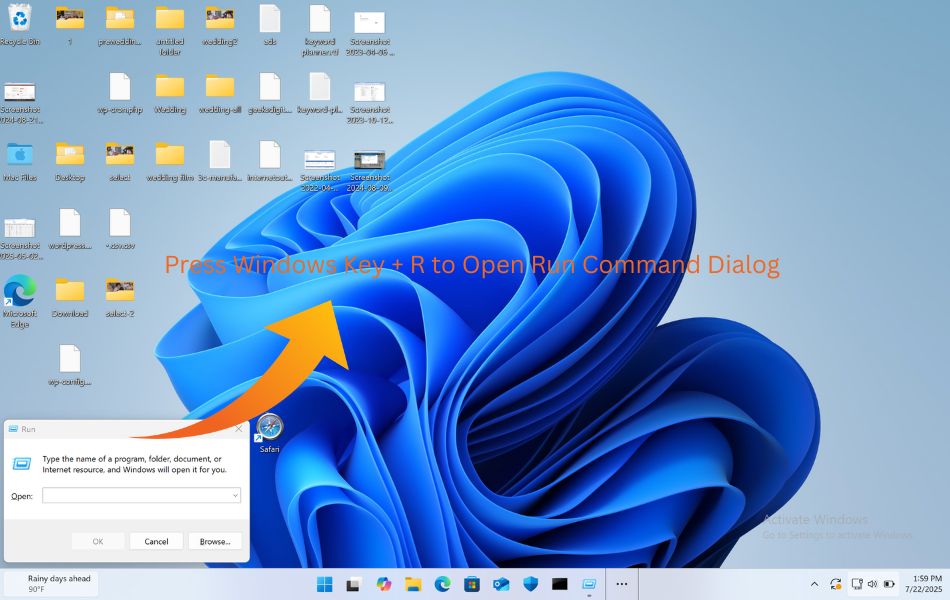
Before diving into the list, let’s quickly cover how to open the Run dialog box in Windows 11.
- Press
Windows + Ron your keyboard. - The Run window will open.
- Type your command and press Enter or click OK.
That’s it! You can now launch almost any setting, folder, or app instantly.
Why Use Run Commands?
Using Run commands offers several benefits:
- Speed: Open system tools in seconds without navigating menus.
- Efficiency: Useful for troubleshooting and system configuration.
- Convenience: Great for IT professionals and advanced users.
- Access Hidden Features: Some Run commands open settings not easily found in the UI.
1. Basic and Common Run Commands
These are the most frequently used commands that work on nearly all Windows versions.
| Command | Function |
|---|---|
calc | Opens Calculator |
cmd | Opens Command Prompt |
notepad | Opens Notepad |
mspaint | Opens Microsoft Paint |
explorer | Opens File Explorer |
control | Opens Control Panel |
powershell | Opens Windows PowerShell |
taskmgr | Opens Task Manager |
winver | Displays Windows version |
write | Opens WordPad |
microsoft-edge: | Opens Microsoft Edge browser |
regedit | Opens Registry Editor |
msinfo32 | Displays System Information |
appwiz.cpl | Opens Programs and Features |
cleanmgr | Opens Disk Cleanup |
dxdiag | Opens DirectX Diagnostic Tool |
services.msc | Opens Services console |
eventvwr | Opens Event Viewer |
2. System Configuration and Management
Use these commands to manage system settings, boot options, and configurations.
| Command | Function |
|---|---|
msconfig | Opens System Configuration |
sysdm.cpl | Opens System Properties |
compmgmt.msc | Opens Computer Management |
devmgmt.msc | Opens Device Manager |
diskmgmt.msc | Opens Disk Management |
perfmon | Opens Performance Monitor |
secpol.msc | Opens Local Security Policy |
gpedit.msc | Opens Group Policy Editor |
control admintools | Opens Administrative Tools |
control userpasswords2 | Opens User Accounts settings |
control system | Opens System window |
control printers | Opens Devices and Printers |
control keyboard | Opens Keyboard Properties |
control mouse | Opens Mouse Properties |
control fonts | Opens Fonts folder |
3. Control Panel Items and Tools
Each Control Panel item has its own Run command.
| Command | Function |
|---|---|
control color | Opens Color and Appearance |
control date/time | Opens Date and Time settings |
control desktop | Opens Display settings |
control folders | Opens File Explorer Options |
control intl.cpl | Opens Region settings |
control netconnections | Opens Network Connections |
control powercfg.cpl | Opens Power Options |
control mmsys.cpl | Opens Sound settings |
control timedate.cpl | Opens Time and Date |
control firewall.cpl | Opens Windows Defender Firewall |
control access.cpl | Opens Ease of Access Center |
control main.cpl | Opens Mouse Properties |
control ncpa.cpl | Opens Network Connections panel |
control sysdm.cpl | Opens System Properties |
4. Folders and System Locations
Quickly access important folders without browsing manually.
| Command | Function |
|---|---|
. | Opens Current User Folder |
.. | Opens Users Folder |
%appdata% | Opens AppData Roaming folder |
%localappdata% | Opens Local AppData folder |
%programfiles% | Opens Program Files folder |
%programfiles(x86)% | Opens Program Files (x86) folder |
%temp% | Opens Temp folder |
%windir% | Opens Windows Directory |
%systemroot% | Opens System Root Folder |
shell:startup | Opens Startup Folder |
shell:downloads | Opens Downloads Folder |
shell:desktop | Opens Desktop Folder |
shell:documents | Opens Documents Folder |
shell:recent | Opens Recently Accessed Files |
shell:videos | Opens Videos Folder |
shell:pictures | Opens Pictures Folder |
shell:music | Opens Music Folder |
5. Network and Internet Commands
Manage and troubleshoot network and internet settings.
| Command | Function |
|---|---|
ncpa.cpl | Opens Network Connections |
inetcpl.cpl | Opens Internet Properties |
wf.msc | Opens Windows Defender Firewall |
ipconfig | Displays IP configuration (in CMD) |
osk | Opens On-Screen Keyboard |
rasphone | Opens Network Dialer |
netplwiz | Opens User Accounts |
fsmgmt.msc | Opens Shared Folders Manager |
certmgr.msc | Opens Certificate Manager |
control netconnections | Opens Network settings |
control inetcpl.cpl | Opens Internet Options |
6. Windows Update and Maintenance Commands
These help in managing updates and maintenance tasks.
| Command | Function |
|---|---|
control update | Opens Windows Update settings |
wuapp | Opens Windows Update (older versions) |
control schedtasks | Opens Task Scheduler |
cleanmgr | Runs Disk Cleanup |
chkdsk | Checks disk for errors |
sfc /scannow | Runs System File Checker (CMD required) |
dfrgui | Opens Disk Defragmenter |
control /name Microsoft.Troubleshooting | Opens Troubleshooting Panel |
recdisc | Opens Create System Repair Disk tool |
recoverydrive | Opens Recovery Drive creation tool |
7. Administrative Tools
Powerful tools for advanced users and administrators.
| Command | Function |
|---|---|
taskschd.msc | Opens Task Scheduler |
lusrmgr.msc | Opens Local Users and Groups |
eventvwr.msc | Opens Event Viewer |
compmgmt.msc | Opens Computer Management |
services.msc | Opens Services |
secpol.msc | Opens Local Security Policy |
perfmon.msc | Opens Performance Monitor |
certmgr.msc | Opens Certificate Manager |
rsop.msc | Opens Resultant Set of Policy |
diskpart | Opens Disk Partition Tool |
gpedit.msc | Opens Group Policy Editor |
wmimgmt.msc | Opens Windows Management Instrumentation |
fsmgmt.msc | Opens Shared Folder Manager |
8. Accessibility Tools
Windows 11 includes built-in tools for accessibility.
| Command | Function |
|---|---|
utilman | Opens Utility Manager |
osk | Opens On-Screen Keyboard |
magnify | Opens Magnifier |
narrator | Opens Narrator |
control access.cpl | Opens Ease of Access Center |
cttune | Opens ClearType Text Tuner |
9. User Account and Security Commands
Manage users, credentials, and security settings.
| Command | Function |
|---|---|
netplwiz | Opens User Accounts settings |
control userpasswords2 | Advanced User Accounts |
credwiz | Backup and restore Windows credentials |
control /name Microsoft.SecurityCenter | Opens Windows Security Center |
syskey | System key utility (deprecated) |
lusrmgr.msc | Manage Local Users and Groups |
control password | Change password settings |
10. Display and Personalization Commands
Customize themes, wallpapers, and display properties.
| Command | Function |
|---|---|
desk.cpl | Opens Display Settings |
control color | Opens Color and Appearance |
dpiscaling | Opens Display DPI Scaling |
control fonts | Opens Fonts folder |
themes | Opens Personalization settings |
control desktop | Opens Desktop settings |
mblctr | Opens Mobility Center |
intl.cpl | Opens Region and Language settings |
11. Hardware and Device Commands
Access tools related to hardware, printers, and devices.
| Command | Function |
|---|---|
hdwwiz.cpl | Opens Add Hardware Wizard |
devmgmt.msc | Opens Device Manager |
printmanagement.msc | Opens Print Management |
control printers | Opens Printers and Scanners |
mmsys.cpl | Opens Sound Properties |
joy.cpl | Opens Game Controllers settings |
main.cpl | Opens Mouse Properties |
keyboard | Opens Keyboard Properties |
powercfg.cpl | Opens Power Options |
12. Troubleshooting and Diagnostics
Quickly diagnose problems and fix common issues.
| Command | Function |
|---|---|
msdt | Opens Microsoft Diagnostic Tool |
mrt | Opens Windows Malicious Software Removal Tool |
dxdiag | Opens DirectX Diagnostic Tool |
eventvwr | Opens Event Viewer |
perfmon | Opens Performance Monitor |
resmon | Opens Resource Monitor |
chkdsk | Checks for disk errors |
sfc /scannow | Verifies system files (CMD) |
verifier | Driver Verifier Manager |
13. Power and Battery Management
| Command | Function |
|---|---|
powercfg.cpl | Opens Power Options |
powercfg /batteryreport | Generates battery report (CMD) |
mblctr | Opens Windows Mobility Center |
shutdown /s /t 0 | Shuts down computer immediately |
shutdown /r /t 0 | Restarts computer immediately |
shutdown /l | Logs off current user |
sleep | Puts PC to sleep (via script or shortcut) |
14. Windows Apps and Tools
Launch common Windows applications directly.
| Command | Function |
|---|---|
snippingtool | Opens Snipping Tool |
notepad | Opens Notepad |
mspaint | Opens Paint |
wordpad | Opens WordPad |
write | Same as WordPad |
calc | Opens Calculator |
wmplayer | Opens Windows Media Player |
microsoft-edge: | Opens Edge Browser |
outlook | Opens Microsoft Outlook (if installed) |
winword | Opens Microsoft Word (if installed) |
excel | Opens Microsoft Excel (if installed) |
powerpnt | Opens Microsoft PowerPoint (if installed) |
15. Advanced Networking Commands
Useful for IT administrators and advanced users.
| Command | Function |
|---|---|
ncpa.cpl | Network Connections |
wf.msc | Windows Firewall |
netstat | Displays active connections |
ipconfig /all | Shows full IP configuration |
ping | Checks network connectivity |
tracert | Traces route to a network host |
pathping | Advanced route tracing |
netsh | Opens Network Shell |
cmdkey | Manages stored credentials |
16. Miscellaneous Useful Commands
| Command | Function |
|---|---|
shell:startup | Opens Startup Folder |
control schedtasks | Opens Task Scheduler |
osk | Opens On-Screen Keyboard |
magnify | Opens Magnifier |
cttune | ClearType Text Tuner |
optionalfeatures | Opens Windows Features window |
sysdm.cpl | Opens System Properties |
winver | Shows Windows version |
logoff | Logs off current user |
Tips for Using Run Commands Efficiently
- Use Up/Down arrows: Browse recent commands.
- Combine with
Ctrl + Shift + Enter: Opens commands as Administrator. - Create shortcuts: Save frequently used commands as desktop shortcuts.
- Use
%variables: Quickly open hidden folders like%appdata%or%temp%. - Use Run for troubleshooting: Launch diagnostic tools like
msinfo32orperfmon.
Frequently Asked Questions (FAQs)
How do I open the Run dialog box in Windows 11?
Press Windows key + R to quickly bring up the Run dialog.
Do these Run commands work in Windows 10 too?
Yes, most of these commands are compatible with both Windows 10 and Windows 11.
Are Run commands safe to use?
Yes, as long as you know what each command does. Avoid unknown commands unless verified.
Conclusion
The Run dialog in Windows 11 is a hidden powerhouse for productivity, diagnostics, and quick access to system features. Learning and utilizing these 200+ Run commands can dramatically cut down on time spent navigating through menus and control panels. Whether you’re tweaking settings, troubleshooting problems, or just trying to find hidden tools, the Run box puts everything just a few keystrokes away.
This list is especially helpful for system administrators, IT professionals, and advanced users looking to streamline tasks or maintain their systems more efficiently. Bookmark this page or print it out for future reference—it’s a must-have for every serious Windows 11 user.