Olivia Harper
Command Prompt, commonly called CMD, is one of the most useful built-in tools in Windows 11 and Windows 10. It allows you to perform many tasks by typing commands instead of navigating through graphical settings. You can use CMD to manage files and folders, check network connections, troubleshoot Windows, view system information, manage disks, configure users, and perform many other administrative tasks.
This guide provides a practical complete list of commonly useful CMD commands, organized by purpose. It includes basic commands, file and folder commands, networking commands, system repair commands, disk commands, user-management commands, shutdown commands, and other useful commands.

Before running commands that modify Windows, it is recommended to create a backup of important files and, when appropriate, create a system restore point.
How to Open Command Prompt
Before using any CMD command, you need to open Command Prompt.
Press Windows + S, type Command Prompt, and select it from the search results.
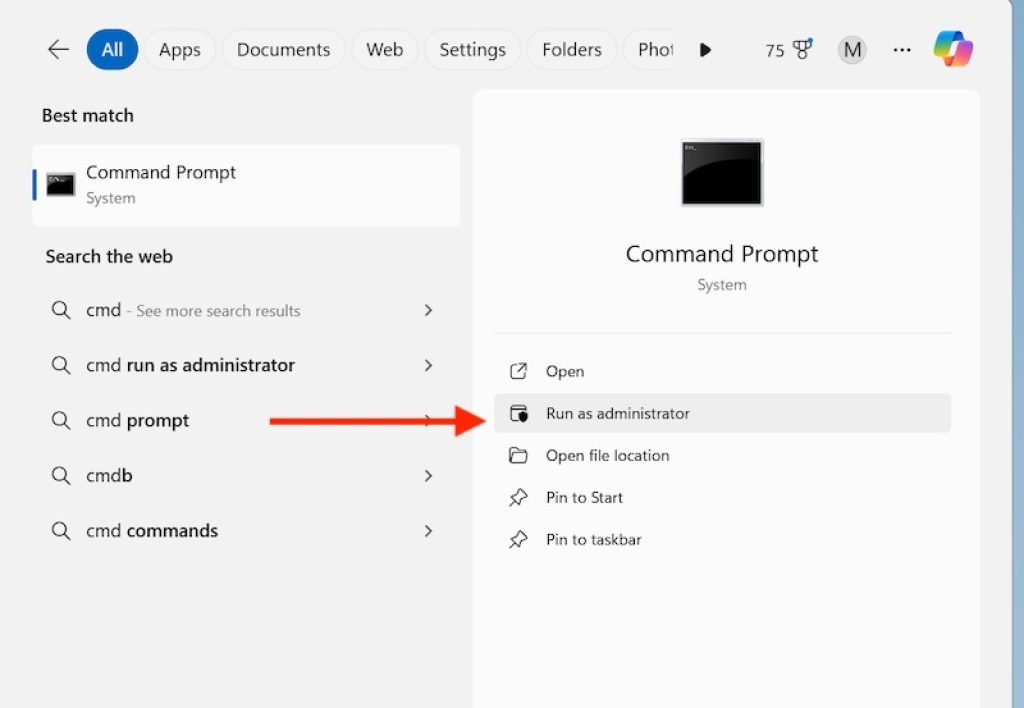
For commands that require administrator permissions, right-click Command Prompt and select Run as administrator.
You can also press Windows + R, type:
cmd
and press Enter.
To open an elevated Command Prompt from the Run dialog, you can type:
cmd
and press Ctrl + Shift + Enter.
Some commands work normally without administrator privileges, while others require an elevated Command Prompt.
1. Basic CMD Commands
These are some of the most fundamental Command Prompt commands. They are useful for navigating the command-line environment and getting basic information.
help
Displays information about available commands.
help
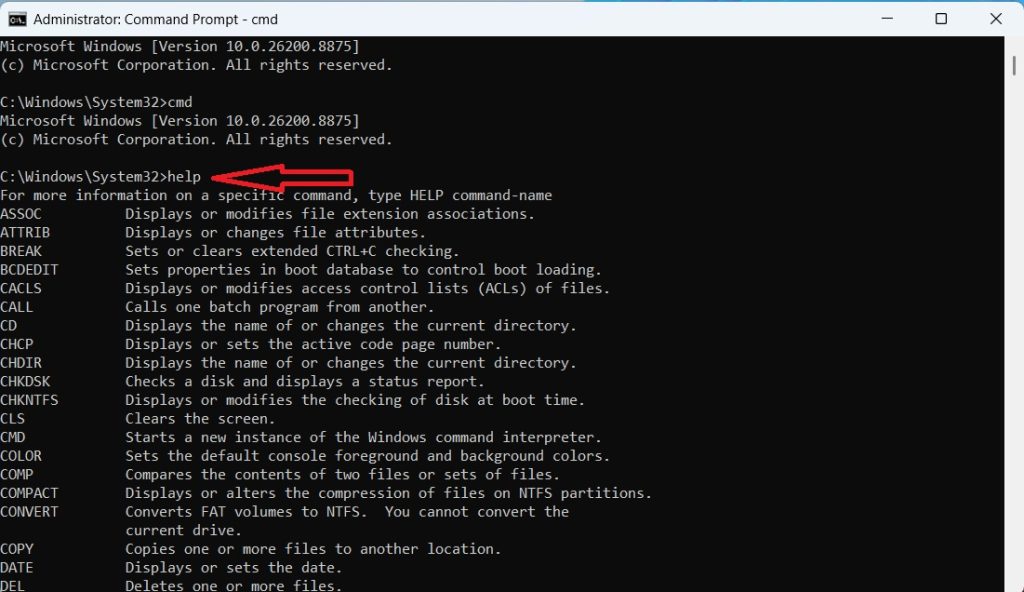
To get help for a specific command:
help ipconfig
You can also use:
ipconfig /?
The / ? option is available with many Windows commands and displays their available parameters.
cls
Clears everything currently displayed in the Command Prompt window.
cls
This does not delete files or change system settings. It simply clears the visible CMD screen.
exit
Closes Command Prompt.
exit
echo
Displays text or controls command echoing.
echo Hello World
You can also turn command echoing off:
echo off
ver
Displays the Windows version.
ver
hostname
Displays the computer’s hostname.
hostname
This can be useful when identifying a computer on a network.
whoami
Displays the currently logged-in user.
whoami
date
Displays or allows you to change the system date.
date
Changing system settings may require administrator privileges.
time
Displays or allows you to change the system time.
time
title
Changes the title of the Command Prompt window.
title My Command Prompt
color
Changes the CMD window’s text and background colors.
color 0A
prompt
Changes the appearance of the command prompt.
prompt $P$G
The default prompt generally displays the current drive and folder followed by >.
2. File and Folder CMD Commands
Command Prompt is extremely useful for managing files and folders. These commands allow you to create, delete, copy, move, rename, and inspect files.
dir
Displays files and folders in the current directory.
dir
To show hidden files:
dir /a
To display files recursively:
dir /s
You can combine options:
dir /a /s
cd
Changes the current directory.
cd Documents
To move up one folder:
cd ..
To go to the root of the current drive:
cd \
To change to a specific location:
cd C:\Users\YourName\Documents
md
Creates a new directory.
md MyFolder
The same operation can also be performed with:
mkdir MyFolder
rd
Removes a directory.
rd MyFolder
To remove a directory and its contents:
rd /s MyFolder
Windows will normally ask for confirmation when /s is used.
copy
Copies files from one location to another.
copy file.txt D:\Backup\
You can also copy multiple files using wildcards:
copy *.txt D:\Backup\
xcopy
Provides more advanced file and folder copying capabilities.
xcopy C:\Data D:\Backup /E
The /E option copies subdirectories, including empty directories.
robocopy
Robocopy is a powerful Windows file-copying utility designed for copying large numbers of files and folders.
robocopy C:\Data D:\Backup
For copying an entire directory structure:
robocopy C:\Data D:\Backup /E
Robocopy is particularly useful for backups, migrations, and large file operations.
move
Moves files or folders.
move file.txt D:\Documents\
ren
Renames a file or folder.
ren oldname.txt newname.txt
del
Deletes files.
del file.txt
To delete all .tmp files:
del *.tmp
Be careful when using del because deleted files may not be moved to the Recycle Bin.
type
Displays the contents of a text file.
type notes.txt
This is useful for quickly reading small text files directly from CMD.
more
Displays long text one screen at a time.
type largefile.txt | more
tree
Displays a folder structure in tree form.
tree
To include files:
tree /f
attrib
Displays or changes file attributes.
attrib
To remove the hidden attribute:
attrib -h file.txt
To remove read-only:
attrib -r file.txt
To apply hidden and system attributes:
attrib +h +s file.txt
Use attribute commands carefully when working with system files.
3. Networking CMD Commands
CMD includes many commands for diagnosing and configuring network connections.
ipconfig
Displays IP configuration information.
ipconfig
For detailed information:
ipconfig /all
To release the current DHCP address:
ipconfig /release
To request a new DHCP address:
ipconfig /renew
To clear the DNS resolver cache:
ipconfig /flushdns
ping
Tests whether another device or server can be reached over the network.
ping google.com
You can also test an IP address:
ping 192.168.1.1
tracert
Shows the route packets take to a destination.
tracert google.com
This can help identify where network connectivity problems occur.
pathping
Combines aspects of ping and tracert to analyze network paths.
pathping google.com
nslookup
Queries DNS information.
nslookup google.com
You can also specify a DNS server:
nslookup google.com 8.8.8.8
netstat
Displays active network connections and listening ports.
netstat
To display listening ports and associated processes:
netstat -ano
arp
Displays or modifies the ARP cache.
arp -a
route
Displays or modifies the IP routing table.
route print
getmac
Displays the MAC addresses associated with network adapters.
getmac
For additional details:
getmac /v
hostname
Displays the computer’s network hostname.
hostname
netsh
Provides commands for configuring and troubleshooting many Windows networking components.
For example:
netsh wlan show profiles
This displays saved Wi-Fi profile names.
To display information about a particular wireless profile:
netsh wlan show profile name="WiFi-Name"
netsh contains many subcommands, so use:
netsh /?
to view its available options.
4. Windows System Information and Management Commands
These commands help you inspect your Windows installation, hardware, users, processes, and system configuration.
systeminfo
Displays detailed information about the computer.
systeminfo
It can show information such as:
- Windows version
- Installation date
- System manufacturer
- System model
- Processor
- Installed memory
- Windows updates
- Boot information
- Network configuration
wmic
WMIC was historically used for querying Windows Management Instrumentation information. On modern Windows versions, WMIC is deprecated and may not be available in future releases.
For newer Windows systems, PowerShell and Windows Management Instrumentation alternatives are preferred.
tasklist
Displays currently running processes.
tasklist
You can search for a particular process:
tasklist | findstr chrome
taskkill
Terminates a running process.
taskkill /IM notepad.exe
You can force termination:
taskkill /F /IM notepad.exe
You can also terminate a process using its PID:
taskkill /PID 1234 /F
Use /F carefully because it immediately terminates the selected process.
driverquery
Displays installed device drivers.
driverquery
To display additional information:
driverquery /v
set
Displays environment variables.
set
You can also display a specific variable:
set PATH
path
Displays or modifies the command search path.
path
where
Finds the location of an executable.
where notepad
For example, this can help determine which executable Windows is launching when multiple versions exist.
hostname
Shows the current computer name.
hostname
gpupdate
Updates Group Policy settings.
gpupdate
To force an update:
gpupdate /force
This command is particularly useful on Windows Pro, Enterprise, and managed systems.
gpresult
Displays Group Policy information.
gpresult /r
It can help determine which policies are being applied to the computer or user.
5. Windows Repair and Troubleshooting Commands
Some of the most important CMD commands are designed to diagnose and repair Windows system problems.
These commands should generally be run from an Administrator Command Prompt.
sfc
System File Checker scans protected Windows system files for corruption.
sfc /scannow
Windows checks the system files and attempts to repair corrupted files automatically.
This command can be useful when Windows components are behaving unexpectedly, applications fail to start, or system files may have become corrupted.
DISM
Deployment Image Servicing and Management is used to service and repair the Windows image.
A common command is:
DISM /Online /Cleanup-Image /RestoreHealth
DISM can repair the Windows component store, which can then allow SFC to repair system files more effectively.
A common troubleshooting sequence is:
DISM /Online /Cleanup-Image /RestoreHealth
followed by:
sfc /scannow
chkdsk
Checks a disk for file-system errors.
chkdsk C:
To scan and repair file-system errors:
chkdsk C: /f
To perform a deeper scan that checks for bad sectors:
chkdsk C: /f /r
The /r option can take considerably longer, especially on large drives.
Do not interrupt a disk check while it is running unless you understand the consequences.
sfc /verifyonly
Checks system files without attempting repairs.
sfc /verifyonly
dism /online /cleanup-image /scanhealth
Checks the Windows component store for corruption.
DISM /Online /Cleanup-Image /ScanHealth
dism /online /cleanup-image /checkhealth
Performs a quicker check for whether Windows has previously detected component-store corruption.
DISM /Online /Cleanup-Image /CheckHealth
bootrec
Provides several boot-repair options from Windows Recovery Environment.
Examples include:
bootrec /fixmbr
bootrec /scanos
bootrec /rebuildbcd
These commands should not be used randomly on a normally functioning Windows installation. Boot configuration commands are primarily intended for specific startup and boot-repair situations.
6. Disk and Storage CMD Commands
Windows provides several powerful command-line tools for managing storage devices.
diskpart
DiskPart is Microsoft’s command-line disk management utility.
Start it with:
diskpart
Then type:
list disk
to display connected disks.
You can also use:
list volume
to display volumes.
To see available commands inside DiskPart:
help
DiskPart is extremely powerful. Commands that select, clean, format, or modify partitions can cause permanent data loss if used incorrectly.
For example, the following command:
clean
inside DiskPart removes partition information from the selected disk.
Therefore, never use destructive DiskPart commands unless you have confirmed the correct disk.
format
Formats a drive.
format D:
Formatting deletes existing data from the selected file system, so make sure you have selected the correct drive.
vol
Displays the volume label and serial number.
vol C:
label
Displays or changes a drive label.
label D: Backup
fsutil
Provides advanced file-system management commands.
fsutil
It has many subcommands and is mainly intended for advanced users and administrators.
mountvol
Displays, creates, or removes volume mount points.
mountvol
This is mainly useful for advanced disk and storage management.
7. User and Account Management Commands
Command Prompt also includes commands for managing local Windows accounts.
net user
Displays local user accounts.
net user
To display information about a specific account:
net user username
net user username *
Allows an administrator to change a local user’s password interactively.
net user username *
Windows prompts for the new password without displaying the characters on screen.
net localgroup
Displays local groups.
net localgroup
To display members of the Administrators group:
net localgroup Administrators
net accounts
Displays or modifies account and password policies.
net accounts
whoami
Displays the currently signed-in account.
whoami
For additional information:
whoami /all
runas
Runs a program using another user’s credentials.
runas /user:Administrator cmd
Windows will request the appropriate password.
Use this command carefully, particularly on shared computers.
8. Process, Service, and Windows Management Commands
These commands can help advanced users inspect and manage Windows services and processes.
sc
The Service Control command can query and manage Windows services.
To see a service’s status:
sc query
To query a particular service:
sc query wuauserv
wuauserv is associated with Windows Update.
net start
Displays or starts Windows services.
net start
To start a particular service:
net start servicename
net stop
Stops a Windows service.
net stop servicename
Stopping important Windows services can affect system functionality, so only stop a service when you know why it needs to be stopped.
schtasks
Creates, deletes, queries, changes, and runs scheduled tasks.
To display scheduled tasks:
schtasks /query
tasklist
Shows running processes.
tasklist
taskkill
Terminates a running process.
taskkill /IM process.exe
start
Starts a program or opens a file using its associated application.
start notepad
You can also open a folder:
start C:\Users
9. Shutdown, Restart, and Power Commands
CMD can also control Windows shutdown and restart operations.
shutdown /s
Shuts down Windows.
shutdown /s
shutdown /r
Restarts Windows.
shutdown /r
shutdown /l
Signs out the current user.
shutdown /l
shutdown /h
Hibernates the computer.
shutdown /h
shutdown /a
Cancels a previously scheduled shutdown.
shutdown /a
Schedule a Shutdown
You can schedule a shutdown after a specified number of seconds.
For example:
shutdown /s /t 3600
This schedules a shutdown after 3,600 seconds, or one hour.
To cancel it:
shutdown /a
10. Useful Advanced CMD Commands
Several additional commands are worth knowing if you frequently use Command Prompt.
find
Searches for text within command output or files.
find "Windows" file.txt
findstr
Provides more advanced text searching.
tasklist | findstr chrome
fc
Compares two files.
fc file1.txt file2.txt
This can be useful when comparing text configuration files.
comp
Compares the contents of two files.
comp file1.txt file2.txt
clip
Copies command output to the Windows clipboard.
ipconfig | clip
You can then paste the output into Notepad, an email, or another application.
doskey
Creates command aliases and manages command history.
doskey
For example:
doskey ll=dir
Typing ll will then execute dir during that CMD session.
history
Command Prompt itself does not provide the same history command behavior as PowerShell, but you can press the Up Arrow and Down Arrow keys to navigate through previously entered commands.
You can also use:
doskey /history
to display the command history for the current session.
call
Calls one batch script from another.
call script.bat
if
Performs conditional operations in batch files.
if exist file.txt echo File exists
for
Repeats commands for files, directories, or other sets of values.
for %f in (*.txt) do echo %f
In a batch file, the variable normally uses double percent signs:
for %%f in (*.txt) do echo %%f
set
Creates or displays environment variables.
set MYNAME=Windows
You can display the variable using:
echo %MYNAME%
timeout
Pauses execution for a specified number of seconds.
timeout /t 10
This is particularly useful in batch scripts.
pause
Pauses a batch file and waits for user input.
pause
start
Launches programs, folders, or URLs.
start https://www.microsoft.com
assoc
Displays or modifies file-extension associations.
assoc
To check the association for .txt files:
assoc .txt
ftype
Displays or modifies the command associated with a file type.
ftype
These commands are primarily useful for advanced Windows configuration.
Important CMD Commands at a Glance
If you do not want to memorize every command, the following are some of the most useful ones to remember:
| Command | Main purpose |
|---|---|
help | Get help about commands |
cls | Clear CMD screen |
dir | List files and folders |
cd | Change directory |
mkdir | Create a folder |
rmdir | Remove a folder |
copy | Copy files |
xcopy | Copy files and folders |
robocopy | Advanced file copying |
move | Move files/folders |
ren | Rename files/folders |
del | Delete files |
tree | Display folder structure |
attrib | Manage file attributes |
ipconfig | View network configuration |
ping | Test network connectivity |
tracert | Trace network route |
nslookup | Check DNS information |
netstat | View network connections |
netsh | Configure network settings |
systeminfo | View system information |
tasklist | View running processes |
taskkill | End processes |
driverquery | View installed drivers |
gpupdate | Update Group Policy |
sfc | Check Windows system files |
DISM | Repair Windows image |
chkdsk | Check disk errors |
diskpart | Manage disks and partitions |
format | Format a drive |
net user | Manage local users |
net localgroup | Manage local groups |
sc | Manage services |
schtasks | Manage scheduled tasks |
shutdown | Shut down/restart Windows |
findstr | Search text |
clip | Copy command output |
doskey | Manage command history/macros |
start | Launch programs or locations |
timeout | Pause command execution |
Frequently Asked Questions
How many CMD commands are available in Windows?
Windows includes a large collection of Command Prompt commands, along with commands provided by other Windows utilities. The exact availability can vary between Windows versions, editions, installed components, and system configuration. Therefore, there is no single practical list containing every executable that can be launched from CMD.
You can use:
help
to see many of the commands directly supported by Command Prompt.
Which CMD commands are most useful for troubleshooting?
Some of the most useful troubleshooting commands include:
ipconfig
ping
sfc /scannow
DISM /Online /Cleanup-Image /RestoreHealth
chkdsk
tasklist
and:
systeminfo
The appropriate command depends on whether the problem involves Windows files, networking, storage, applications, or system configuration.
Can CMD commands damage Windows?
Yes. Some commands can delete files, format drives, modify partitions, change system configuration, or alter networking settings. Commands such as diskpart, format, del, and certain boot-management commands should be used carefully.
Do CMD commands work on both Windows 10 and Windows 11?
Most traditional CMD commands work on both Windows 10 and Windows 11. However, some utilities have been deprecated, changed, or may not be available in every Windows edition. For example, WMIC has been deprecated on modern Windows versions.
Conclusion
Command Prompt remains a powerful part of Windows 10 and Windows 11. While many everyday tasks can now be performed through graphical settings, CMD provides a fast way to manage files, troubleshoot network problems, inspect system information, repair Windows, manage disks, control services, and perform administrative tasks.
Most importantly, use administrative and destructive commands carefully. Commands that delete files, format drives, modify partitions, change boot configuration, or stop important services can cause serious problems when used incorrectly. With the right precautions, however, Command Prompt is one of the most useful troubleshooting and management tools available in Windows.