
 Sukhdev Kamboj
Typing accurately isn’t easy for everyone. Some people deal with limited hand mobility, others struggle with accidentally hitting the wrong keys, and many simply want a keyboard experience that fits their unique needs. That’s exactly why Microsoft built a dedicated set of Ease of Access keyboard settings into Windows 11 — a collection of accessibility tools designed to make typing, navigating, and using your computer more comfortable and inclusive.
Whether you have a motor impairment, a temporary hand injury, or you simply want to reduce typing errors, Windows 11 has you covered. These built-in features let you slow down repeated keystrokes, use your mouse to type, get audio and visual feedback for key presses, and even control your entire keyboard with an on-screen alternative.
In this guide, we’ll walk you through what Ease of Access keyboard settings are, why they matter, and — most importantly — four simple methods to access and customize them on your Windows 11 PC. We’ll also answer some frequently asked questions and wrap up with practical tips to help you get the most out of these accessibility features.
By the end of this article, you’ll know exactly how to configure your keyboard settings to make Windows 11 work better for you, regardless of your physical ability or personal preference.
What Are Ease of Access Keyboard Settings in Windows 11?
Before diving into the methods, it helps to understand what’s actually included under the “Keyboard” section of Windows 11’s Accessibility (formerly called “Ease of Access”) settings. Microsoft has grouped several powerful tools here, including:
- Sticky Keys – Lets you press keyboard shortcuts (like Ctrl+Alt+Delete) one key at a time instead of holding them down simultaneously.
- Toggle Keys – Plays an audio tone whenever you press Caps Lock, Num Lock, or Scroll Lock, helping you avoid accidentally leaving them on.
- Filter Keys – Ignores brief or repeated keystrokes, which is especially useful if you have hand tremors or unintentionally double-press keys.
- On-Screen Keyboard – Displays a virtual keyboard on your screen that you can operate using a mouse, touchscreen, or other pointing device.
- Print Screen shortcut behavior – Lets you decide whether pressing the Print Screen key opens the Snipping Tool.
- Underline access keys and keyboard shortcuts – Highlights keyboard shortcut letters in menus for easier navigation.
These settings live under Settings > Accessibility > Keyboard, but as you’ll see below, there are multiple ways to reach them depending on your preference and workflow.
Why These Settings Matter
Accessibility settings aren’t just for people with diagnosed disabilities. They’re genuinely useful for:
- People recovering from hand or wrist injuries
- Users with arthritis or limited dexterity
- Individuals with tremors or motor control challenges
- Anyone who frequently mistypes or double-presses keys
- Users who prefer visual or audio cues when working
- People who don’t have a physical keyboard available (e.g., using a tablet)
Because these tools are baked directly into Windows 11 at no additional cost, they’re one of the easiest ways to make your PC more usable — for yourself or someone else who shares your device.
Now, let’s look at the four best methods to access and configure Ease of Access keyboard settings in Windows 11.
Method 1: Access Keyboard Settings via the Windows Settings App
The most straightforward way to reach Ease of Access (Accessibility) keyboard settings is through the built-in Settings app. Here’s how:
Click the Start button on your taskbar, or press the Windows key on your keyboard.
Select Settings (the gear icon), or press Windows key + I to open it directly.
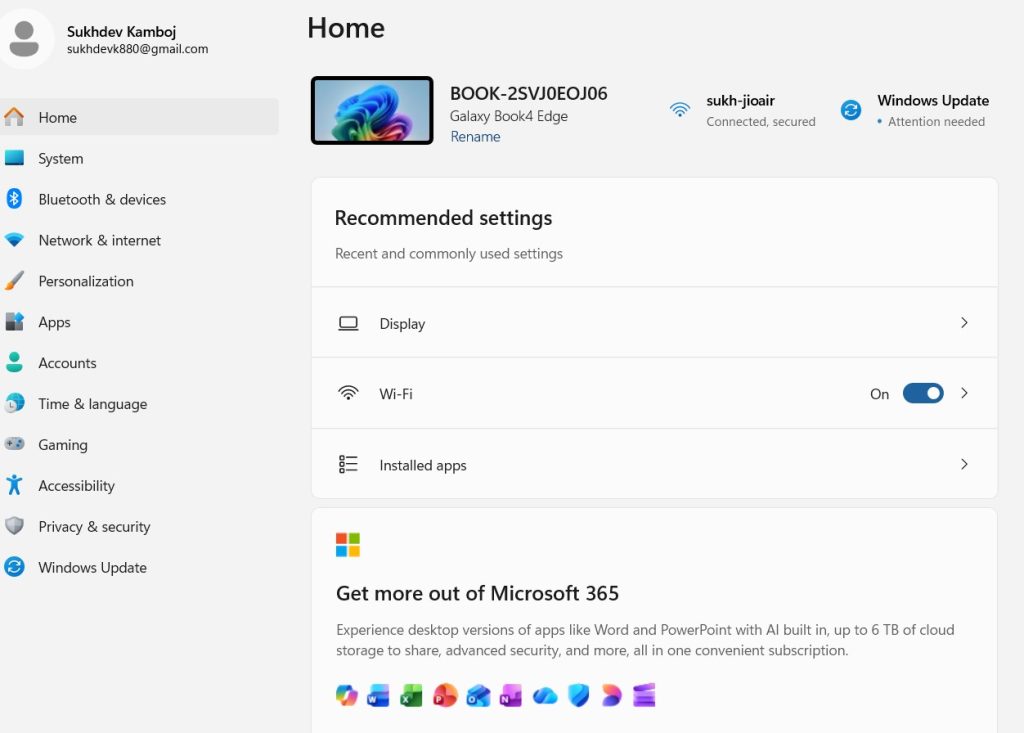
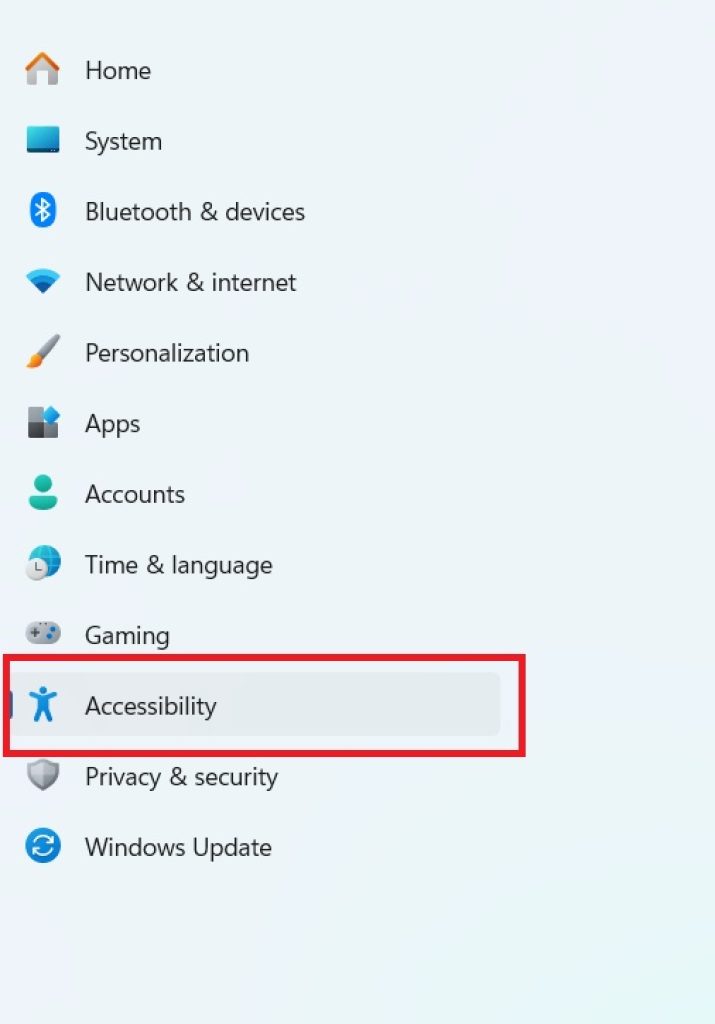
In the left-hand sidebar, click on Accessibility.
Scroll down to the Interaction section and click Keyboard.
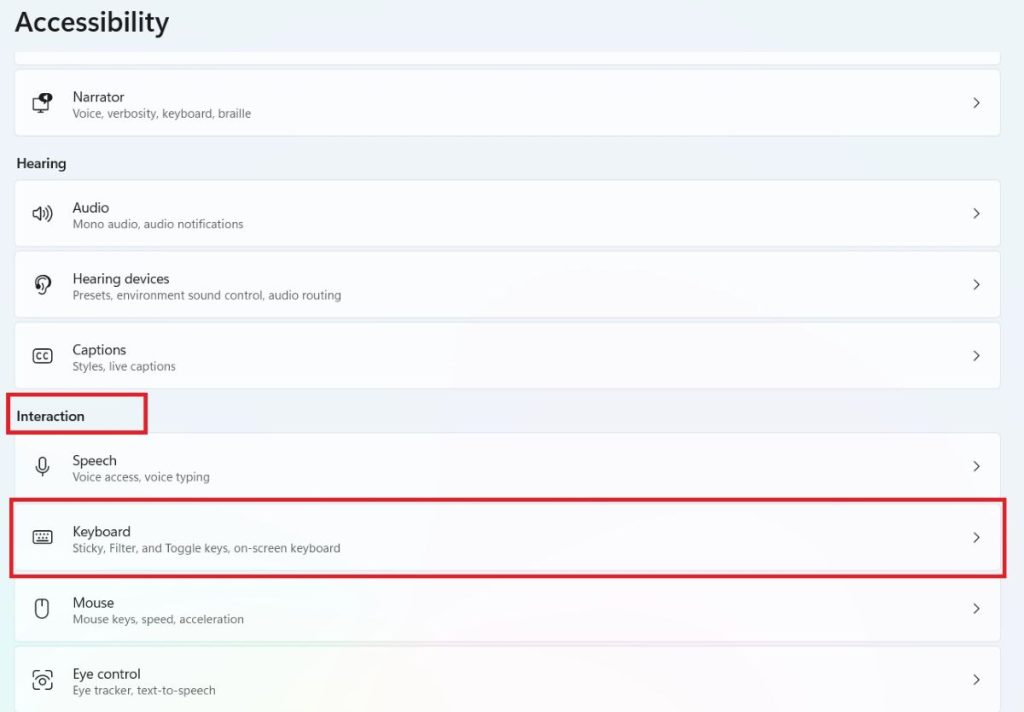
You’ll now see toggles for Sticky Keys, Toggle Keys, Filter Keys, On-Screen Keyboard, and more.
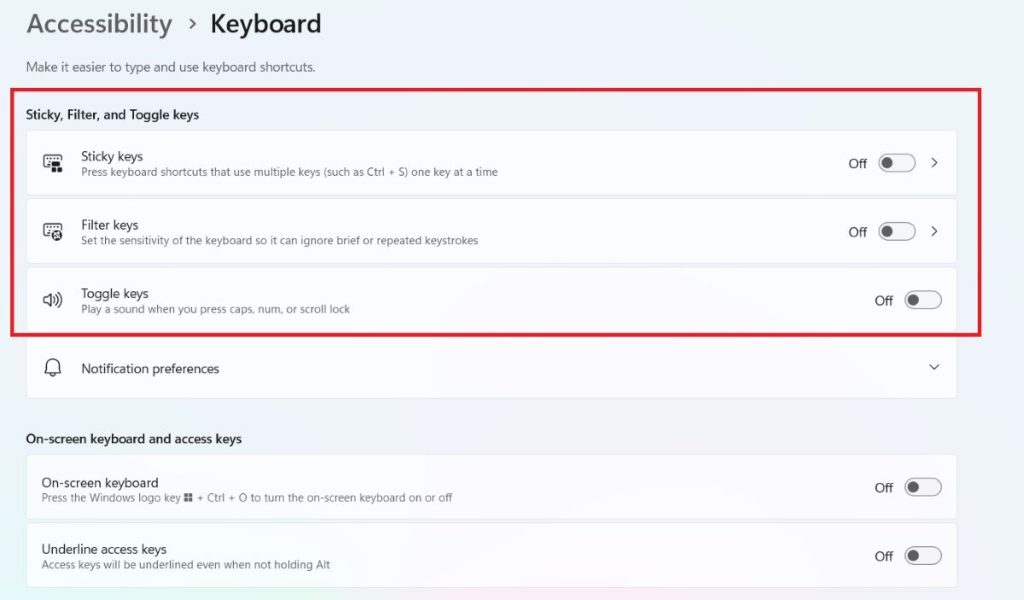
Click on any toggle to switch it on or off, and click the feature name (e.g., “Sticky Keys”) to expand additional customization options, such as sound feedback or timing thresholds.
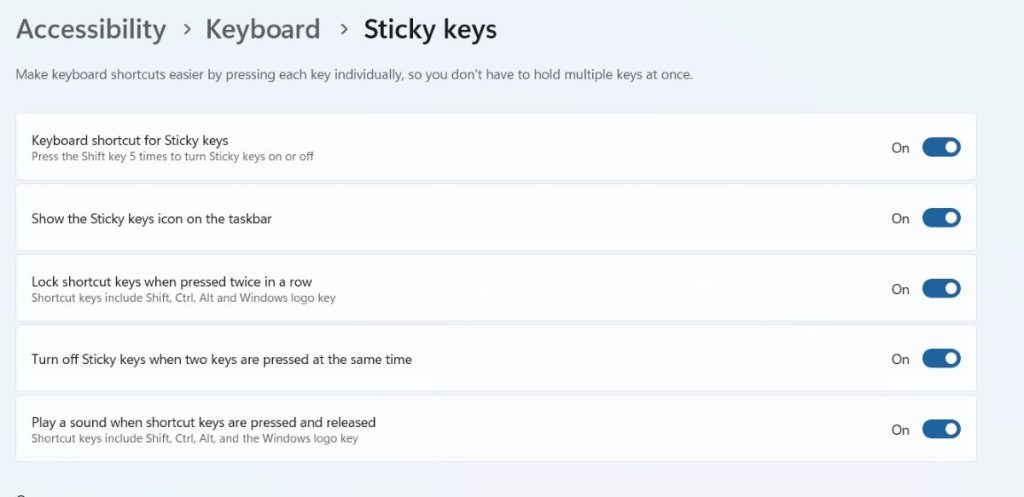
This method is ideal for most users because it’s visual, intuitive, and gives you granular control over every keyboard accessibility feature in one place. It’s also the recommended starting point if you’re new to these settings, since each option comes with a short description explaining what it does.
Pro tip: While you’re in the Accessibility menu, take a moment to explore other sections like Vision, Hearing, and Interaction — Windows 11 bundles many related accessibility tools together, and you might discover additional features that improve your overall experience.
Method 2: Use the Windows Search Bar for Quick Access
If you already know which feature you want to adjust, searching for it directly is often faster than navigating through menus. Here’s how:
- Click the Search icon on your taskbar, or press Windows key + S.
- Type keywords like “Sticky Keys”, “Filter Keys”, “On-Screen Keyboard”, or simply “keyboard accessibility settings”.
- Windows will show relevant results, including a direct link labeled something like “Turn on Sticky Keys” or “Keyboard settings” under the Settings category.
- Click the result to jump straight to that specific settings page, bypassing the need to navigate through the full Settings app.
This method is especially useful for power users who frequently toggle these features on and off, or for anyone who wants a quicker path without scrolling through multiple menus.
Bonus tip: You can pin frequently used accessibility settings to your Start menu for even faster access next time. Right-click the search result and select “Pin to Start” if the option is available.
Method 3: Use Keyboard Shortcuts to Toggle Features Instantly
One of the most efficient ways to activate certain Ease of Access keyboard features is by using built-in keyboard shortcuts. Windows 11 allows you to toggle some accessibility features on the fly, without opening any settings menu at all:
- Sticky Keys: Press the Shift key five times in a row. A prompt will appear asking if you’d like to turn Sticky Keys on.
- Filter Keys: Hold the right Shift key for 8 seconds. Windows will prompt you to enable Filter Keys.
- Toggle Keys: Hold down the Num Lock key for 5 seconds to enable or disable the audio toggle feature.
- On-Screen Keyboard: Press Windows key + Ctrl + O to instantly open or close the on-screen keyboard (availability may vary depending on your Windows 11 version and configuration).
These shortcuts are particularly valuable in situations where you need to enable an accessibility feature quickly — for example, if your physical keyboard becomes temporarily unusable, or if you’re helping someone else troubleshoot their PC in real time.
If you find these shortcuts trigger accidentally (which can sometimes happen with Sticky Keys when typing quickly), you can disable the “activate with shortcut” option from within the detailed settings page for each feature, as described in Method 1.
Method 4: Configure Keyboard Accessibility via Control Panel (Legacy Method)
While Microsoft has been steadily moving accessibility controls into the modern Settings app, the classic Control Panel still offers a working path to many of these same options — useful for users who are more comfortable with the traditional Windows interface or who are managing settings on older hardware still running compatible configurations.
- Press Windows key + R to open the Run dialog.
- Type control and press Enter to launch Control Panel.
- Click on Ease of Access.
- Select Ease of Access Center.
- Click Make the keyboard easier to use.
- From here, you can enable Sticky Keys, Toggle Keys, Filter Keys, and On-Screen Keyboard, along with additional legacy options like adjusting keyboard repeat rates and cursor blink settings.
Although this method opens an older-style interface, all your changes sync with the same underlying system settings used by the modern Settings app. This makes Control Panel a handy backup option if you ever have trouble locating a specific toggle in the newer interface, or if you’re following an older tutorial that references Control Panel steps.
Comparing the Four Methods
| Method | Best For | Speed | Interface Style |
|---|---|---|---|
| Settings App | Full customization, first-time setup | Moderate | Modern |
| Search Bar | Quick, targeted access | Fast | Modern |
| Keyboard Shortcuts | Instant activation, emergencies | Fastest | No interface needed |
| Control Panel | Legacy familiarity, backup access | Moderate | Classic |
There’s no single “best” method — it depends on your comfort level with Windows 11 and how often you need to adjust these settings. Many users end up using a combination: the Settings app for initial setup, and shortcuts for quick day-to-day toggling.
Tips for Getting the Most Out of Ease of Access Keyboard Settings
- Test each feature individually before combining several at once, so you understand exactly how each one changes your typing experience.
- Adjust the Filter Keys sensitivity if you find it’s ignoring intentional keystrokes — the settings page lets you fine-tune how long a key must be pressed before it registers.
- Use Toggle Keys sound cues if you frequently lose track of whether Caps Lock is on, especially useful for touch typists who don’t look at the keyboard.
- Pair On-Screen Keyboard with Eye Control or Voice Access for a more complete hands-free typing experience if you have limited mobility.
- Revisit settings periodically, since Microsoft regularly updates the Accessibility section of Windows 11 with new features and refinements.
Frequently Asked Questions (FAQ)
1. What is the difference between Sticky Keys, Toggle Keys, and Filter Keys? Sticky Keys allows you to press keyboard shortcuts sequentially instead of simultaneously, which helps if you can’t hold multiple keys down at once. Toggle Keys plays a sound when you press Caps Lock, Num Lock, or Scroll Lock so you always know their status. Filter Keys ignores brief or repeated keystrokes, which is helpful for users with hand tremors or motor control issues.
2. How do I turn off Sticky Keys if it activates by accident? Go to Settings > Accessibility > Keyboard > Sticky Keys, and turn off the option labeled “Allow the shortcut key to start Sticky Keys.” This prevents the feature from turning on automatically when you press Shift five times.
3. Can I use the On-Screen Keyboard with a touchscreen device? Yes. The On-Screen Keyboard works seamlessly with touchscreens, mice, styluses, and other pointing devices, making it a great option for tablets or 2-in-1 laptops running Windows 11.
4. Do these settings affect all user accounts on the PC, or just mine? By default, changes made through the Settings app apply only to your current user profile. However, some options — like enabling accessibility features at the sign-in screen — can be configured to apply system-wide through the Ease of Access Center in Control Panel.
Conclusion
Windows 11’s Ease of Access keyboard settings are a powerful, often underused set of tools that can dramatically improve how you interact with your PC. Whether you’re managing a physical limitation, reducing typing errors, or simply customizing your workflow for comfort, these features are designed to adapt to your needs rather than forcing you to adapt to a rigid system.
We covered four reliable methods to access these settings: through the Settings app for full customization, the Search bar for quick navigation, keyboard shortcuts for instant activation, and the Control Panel for a familiar, legacy-style approach. Each method leads to the same underlying settings, so you can choose whichever fits your workflow best — or use all four interchangeably depending on the situation.
Accessibility shouldn’t be an afterthought, and Microsoft has clearly invested in making Windows 11 more inclusive with every update. If you haven’t explored the Accessibility section of your Settings app yet, now is a great time to do so. A few small adjustments could make your daily computing experience significantly smoother, more comfortable, and more efficient.





