
 Sukhdev Kamboj
Every time you double-click a video or audio file in Windows 11, the operating system has to decide which application should open it. By default, Windows usually hands audio and video files off to the built-in Movies & TV and Media Player apps. These apps are functional, but many users prefer something more powerful — VLC Media Player, MPC-HC, PotPlayer, KMPlayer, or even iTunes for music. Whatever your reason, whether it’s better codec support, a cleaner interface, or simply personal habit, Windows 11 gives you several ways to set or change your default media player.
The good news is that Microsoft has made this process fairly flexible. You’re not locked into one method — you can change defaults through the Settings app, through a file’s right-click menu, or even let a newly installed media player prompt you to make itself the default during setup. Each approach has its own advantages depending on whether you want to change the default for a single file type, for every media format at once, or just for one specific file without altering your system-wide settings.
In this guide, we’ll walk through every practical method to set or change your default media player in Windows 11. We’ll also cover how to revert to the original Windows apps if you change your mind, and answer some of the most common questions users have about default app behavior in Windows 11. By the end, you’ll have complete control over which application handles your music, movies, and video files.
Why Change Your Default Media Player?
Before diving into the methods, it helps to understand why so many people move away from Windows’ native media apps:
- Broader format support: Third-party players like VLC support nearly every audio and video codec out of the box, without needing separate codec packs.
- More playback controls: Advanced players offer frame-by-frame navigation, playback speed adjustment, subtitle customization, and audio track switching.
- Better performance on older hardware: Lightweight players can be less resource-intensive than the modern UWP apps built into Windows.
- Consistency across devices: If you use the same media player on multiple operating systems, keeping it as your default in Windows creates a more familiar experience.
- Aesthetic and workflow preference: Some users simply prefer the interface, playlist management, or keyboard shortcuts of a particular player.
Whatever your motivation, Windows 11 makes the switch straightforward. Let’s look at the available methods.
Method 1: Change the Default Media Player Using Settings App
The most reliable and comprehensive way to change your default media player is through the Settings app, since it lets you control defaults for every file type and app in one place.
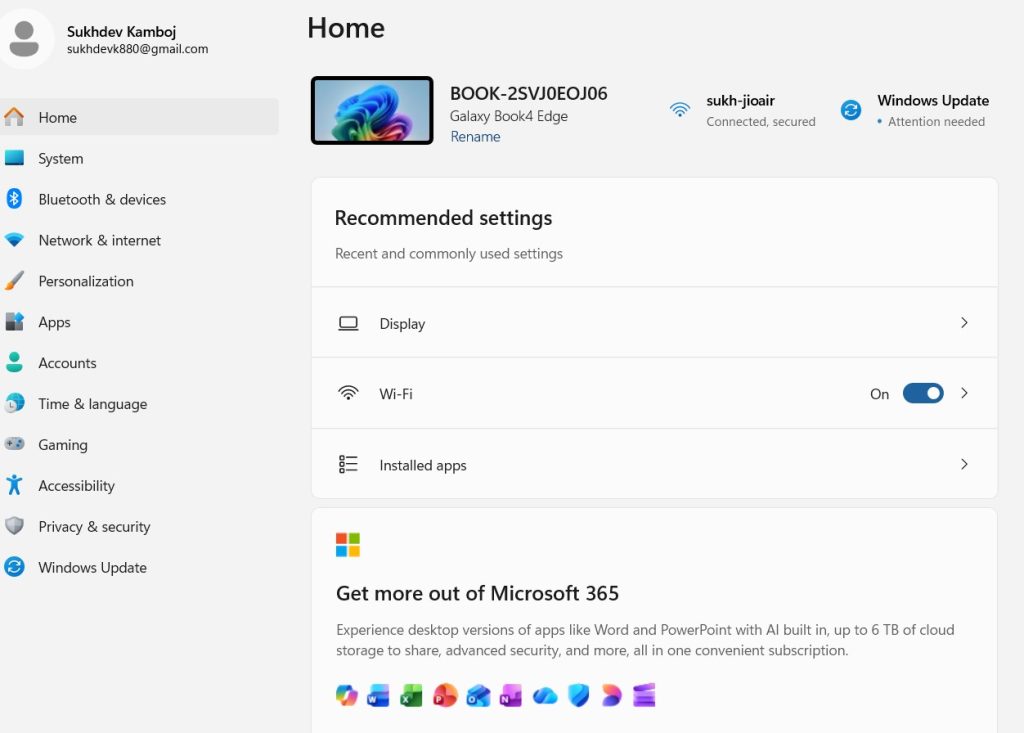
Press Windows + I to open Settings.
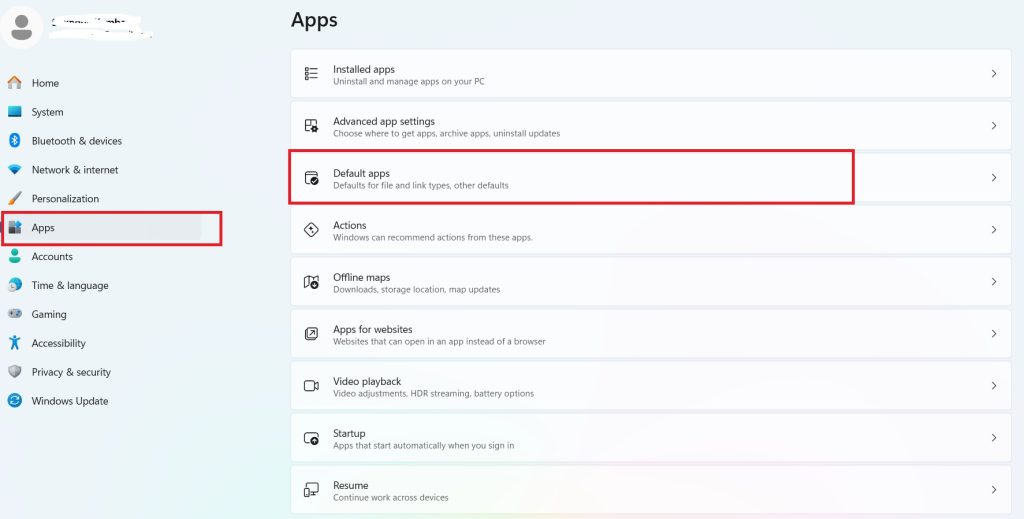
Navigate to Apps in the left sidebar, then click Default apps.
In the search box at the top, type the name of the media player you want to set as default (for example, “VLC media player” or “Windows Media Player”).
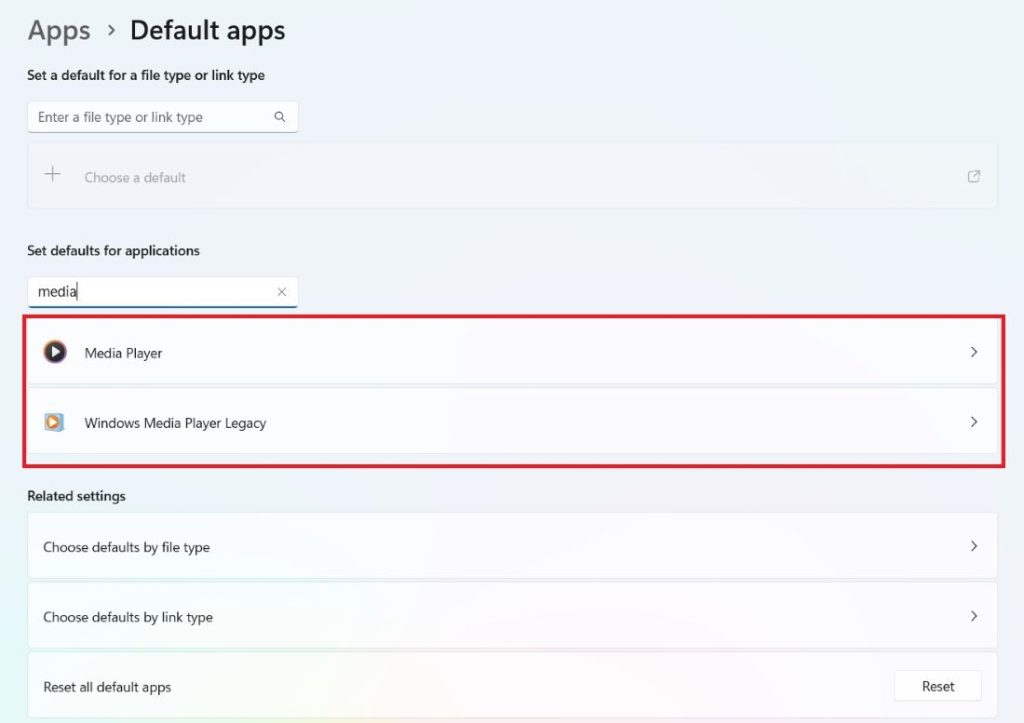
Click on the player’s name from the search results. This opens a page showing every file type and link type it can handle, along with the app currently assigned to each.
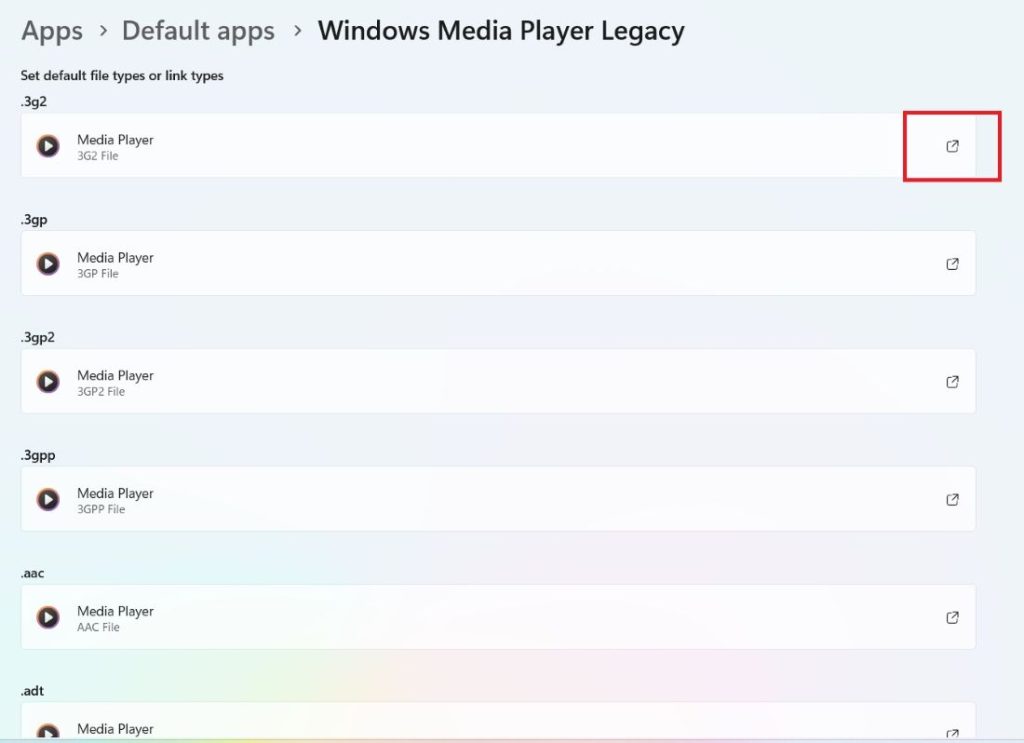
You’ll see a long list of file extensions such as .mp4, .mp3, .avi, .mkv, .wav, and more. Click each file type you want to reassign, and a pop-up will appear asking you to choose an app.
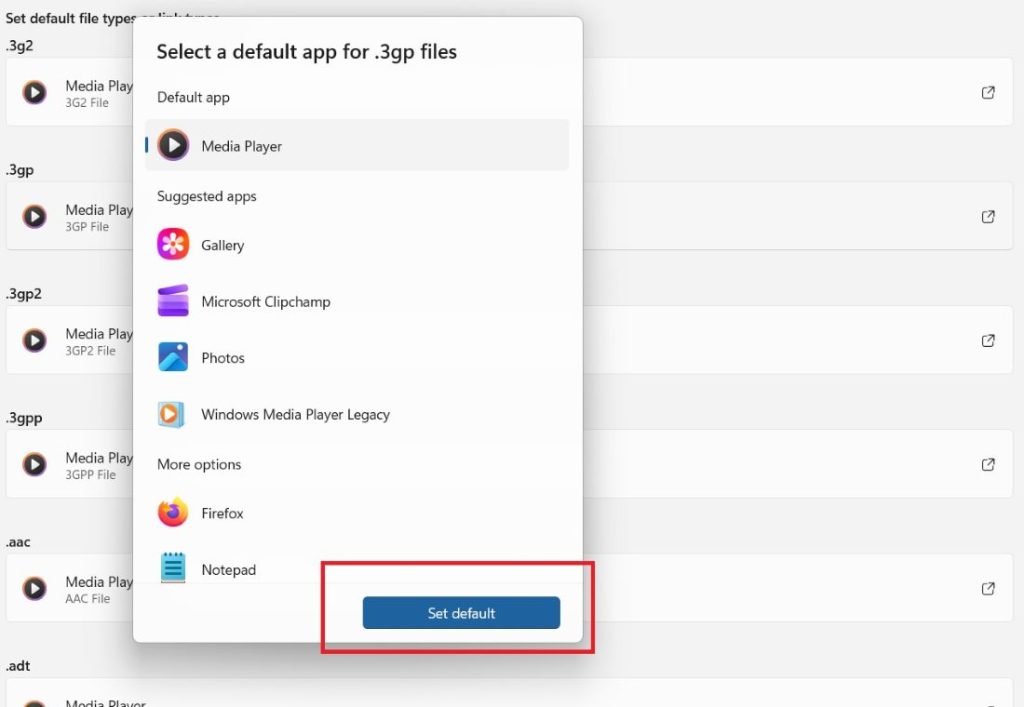
Select your preferred media player from the list, then click Set default (or simply click the app icon, depending on your Windows 11 build).
Repeat this for every audio and video extension you use regularly. Unfortunately, Windows 11 does not offer a single “Set this app as default for all supported types” button for media players the way it sometimes does for browsers, so you may need to do this individually for each format.
This method is the most thorough because it changes the default at the system level — meaning every app, shortcut, or program that tries to open that file type will now launch your chosen player, not just File Explorer.
Method 2: Change Default Player via “Open With” in File Explorer
If you only want to change the default player for a specific file type — say, just .mp4 files — without going through the full Settings menu, the right-click method is quicker.
- Locate any file of the type you want to change (for example, a video file) in File Explorer.
- Right-click the file and select Open with from the context menu.
- Choose Choose another app from the submenu that appears.
- A dialog box will list recommended apps installed on your PC. Select the media player you want to use.
- Before clicking OK, make sure the checkbox labeled Always use this app to open [file type] files is ticked. If you leave it unchecked, the player will only open that one file, and the default will remain unchanged for future files of the same type.
- Click OK to confirm.
This method is ideal when you want granular, file-type-specific control without affecting other formats. For instance, you might want VLC for .mkv files but keep the default Movies & TV app for .mp4 files — this approach lets you do exactly that.
Method 3: Use Default Programs via Control Panel
Although Microsoft has been phasing out the classic Control Panel in favor of Settings, it’s still accessible in Windows 11 and offers a slightly different interface for managing defaults, which some users find more familiar.
- Press Windows + R, type control, and press Enter to open Control Panel.
- Click Programs, then click Default Programs.
- Select Set your default programs. This will actually redirect you to the Settings app’s Default apps page, since Microsoft has consolidated default app management there in Windows 11.
- Alternatively, click Associate a file type or protocol with a program to see a full list of file extensions and manually assign an app to each one, similar to the process in Method 1.
While this route ultimately funnels back into the same Settings interface, it’s useful if you’re more comfortable navigating through Control Panel or if you’re managing multiple PCs with scripts and shortcuts that point to Control Panel utilities.
Method 4: Let the Media Player Set Itself as Default During Installation
Many third-party media players, including VLC, PotPlayer, and KMPlayer, offer to associate themselves with common audio and video file types during the installation process.
- Download and run the installer for your preferred media player.
- During setup, look for a screen or checkbox that mentions file associations or set as default player.
- Select the file types you want the new player to handle by default, or choose “select all” if the option is available.
- Complete the installation.
This is often the fastest method if you’re installing a new player for the first time, since it handles multiple file-type associations in a single step rather than requiring you to configure each one manually afterward. However, if you skip this step during installation, you can always go back and use Method 1 or Method 2 to finish the job later.
Method 5: Reset Default Apps to Windows Defaults
If you’ve experimented with different players and want to revert everything back to Microsoft’s built-in apps, Windows 11 includes a reset option.
- Open Settings and go to Apps > Default apps.
- Scroll down and look for the Reset button near the bottom of the page (in some Windows 11 versions, this appears under a “Reset to Microsoft recommended defaults” heading).
- Click Reset, and Windows will reassign default apps — including your media player — back to Microsoft’s built-in options like Movies & TV and Media Player.
Keep in mind this reset affects more than just media files; it can also reset your default browser, email client, and photo viewer, so use it only if you want a broad reset rather than a targeted one.
Method 6: Set Default Apps by File Type Using Settings’ “Choose default apps by file type” Page
Windows 11 also includes a dedicated page that organizes defaults by file extension rather than by app, which can be faster if you know exactly which extensions you want to reassign.
- Open Settings > Apps > Default apps.
- Scroll down and click Choose default apps by file type.
- You’ll see an alphabetical list of file extensions (.avi, .flac, .mp4, .wav, and so on) with the current default app listed next to each.
- Click the current app icon next to the extension you want to change, and a pop-up will let you select a new default from your installed apps.
- Repeat for each extension as needed.
This method is particularly useful for audio enthusiasts or video hobbyists who work with a wide variety of niche file formats and want fine-tuned control over exactly which player handles each one.
Conclusion
Windows 11 offers more flexibility than ever when it comes to controlling how your media files open. Whether you prefer adjusting defaults through the Settings app for a comprehensive, system-wide change, using the quick right-click “Open with” trick for a single file type, or letting a new media player configure itself automatically during installation, there’s a method suited to every preference and skill level. If you ever want to start fresh, the built-in reset option makes it easy to return to Microsoft’s original app associations.
Ultimately, choosing the right default media player comes down to your personal workflow — whether that means prioritizing format compatibility, playback features, or simple familiarity. With the steps outlined in this guide, you should now be able to confidently set, change, or reset your default media player in Windows 11 whenever you need to.
Frequently Asked Questions (FAQ)
1. Why does Windows 11 keep switching my media player back to the default app? This usually happens when a Windows update resets file associations, or when another application (including newly installed software) quietly claims a file association during its own installation process. To fix this, revisit Settings > Apps > Default apps and reassign your preferred player. If the issue persists after every update, check whether any background app is auto-repairing its file associations on startup, and consider disabling that feature within the app’s own settings.
2. Can I set different default players for audio and video files? Yes. Windows 11 allows you to assign defaults on a per-file-type basis rather than treating all media as one category. For example, you could set VLC as the default for video formats like .mp4 and .mkv while keeping Windows Media Player or a dedicated music app like Groove or iTunes as the default for audio formats like .mp3 and .flac. Use the “Choose default apps by file type” page in Settings for this level of control.
3. Why doesn’t my newly installed media player appear in the “Open with” list? If a media player doesn’t show up as an option, it may not have properly registered itself with Windows during installation, or it may need to be run at least once before it appears as a selectable app. Try opening the media player manually first, then return to the file and use Open with > Choose another app; if it’s still missing, check More apps or click Look for another app on this PC and manually browse to the player’s installation folder to locate its executable file.
4. Is it possible to set a default media player without administrator privileges? In most cases, yes. Changing default app associations through Settings or the “Open with” dialog only affects your user account’s preferences and doesn’t require administrator rights on a standard Windows 11 installation. However, if your PC is managed by an organization with restricted permissions (common on work or school devices), your IT administrator may have locked default app settings through Group Policy, in which case you’ll need to contact them to make changes.





