Olivia Harper
Hardware problems can occur unexpectedly on any Windows 11 computer. A USB device may stop working, your keyboard or mouse may become unresponsive, Bluetooth may fail to detect devices, or your printer might not function correctly. Sometimes these issues are caused by outdated drivers, incorrect settings, corrupted system files, or temporary software glitches rather than faulty hardware. Fortunately, Windows includes several built-in troubleshooting tools that can automatically detect and fix many common hardware-related problems.
Although Microsoft removed the Hardware and Devices Troubleshooter from the Windows Settings app in Windows 11, the troubleshooter still exists and can be launched using a special command. It scans your system for common hardware issues, checks device configurations, and attempts to apply fixes automatically. In addition, Windows 11 offers dedicated troubleshooters for Bluetooth, printers, audio, cameras, and other hardware components through the Settings app.
This guide explains the best ways to run the Hardware and Devices Troubleshooter on Windows 11, along with other built-in troubleshooting methods you can use if the traditional troubleshooter isn’t enough.
What Is the Hardware and Devices Troubleshooter?
The Hardware and Devices Troubleshooter is a built-in Windows diagnostic tool that helps identify and resolve problems related to installed hardware. It checks for common issues such as:
- Incorrect hardware settings
- Missing or outdated drivers
- Device configuration problems
- Hardware conflicts
- USB connection issues
- Printer detection problems
- Keyboard and mouse errors
- Audio hardware issues
- Bluetooth device problems
- General hardware malfunctions
While it cannot repair physically damaged hardware, it can often resolve software-related issues that prevent devices from working properly.
Before You Begin
Before running the troubleshooter, it’s a good idea to:
- Restart your computer.
- Disconnect and reconnect the affected hardware.
- Install the latest Windows updates.
- Ensure the device is powered on.
- Check all cables and wireless connections.
- Create a System Restore Point if you’re troubleshooting a critical device.
These simple steps may resolve minor issues without additional troubleshooting.
Method 1: Run the Hardware and Devices Troubleshooter Using the Run Command (Recommended)
Although the troubleshooter is hidden in Windows 11, you can still launch it using a command.
Follow these steps:
Press Windows + R to open the Run dialog.
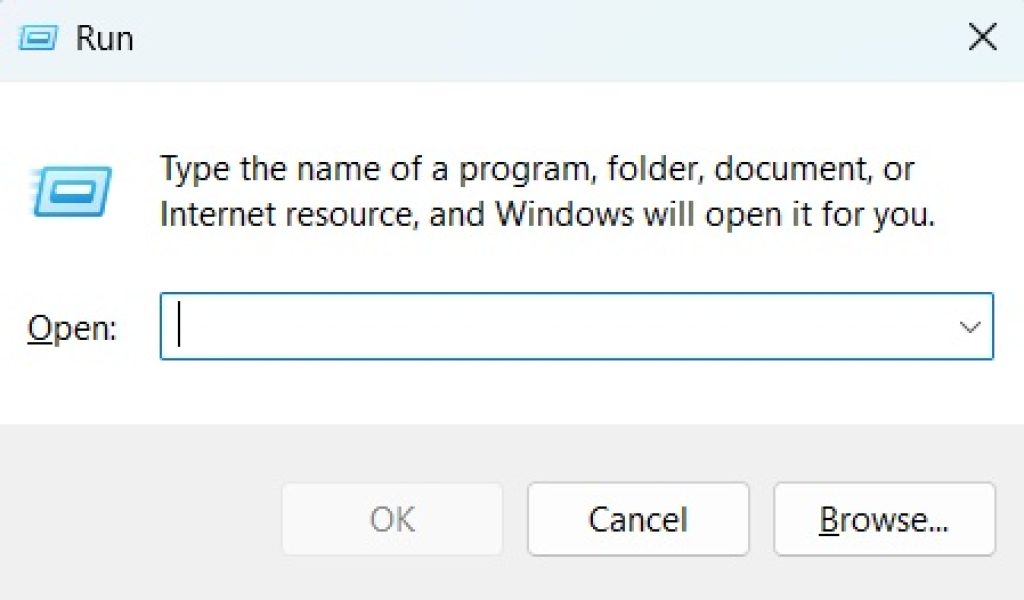
Type the following command:
msdt.exe -id DeviceDiagnosticClick OK or press Enter.
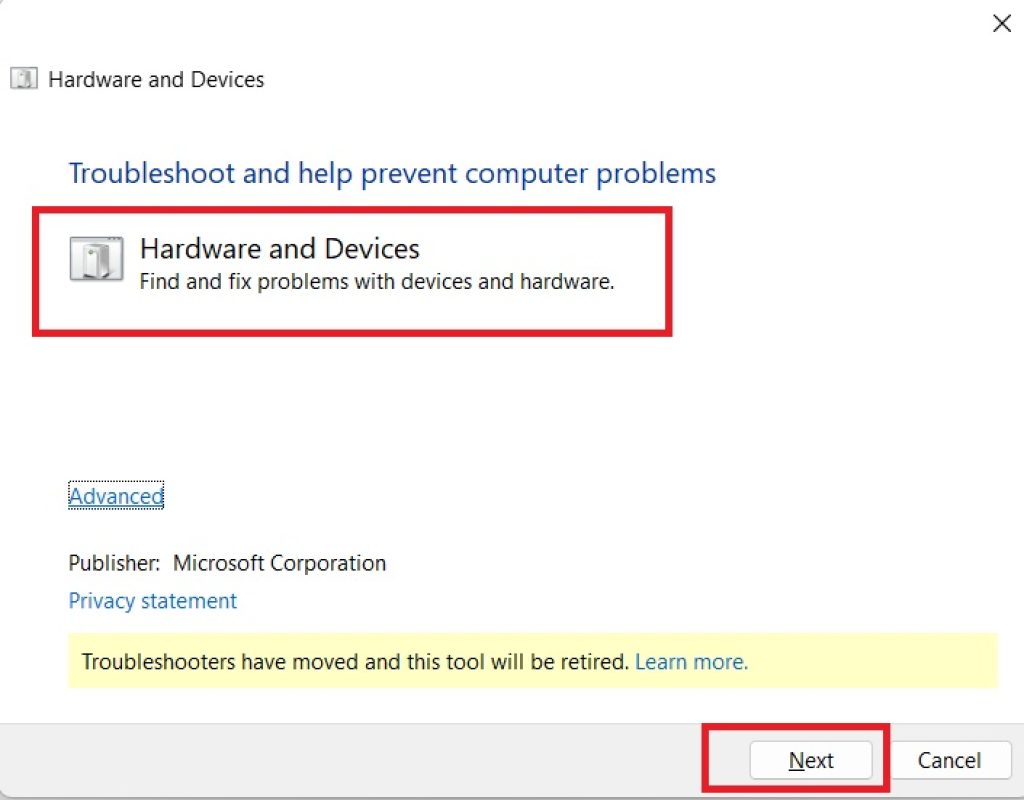
The Hardware and Devices troubleshooter will open.
Click Next.
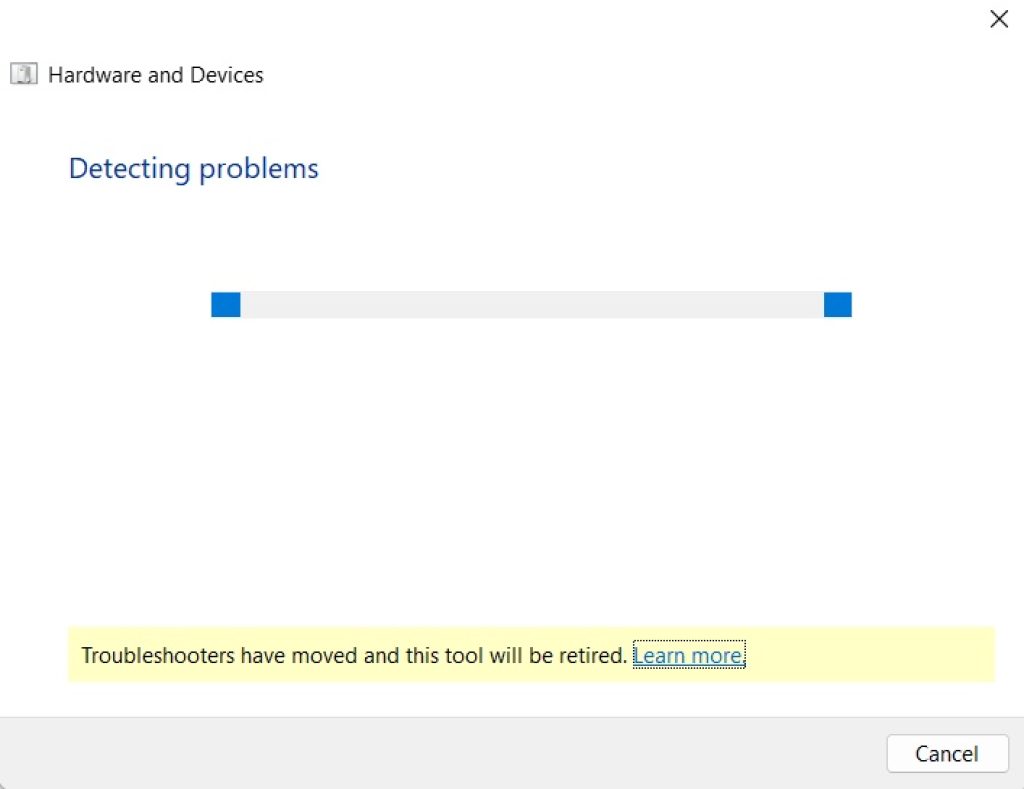
Allow Windows to scan your computer.
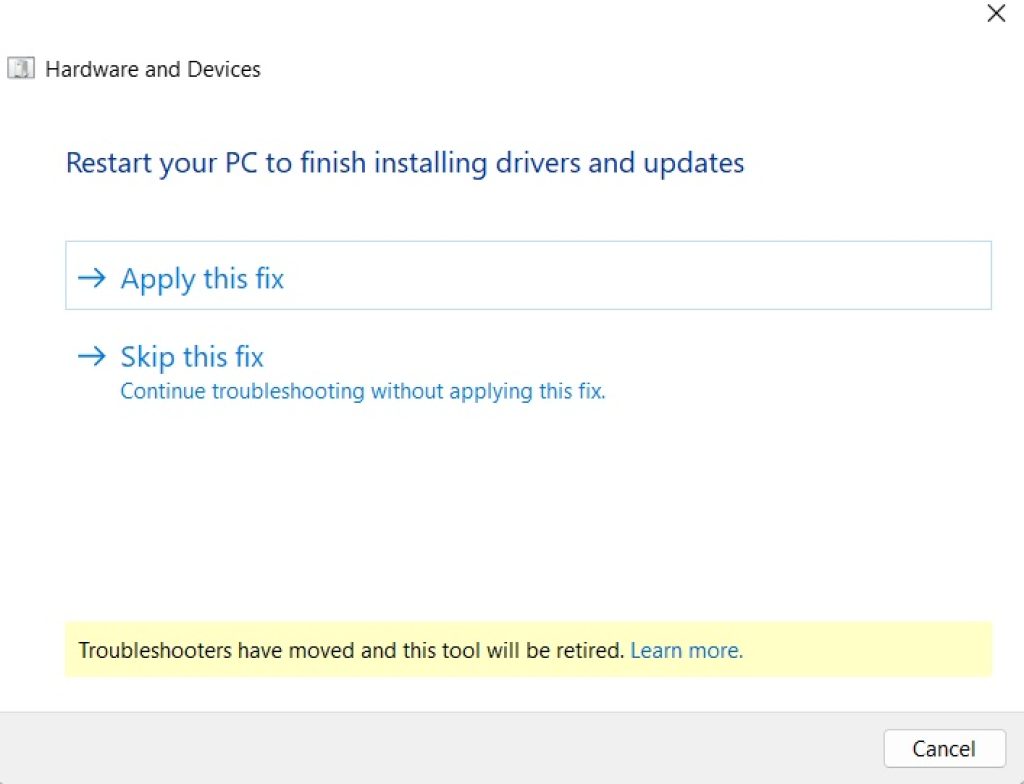
If problems are found, click Apply this fix.
Follow the on-screen instructions.
Restart your computer if prompted.
This remains the quickest way to access the classic Hardware and Devices Troubleshooter in Windows 11.
Method 2: Run the Troubleshooter Using Command Prompt
You can also launch the troubleshooter from Command Prompt.
Steps:
- Press Windows and search for Command Prompt.
- Right-click it and select Run as administrator.
- Enter the following command:
msdt.exe -id DeviceDiagnostic- Press Enter.
- Click Next in the troubleshooter.
- Let Windows complete the scan.
- Apply any recommended fixes.
This method is useful if the Run dialog isn’t working or you prefer using the command line.
Method 3: Run the Command from Windows Terminal
Windows Terminal also supports launching the troubleshooter.
Here’s how:
- Right-click the Start button.
- Select Terminal (Admin).
- Type:
msdt.exe -id DeviceDiagnostic- Press Enter.
- Complete the troubleshooting wizard.
The Hardware and Devices Troubleshooter works the same regardless of whether it is launched from Run, Command Prompt, or Windows Terminal.
Method 4: Use the Built-in Troubleshooters in Settings
Windows 11 includes separate troubleshooters for specific hardware categories.
To access them:
- Press Windows + I to open Settings.
- Go to System > Troubleshoot.
- Click Other troubleshooters.
- Locate the troubleshooter related to your hardware, such as:
- Bluetooth
- Audio
- Printer
- Camera
- Network and Internet
- Click Run next to the appropriate troubleshooter.
- Follow the instructions to complete the diagnostic process.
These troubleshooters are often more targeted than the classic Hardware and Devices Troubleshooter.
Method 5: Check Device Manager for Hardware Problems
If the troubleshooter doesn’t find any issues, Device Manager can help identify hardware errors.
Steps:
- Press Windows + X.
- Select Device Manager.
- Expand the category for the affected device.
- Look for:
- Yellow warning icons
- Unknown devices
- Disabled devices
- Right-click the device.
- Select Update driver or Enable device, depending on the issue.
- Restart your PC.
Device Manager is one of the most effective tools for diagnosing driver-related hardware problems.
Method 6: Update Hardware Drivers
Outdated or incompatible drivers are a common cause of hardware issues.
To update a driver:
- Open Device Manager.
- Right-click the affected device.
- Select Update driver.
- Choose Search automatically for drivers.
- Allow Windows to search for updated drivers.
- Install any available updates.
- Restart your computer.
For the latest drivers, you can also visit your device or PC manufacturer’s support website.
Method 7: Run Windows Update
Windows Update frequently includes hardware driver updates and compatibility fixes.
To check for updates:
- Open Settings.
- Select Windows Update.
- Click Check for updates.
- Install all available updates.
- Restart your PC.
Keeping Windows up to date helps resolve many hardware-related issues.
Method 8: Scan for Corrupted System Files
Corrupted Windows system files can interfere with hardware functionality.
To repair them:
- Open Command Prompt as administrator.
- Run the following command:
sfc /scannow- Wait for the scan to complete.
- Restart your computer.
If SFC finds and repairs corrupted files, check whether the hardware issue has been resolved.
Method 9: Run the DISM Repair Tool
If SFC doesn’t fix the problem, use the Deployment Image Servicing and Management (DISM) tool.
Steps:
- Open Command Prompt as administrator.
- Run:
DISM /Online /Cleanup-Image /RestoreHealth- Wait for the process to finish.
- Restart your computer.
- Run sfc /scannow again for best results.
DISM repairs the Windows image, which can resolve deeper system issues affecting hardware.
Method 10: Reinstall the Hardware Device
If the hardware still isn’t functioning correctly, reinstalling the device may help.
Here’s how:
- Open Device Manager.
- Right-click the affected device.
- Select Uninstall device.
- Confirm the removal.
- Restart your PC.
Windows will automatically reinstall the device and its driver during startup if it is detected correctly.
Common Hardware Problems the Troubleshooter Can Fix
The Hardware and Devices Troubleshooter is designed to detect and repair a wide range of software-related hardware issues, including:
- USB devices not being recognized
- Printers failing to install or respond
- Bluetooth pairing problems
- Audio devices not producing sound
- Keyboard or mouse not functioning properly
- Webcam detection issues
- External storage devices not appearing
- Driver configuration errors
- Hardware conflicts between devices
- Incorrect hardware settings
While it cannot repair faulty hardware, it often resolves issues caused by incorrect configurations or driver problems.
When the Troubleshooter Doesn’t Work
There are situations where the Hardware and Devices Troubleshooter may not solve the issue. For example:
- The hardware is physically damaged.
- The device requires a manufacturer-specific driver.
- The BIOS or UEFI settings are incorrect.
- The hardware isn’t compatible with Windows 11.
- A recent Windows update introduced a compatibility issue.
In these cases, you may need to update the BIOS, install drivers directly from the manufacturer, or contact the device vendor for support.
Tips for Preventing Hardware Problems
To keep your devices working reliably:
- Install Windows updates regularly.
- Keep hardware drivers up to date.
- Use safely remove options for USB storage.
- Avoid disconnecting devices while they are in use.
- Protect your PC from malware.
- Use quality USB cables and accessories.
- Restart your PC after installing new hardware.
- Create restore points before major driver changes.
These practices can help minimize hardware-related issues over time.
Conclusion
Although the classic Hardware and Devices Troubleshooter is hidden in Windows 11, it is still available and can be launched using the msdt.exe -id DeviceDiagnostic command. It remains a useful tool for identifying and fixing many common hardware problems, including issues with USB devices, printers, keyboards, mice, Bluetooth, and other peripherals.
If the troubleshooter doesn’t resolve the issue, Windows 11 also provides dedicated troubleshooters in the Settings app, along with powerful tools like Device Manager, Windows Update, System File Checker (SFC), and DISM. By following the methods in this guide, you can diagnose and resolve most software-related hardware issues without needing third-party utilities.
Frequently Asked Questions
1. Does Windows 11 still have the Hardware and Devices Troubleshooter?
Yes. Although it no longer appears in the Settings app, you can still launch it using the msdt.exe -id DeviceDiagnostic command through the Run dialog, Command Prompt, or Windows Terminal.
2. Can the Hardware and Devices Troubleshooter fix driver issues?
Yes. It can detect certain driver-related problems and automatically apply fixes or recommend actions. However, you may still need to manually update or reinstall drivers in Device Manager if the issue persists.
3. Why can’t I find the Hardware and Devices Troubleshooter in Settings?
Microsoft removed the shortcut from the Settings app in Windows 11 and replaced it with separate troubleshooters for specific hardware categories, such as Bluetooth, printers, audio, and cameras.
4. What should I do if the troubleshooter doesn’t fix my hardware?
If the issue remains, update the device driver, install the latest Windows updates, run sfc /scannow and DISM /Online /Cleanup-Image /RestoreHealth, check Device Manager for errors, and verify that the hardware is functioning properly on another computer if possible.