
 Sukhdev Kamboj
If you regularly use the numeric keypad on your keyboard, having Num Lock enabled automatically when Windows starts can save you from pressing the Num Lock key every time you turn on your PC. By default, some Windows 11 computers remember the previous Num Lock state, while others may turn it off during startup or after reaching the Windows sign-in screen. This can be particularly annoying on desktop PCs and laptops with dedicated numeric keypads.
Fortunately, Windows 11 provides several ways to make Num Lock turn on automatically at startup. You can change the setting through the Windows Registry, adjust firmware settings in the BIOS or UEFI, or use Windows startup configuration methods. The best method depends on your computer’s hardware and whether you want Num Lock enabled before or after the Windows sign-in screen appears.
In this guide, we will show you how to enable Num Lock on startup in Windows 11 using several reliable methods. The Registry method is particularly useful when Windows keeps turning Num Lock off, while BIOS/UEFI settings can make the keypad active even before Windows loads. We will also explain how to check whether your keyboard and computer support these settings and what to do if Num Lock still does not remain enabled.
Why Is Num Lock Turned Off at Startup?
Num Lock controls whether the numeric keypad works as number keys or as navigation keys such as Home, End, Page Up, Page Down, and arrow functions. When Num Lock is disabled, pressing the number keys on the keypad may not produce numbers.
Windows does not always handle Num Lock in exactly the same way on every computer. The behavior can depend on the keyboard, motherboard firmware, Windows configuration, Fast Startup settings, and the Num Lock state that was saved during the previous shutdown.
On some computers, Num Lock is enabled as soon as Windows reaches the desktop. On others, it may be disabled at the Windows sign-in screen but become enabled after logging in. Some systems may also restore the previous state instead of automatically enabling it.
If you want Num Lock enabled consistently, the following methods can help.
Method 1: Enable Num Lock Using the Windows Registry
The Windows Registry contains configuration information used by Windows and installed applications. You can modify a specific Registry value to tell Windows to enable Num Lock during startup.
This is one of the most commonly used solutions when Num Lock is not working automatically in Windows 11.
Before changing the Registry, it is recommended to create a restore point or back up the Registry. Incorrect Registry changes can cause unexpected Windows behavior, so only modify the value described below.
Press Windows + R on your keyboard to open the Run dialog box. Type:
regedit
and press Enter.
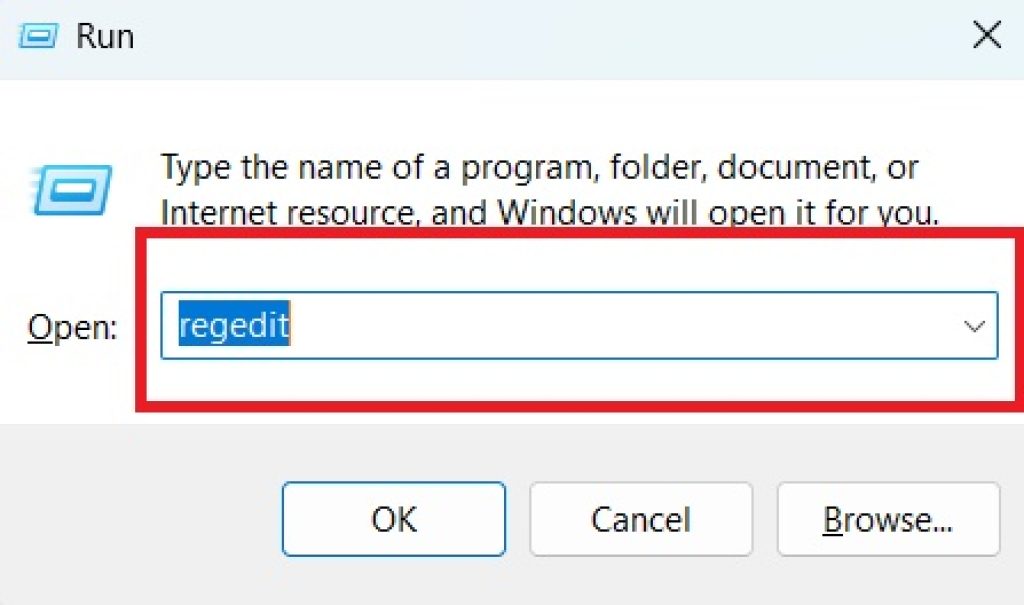
If User Account Control asks whether you want to allow Registry Editor to make changes, click Yes.
In Registry Editor, navigate to the following location:
HKEY_USERS\.DEFAULT\Control Panel\Keyboard
You can expand each folder from the left side of Registry Editor until you reach the Keyboard key.
On the right side, look for a value called:
InitialKeyboardIndicators
Double-click it to open its properties.
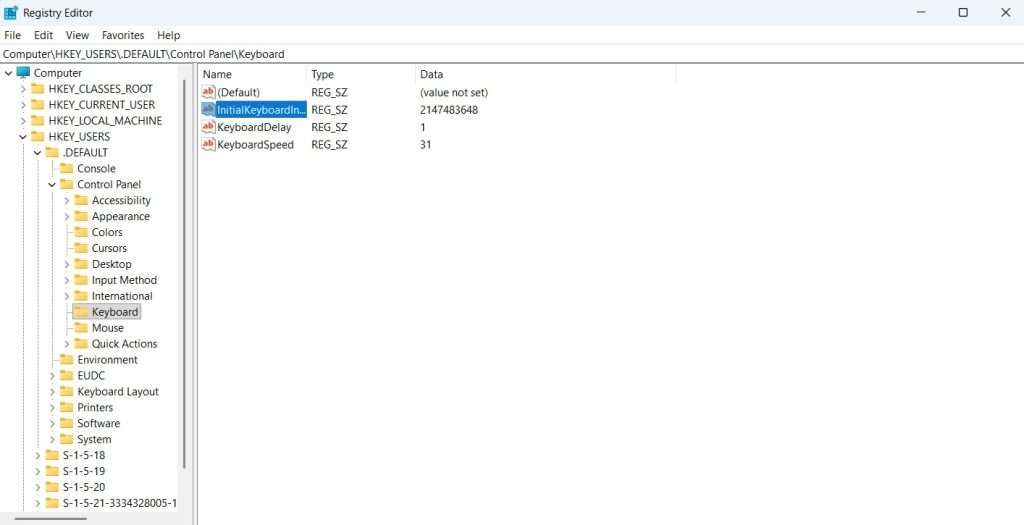
In the Value data field, enter:
2
Click OK.
The value 2 is commonly used to make Num Lock active when Windows initializes the keyboard for the sign-in environment.
After changing the setting, close Registry Editor and restart your computer. When Windows starts again, check the numeric keypad.
If Num Lock is still disabled after restarting, you can also check the corresponding keyboard settings under your user profile. Navigate to:
HKEY_CURRENT_USER\Control Panel\Keyboard
Look for InitialKeyboardIndicators. If it exists, double-click it and set its value to:
2
Restart Windows and test the keyboard again.
This method is especially useful if the problem occurs every time Windows starts. However, some manufacturers and Windows configurations may override Registry settings, in which case the BIOS/UEFI method described below may be more effective.
Method 2: Enable Num Lock in BIOS or UEFI
Many desktop computers and some laptops include a BIOS or UEFI option that controls the initial Num Lock state. When available, this is one of the most reliable ways to turn on Num Lock at startup because the setting is controlled by the computer’s firmware rather than Windows itself.
The exact name and location of the setting vary between manufacturers. You may see options such as NumLock, Num Lock State, Bootup NumLock Status, or NumLock on Boot.
First, restart your computer.
While the computer is starting, repeatedly press the appropriate BIOS/UEFI key. Depending on your manufacturer, this could be Delete, F2, F10, F12, or Esc. Some computers display the correct key briefly on the screen during startup.
Once you enter BIOS or UEFI, look through the available settings for a keyboard-related option. It may be located under sections such as Advanced, Boot, System Configuration, or Keyboard Settings.
Look for an option similar to:
Bootup NumLock Status
If you find it, change the setting to Enabled.
On some systems, the option may instead be called Num Lock State or NumLock on Boot. Enable it if available.
After making the change, save the BIOS/UEFI settings. This is usually done by selecting Save & Exit, although the exact option depends on your motherboard or computer manufacturer.
The computer will restart.
Once Windows loads, check the numeric keypad.
One advantage of the BIOS/UEFI method is that it can enable Num Lock before Windows itself starts. This means the setting may also affect the keyboard on the Windows sign-in screen.
However, not every computer provides a Num Lock option in BIOS or UEFI. If you cannot find one, do not change unrelated firmware settings. Simply exit BIOS/UEFI without making unnecessary changes and use one of the Windows-based methods instead.
Method 3: Turn Num Lock On Before Shutting Down Windows
Another simple approach is to enable Num Lock manually and then shut down Windows while it is enabled. Depending on your Windows configuration and keyboard, Windows may remember the previous keyboard state and restore it during the next startup.
First, start Windows normally.
Press the Num Lock key on your keyboard. If your keyboard has a Num Lock indicator light, verify that the light turns on.
If there is no indicator light, open a text field such as Notepad and press a number key on the numeric keypad. If it enters a number, Num Lock is enabled.
Now shut down Windows normally.
After turning the computer back on, check whether Num Lock remains enabled.
This method is extremely simple and does not require changing the Registry or BIOS. However, it is not guaranteed to work on every Windows 11 computer because different systems can handle keyboard state differently.
If Windows repeatedly turns Num Lock off despite leaving it enabled before shutdown, use the Registry method instead.
You should also be aware that Fast Startup can affect how Windows handles shutdown and startup. Fast Startup does not perform a completely traditional shutdown because Windows saves part of the system state to speed up the next boot.
If the Num Lock state is not being retained correctly, temporarily disabling Fast Startup can be useful for troubleshooting.
To check Fast Startup, press Windows + R, type:
control
and press Enter.
In Control Panel, select Hardware and Sound, then Power Options.
Select Choose what the power buttons do.
Click Change settings that are currently unavailable.
If Turn on fast startup is enabled, you can temporarily disable it and test whether Num Lock behavior changes.
Remember that Fast Startup can improve boot times, so you do not necessarily need to leave it disabled permanently. If another method successfully fixes the Num Lock problem, you can consider turning Fast Startup back on.
Method 4: Make Sure Num Lock Is Enabled at the Windows Sign-In Screen
Sometimes the problem is not that Num Lock is disabled throughout startup. Instead, Num Lock may be disabled only at the Windows sign-in screen and become active after you log in.
This distinction is important because the Registry method can help control the initial keyboard state used by the Windows sign-in environment.
If you want Num Lock enabled before entering your Windows PIN or password, first restart your PC and stop at the sign-in screen.
Press the Num Lock key to enable it.
Then restart or shut down the computer and check whether Windows remembers the setting.
If it does not, open Registry Editor using Windows + R, type regedit, and press Enter.
Navigate to:
HKEY_USERS\.DEFAULT\Control Panel\Keyboard
Find InitialKeyboardIndicators.
Set the value to:
2
This setting applies to the default user environment used by Windows before an individual user account is loaded.
You can also check your own user account under:
HKEY_CURRENT_USER\Control Panel\Keyboard
If InitialKeyboardIndicators is present, set it to 2 as well.
After making the changes, restart the computer.
If Num Lock is enabled at the sign-in screen but becomes disabled after reaching the desktop, check whether a keyboard utility, manufacturer software, or another application is changing the keyboard state.
Gaming keyboards and advanced keyboard software can sometimes manage Num Lock and other keyboard functions independently of Windows.
Method 5: Check Your Keyboard and Manufacturer Software
If none of the previous methods keeps Num Lock enabled, the problem may be related to the keyboard itself or software supplied by the computer or keyboard manufacturer.
Start by testing the keyboard after Windows has fully loaded. Press Num Lock and verify that the numeric keypad responds correctly.
If the keypad works normally after manually pressing Num Lock, the keyboard itself is probably functioning correctly. The problem is more likely related to startup configuration.
If you are using an external USB keyboard, disconnect it and reconnect it to another USB port. If possible, test a different keyboard.
For laptops, check the manufacturer’s keyboard utility. Some laptops use special keyboard-management software that can affect function keys, numeric keypad behavior, and other keyboard features.
Also check Windows Update for available updates. Hardware-related problems can sometimes be resolved through updated drivers or firmware.
To check Windows Update, open Settings using Windows + I, select Windows Update, and click Check for updates.
You can also check Device Manager. Right-click the Start button and select Device Manager. Expand Keyboards and check whether Windows reports any problems with the keyboard device.
If a warning icon appears, open the device properties to investigate the reported issue.
For a normal working keyboard, however, you generally do not need to manually install random keyboard drivers from third-party websites. Windows usually provides the required keyboard driver automatically.
If your keyboard has a dedicated Num Lock indicator, use it to confirm the actual state rather than relying only on whether the keypad appears to work. On some compact keyboards, the numeric keypad may require a separate function-key combination.
Which Method Should You Use?
For most Windows 11 users, the best method depends on when you need Num Lock enabled.
If you want a quick and simple solution, press Num Lock before shutting down and see whether Windows remembers the setting.
If Windows continually disables Num Lock at startup, the Registry method is generally the most useful Windows-based solution.
If your motherboard or laptop firmware provides a Num Lock on Boot option, enabling it in BIOS/UEFI is an excellent choice because it controls the initial keyboard state before Windows loads.
If Num Lock works at startup but changes after you reach the desktop, investigate keyboard utilities and manufacturer software.
In many cases, you do not need to use every method. Start with the simplest option and move to the Registry or BIOS/UEFI method if the problem continues.
Frequently Asked Questions
How do I permanently enable Num Lock in Windows 11?
The Windows Registry can be used to configure the initial Num Lock state. Open Registry Editor and go to HKEY_USERS\.DEFAULT\Control Panel\Keyboard. Set InitialKeyboardIndicators to 2, then restart Windows. You can also check the same value under your user profile if necessary.
Why does Num Lock turn off every time I restart my PC?
Windows, BIOS/UEFI firmware, Fast Startup, or keyboard software may be restoring Num Lock to an off state. Start by checking whether your BIOS/UEFI has a Num Lock on Boot option. If it does not, try the Registry method.
Can I enable Num Lock before the Windows login screen?
Yes. If your computer supports it, enabling Num Lock on Boot in BIOS/UEFI can activate the numeric keypad before Windows loads. The Registry setting under HKEY_USERS\.DEFAULT can also help control the keyboard state used at the Windows sign-in screen.
Is it safe to change the Registry setting for Num Lock?
Changing the specific InitialKeyboardIndicators value is generally a low-risk Registry modification when performed correctly. However, the Windows Registry contains important system configuration information, so you should avoid changing unrelated values. Creating a restore point or Registry backup before making changes is recommended.
Conclusion
Having to press the Num Lock key every time Windows 11 starts can be a small but frustrating inconvenience, particularly if you frequently use the numeric keypad for entering numbers. Fortunately, there are several ways to enable Num Lock on startup in Windows 11, and most of them take only a few minutes.
The easiest solution is to turn Num Lock on before shutting down and check whether Windows remembers the keyboard state. If that does not work, modifying the InitialKeyboardIndicators Registry value is one of the most effective Windows-based solutions. Setting the value to 2 can instruct Windows to initialize Num Lock as enabled.
For computers that provide the option, enabling Num Lock on Boot in BIOS or UEFI is another excellent solution. This approach can make Num Lock active before Windows even reaches the sign-in screen. If the setting continues to change unexpectedly, check keyboard drivers, manufacturer utilities, Fast Startup, and the physical keyboard itself.
By trying these methods in order, you should be able to configure Windows 11 so that the numeric keypad is ready to use whenever your computer starts.





