
 Sukhdev Kamboj
If you type in more than one language, or if you’ve ever needed to switch between a standard QWERTY layout and something like Dvorak, Colemak, or a regional layout such as French AZERTY or German QWERTZ, Windows 11 makes this fairly straightforward. A keyboard layout tells Windows how to interpret the physical keys you press, which characters and symbols they produce, and how features like accents or special characters behave.
Windows 11 lets you install multiple keyboard layouts alongside each other and switch between them instantly using a keyboard shortcut or the taskbar language indicator. This is especially useful for people who are bilingual, multilingual, learning a new language, or who simply prefer an alternative layout for ergonomic or speed reasons.
In this guide, you’ll learn several ways to add a new keyboard layout, how to switch between installed layouts, and how to remove layouts you no longer need. We’ll also cover common questions people run into along the way.
Method 1: Add a Keyboard Layout Through Settings
This is the most common and recommended way to add a keyboard layout in Windows 11.
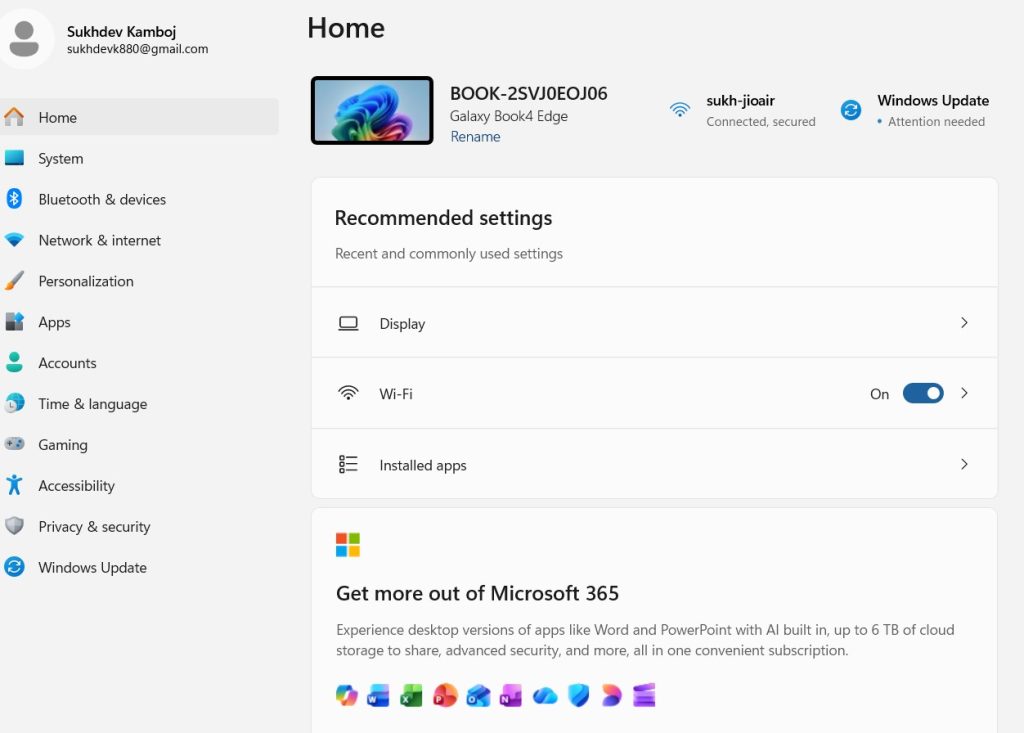
Open Settings. Press Windows key + I, or right-click the Start button and select “Settings.”
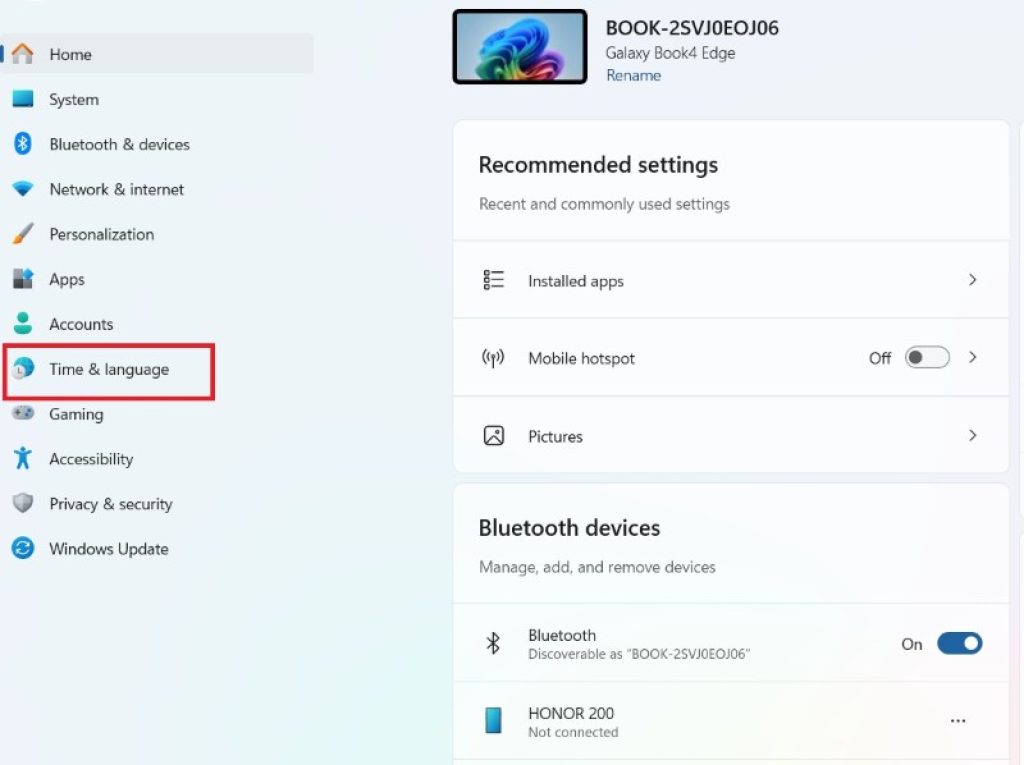
Go to Time & Language. In the left sidebar, click “Time & language.”
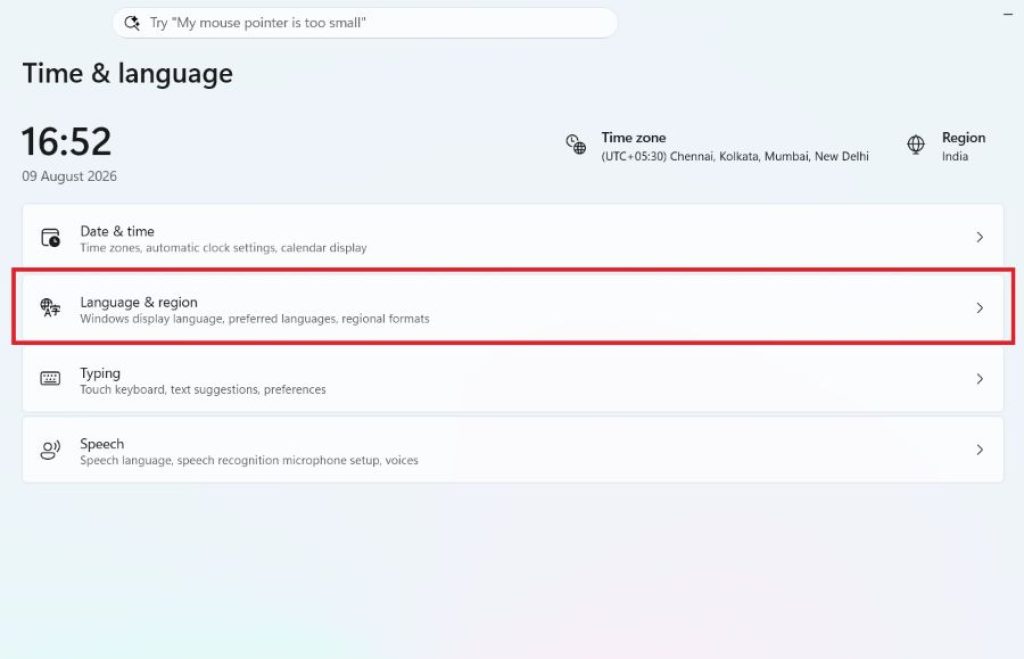
Select Language & Region. This section shows your installed display languages and any associated keyboard layouts.
Choose your language. Under “Preferred languages,” find the language you want to add a layout for. If the language itself isn’t installed yet, click “Add a language” first, search for it, and install it (this will also install its default keyboard layout).
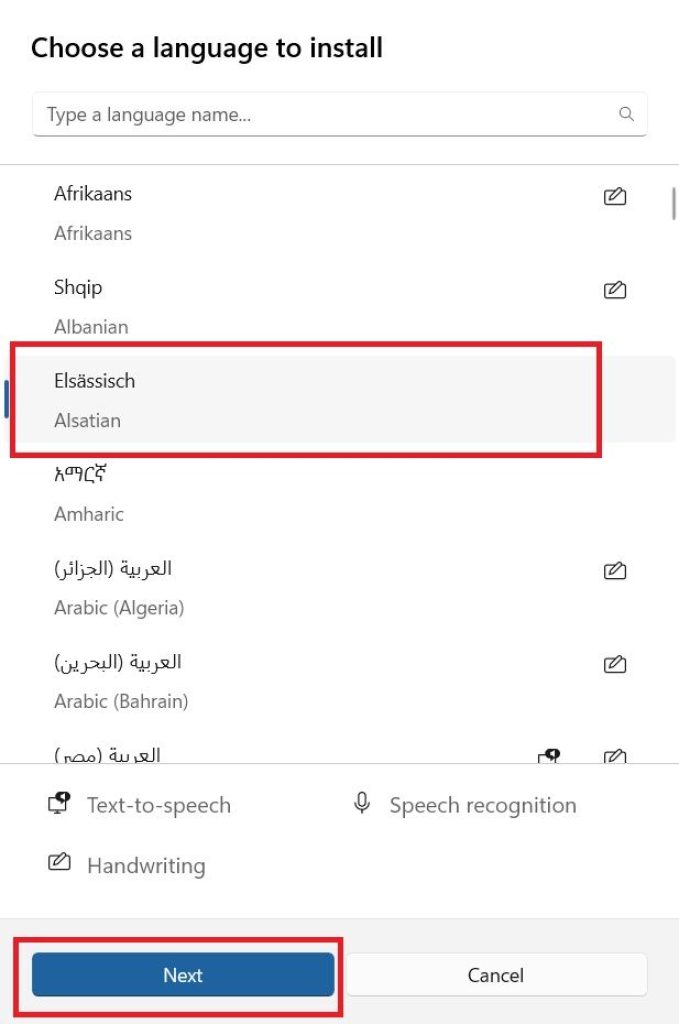
Open language options. Click the three-dot menu (⋯) next to the language and select “Language options.”
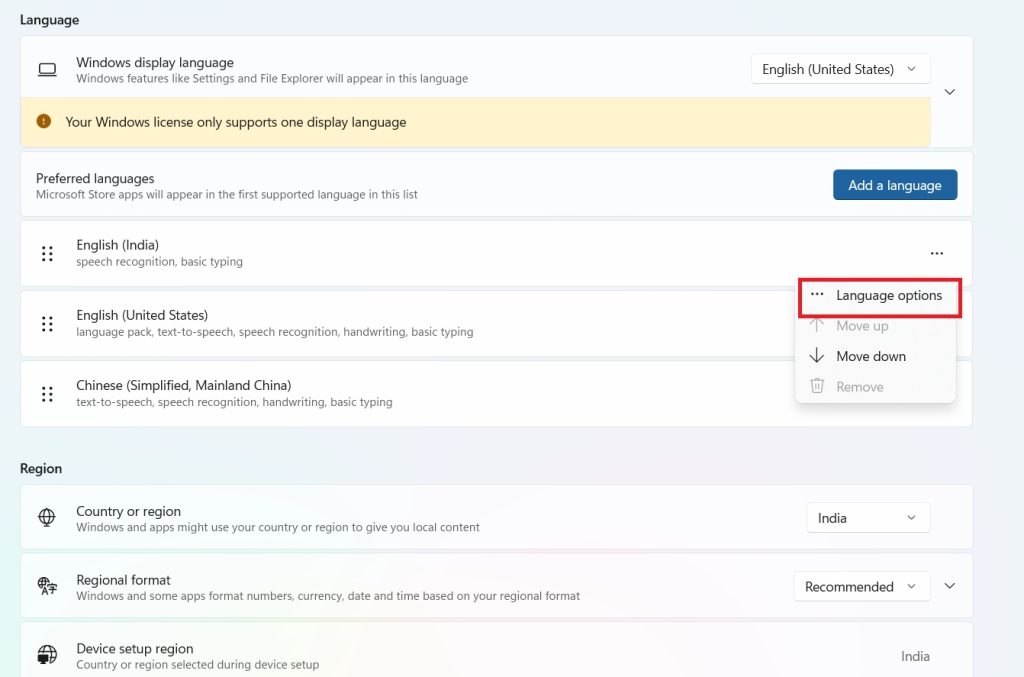
- Add a keyboard. Under the “Keyboards” section, click “Add a keyboard.”
- Pick your layout. A list of available layouts for that language will appear (for example, US, US International, Dvorak, or Colemak for English). Click the one you want to add.
Once added, the new layout appears in your list of available keyboards, and you can switch to it immediately without restarting your PC.
Method 2: Add a Keyboard Layout for an Existing Language Without Adding a New Language
Sometimes you don’t need a whole new language — you just want an alternate layout for a language you already have installed (like switching from standard English US to English International, which supports accented characters).
Open Settings > Time & Language > Language & region.
Find the language already installed on your system.
Click the three-dot menu next to it and choose Language options.
Under Keyboards, click Add a keyboard and select the additional layout you want.
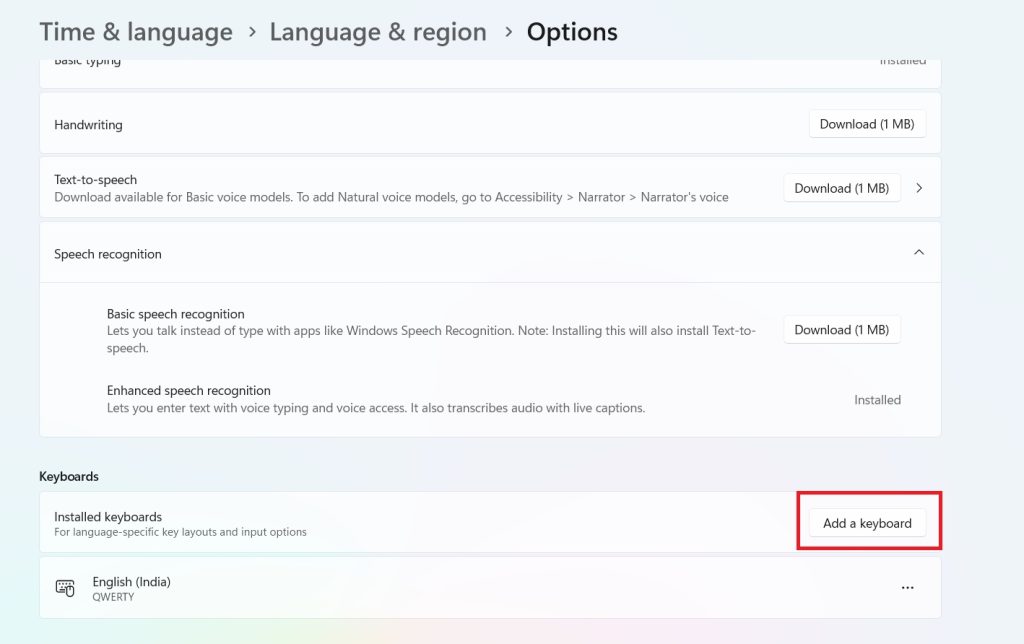
This is useful if you occasionally need to type accented letters (é, ñ, ü, etc.) without fully switching languages, since layouts like “United States-International” let you type these characters using key combinations on a standard US keyboard.
Method 3: Add a Keyboard Layout Using the Language Bar / Taskbar
Windows 11 also lets you manage input methods directly from the taskbar, which can be quicker if you’re already working and don’t want to dig through Settings.
Click the language/input indicator in the taskbar (near the clock, it usually shows letters like “ENG” or a language abbreviation). If you don’t see it, right-click the taskbar, choose “Taskbar settings,” and make sure the input indicator is enabled.
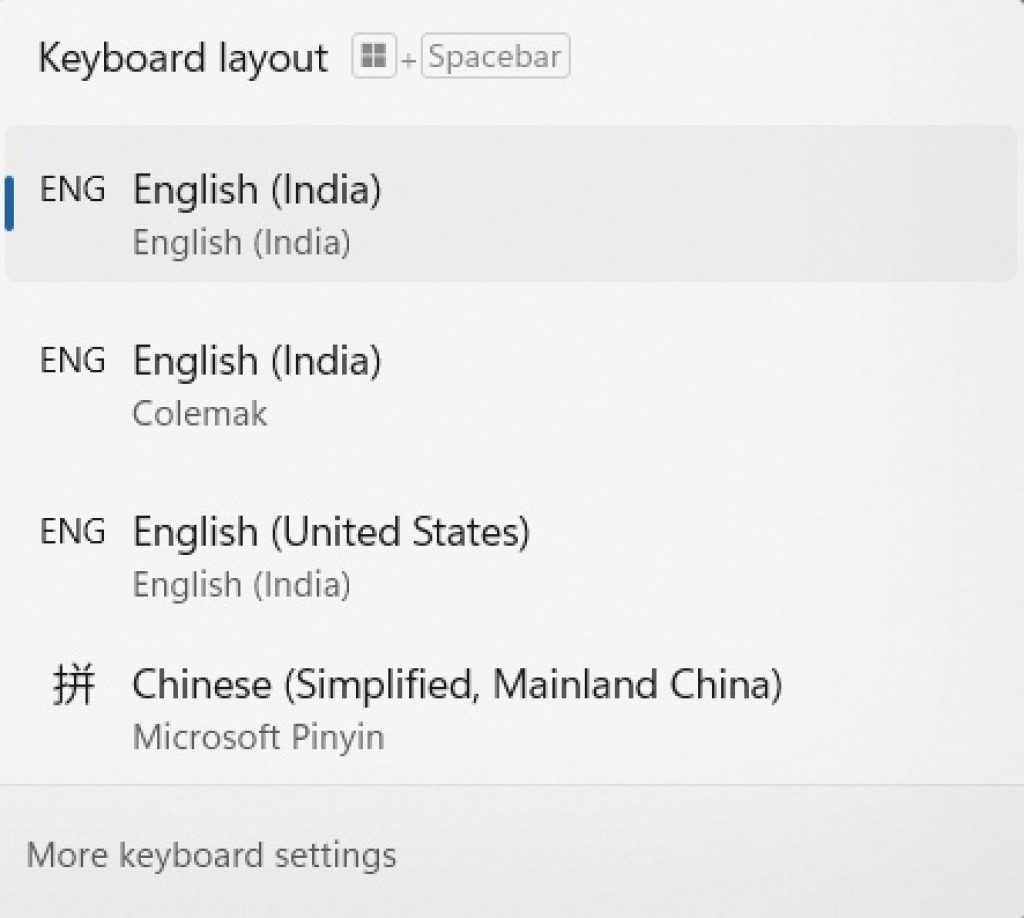
Click “Language preferences” at the bottom of the flyout menu that appears. This will take you straight to the Language & region settings page.
From here, follow the same steps as Method 1: select your language, open language options, and add a keyboard.
While this doesn’t let you add a layout in a single click, it’s a fast shortcut to get to the right settings page without navigating through the full Settings app manually.
Method 4: Switch Between Installed Keyboard Layouts
Once you have more than one layout installed, you’ll want to switch between them easily.
- Keyboard shortcut: Press
Windows key + Spaceto cycle through your installed keyboard layouts and input languages. Each press moves to the next one in your list. - Taskbar click: Click the language indicator in the taskbar and select the layout you want from the list.
- Alt + Shift: On some systems, this legacy shortcut may still work depending on your keyboard settings, though
Windows key + Spaceis the default in Windows 11.
You can also reorder your layouts so your most-used one appears first: go to Settings > Time & Language > Language & region, click the three-dot menu next to your language, choose Language options, and drag the keyboards into your preferred order (or use the “Move up/Move down” options if drag-and-drop isn’t available in your build).
Method 5: Remove a Keyboard Layout
If you no longer need a particular layout, removing it helps keep your list clean and makes switching between layouts faster.
Open Settings > Time & Language > Language & region.
Find the language associated with the keyboard layout you want to remove.
Click the three-dot menu next to that language and select Language options.
Under Keyboards, click the three-dot menu next to the specific layout you want to remove.
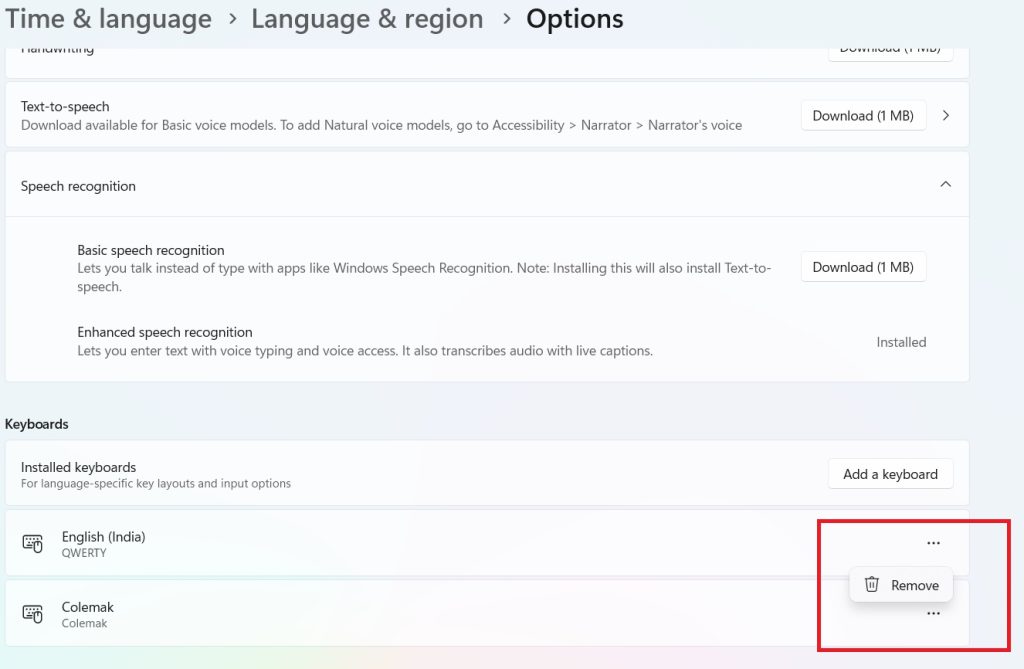
Select Remove.
Note: You cannot remove the only keyboard layout associated with a language — Windows requires at least one input method per installed language. If you want to remove all keyboards for a language, you’ll need to remove the language itself instead (see Method 6).
Method 6: Remove an Entire Language (and Its Keyboard Layouts)
If you want to remove a language completely, including all of its associated keyboard layouts, dictionaries, and speech/handwriting features:
- Go to Settings > Time & Language > Language & region.
- Find the language you want to remove under “Preferred languages.”
- Click the three-dot menu next to it and select Remove.
- Confirm the removal if prompted.
This removes everything tied to that language, including all its keyboard layouts. Your system’s display language (if different) and other installed languages remain unaffected.
Method 7: Add or Remove Keyboard Layouts Using the Control Panel (Legacy Method)
Although Windows 11 has shifted most language settings to the modern Settings app, the legacy Control Panel method still works on many systems and can be handy if you’re more familiar with it.
- Press
Windows key + R, typecontrol, and press Enter to open Control Panel. - Go to Clock and Region > Language.
- Click Options next to the language you want to modify.
- Under “Keyboards,” click Add a keyboard to add a new layout, or click the layout and select Remove to delete it.
This method essentially mirrors the Settings app but may feel more familiar to long-time Windows users.
Method 8: Add a Keyboard Layout During Windows Setup
If you’re setting up a new PC or performing a clean install, you’ll be prompted to select a keyboard layout during the Out-of-Box Experience (OOBE).
- During setup, when asked “Is this the right keyboard layout?”, confirm or change it.
- You’ll then be asked if you want to add a second keyboard layout. Select “Add layout” if needed, or “Skip” to configure it later.
- You can always add more layouts after setup is complete using any of the methods above.
Conclusion
Managing keyboard layouts in Windows 11 is a flexible process, whether you prefer using the modern Settings app, the taskbar shortcut, or the classic Control Panel. Adding a layout takes just a few clicks through Settings > Time & Language > Language & region, and switching between installed layouts is as simple as pressing Windows key + Space. Removing layouts you no longer use is just as easy, helping keep your input options streamlined.
Whether you’re multilingual, learning a new language, need special characters for work, or just prefer an alternate layout like Dvorak, Windows 11 gives you the tools to customize your typing experience to fit your needs. Once set up, switching between layouts becomes second nature, and you’ll rarely need to revisit these settings unless your needs change.
Frequently Asked Questions (FAQ)
1. How do I quickly switch between keyboard layouts without using the mouse? Press Windows key + Space to cycle through all installed keyboard layouts and input languages. Each press advances to the next one in your list.
2. Why can’t I remove a keyboard layout? Windows requires every installed language to have at least one keyboard layout. If a layout won’t remove, it may be the only one left for that language — you’ll need to add another layout first, or remove the entire language if you don’t need it at all.
3. Does adding a new keyboard layout change my display language? No. Adding a keyboard layout only changes what happens when you type; it doesn’t affect the language used for menus, apps, or system text. To change your display language, go to Settings > Time & Language > Language & region and adjust the “Windows display language” setting separately.
4. What’s the difference between “US” and “US International” keyboard layouts? The standard “US” layout is for typing plain English without accented characters. “US International” allows you to type accented characters (like é, ñ, or ü) using key combinations on the same physical US keyboard, without needing a separate physical keyboard or language pack.





