
 Sukhdev Kamboj
Internet Explorer officially retired years ago, but its ghost still lingers in thousands of workplaces around the world. Many organizations built internal tools, portals, and line-of-business applications during the IE era, relying on features like ActiveX controls, VBScript, and legacy document modes that never made it into modern browsers. Rebuilding these systems from scratch can take years and cost a fortune, which is why Microsoft baked a compatibility layer directly into its modern browser: Internet Explorer mode, commonly known as IE mode.
IE mode in Microsoft Edge lets you open a website inside a browser tab that renders the page using the Internet Explorer 11 engine, while everything else about the tab — the address bar, extensions, security features, and overall look — remains standard Edge. In practice, this means you get the best of both worlds: modern browsing for the vast majority of the web, and a legacy-compatible fallback for the handful of sites that still need it.
This guide walks through every practical way to add or remove IE mode in Edge: through the everyday Settings menu that most users will use, through Group Policy for IT administrators managing many machines, and through the Windows Registry for more advanced or scripted configurations. It also covers how to add specific sites to the IE mode list, how to add a one-click toolbar button, and answers to the most common questions people run into along the way.
Methods to Add or Remove Internet Explorer Mode in Edge
There are three main approaches to controlling IE mode, depending on your situation: the graphical Settings menu (ideal for individual users on their own device), Group Policy (ideal for IT admins managing many machines across an organization), and the Windows Registry (useful for scripting or when Group Policy isn’t available). Below is a walkthrough of each.
Method 1: Enable or Disable IE Mode Through Edge Settings
This is the simplest method and the one most people should try first, assuming your device isn’t centrally managed by an organization’s IT policy.
Open Microsoft Edge. Launch the browser as you normally would.
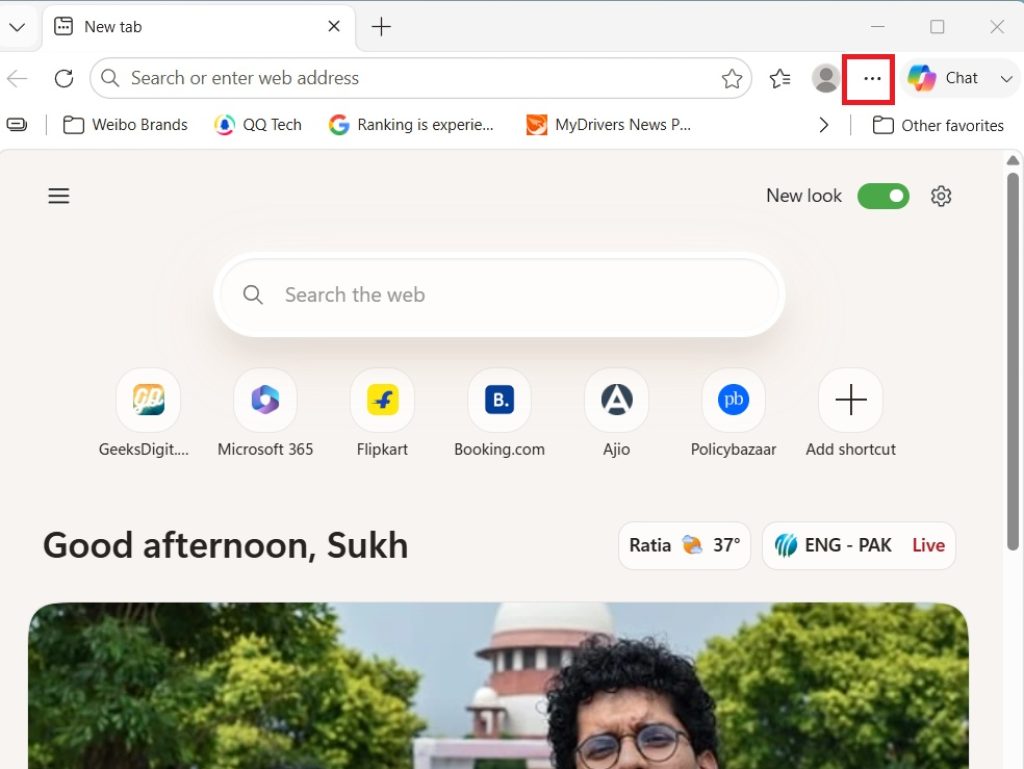
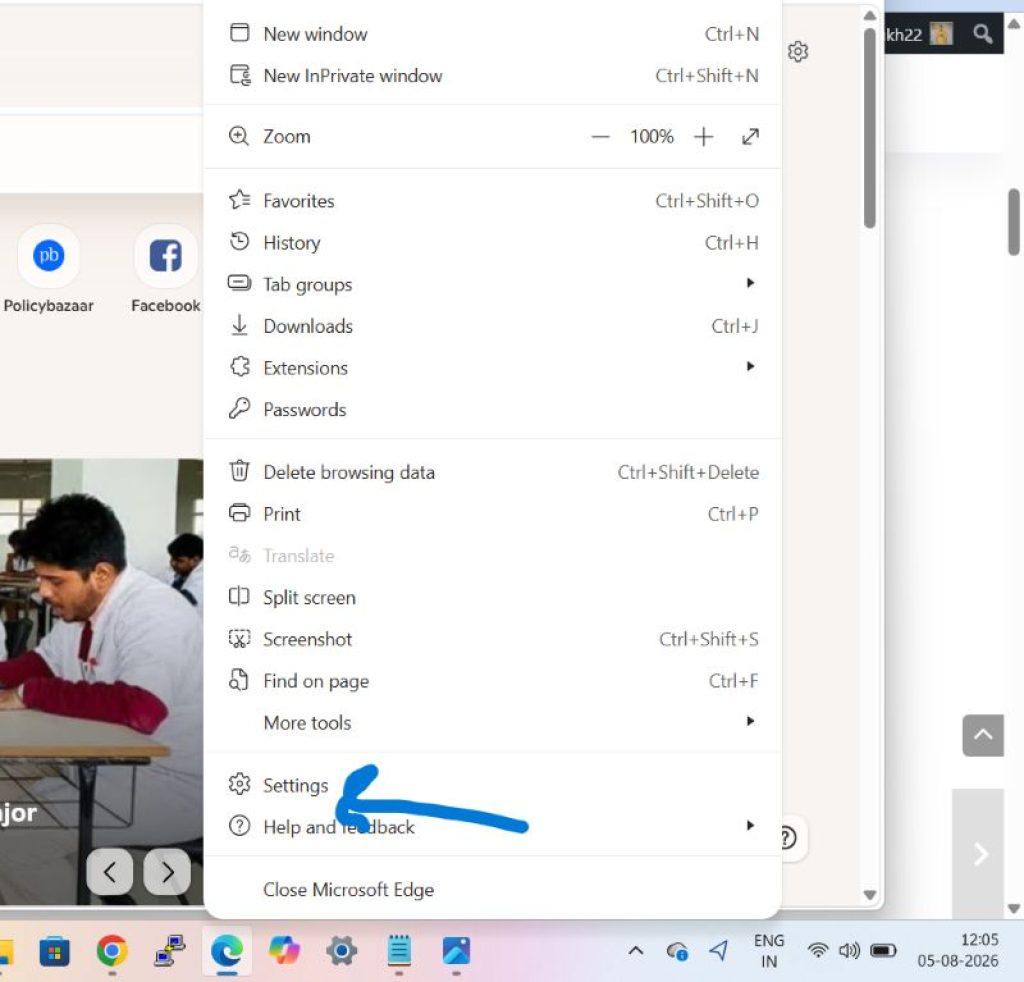
Access the Settings menu. Click the three-dot icon (⋯) in the top-right corner of the window, then select Settings from the dropdown.
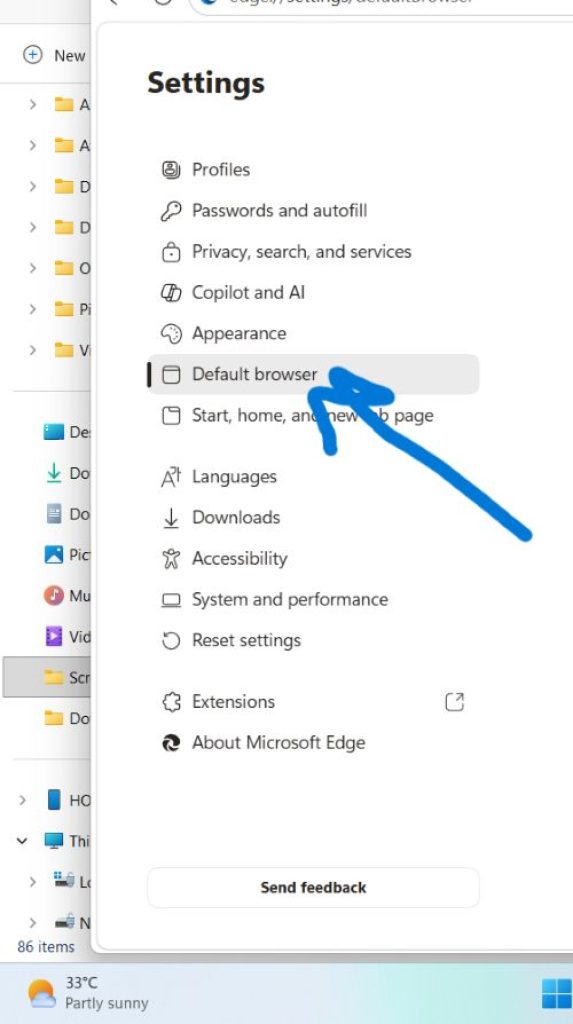
Navigate to Default browser. In the left-hand sidebar of the Settings page, click Default browser.
Locate the IE mode setting. Look for the option labeled “Allow sites to be reloaded in Internet Explorer mode (IE mode).” This dropdown typically has three options: Default (Edge decides based on recent activity), Allow (IE mode is available), and Don’t allow (IE mode is fully disabled).
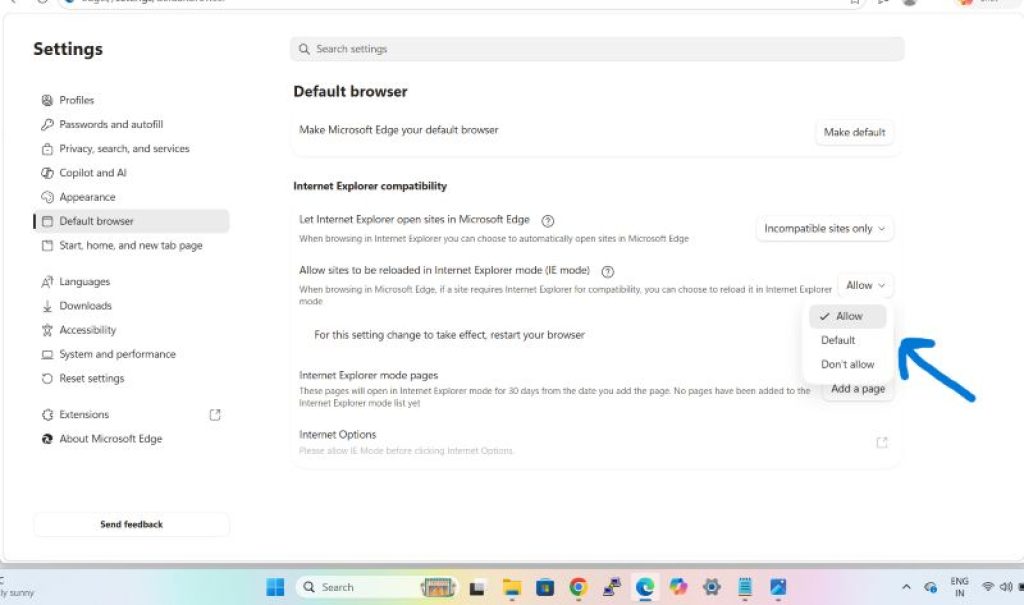
Choose your setting. Select Allow to enable IE mode, or Don’t allow to disable it.
Restart the browser. After changing the setting, a Restart button will appear. Click it (or manually close and reopen Edge) for the change to take effect.
Once enabled, you can reload any page in IE mode on demand: open the site, click the three-dot menu (or press Alt+F), and choose “Reload in Internet Explorer mode.” A small compatibility icon appears in the address bar to confirm the page is running under the IE engine.
If you don’t see this option at all in your Settings menu, it’s very likely your device is managed by an organization through Group Policy, and the setting has been locked to a specific state by an administrator. In that case, skip ahead to Method 2 or contact your IT department.
Method 2: Configure IE Mode Through Group Policy (For Administrators)
For organizations managing multiple devices, Group Policy is the recommended way to configure IE mode consistently and at scale, rather than relying on each user to change their own settings.
- Open the Group Policy Editor. Press Windows + R, type
gpedit.msc, and press Enter (this requires Windows Pro, Enterprise, or Education editions, or a domain-managed environment using the Group Policy Management Console). - Navigate to the Edge policy folder. Go to Computer Configuration > Administrative Templates > Microsoft Edge.
- Enable Internet Explorer integration. Find and open the policy named “Configure Internet Explorer integration.” Set it to Enabled, then choose the mode you want from the dropdown — typically Internet Explorer Mode to allow it, or None to disable it entirely.
- Configure the Enterprise Mode Site List (optional but recommended). If you want specific internal sites to always open in IE mode automatically, configure the “Internet Explorer Site List” policy and point it to an XML file listing the URLs that require legacy rendering. This avoids relying on end users to manually trigger IE mode each time.
- Apply and restart. Close the Group Policy Editor, run
gpupdate /forcefrom an elevated command prompt to apply the policy immediately, and restart Edge (or the device) for the changes to take full effect.
This approach is preferable in managed environments because it removes ambiguity — end users don’t need to know how to enable IE mode themselves, and administrators retain centralized control over exactly which sites are permitted to use the legacy engine.
Method 3: Enable or Disable IE Mode Through the Windows Registry
For advanced users, scripted deployments, or situations where Group Policy isn’t practical, IE mode can also be controlled directly through the Windows Registry.
- Open the Registry Editor. Press Windows + R, type
regedit, and press Enter. Approve the User Account Control prompt if it appears. - Navigate to the Edge policy key. Go to
HKEY_LOCAL_MACHINE\SOFTWARE\Policies\Microsoft\Edge. If theEdgekey doesn’t exist, you’ll need to create it manually underPolicies\Microsoft. - Create or edit the integration value. Add a new DWORD (32-bit) Value named
InternetExplorerIntegrationLevel. Set its value data to1to enable IE mode integration, or0to disable it. - Restart Edge. Close all Edge windows and reopen the browser (or restart the computer) for the registry change to take effect.
Because registry edits apply system-wide and bypass the graphical interface entirely, this method is best reserved for IT professionals comfortable working directly with the registry, or for automated deployment scripts. Always back up the registry before making manual changes, since incorrect edits can affect browser stability.
Adding the IE Mode Toolbar Button
Regardless of which method you used to enable IE mode, you can add a dedicated toolbar button for quicker access rather than digging through the three-dot menu each time.
- Go to Settings > Appearance.
- Toggle on “Internet Explorer mode (IE mode) button.”
- The icon will immediately appear in your toolbar, letting you reload the current page in IE mode with a single click.
To remove it later, simply repeat the steps and toggle the button off.
Adding Specific Pages to Always Open in IE Mode
If there’s a particular site you rely on frequently — an internal timesheet portal, for example — you can configure it to always launch in IE mode automatically, rather than reloading it manually every visit. This is typically managed through the Enterprise Mode Site List described in Method 2, which associates specific URLs or domains with IE mode so Edge automatically switches rendering engines the moment you navigate there. For individual, non-managed devices, Edge will also sometimes prompt you automatically if it detects a page is struggling to render properly, offering a one-click option to reload it in IE mode on the spot.
Conclusion
Internet Explorer mode exists to solve a very specific, very real problem: the gap between the modern, secure browsing experience most of us expect and the legacy web applications that some organizations still depend on. Microsoft Edge handles this gracefully by isolating the old rendering engine to individual tabs rather than forcing you to keep a separate, outdated browser installed on your system.
For most home users, the Settings menu is all you’ll ever need — a couple of clicks to turn the feature on, reload a stubborn old site, and turn it back off when you’re done. For IT administrators, Group Policy and the Enterprise Mode Site List offer far more control, letting you scope IE mode to exactly the sites that require it across an entire fleet of managed devices, while keeping everything else on modern, secure rendering. The Registry method sits in between, useful for scripting or edge cases where the other two aren’t available.
Whichever method you use, the same underlying advice applies: treat IE mode as a targeted tool, not a default setting. Keep it disabled unless you specifically need it, and if you do enable it, restrict it to trusted, known legacy sites rather than leaving it broadly available. IE mode is a bridge to help you reach the past when necessary — not a place you want to live full-time on the modern web.
Frequently Asked Questions
1. How do I know if a website is currently using Internet Explorer mode? When a page is running in IE mode, Edge displays a small compatibility icon in the address bar. Clicking it opens a pop-up confirming the page is being rendered with the Internet Explorer engine, and gives you the option to switch back to standard Edge mode if you no longer need it.
2. Why can’t I find the IE mode toggle in my Edge Settings? If your device is managed by an organization’s IT department through Group Policy, the “Allow sites to be reloaded in Internet Explorer mode” option often won’t appear in Settings at all — it’s been locked to a fixed state centrally. In that case, IE mode access (if needed) has to be configured by an administrator through Group Policy or the Enterprise Mode Site List rather than through your personal settings.
3. Is it safe to leave Internet Explorer mode enabled all the time? It’s not recommended. The underlying IE 11 engine is older and doesn’t receive the same level of active security hardening as Edge’s modern Chromium-based engine. Most guidance, including Microsoft’s own recommendations, suggests only using IE mode when necessary for specific legacy sites, and disabling it (or at minimum restricting it to a defined list of trusted sites) otherwise.
4. Can I use Internet Explorer mode for any website I want, or only certain ones? Edge is designed to intelligently recognize sites that are likely to need legacy rendering and will offer the “Reload in Internet Explorer mode” option accordingly, but you can manually trigger it on most pages if IE mode is enabled. That said, using it on modern, actively maintained websites isn’t recommended — you’ll generally get a worse, less secure experience than simply browsing them normally in Edge. IE mode is best reserved specifically for older internal tools or legacy sites that genuinely require it.





