Olivia Harper
Windows 11 looks polished out of the box, but let’s be honest — after a few weeks, that default blue-bloom wallpaper and stock layout start to feel stale. The good news is that you don’t need to spend a single rupee (or dollar) to give your desktop a completely new personality. Whether you want a moody dark aesthetic, a nature-inspired slideshow, a macOS-style makeover, or a gaming-grade HUD look, there’s a free Windows 11 theme out there for you.
This guide rounds up the best free Windows 11 themes available in 2026, ranging from safe, one-click Microsoft Store packs to deeper community-made visual styles that transform your taskbar, icons, and window frames. We’ll also cover how to install themes safely, what the difference is between a “theme” and a “skin,” and how to avoid the shady corners of the internet that bundle adware with their downloads.
By the end of this article, you’ll have a curated shortlist of free Windows 11 themes to try today, plus the knowledge to customize your desktop without putting your PC at risk.
What Counts as a “Windows 11 Theme”?
Before diving into the list, it helps to understand the terminology, since it gets thrown around loosely:
- Native Windows themes (.theme files): Bundles of wallpapers, accent colors, sounds, and cursor settings distributed through the Microsoft Store or as downloadable
.deskthemepackfiles. These install cleanly through Settings and don’t touch protected system files. - Skins / visual styles: Deeper transformations that replace icons, taskbar styling, window borders, and sometimes the boot screen. These usually require a third-party tool such as Rainmeter, Windhawk, StartAllBack, or a patcher like UltraUXThemePatcher.
- Wallpaper packs and icon packs: Standalone visual assets you can pair with either of the above to build a fully custom look.
Keeping this distinction in mind matters because it directly affects safety, install complexity, and how easily you can revert if a theme doesn’t work out.
Best Free Windows 11 Themes (Microsoft Store — Safe & One-Click)
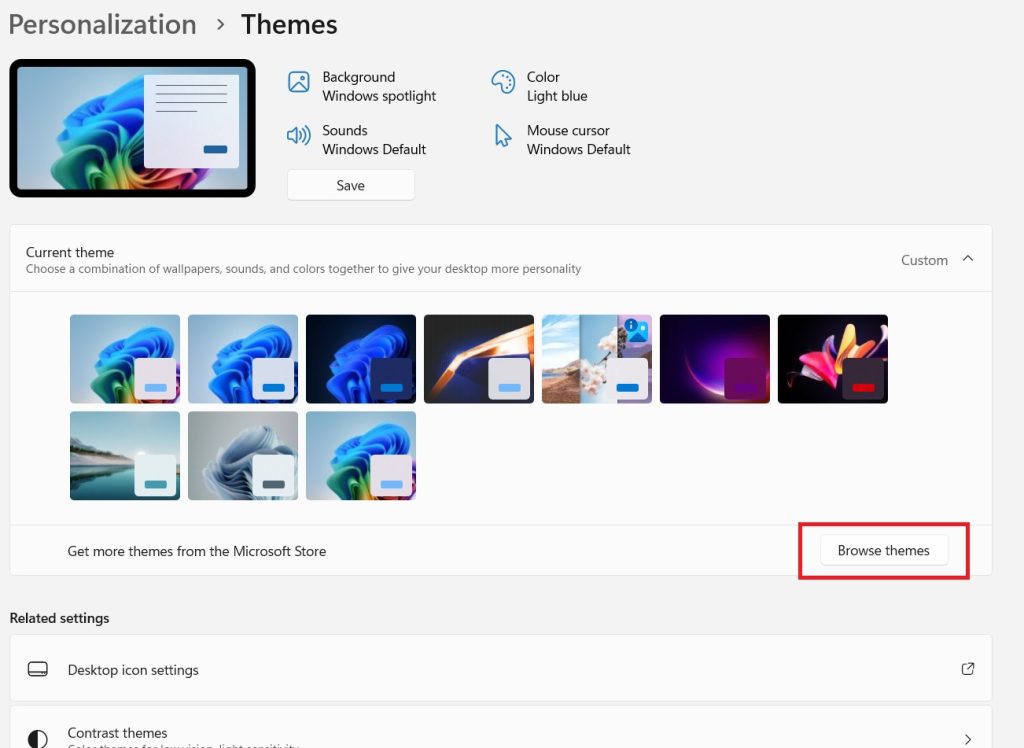
These are the lowest-risk options. They install through Settings > Personalization > Themes > Browse themes, update automatically, and can be uninstalled without leaving a trace.
Best Free Windows 11 Themes in 2026
1. Luminous Flow
Best for: Modern, colorful and abstract desktops
Download: Luminous Flow — Microsoft Store
Luminous Flow is one of the newer themes available through Microsoft’s Windows theme collection and is an excellent choice if you prefer abstract artwork instead of traditional landscape photographs.
The theme uses flowing shapes, gradients and bright visual elements to create a modern desktop appearance. It works particularly well with the overall design language of Windows 11 because the artwork is colorful without requiring you to modify the Windows interface itself.
Microsoft included Luminous Flow among the themes highlighted when it introduced its dedicated Themes section in the Microsoft Store.
It is a good choice for a desktop PC, laptop or large monitor where you want something visually interesting without installing a third-party customization program.
Why choose it?
- Modern abstract artwork
- Works well with Windows 11’s interface
- Good choice for colorful desktops
- Available free through Microsoft Store
- Easy to install and remove
If you want a theme that looks noticeably different from Microsoft’s traditional nature photography, Luminous Flow is one of the first themes worth trying.
2. Mountain Dwellings
Best for: Mountains, cabins and scenic landscapes
Download: Mountain Dwellings — Microsoft Store
Mountain Dwellings is one of the strongest choices for users who prefer realistic photography. Instead of focusing exclusively on mountains, the collection combines mountain scenery with homes, buildings and other elements that make the images feel more personal.
The theme has been available as a free Microsoft theme for Windows and continues to appear in Microsoft’s current Personalization listings.
The combination of natural scenery and architecture makes it suitable for work computers as well as personal PCs. It does not have the highly saturated appearance of some gaming themes, so it can remain comfortable to use throughout the day.
If you work from home or spend many hours looking at your desktop, Mountain Dwellings is an especially good option.
3. Ethereal Escapes
Best for: Calm, relaxing and aesthetic desktops
Download: Ethereal Escapes — Microsoft Store
Ethereal Escapes is a particularly good choice if you want your desktop to have a softer and more relaxing appearance.
The theme was created by Picsart and uses gentle landscapes, pastel colors and atmospheric scenes. Picsart describes the collection as being designed around soft landscapes and calming scenes.
Unlike some themes that use strong colors and visually busy photographs, Ethereal Escapes has a more peaceful appearance. That makes it suitable for office PCs, laptops and anyone who wants a less distracting desktop.
The theme is also one of the themes Microsoft highlighted as part of its new Microsoft Store Themes department.
4. World National Parks
Best for: Nature and travel enthusiasts
Download: World National Parks — Microsoft Store
If you prefer spectacular natural landscapes, World National Parks is one of the best free themes available.
The collection focuses on national parks and outdoor scenery, giving you a rotating selection of nature-focused desktop backgrounds.
Microsoft specifically mentioned World National Parks when introducing its new Themes department, highlighting it as an example of the different types of themes available through the Store.
It is particularly suitable for people who enjoy mountains, forests, valleys and other natural environments.
Because the photographs are the main attraction, this theme works best when you have a reasonably high-resolution display. On a large monitor, the landscape photography can make your desktop feel much more dynamic.
5. Night Skies
Best for: Dark desktops and astronomy fans
Download: Search Night Skies in Microsoft Store
Night Skies is a good choice if you prefer darker desktop backgrounds.
The theme focuses on nighttime scenery and skies, making it particularly attractive when combined with Windows 11’s Dark mode. Microsoft’s current Store listings show Night Skies among the free personalization options.
Dark wallpapers can also make desktop icons easier to distinguish when the image has relatively simple areas around them.
For the best appearance, you can combine Night Skies with Settings > Personalization > Colors > Choose your mode > Dark.
Windows 11 officially supports both light and dark color modes, so you can easily match the interface to your wallpaper.
6. Cosmic Beauty
Best for: Space-inspired and colorful desktops
Download: Search Cosmic Beauty in Microsoft Store
Cosmic Beauty is another excellent choice for people who like space, stars and colorful abstract imagery.
The theme appears in Microsoft’s current free Personalization listings, including the Indian Microsoft Store.
Its space-inspired appearance makes it a good alternative to traditional nature themes. If you use a desktop with RGB lighting, a dark case or a gaming setup, this type of wallpaper can also complement the overall appearance of the system.
It is worth trying if you want something more dramatic than a standard Windows landscape theme.
7. Japanese Islands
Best for: Minimal, peaceful and scenic desktops
Download: Search Japanese Islands in Microsoft Store
Japanese Islands is a great option for users who prefer scenic photography with a relatively calm visual style.
The theme appears among Microsoft’s current free Personalization offerings.
Compared with highly colorful abstract themes, Japanese Islands provides a more natural and understated appearance. This makes it particularly suitable for office computers and productivity-focused desktops.
If you want your desktop to look elegant rather than flashy, this is one of the themes worth considering.
8. The Northern Lights
Best for: Aurora photography and colorful night scenes
Download: Search The Northern Lights in Microsoft Store
The Northern Lights is ideal for users who like dramatic nighttime scenery.
Aurora images naturally combine dark backgrounds with bright colors, making this type of theme especially attractive when Windows 11 is configured to use Dark mode.
The theme continues to appear in Microsoft’s current Personalization listings.
It is also a good option if you want a wallpaper collection that looks impressive on a large monitor. The contrast between the dark sky and bright aurora can give a desktop a premium appearance without requiring any additional customization software.
9. Blooming Dimensions
Best for: Colorful abstract and artistic desktops
Download: Search Blooming Dimensions in Microsoft Store
Blooming Dimensions is another modern theme from Microsoft’s newer Store collection.
Microsoft included it among the themes showcased when the dedicated Themes department was introduced.
The theme is designed around colorful artistic imagery rather than conventional landscape photography. It is therefore a good choice for users who want their Windows desktop to feel more creative.
It works particularly well on modern displays with strong color reproduction.
10. Neon Dreams
Best for: Colorful, futuristic and modern desktops
Download: Search Neon Dreams in Microsoft Store
Neon Dreams is another theme highlighted by Microsoft as part of its newer collection.
As the name suggests, it is aimed at users who enjoy colorful and futuristic visual styles.
This is a good choice for gaming PCs, RGB setups and users who find traditional nature themes too ordinary. You can combine it with Windows 11’s dark mode to create a more cohesive appearance.
If your goal is to make your desktop look modern and energetic, Neon Dreams is worth checking out.
11. Stars at Night
Best for: Simple dark and astronomy-inspired desktops
Download: Search Stars at Night in Microsoft Store
Stars at Night is another free option for people who enjoy dark wallpapers and nighttime scenery.
Microsoft’s current Store listings show the theme among the free Personalization offerings.
It is especially useful if you want something less colorful than Cosmic Beauty but still want your desktop to have a space-inspired appearance.
Pair it with Windows 11 Dark mode for a clean nighttime desktop.
12. Beach Time
Best for: Summer, beaches and bright desktops
Download: Search Beach Time in Microsoft Store
Beach Time is a good choice if you want your desktop to have a bright and relaxing appearance.
The theme is currently listed among Microsoft’s free Personalization offerings.
Beach photography works particularly well on laptops because bright natural scenery can give the desktop a fresh appearance. It is also a good alternative if you prefer warmer colors instead of the blue and dark tones common in many Windows themes.
13. Forest for the Trees
Best for: Forests and natural scenery
Download: Search Forest for the Trees in Microsoft Store
Forest for the Trees is designed for users who prefer woodland scenery.
It is currently listed among Microsoft’s free Personalization options.
The theme is a good match for people who want a natural desktop without using mountain, beach or space imagery.
It can also work well with dark mode because forest photography often contains darker green and shadowed areas.
14. Fish and Corals
Best for: Underwater photography and colorful nature
Download: Search Fish and Corals in Microsoft Store
Fish and Corals offers something different from the usual mountain and landscape themes.
The collection focuses on underwater environments, colorful fish and coral formations. It is currently available among Microsoft’s free Personalization themes.
This is a particularly good option if you want colorful wallpapers but do not want an abstract or gaming-themed desktop.
Best Windows 11 Themes by Category
Choosing the right theme ultimately depends on your personal taste. If you want a quick recommendation, use the following list.
Best overall: Luminous Flow
Best for work: Mountain Dwellings
Best relaxing theme: Ethereal Escapes
Best nature theme: World National Parks
Best dark theme: Night Skies
Best space theme: Cosmic Beauty
Best minimalist scenic theme: Japanese Islands
Best colorful theme: Blooming Dimensions
Best futuristic theme: Neon Dreams
Best nighttime theme: The Northern Lights
Best beach theme: Beach Time
Best forest theme: Forest for the Trees
Best underwater theme: Fish and Corals
Free Tools to Build a Fully Custom Desktop
Beyond individual themes, a few free tools let you assemble your own look from scratch:
- Rainmeter — Add customizable, skinnable widgets (system stats, clocks, music players) that sit on top of any theme for a true “desktop dashboard” feel.
- Windhawk — A mod store for tweaking specific shell components like the taskbar, Start menu, or window effects without a full visual-style replacement.
- StartAllBack — Restores a more classic Start menu and taskbar layout for users who prefer the Windows 10 (or older) workflow, with a free trial available.
- WinPaletter — Fine-tunes accent colors and window borders without touching icons, making it a lightweight companion to any Store theme.
- 7tsp Icon Patcher — The most widely used free tool for applying community icon packs in bulk; it automatically backs up system files before patching.
How to Install a Windows 11 Theme Safely
- Start with Settings, not a search engine. Open Settings (Win + I) > Personalization > Themes > Browse themes. This takes you straight to the Microsoft Store’s curated, malware-free catalog.
- Confirm the listing says “Free.” Store availability and pricing can change by region, so double-check before clicking Get.
- Apply and save. Once installed, select the theme under Personalization > Themes, then use Save to create a restore point you can always return to.
- For third-party skins, create a system restore point first. Deeper visual-style tools sometimes require patching, and a restore point makes it trivial to roll back if anything looks off after a Windows update.
- Only download
.themepackor.deskthemepackfiles from sources you trust. Never run a tool that asks you to disable security features or replace core Windows system files to “unlock” a theme — that’s a common vector for adware and malware bundled with free theme downloads.
How to Choose the Right Theme for Your Setup
With dozens of free options available, it helps to narrow things down by what you actually use your PC for:
- Work and productivity laptops: Stick to minimal, low-contrast themes like Fluent 2 or Windows 11 Dark Mode Plus. Busy wallpapers and animated widgets can be distracting during long work sessions, and a clean look also makes it easier to spot open windows and icons at a glance.
- Gaming rigs: Go bolder. The Xbox Series X theme or a cyberpunk-style neon pack pairs well with RGB peripherals and looks great during streams or screen recordings.
- Shared or family PCs: Photo-based Store themes such as Dogs in Winter, Cats Everywhere, or World National Parks are safe, cheerful, and easy for every family member to enjoy without needing any technical setup.
- Creative workspaces: Nature and travel-photography packs like Mountain Light Premium or Wish You Were Here add visual inspiration without cluttering the desktop, which matters if you’re working in design or video-editing software with lots of on-screen panels.
- OLED or AMOLED monitors: Prioritize true dark themes like BIB3’s black variant or Night Skies, since deep blacks on these displays actually turn off individual pixels, saving power and reducing eye strain during night sessions.
Common Mistakes to Avoid When Customizing Windows 11
Even with free, legitimate themes, a few habits can turn a fun customization project into a headache:
- Skipping the restore point. Third-party visual styles occasionally break after a major Windows feature update. A restore point takes thirty seconds to create and can save you hours of troubleshooting.
- Installing multiple skin packs at once. Layering several system-file-patching skins on top of each other is one of the most common causes of taskbar glitches, missing icons, and Explorer crashes. Apply one, test it, and only then consider adding another layer like a Rainmeter skin.
- Downloading from unofficial “theme download” sites. Many of the top search results for “free Windows 11 themes” are download portals that repackage files with bundled adware or outdated, unmaintained visual styles. When in doubt, the Microsoft Store or the original creator’s page (on sites like DeviantArt or GitHub) is always the safer bet.
- Forgetting to check Store region availability. Some free themes are only listed as free in certain regions. If a theme shows as unavailable or paid, it doesn’t necessarily mean the listing changed — it may just be a regional catalog difference.
- Ignoring app-level dark mode. Even with a system-wide dark theme applied, some legacy apps and dialogs will stay light because they don’t follow Windows’ theming API. This is expected behavior, not a broken install.
Frequently Asked Questions
Are free Windows 11 themes safe to download? Yes, as long as you stick to the Microsoft Store or well-known customization communities. Store themes install with one click, don’t modify protected system files, and uninstall cleanly. Be more cautious with random .exe “theme installer” files from unfamiliar sites.
Do Windows 11 themes slow down your PC? Native Store themes have essentially no performance impact since they’re just wallpapers, colors, and sounds. Heavier tools like Rainmeter or full visual-style skins can use a small amount of extra RAM and CPU, but the effect is usually negligible on any modern machine.
Can I revert to the default Windows 11 look? Absolutely. Store themes uninstall cleanly through Settings, and if you created a restore point before applying a third-party skin, you can roll back to your original setup in a few clicks.
What’s the difference between a theme and a skin pack? A theme changes wallpapers, accent colors, cursors, and sounds using Windows’ built-in personalization system. A skin pack goes further, replacing icons, taskbar styling, and sometimes the boot screen to mimic another operating system’s look — but it also touches more system files, so it needs a bit more care to install and remove.
Conclusion
You don’t need a paid subscription or a risky third-party download to give Windows 11 a fresh look. The safest path is to start with a native Microsoft Store theme — something like Fluent 2, Mountain Light Premium, or Windows 11 Dark Mode Plus — since these install in seconds and can be removed just as easily. If you’re after something more dramatic, layer in an icon pack, a Rainmeter dashboard, or a full visual-style skin like BIB3 or the macOS Monterey pack, just remember to create a restore point first.
The best approach isn’t chasing a single “perfect” theme, but building your setup in layers: pick one base look, add matching icons or cursors, and optionally top it off with a Rainmeter widget set. That way, your desktop stays cohesive, reversible, and completely free — no compromises required.