
 Sukhdev Kamboj
Microsoft has been steadily pushing users from the classic desktop Outlook client toward the “New Outlook” app — a lighter, web-based version built on the same technology as Outlook on the web. While the new app promises a cleaner interface, faster updates, and better cross-platform consistency, it has also introduced a fresh set of headaches. Many users report that the New Outlook app won’t open at all, freezes on a blank or white screen, crashes shortly after launch, or gets stuck endlessly on the loading spinner.
These problems can be especially frustrating because Outlook is often central to daily work — missing emails, calendar invites, or meeting reminders because the app refuses to launch is more than an inconvenience; it can disrupt an entire workday. The good news is that most instances of the New Outlook app not working stem from a fairly small set of causes: corrupted cache files, buggy updates, conflicting profiles, network or firewall issues, or problems with the underlying WebView2 runtime that the app depends on.
This guide walks through the most common reasons the New Outlook app fails to open or work properly, and provides a series of practical, easy-to-follow methods to get it running again. Whether you’re on Windows 10, Windows 11, or using the web-based version, the troubleshooting steps below are arranged from the simplest fixes to more advanced solutions, so you can resolve the issue without unnecessary technical hassle. By the end, you’ll also find answers to some of the most frequently asked questions about New Outlook stability issues.
Why the New Outlook App Might Not Be Working
Before diving into fixes, it helps to understand what typically causes these issues:
- Corrupted cache or local data — Outlook stores temporary files locally, and when these become corrupted, the app can fail to launch or behave erratically.
- Outdated or buggy app version — Because New Outlook updates frequently, a recent patch can sometimes introduce bugs that affect performance or stability.
- WebView2 runtime problems — New Outlook relies on Microsoft Edge WebView2 to render its interface. If this component is missing, outdated, or corrupted, the app may not open.
- Account or profile conflicts — Issues with your Microsoft 365 account sign-in, token expiration, or multiple conflicting profiles can prevent the app from loading properly.
- Network and firewall restrictions — Since New Outlook is heavily cloud-dependent, unstable internet connections or overly restrictive firewall/antivirus settings can block it from syncing or opening.
- Operating system compatibility issues — Older or unsupported versions of Windows, or missing system updates, can create conflicts with the app.
- Add-ins and third-party software conflicts — Certain browser extensions, antivirus tools, or Outlook add-ins can interfere with the app’s ability to start.
With these causes in mind, let’s go through the methods to resolve them.
Methods to Fix the New Outlook App Not Working or Opening
Method 1: Restart Your Device and Relaunch the App
It sounds almost too simple, but a full restart resolves a surprising number of app-launch issues. Restarting clears temporary memory glitches, closes any stuck background processes tied to Outlook, and gives Windows a clean slate to reload the app correctly.
- Close the New Outlook app completely (check Task Manager to make sure no background process is still running).
- Restart your computer.
- Reopen the New Outlook app and see if it launches normally.
If the app still won’t open after a restart, move on to the next methods.
Method 2: Check for Windows and Outlook Updates
Since New Outlook is tightly integrated with Windows and receives frequent updates, running an outdated version — or missing a critical Windows update — can cause it to malfunction.
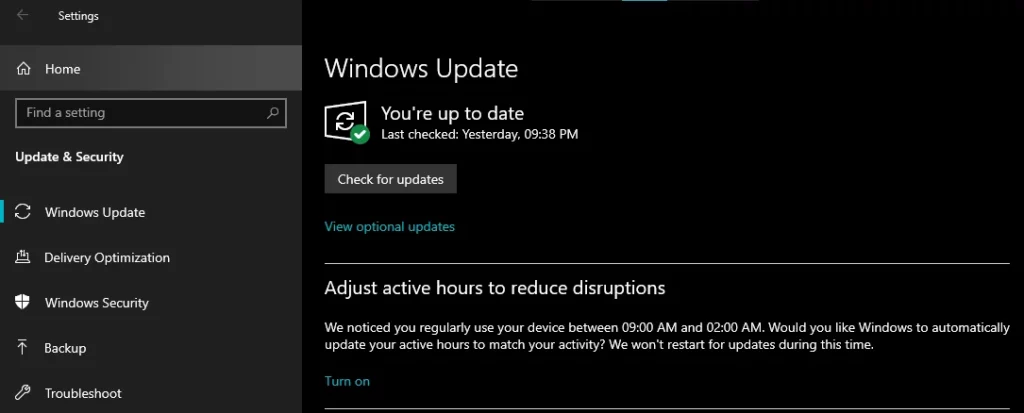
Open Settings > Windows Update, and click Check for updates. Install anything pending and restart if prompted.
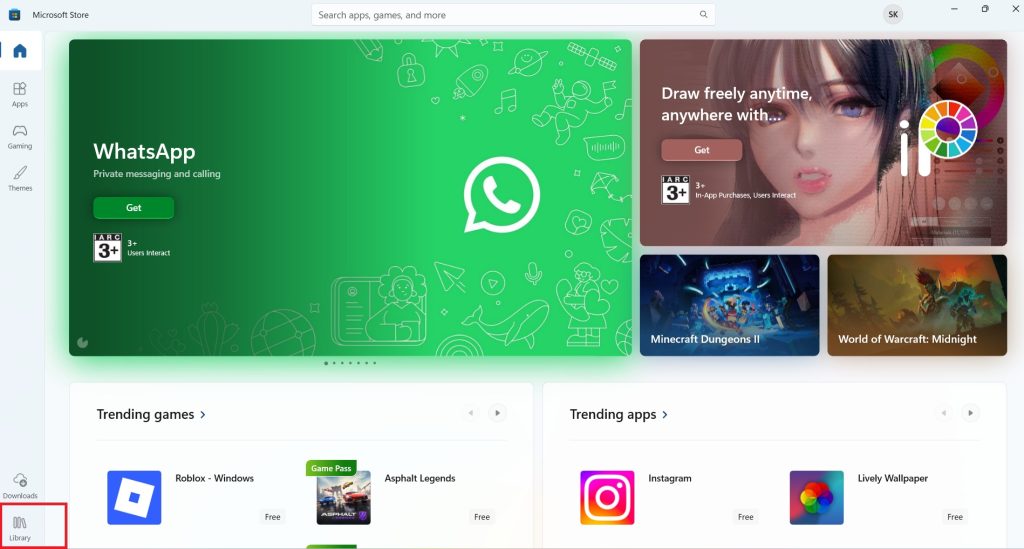
Open the Microsoft Store, go to your Library, and check for updates to Outlook specifically.
If an update is available, install it and relaunch the app.
Keeping both Windows and the app current resolves many compatibility-related crashes.
Method 3: Repair or Reinstall the WebView2 Runtime
Since New Outlook depends on the Microsoft Edge WebView2 runtime to render its interface, a missing or corrupted WebView2 installation is one of the most common reasons the app fails to open.
Go to Settings > Apps > Installed apps.
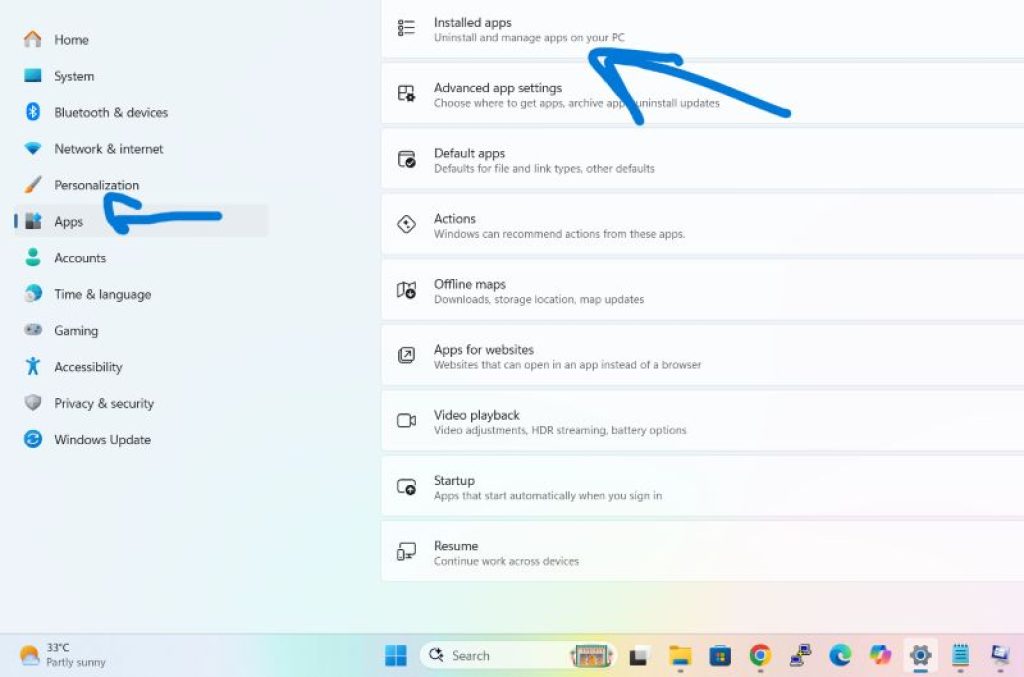
Search for Microsoft Edge WebView2 Runtime.
Click the three-dot menu next to it and select Modify, then choose Repair.
If it’s not listed at all, download and install it directly from Microsoft’s official WebView2 runtime page.
Restart your computer and try opening Outlook again.
Method 4: Clear the Outlook Cache
Corrupted cache files are a frequent culprit behind apps that hang on loading screens or crash immediately.
- Close the New Outlook app entirely.
- Press Windows + R, type
%localappdata%\Packages, and press Enter. - Look for a folder beginning with Microsoft.OutlookForWindows.
- Rename this folder (e.g., add “_old” to the name) or delete it if you’re comfortable doing so — this forces Outlook to rebuild its cache from scratch.
- Relaunch the app and sign back in.
This method often resolves issues where the app opens to a blank screen or gets stuck loading your mailbox.
Method 5: Reset the App Using Windows Settings
Windows includes a built-in reset feature for Store apps, which clears all app data and restores it to a fresh installation state without fully uninstalling it.
- Open Settings > Apps > Installed apps.
- Find Outlook in the list and click the three-dot menu.
- Select Advanced options.
- Scroll down and click Reset (note: this will sign you out and clear local settings, but won’t delete your emails, which are stored in the cloud).
- Reopen Outlook and sign in again.
Method 6: Uninstall and Reinstall the New Outlook App
If resetting doesn’t help, a clean reinstall often clears out deeper corruption that a simple cache reset can’t fix.
- Go to Settings > Apps > Installed apps.
- Search for Outlook, click the three-dot menu, and select Uninstall.
- Restart your computer.
- Open the Microsoft Store, search for Outlook for Windows, and reinstall it.
- Sign in with your Microsoft account and check whether the issue persists.
Method 7: Check Your Internet Connection and Firewall Settings
Because New Outlook relies heavily on constant cloud connectivity, unstable networks or restrictive firewall/antivirus rules can prevent it from loading data, which can look like the app “not working” even though it technically opens.
- Confirm your internet connection is stable by testing another app or browser.
- Temporarily disable third-party antivirus or firewall software to see if it’s blocking Outlook’s connection (remember to turn it back on afterward).
- Ensure your firewall isn’t blocking Microsoft 365 or Outlook-related domains and ports.
- If you’re on a work or school network, check with your IT administrator, as corporate firewalls sometimes restrict newer Microsoft services.
Method 8: Sign Out and Sign Back Into Your Account
Authentication token issues can quietly prevent Outlook from syncing or launching correctly, even if everything else appears fine.
- Open Outlook (if it opens at all) and go to Settings > Accounts.
- Remove your account from the app.
- Restart the app and sign back in with your credentials.
- If prompted, complete any multi-factor authentication steps and allow the app time to fully sync.
Method 9: Disable Add-ins and Third-Party Extensions
Add-ins can sometimes conflict with the app’s startup process, especially after an update changes how the app loads external components.
- If Outlook does open, go to Settings > General > Add-ins.
- Disable any non-essential add-ins.
- Restart the app and check if performance improves.
- If Outlook doesn’t open at all, try launching it in Windows Safe Mode to see if a conflicting background service is the cause.
Method 10: Run the Microsoft Support and Recovery Assistant
Microsoft offers a dedicated diagnostic tool, the Support and Recovery Assistant (SaRA), designed specifically to detect and fix common Outlook problems, including issues with account setup, connectivity, and app crashes.
- Download the Microsoft Support and Recovery Assistant from Microsoft’s official website.
- Run the tool and select Outlook as the affected app.
- Follow the guided troubleshooting steps; the tool will automatically detect and attempt to fix common issues.
- Restart your computer once the process completes.
This tool is particularly useful if you’ve tried the manual methods above without success, as it can catch configuration issues that aren’t obvious from the user side.
Method 11: Switch Back to Classic Outlook Temporarily
If none of the above methods work and you need immediate access to your email, switching back to the classic Outlook desktop app is a reliable workaround while you continue troubleshooting the new version.
- If you still have classic Outlook installed, simply open it as usual.
- If it’s been removed, you can reinstall it through your Microsoft 365 subscription portal.
- Use classic Outlook for daily tasks while monitoring for future updates that may resolve the New Outlook app’s issues.
Conclusion
The New Outlook app not working or refusing to open is a common issue that stems from a handful of predictable causes: corrupted cache files, an outdated or buggy version, WebView2 runtime problems, account authentication hiccups, network restrictions, or conflicts with add-ins and third-party software. The methods outlined above are designed to move from the quickest, least invasive fixes — like restarting your device and checking for updates — to more involved solutions such as clearing the cache, repairing WebView2, or performing a full reinstall.
For most users, a combination of clearing the local cache and repairing the WebView2 runtime resolves the majority of launch failures. If the app still refuses to cooperate after trying these methods, the Microsoft Support and Recovery Assistant is a valuable next step, as it’s built specifically to diagnose Outlook issues that aren’t always visible through manual troubleshooting.
Since New Outlook is still actively being developed and refined, occasional bugs are somewhat expected as Microsoft rolls out updates. Keeping both Windows and the app updated, maintaining a stable internet connection, and periodically clearing cached data can go a long way toward preventing future disruptions. And if all else fails, falling back to classic Outlook remains a dependable safety net until the issue is resolved.
Frequently Asked Questions
1. Why does the New Outlook app keep crashing right after I open it?
This is usually caused by a corrupted local cache or a conflict with the WebView2 runtime that the app relies on to render its interface. Clearing the Outlook cache folder (Method 4) and repairing WebView2 (Method 3) resolve this in most cases. If the crashes continue, try resetting the app through Windows Settings, as this restores it to a clean state without needing a full reinstall.
2. Is the New Outlook app supposed to work without an internet connection?
New Outlook is designed to be cloud-first, meaning it relies much more heavily on a live internet connection than the classic desktop app did. While it does cache some data locally for brief offline viewing, most functions — including sending mail, syncing your calendar, and loading new messages — require an active connection. If the app seems unresponsive, check your network connection before assuming it’s an app-specific bug.
3. Will resetting or reinstalling the New Outlook app delete my emails?
No. Since New Outlook stores your emails, calendar, and contacts in the cloud (via Exchange Online or Microsoft 365), resetting or reinstalling the app only clears local settings, cache, and sign-in tokens on your device. Once you sign back in, all your data will resync from the server. That said, it’s always a good practice to ensure any locally saved drafts or attachments are backed up before performing a reset.
4. Why can’t I switch back to classic Outlook after installing the New Outlook app?
In most cases, both versions can coexist, and you can toggle between them using the “Try the new Outlook” switch in the classic app, or by opening classic Outlook directly if it’s still installed. However, some organizations using managed IT policies may have restricted access to the classic version, or it may have been automatically uninstalled during the New Outlook rollout. If you don’t see the option to switch back, contact your IT administrator, as they may have deployed New Outlook as the default experience for your organization through a managed configuration.





