Sukhdev Kamboj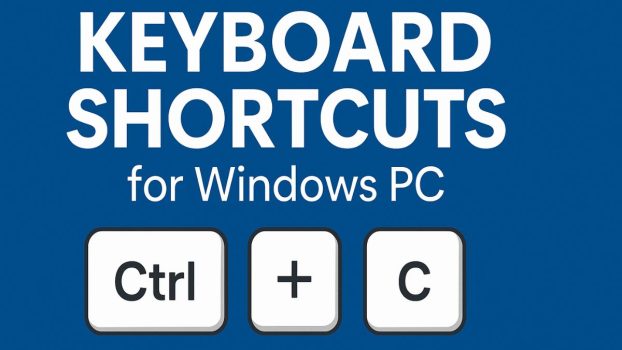
Keyboard shortcuts are one of the most underrated tools for navigating a Windows PC efficiently. Instead of relying solely on your mouse or trackpad, you can use simple key combinations to open apps, manage files, control windows, and perform tasks in a fraction of the time. Whether you’re editing documents, browsing the internet, or managing multiple windows, shortcuts help you get things done faster and with less effort.
Windows 10 and Windows 11 are packed with hundreds of built-in shortcuts—many of which most users never discover. By learning and using them regularly, you’ll not only save time but also reduce repetitive strain and improve your overall workflow. From basic functions like copy-paste to advanced features like managing virtual desktops, keyboard shortcuts are designed to make your computing experience smoother.
Why Keyboard Shortcuts Matter
- Saves Time – Shortcuts help you perform tasks in seconds without clicking through menus, making your workflow faster and smoother.
- Boosts Productivity – Quickly switch between applications, perform commands, and complete tasks without breaking focus or reaching for the mouse.
- Reduces Physical Strain – Minimizing mouse usage lowers the risk of repetitive strain injuries like wrist pain or carpal tunnel syndrome.
- Improves Accessibility – Users with limited mobility or those relying on assistive tools benefit from easier and more efficient navigation.
- Enhances Workflow Consistency – Once memorized, shortcuts provide a repeatable and seamless way to complete actions across multiple programs.
Basic Shortcuts Every User Should Know
These are the foundational shortcuts you’ll use across Windows, Microsoft Office, and most software applications.
| Shortcut | Function |
|---|---|
| Ctrl + C | Copy selected text, files, or folders to the clipboard |
| Ctrl + X | Cut the selected item and prepare it to be moved |
| Ctrl + V | Paste the copied or cut item to the desired location |
| Ctrl + Z | Undo the last action |
| Ctrl + Y | Redo the last undone action |
| Ctrl + A | Select all items in a window, folder, or document |
| Ctrl + S | Save the current file or document |
| Ctrl + P | Open the Print dialog box |
| Ctrl + N | Create a new document or window |
| Ctrl + O | Open an existing document or file |
| Alt + F4 | Close the currently active window or application |
| Alt + Tab | Switch between open applications or windows |
| Alt + Space | Open the window control menu (Restore, Move, Minimize, Maximize) |
| Ctrl + F | Open the Find tool to search within documents or web pages |
| Ctrl + Esc | Open the Start menu (alternative to Windows key) |
File and Folder Management Shortcuts
These shortcuts make organizing your files quick and easy.
| Shortcut | Function |
|---|---|
| Windows + E | Open File Explorer |
| Ctrl + N | Open a new File Explorer window |
| Ctrl + Shift + N | Create a new folder |
| F2 | Rename the selected file or folder |
| Delete | Move the selected file or folder to the Recycle Bin |
| Shift + Delete | Permanently delete the selected item (bypasses Recycle Bin) |
| Ctrl + C | Copy selected file or folder |
| Ctrl + X | Cut selected file or folder |
| Ctrl + V | Paste the copied or cut item |
| Ctrl + A | Select all files and folders in the current view |
| Alt + Enter | Open the Properties window for the selected file or folder |
| Alt + Left Arrow | Go back to the previous folder |
| Alt + Right Arrow | Go forward to the next folder |
| Alt + Up Arrow | Navigate up one folder level |
| Ctrl + D / Delete | Delete the selected file or folder |
Window and Desktop Management Shortcuts
Perfect for multitasking, especially with multiple apps or monitors.
| Shortcut | Function |
|---|---|
| Windows + D | Show or hide the desktop |
| Windows + M | Minimize all open windows |
| Windows + Shift + M | Restore all minimized windows |
| Windows + Tab | Open Task View to see all open windows and virtual desktops |
| Alt + Tab | Switch between open apps or windows |
| Windows + Left Arrow | Snap the current window to the left half of the screen |
| Windows + Right Arrow | Snap the current window to the right half of the screen |
| Windows + Up Arrow | Maximize the current window |
| Windows + Down Arrow | Minimize or restore the current window |
| Windows + Home | Minimize all windows except the active one |
| Windows + Ctrl + D | Create a new virtual desktop |
| Windows + Ctrl + Left Arrow | Switch to the virtual desktop on the left |
| Windows + Ctrl + Right Arrow | Switch to the virtual desktop on the right |
| Windows + Ctrl + F4 | Close the current virtual desktop |
| Windows + L | Lock your computer |
| Windows + P | Choose a presentation display mode (Duplicate, Extend, etc.) |
Web Browser Shortcuts (Edge, Chrome, Firefox)
These shortcuts streamline your internet usage, whether researching or streaming.
| Shortcut | Function |
|---|---|
| Ctrl + T | Open a new tab |
| Ctrl + W | Close the current tab |
| Ctrl + Shift + T | Reopen the last closed tab |
| Ctrl + Tab | Switch to the next tab |
| Ctrl + Shift + Tab | Switch to the previous tab |
| Ctrl + 1 to 8 | Switch directly to the tab in that position (1–8) |
| Ctrl + 9 | Switch to the last tab |
| Ctrl + L / Alt + D | Focus the address bar |
| Ctrl + Enter | Add “www.” and “.com” to the typed address and open it |
| Ctrl + D | Bookmark the current page |
| Ctrl + H | Open the browser history |
| Ctrl + J | Open the Downloads page |
| Ctrl + F | Find text on the current page |
| Ctrl + R / F5 | Reload the current page |
| Ctrl + Shift + Delete | Open the Clear Browsing Data (Clear History) window |
| Alt + Left Arrow | Go back to the previous page |
| Alt + Right Arrow | Go forward to the next page |
| Ctrl + 0 | Reset zoom level to default |
| Ctrl + + / Ctrl + – | Zoom in / Zoom out on the page |
| F11 | Enter or exit full-screen mode |
Task Management Shortcuts
These are ideal when troubleshooting or managing performance.
| Shortcut | Function |
|---|---|
| Ctrl + Shift + Esc | Open Task Manager directly |
| Ctrl + Alt + Delete | Open security options screen (Lock, Task Manager, Sign out, etc.) |
| Alt + Tab | Switch between open apps and windows |
| Alt + Esc | Cycle through open windows in the order they were opened |
| Windows + X | Open the Quick Link menu (access Device Manager, Task Manager, etc.) |
| Windows + I | Open the Settings app |
| Windows + R | Open the Run dialog box |
| Windows + S | Open the Search box to find apps, files, or settings |
| Windows + Ctrl + Shift + B | Restart your graphics driver (helpful if the screen freezes) |
| Windows + Pause/Break | Open System Properties |
| Windows + L | Lock your computer |
| Windows + Q | Search using Cortana or Windows Search (Windows 10) |
Accessibility and Utility Shortcuts
These shortcuts are essential for accessibility and productivity enhancements.
| Shortcut | Function |
|---|---|
| Windows + U | Open Accessibility (Ease of Access) settings |
| Windows + Ctrl + Enter | Launch or exit Narrator (Windows screen reader) |
| Windows + Plus (+) | Zoom in using Magnifier |
| Windows + Minus (-) | Zoom out using Magnifier |
| Windows + Esc | Exit Magnifier |
| Windows + H | Start voice typing (speech-to-text input) |
| Windows + V | Open Clipboard history (must be enabled in settings) |
| Windows + Shift + S | Open Snipping Tool to take a custom screenshot |
| Print Screen (PrtScn) | Capture full screen and copy to clipboard |
| Alt + Print Screen | Capture active window and copy to clipboard |
| Ctrl + Shift + Esc | Open Task Manager directly (helpful for accessibility and performance tasks) |
| Windows + B | Focus on the system tray (use arrow keys to navigate icons) |
| Windows + N | Open the Notification Center (Windows 11) |
| Windows + A | Open Quick Settings (Wi-Fi, volume, brightness) |
Windows Settings and Tools Shortcuts
Whether you’re customizing your desktop or launching diagnostic tools, these keyboard combinations can save you time and clicks.
| Shortcut | Function |
|---|---|
| Windows + I | Open the Settings app |
| Windows + X | Open Quick Link menu (access to Device Manager, Disk Management, etc.) |
| Windows + R | Open the Run dialog box |
| Windows + P | Open Project menu to switch display modes (PC screen only, Extend, etc.) |
| Windows + K | Open Connect pane (connect to wireless displays or audio devices) |
| Windows + A | Open Quick Settings (Wi-Fi, Bluetooth, Brightness, etc.) |
| Windows + N | Open Notification Center (Windows 11) |
| Windows + Pause/Break | Open System Properties window |
| Windows + B | Focus on the system tray (notification area) |
| Windows + G | Open Xbox Game Bar (for screen recording, performance tracking, etc.) |
| Windows + W | Open the Widgets panel (Windows 11 only) |
| Windows + V | Open Clipboard history (must be enabled first) |
Bonus: Microsoft Office Keyboard Shortcuts
If you regularly use Microsoft Word, Excel, or PowerPoint, mastering keyboard shortcuts can significantly improve your speed and workflow. From formatting text to navigating large documents or sheets, these Office shortcuts help you work smarter in any Microsoft Office application.
Common Formatting Shortcuts
| Shortcut | Function |
|---|---|
| Ctrl + B | Bold selected text |
| Ctrl + I | Italicize selected text |
| Ctrl + U | Underline selected text |
| Ctrl + Shift + > | Increase font size |
| Ctrl + Shift + < | Decrease font size |
| Ctrl + E | Center text |
| Ctrl + L | Align text to the left |
| Ctrl + R | Align text to the right |
| Ctrl + J | Justify text |
Document and File Shortcuts
| Shortcut | Function |
|---|---|
| Ctrl + N | Create a new document |
| Ctrl + O | Open an existing document |
| Ctrl + S | Save the current document |
| Ctrl + P | Open the Print dialog |
| Ctrl + W | Close the current document |
| Ctrl + F | Open the Find pane |
| Ctrl + H | Open the Replace dialog |
| Ctrl + Home | Move cursor to the beginning |
| Ctrl + End | Move cursor to the end |
Other Useful Shortcuts
| Shortcut | Function |
|---|---|
| Ctrl + K | Insert or edit a hyperlink |
| Ctrl + Enter | Insert a page break |
| Ctrl + Shift + L | Add bullets to selected text |
| F7 | Run spell check |
| Ctrl + Tab | Move between tabs in dialogs |
| Alt + Q | Go to the “Tell me what you want to do” |
| Ctrl + Spacebar | Remove all formatting from selected text |
Windows 11 Exclusive Keyboard Shortcuts
Windows 11 introduced new features like Snap Layouts, Widgets, Quick Settings, and more. These updates come with their own set of exclusive keyboard shortcuts to make multitasking and navigation faster and smoother.
| Shortcut | Function |
|---|---|
| Win + Z | Opens Snap Layouts for window arrangement. |
| Win + W | Opens the Widgets panel (news, weather, calendar, etc.). |
| Win + A | Opens the Quick Settings panel (Wi-Fi, brightness, volume, etc.). |
| Win + N | Opens the Notification Center and calendar. |
| Win + C | Opens Microsoft Teams Chat (requires setup). |
| Ctrl + Win + Left/Right | Switch between Desktops in Task View. |
| Win + Ctrl + F4 | Closes the current virtual desktop. |
| Win + Alt + Up Arrow | Moves a window into a Snap Layout using the keyboard. |
| Win + K | Opens the Cast menu to connect to wireless displays and audio devices. |
Conclusion
Keyboard shortcuts are more than just time-savers—they’re essential tools for improving efficiency, boosting productivity, and simplifying your everyday experience on a Windows PC. Whether you’re managing files, multitasking across virtual desktops, navigating settings, or working within Office applications, these shortcuts allow you to accomplish tasks faster and with less effort.
While it may take a bit of practice to memorize them, once you do, they’ll become second nature and drastically reduce your reliance on the mouse. Over time, these small keystrokes lead to big gains in workflow speed and convenience.
Don’t feel pressured to learn them all at once—start with a few that match your daily habits and gradually add more. Bookmark this guide, print it out, or save a cheat sheet. The more shortcuts you use, the more streamlined your Windows experience will become. Work smarter, not harder—with the power of keyboard shortcuts at your fingertips.
Frequently Asked Questions (FAQs)
What is the most useful keyboard shortcut in Windows?
Arguably, Ctrl + C (Copy) and Ctrl + V (Paste) are the most commonly used and useful shortcuts.
Can I customize keyboard shortcuts in Windows?
Yes, Windows allows limited customization via third-party tools or apps like PowerToys, AutoHotKey, and Keyboard Manager.
Do these shortcuts work in all versions of Windows?
Most of them work in Windows 10 and 11. However, some like Windows + W (Widgets) are exclusive to Windows 11.