
 Geeksdigit Team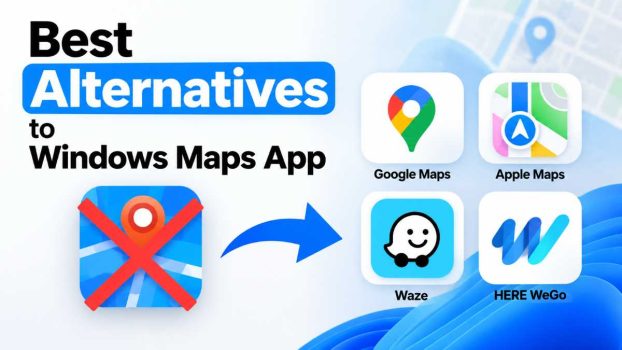
If you’ve searched the Microsoft Store for the Windows Maps app recently and come up empty, you’re not imagining things. Microsoft deprecated Windows Maps on April 8, 2025, pulled it from the Microsoft Store by July 2025, and stopped preinstalling it starting with Windows 11 version 24H2. The app is now considered retired and nonfunctional rather than merely “unsupported.”
That leaves millions of Windows 10 and Windows 11 users searching for a reliable Windows Maps alternative — something that can handle turn-by-turn navigation, offline maps, local business search, and route planning just as well (or better) than the built-in app once did.
The good news: you have more choices in 2026 than Windows Maps ever offered. This guide breaks down the best replacements for every use case — daily driving, offline hiking, privacy-focused browsing, or professional route planning — along with direct download links so you can get set up in minutes.
Why Was Windows Maps Discontinued?
Microsoft has been steadily shifting users toward Bing Maps on the web as its recommended alternative, rather than maintaining a dedicated native app. The decision reflects a broader trend of software makers favoring browser-based and cross-platform mapping tools over single-platform native apps. Your saved locations and guided-navigation URLs from the old app won’t transfer automatically, so now is a good time to pick a new default and rebuild your saved places.
What to Look for in a Windows Maps Replacement
Before jumping into the list, consider what matters most for your use case:
- Offline access — essential if you travel through areas with spotty data coverage
- Live traffic and rerouting — important for daily commuters
- Local business search quality — reviews, photos, hours, and accurate listings
- Cross-device sync — plan a route on your PC, navigate from your phone
- Privacy — some tools rely less on ad-driven tracking than others
- Specialty features — hiking trails, cycling routes, truck routing, or accessibility layers
With that in mind, here are the best Windows Maps alternatives available today.
1. Google Maps — Best Overall Alternative
Google Maps is the most complete replacement for most people. It combines strong local search, accurate real-time traffic, public transit schedules, and Street View imagery in one place. Because it works identically across Chrome, Edge, Firefox, Android, and iOS, you can plan a trip on your desktop and pick up navigation seamlessly on your phone.
Best for: Daily navigation, local business research, cross-device planning.
Download / access:
- Web: https://maps.google.com
- Android: Google Play Store
- iOS: Apple App Store
- Windows: Install as a Progressive Web App directly from Edge or Chrome (open the site, then select “Install app”)
2. HERE WeGo — Best for Offline Driving
HERE WeGo consistently ranks among the strongest options for offline maps. You can download full country or region maps for driving, walking, or public transit directions without an internet connection — a feature Windows Maps users will find familiar, since it’s one of the few tools that replicates the old app’s offline strength.
Best for: Road trips, international travel, areas with unreliable data connections.
Download / access:
- Web: https://wego.here.com
- Windows: Microsoft Store
- Android: Google Play Store
- iOS: Apple App Store
3. Bing Maps — Microsoft’s Official Recommendation
Since Microsoft doesn’t offer a native replacement app, Bing Maps on the web is technically the company’s own suggested path forward. It integrates well with Microsoft Edge, supports Streetside imagery (Microsoft’s version of Street View), and offers printable directions similar to the old Windows Maps experience.
Best for: Windows and Microsoft 365 users who want tight browser integration.
Download / access:
- Web: https://www.bing.com/maps
- Windows: Pin as a website shortcut or install as a PWA via Edge
4. Waze — Best for Live Traffic and Commuting
Waze is built entirely around real-time, crowdsourced traffic data. Other drivers report accidents, speed traps, road closures, and hazards as they happen, and the app automatically reroutes you around delays. It’s owned by Google but operates as a separate community-driven app with its own personality and features.
Best for: Daily commuters who want the fastest possible route, updated live.
Download / access:
- Android: Google Play Store
- iOS: Apple App Store
- Web: https://www.waze.com/live-map
5. OpenStreetMap — Best Free, Community-Built Option
OpenStreetMap (OSM) is a free, editable map of the world built and maintained by volunteers. It doesn’t come with turn-by-turn navigation baked into the main website, but it powers many of the apps on this list (including Organic Maps and OsmAnd) and is a great choice if you want raw, ad-free map data or want to contribute corrections to your local area.
Best for: Privacy-conscious users and anyone who wants ad-free, community-maintained map data.
Download / access:
6. OsmAnd — Best for Hikers and Cyclists
OsmAnd (OpenStreetMap Automated Navigation Directions) is a feature-dense app built on OpenStreetMap data. It supports detailed offline maps, contour lines, hiking and cycling trail layers, and extensive customization — features general-purpose apps like Google Maps don’t prioritize.
Best for: Outdoor navigation, hiking, cycling, and detailed offline map layers.
Download / access:
- Windows: Microsoft Store
- Android: Google Play Store
- iOS: Apple App Store
- Official site: https://osmand.net
7. Organic Maps — Best Privacy-Focused, Open Source Pick
Organic Maps is a free, open-source, ad-free navigation app built on OpenStreetMap data. It collects no user data, requires no account, and runs entirely offline once you’ve downloaded a region. It has quickly become a favorite among users who found Windows Maps convenient but want more control over their privacy.
Best for: Users who want zero tracking and a lightweight, offline-first experience.
Download / access:
- Android: Google Play Store
- iOS: Apple App Store
- Official site (APK and F-Droid links): https://organicmaps.app/download
8. Apple Maps on the Web — Best for Apple Ecosystem Users
Apple Maps launched a full web version, making it usable directly from a Windows browser for the first time. If your phone is an iPhone, this keeps your saved places, recent searches, and directions in sync between your PC and mobile device without needing a dedicated Windows app.
Best for: iPhone owners who want their desktop and mobile maps in sync.
Download / access:
9. MapQuest — Best for Simple, Printable Directions
MapQuest has been around since long before smartphone navigation existed, and it still does one thing very well: clean, printable, step-by-step directions. If the feature you miss most from Windows Maps is the ability to print or share a simple route, MapQuest is worth a look.
Best for: Quick, no-frills directions and printable route sheets.
Download / access:
- Web: https://www.mapquest.com
- Android: Google Play Store
- iOS: Apple App Store
10. Magic Earth — Best Lightweight Native Navigation App
Magic Earth is a fast, ad-free navigation app that works well both online and offline, with a clean interface reminiscent of the old Windows Maps app. It supports voice-guided turn-by-turn navigation, speed camera alerts, and offline map downloads by country or region.
Best for: Users who want a native app experience close to what Windows Maps used to offer.
Download / access:
- Android: Google Play Store
- iOS: Apple App Store
Dedicated GPS Devices: A Non-App Option Worth Considering
If you regularly drive long distances or through areas with poor cell coverage, a standalone GPS navigation device (such as those from Garmin) remains a solid alternative to any app. These devices ship with preloaded maps, often include free lifetime map updates, and don’t depend on your phone’s battery or data plan. They’re a niche option compared to the software alternatives above, but worth considering if offline reliability is your top priority.
How to Choose the Right Alternative for You
| If you need… | Choose… |
|---|---|
| An all-around daily driver | Google Maps |
| The best offline maps | HERE WeGo or Organic Maps |
| Live traffic and crowdsourced alerts | Waze |
| Maximum privacy, no tracking | Organic Maps or OpenStreetMap |
| Hiking and cycling trail data | OsmAnd |
| Tight Microsoft/Edge integration | Bing Maps |
| Simple printable directions | MapQuest |
| iPhone ecosystem sync | Apple Maps (web) |
A common approach is to keep two tools installed: one online, feature-rich app for everyday use (like Google Maps or Waze) and one offline-first app (like HERE WeGo or Organic Maps) as a backup for areas without signal.
How to Install These as Windows Apps
Most of these services don’t have a dedicated Windows Store app, but you can still get an app-like experience:
- Open the service’s website in Microsoft Edge or Google Chrome.
- Click the browser menu (three dots) and look for Apps > Install this site as an app.
- The site will now launch in its own window with a taskbar icon and Start menu shortcut, just like a native app.
This method works well for Google Maps, Bing Maps, MapQuest, and Apple Maps, since they’re primarily web-based.
Frequently Asked Questions
Is Windows Maps completely gone from my PC? If you already had it installed before the removal, it may still open, but it’s no longer supported and Microsoft has confirmed it should be treated as nonfunctional. It cannot be reinstalled from the Microsoft Store.
What does Microsoft recommend instead of Windows Maps? Microsoft points users toward Bing Maps on the web as its official recommended replacement.
Can I get my old Windows Maps saved locations back? No. Saved pins, favorites, and guided-navigation links from the old app do not transfer to any of the alternatives above. You’ll need to re-save your important locations in your new app of choice.
Is there a free alternative that works fully offline like Windows Maps did? Yes — Organic Maps, OsmAnd, and HERE WeGo all support downloading full offline map regions for free.
Do any of these alternatives support truck or RV routing like some GPS devices do? Most general-purpose apps like Google Maps and Waze are optimized for passenger vehicles. If you need routing that accounts for vehicle height, width, weight, or hazardous-materials restrictions, a dedicated GPS device or a specialty trucking app is a better fit than any of the general navigation apps listed above.
Will Microsoft ever bring back a native Maps app for Windows? There’s no indication of that as of this writing. Microsoft’s own deprecated-features documentation lists Windows Maps as retired, and the company’s guidance points users to Bing Maps on the web instead of a future native replacement. If that changes, it would likely be announced through the Windows Insider Program or the official Windows blog.
Which alternative is closest to the original Windows Maps app in look and feel? Magic Earth and HERE WeGo are probably the closest matches in terms of a clean, native-app interface with offline downloads, turn-by-turn voice guidance, and minimal ads or clutter.
Migrating Your Saved Places and Habits
Since none of these tools can import data directly from the old Windows Maps app, a little manual setup goes a long way toward a smooth transition:
- Rebuild your list of frequent destinations. Add your home, workplace, and regularly visited spots to your new app’s favorites or saved places list right away, so you’re not searching for them from scratch every time.
- Set a default navigation app. On Windows, you can pin your chosen web app to the taskbar; on mobile, check your phone’s default-apps settings so links open in your new maps app automatically.
- Download offline regions before you need them. If you chose an offline-capable app like HERE WeGo, Organic Maps, or OsmAnd, download the relevant country or region maps now rather than waiting until you’re already out of signal range.
- Test a familiar route first. Before relying on a new app for an important trip, run it through a route you already know well to get a feel for its voice guidance, rerouting behavior, and map accuracy.
- Keep a backup option installed. Even the best mapping app can have an outage or a data gap in a specific region. Having a second, offline-capable app installed costs nothing and can save a trip if your primary choice fails you.
Final Thoughts
Losing a built-in app is always a little inconvenient, but the retirement of Windows Maps has pushed users toward genuinely stronger tools. Whether you prioritize Google Maps’ local search, HERE WeGo’s offline reliability, Waze’s live traffic data, or Organic Maps’ privacy-first approach, there’s a replacement here that will likely outperform the app you’re used to. Pick one primary app for daily use, add a offline-capable backup, and you’ll be better equipped than Windows Maps ever left you.





