
 Sukhdev Kamboj
Few things are as frustrating as double-clicking the Outlook icon, expecting your inbox to open, and instead being greeted with a message that reads something like: “Outlook is already running. Click Outlook on the taskbar or, if it does not appear, restart your computer.” The catch is that Outlook isn’t visibly open anywhere. There’s no window on your desktop, no icon on your taskbar you can click, and yet Windows 11 insists the program is already active.
This error is one of the more common complaints Outlook users report after upgrading to Windows 11, updating Microsoft 365, or installing a new Windows update. It doesn’t necessarily mean anything is broken in a serious way — most of the time, it’s simply a stuck background process, a corrupted profile, or a leftover instance of Outlook that never fully closed. The good news is that this problem is almost always fixable without reinstalling Office or losing any of your emails, contacts, or calendar data.
In this guide, we’ll walk through why this error happens, then work through a complete set of methods to resolve it — starting with the quickest fixes and moving toward more advanced troubleshooting steps. By the end, you’ll have a clear path to getting Outlook running normally again, along with answers to some of the most frequently asked questions about this issue.
Why Does This Error Happen?
Before jumping into solutions, it helps to understand the root causes. The “Outlook is already running” error in Windows 11 typically stems from one of these situations:
- A hidden or orphaned Outlook process is still running in the background, even though no window is visible. This can happen if Outlook crashed previously without shutting down completely.
- A corrupted Outlook profile is causing the application to hang during startup, so it appears to be “running” without ever fully loading.
- Add-ins — especially third-party ones — are conflicting with Outlook’s startup sequence and causing it to freeze silently.
- A damaged navigation pane file (.xml) is preventing Outlook’s interface from rendering.
- Antivirus or security software is interfering with Outlook’s process handling.
- Windows updates or Office updates installed mid-session, leaving Outlook in an inconsistent state.
- Multiple user accounts or shared PST/OST files are creating file-locking conflicts.
Knowing the likely cause can help you pick the right fix faster, but since it’s not always obvious which one applies, the methods below are ordered from simplest to most involved so you can work through them systematically.
Methods to Fix “Outlook Is Already Running” in Windows 11
Method 1: End the Outlook Process via Task Manager
This is the fastest and most common fix, since the error is usually caused by a background process that Windows hasn’t fully closed.
Right-click the Start button and select Task Manager, or press Ctrl + Shift + Esc.
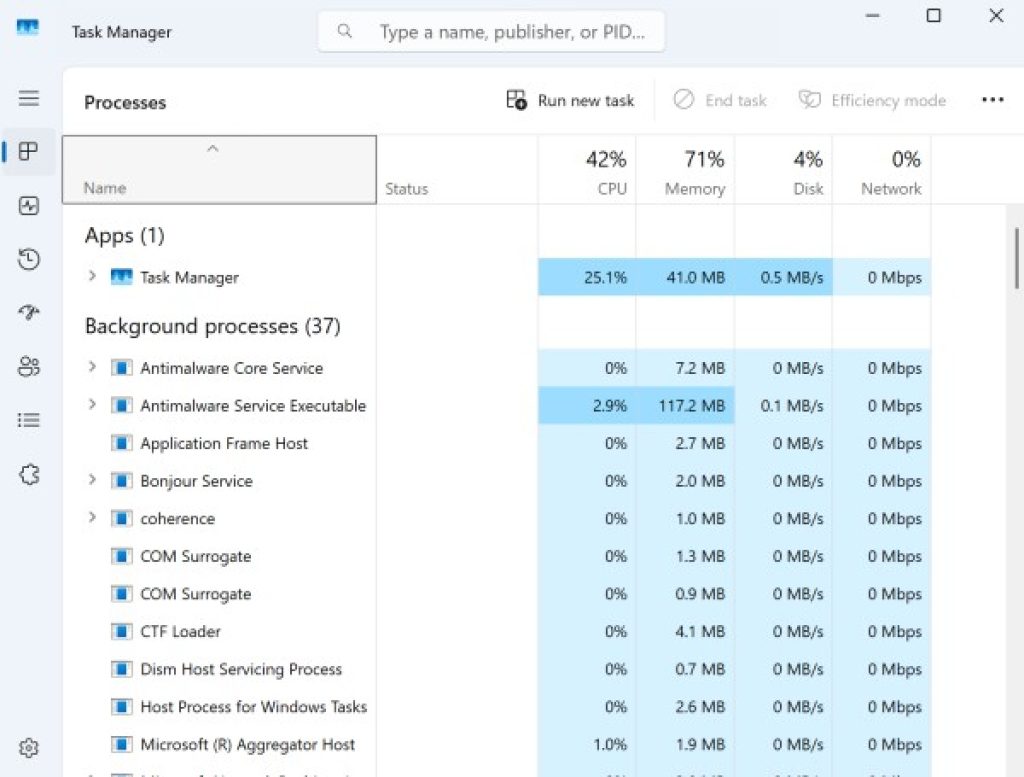
Click the Processes tab.
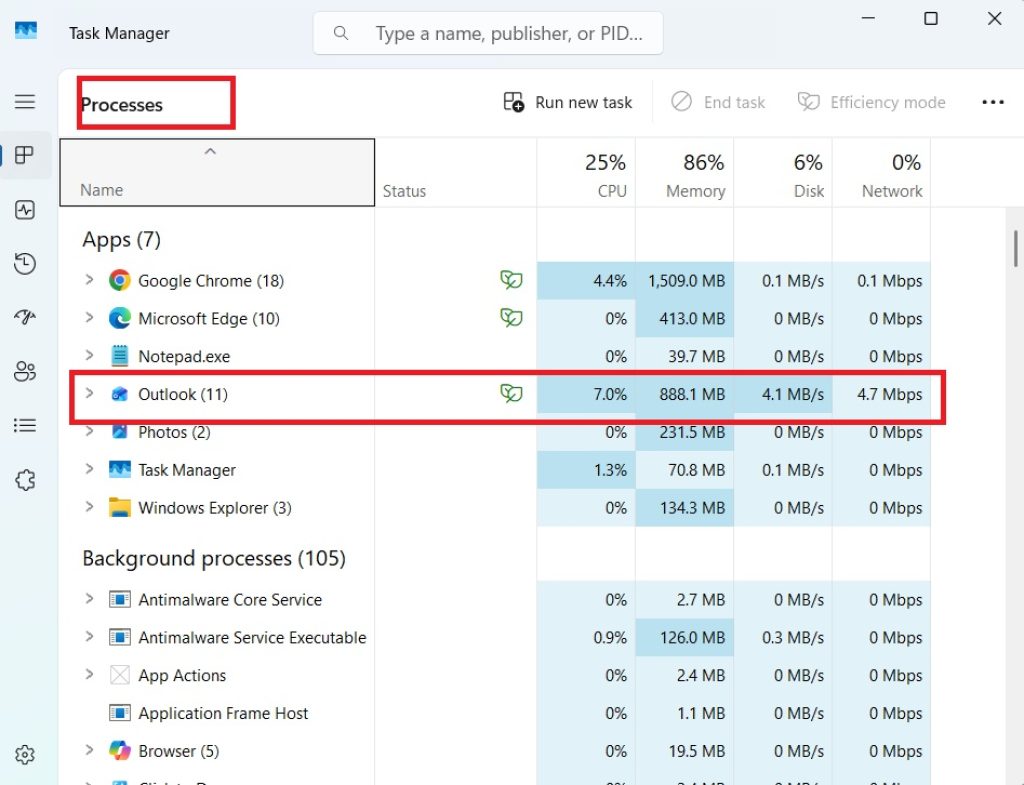
Look for any instance of Microsoft Outlook or OUTLOOK.EXE. It may appear under “Background processes” even if you don’t see an open window.
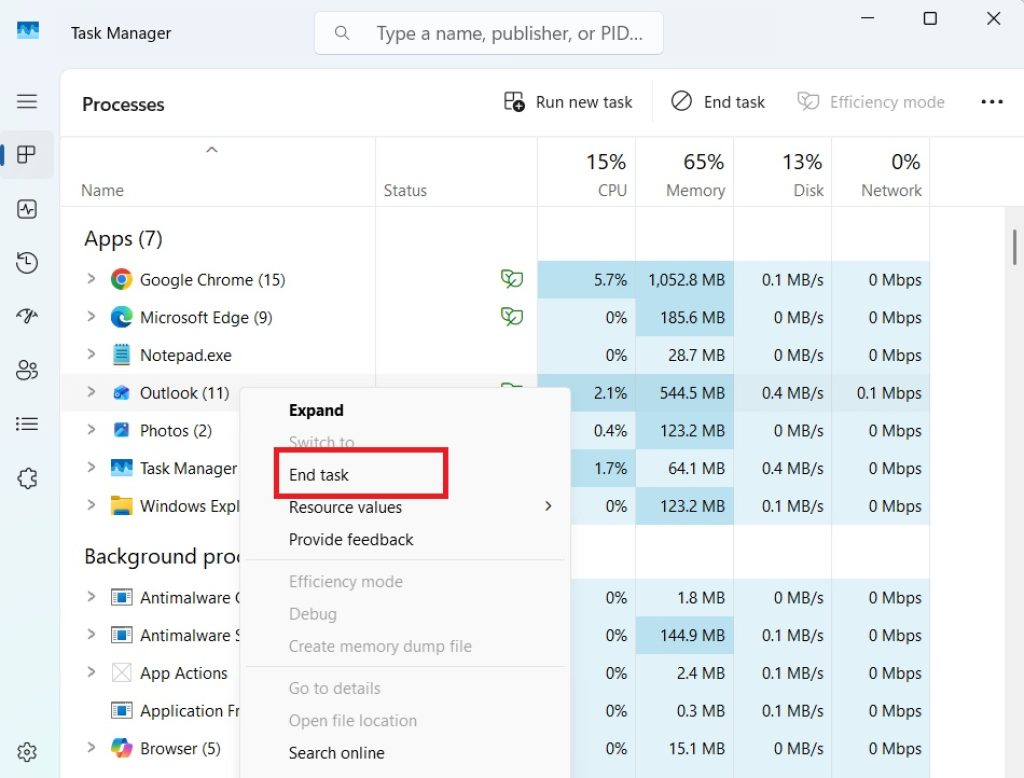
Right-click it and select End Task.
If you see more than one Outlook-related entry, end all of them.
Wait about 10 seconds, then try reopening Outlook normally.
If Task Manager doesn’t show any Outlook process at all but the error still appears, move on to the next method, since the issue may be a different kind of conflict.
Method 2: Restart Your Computer
It sounds almost too simple, but a full restart clears out any memory-locked processes, temporary file locks, and background services that Task Manager sometimes can’t fully terminate. Unlike closing and reopening Outlook, a restart resets the entire Windows session.
- Save any open work in other applications.
- Click Start > Power > Restart (avoid Shut Down followed by manual power-on, since Restart is more thorough at clearing session locks in Windows 11).
- Once Windows reloads, open Outlook and check whether the error persists.
If the problem returns shortly after a restart, it’s a sign that something is actively causing Outlook to hang on launch, rather than just a one-off stuck process.
Method 3: Start Outlook in Safe Mode to Rule Out Add-ins
Faulty add-ins are one of the most frequent causes of Outlook silently freezing during startup, which then triggers the “already running” message.
- Press Windows + R to open the Run dialog.
- Type
outlook.exe /safeand press Enter. - If Outlook opens normally in Safe Mode, the issue is very likely an add-in.
- With Outlook open, go to File > Options > Add-ins.
- At the bottom, next to “Manage,” select COM Add-ins and click Go.
- Uncheck all add-ins, click OK, and restart Outlook normally.
- Re-enable add-ins one at a time, restarting Outlook after each, until you identify the one causing the conflict.
This method not only resolves the immediate error but also helps you pinpoint a long-term fix rather than a temporary workaround.
Method 4: Create a New Outlook Profile
If the error persists across restarts and Safe Mode doesn’t help, your Outlook profile itself may be corrupted.
- Close Outlook completely (double-check via Task Manager).
- Open the Control Panel and search for Mail (Microsoft Outlook).
- Click Show Profiles.
- Click Add to create a new profile, give it a name, and follow the prompts to set up your email account again.
- Once created, set the new profile as default by selecting “Always use this profile” and choosing it from the dropdown.
- Open Outlook and confirm it starts normally.
Your existing emails aren’t lost in this process if you’re using Exchange, Microsoft 365, or an IMAP account, since your mail is stored on the server and will re-sync into the new profile. If you rely on a local PST file, you’ll want to re-add that existing file to the new profile rather than starting from scratch.
Method 5: Rename the Outlook Navigation Pane File
A corrupted navigation pane configuration file can also cause Outlook to hang invisibly.
- Ensure Outlook is fully closed.
- Press Windows + R, type
%appdata%\Microsoft\Outlook, and press Enter. - Look for a file ending in .xml with “profilename” in its name (for example,
Outlook.xml). - Rename it to something like
Outlook_old.xml. - Restart Outlook. Windows will automatically generate a fresh navigation pane file.
This method is low-risk since renaming (rather than deleting) the file means you can restore it if needed, though in most cases you won’t need to.
Method 6: Run Outlook and Office Repair Tools
If none of the above steps work, running Microsoft’s built-in repair utility can resolve deeper installation issues.
- Open Settings > Apps > Installed apps.
- Find Microsoft 365 (or your Office version) in the list.
- Click the three-dot menu and select Modify.
- Choose Quick Repair first and let it run; if the issue persists afterward, run Online Repair, which reinstalls Office components more thoroughly.
- Restart your computer once the repair finishes.
Online Repair takes longer and requires an internet connection, but it resolves cases where core Office files have become corrupted in a way Quick Repair can’t catch.
Method 7: Check for Conflicting Background Apps and Antivirus Interference
Some antivirus programs, backup tools, or third-party file sync services (like older versions of certain cloud backup clients) can lock Outlook’s data files or interfere with its process handling.
- Temporarily disable third-party antivirus software (not Windows Defender, which rarely causes this issue).
- Check the system tray for any backup, sync, or PST-scanning tools and pause them temporarily.
- Try launching Outlook again.
- If it opens successfully, you’ve identified the conflict, and you can either update that software or configure it to exclude Outlook’s data folder.
Method 8: Update Windows and Office
Finally, since this error is sometimes tied to a known bug in a specific update, ensuring both Windows and Office are fully up to date can resolve it automatically.
- Go to Settings > Windows Update and install any pending updates.
- In Outlook (if you can open it in Safe Mode), go to File > Office Account > Update Options > Update Now.
- Restart your computer after updates finish installing.
Microsoft periodically patches known Outlook startup bugs, so if your issue began right after an update, a follow-up patch may already address it.
Conclusion
The “Outlook is already running” error in Windows 11 is almost always a solvable software glitch rather than a sign of a deeper system failure. In most cases, simply ending the hidden Outlook process through Task Manager or restarting your computer clears it up within minutes. When the problem is more persistent, working through add-in conflicts, profile corruption, or a damaged navigation pane file will usually get to the root cause.
The key is to work through the methods in order — starting simple and only moving to more involved fixes like profile recreation or Office repair if the earlier steps don’t resolve things. Doing so saves time and avoids unnecessary changes to your Outlook setup. And since your email data is typically stored safely on your mail server or in a separate PST file, none of these fixes put your messages, contacts, or calendar entries at risk.
If you find this error recurring frequently even after applying these fixes, it may be worth keeping an eye on which specific action triggers it (a particular add-in, a specific type of file attachment, or a certain background app), since that pattern can point you toward a permanent solution rather than a repeated workaround.
Frequently Asked Questions
1. Will I lose my emails if I create a new Outlook profile?
No. If your account is set up through Exchange, Microsoft 365, or IMAP, your emails are stored on the mail server and will automatically re-sync to the new profile. If you use a local PST file for storage, you’ll need to manually re-link that existing PST file to the new profile so its contents remain accessible — nothing is deleted in the process either way.
2. Why does Outlook say it’s running when I don’t see it anywhere on my screen?
This typically happens when Outlook crashed or froze during a previous session without fully closing its background process. Windows still detects an active OUTLOOK.EXE process in memory, even though no window is visible, which triggers the “already running” message when you try to open it again.
3. Does this error mean my Outlook installation is corrupted?
Not necessarily. While a corrupted installation is one possible cause, this error more often results from a stuck background process, a problematic add-in, or a damaged profile file — all of which are fixable without reinstalling Office. Running the Office repair tool is really only necessary if the simpler fixes don’t resolve the issue.
4. How can I stop this error from happening again in the future?
Keeping Windows and Office updated, being cautious about which third-party add-ins you install, and properly closing Outlook (rather than force-closing it or letting your PC sleep mid-sync) all reduce the chances of this error recurring. If a specific add-in was the culprit, checking for updates to that add-in or removing it permanently is the most reliable long-term fix.





