
 Sukhdev Kamboj
Windows 11 and Windows 10 keep detailed records of many important system activities, including when the computer starts, shuts down, restarts, crashes, or unexpectedly loses power. These records can be extremely useful when troubleshooting problems such as random restarts, unexpected shutdowns, failed updates, startup issues, or a computer that appears to shut down without warning. Instead of guessing what happened, you can use Windows logs to find the exact date and approximate time when a shutdown or startup event occurred.
The easiest place to find these records is Event Viewer, which is built into Windows 11 and Windows 10. The System log contains several useful Event IDs, including 6005 for the Event Log service starting, 6006 for a normal shutdown, 6008 for an unexpected shutdown, 1074 when a process or user initiates a shutdown or restart, and 41 when Windows detects that the computer did not shut down cleanly. You can also use PowerShell to filter these events, making it much faster to examine a large number of startup and shutdown records.
In this guide, you will learn several ways to check shutdown and startup logs in Windows 11 and Windows 10, understand the most important Event IDs, identify unexpected shutdowns, and determine whether a restart was caused by Windows, a user, an application, or a power-related problem.
What Are Shutdown and Startup Logs in Windows?
Windows records many system events in the background. These events are stored in log files and can be viewed using tools such as Event Viewer and PowerShell.
A shutdown log can tell you whether Windows performed a normal shutdown, whether a user or application requested the shutdown, or whether Windows detected an unexpected loss of power or system failure.
Startup-related events can help you determine when Windows started after a shutdown or restart. By comparing startup and shutdown events, you can establish a timeline of what happened to your computer.
For example, if your computer suddenly turns off while you are working and you want to know whether Windows shut it down normally, you can check the System log. If you find Event ID 6006 before the computer was turned off, that generally indicates that the Event Log service stopped normally as part of a clean shutdown. If you instead find Event ID 6008, Windows is reporting that the previous shutdown was unexpected.
Another important event is Event ID 41, generated by the Kernel-Power source. This generally means Windows detected that the system was not shut down cleanly before the next startup. It does not, by itself, tell you exactly what caused the problem.
Important Shutdown and Startup Event IDs
Before checking the logs, it helps to understand the most useful Event IDs.
Event ID 6005 — Event Log service started
This event is commonly used as an indication that Windows has started and the Event Log service has begun running.
Event ID 6006 — Event Log service stopped
This commonly appears when Windows shuts down normally. It is often referred to as the clean shutdown event.
Event ID 6008 — Previous shutdown was unexpected
This event indicates that the previous shutdown was not recorded as a normal shutdown. It can occur after a power failure, forced shutdown, system crash, or other interruption.
Event ID 1074 — System shutdown or restart initiated
This is one of the most useful events when you want to determine who or what initiated a shutdown or restart. The event can contain information about the process responsible for requesting the action and may include a reason.
Event ID 41 — Kernel-Power
This event indicates that Windows detected that the computer did not shut down cleanly before it started again. It can occur because of power loss, a system crash, hardware problems, or a forced reset. Event 41 should therefore be investigated together with other events rather than treated as proof of a specific hardware failure.
These Event IDs provide a useful starting point, but there are many other events in the System log that can help identify the underlying problem.
Method 1: Check Shutdown and Startup Logs Using Event Viewer
The easiest way to examine shutdown and startup activity is through Event Viewer.
Event Viewer is included with Windows 11 and Windows 10, so you do not need to install additional software.
Press Windows + X and select Event Viewer.
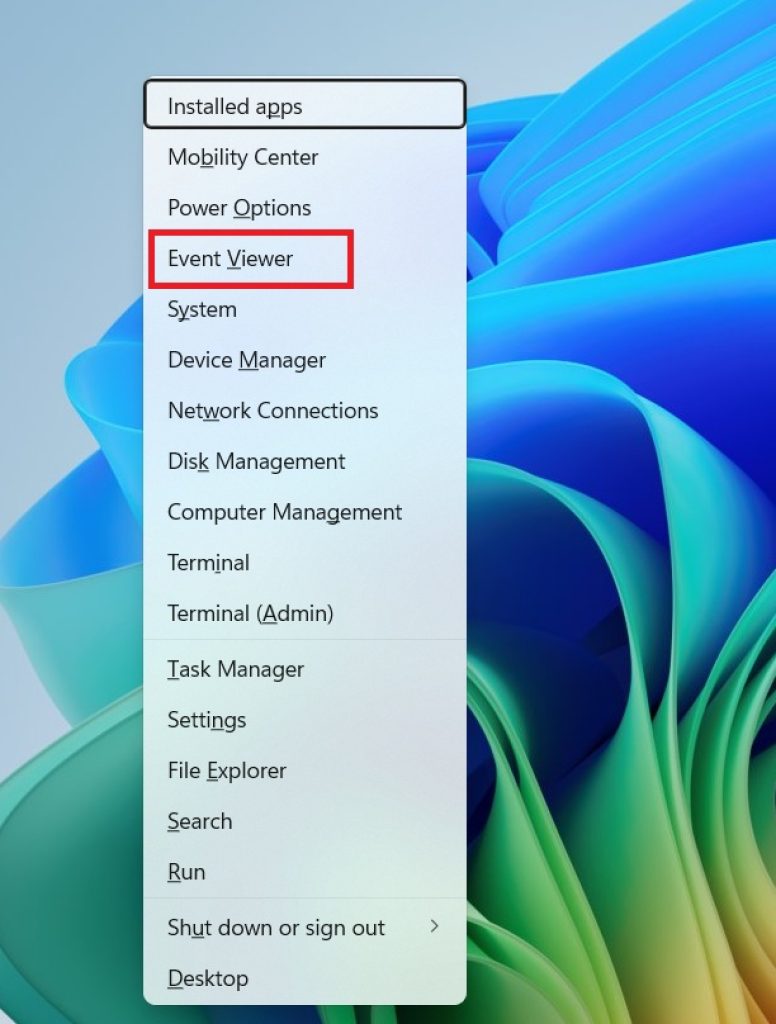
Alternatively, press Windows + R, type:
eventvwr.msc
and press Enter.
Once Event Viewer opens, expand:
Windows Logs > System
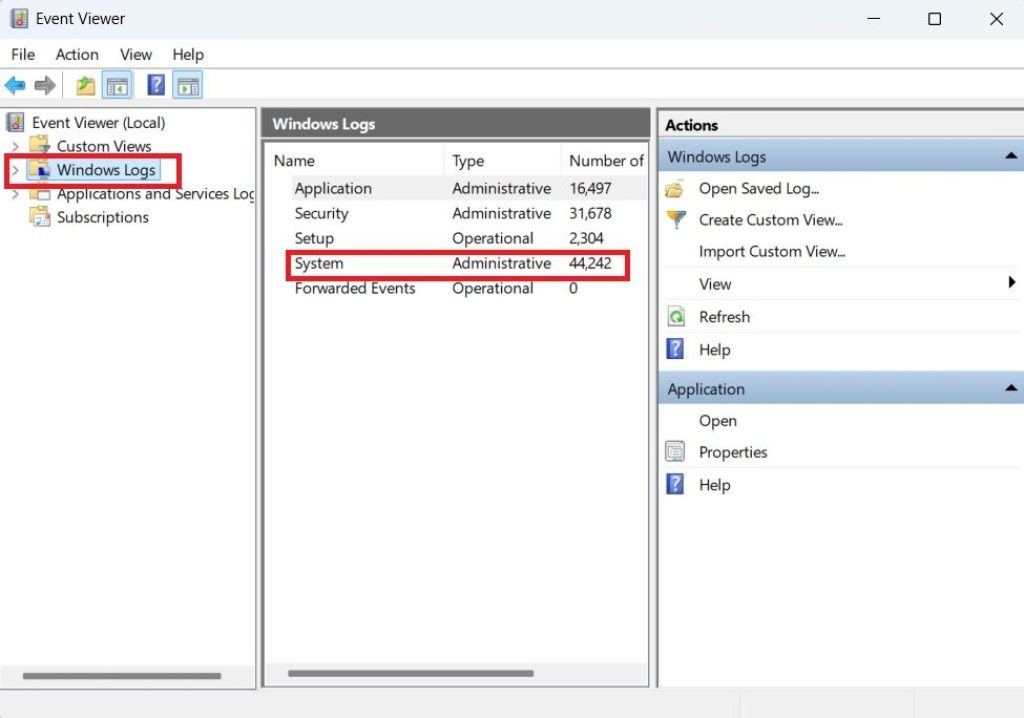
The System log contains a large number of events generated by Windows and installed components.
Look through the events and pay attention to the Date and Time, Source, and Event ID columns.
For shutdown and startup troubleshooting, you are mainly interested in events from sources such as EventLog, User32, and Kernel-Power.
You can identify common events by their IDs:
- 6005 — Event Log service started
- 6006 — Event Log service stopped
- 6008 — Previous shutdown was unexpected
- 1074 — Shutdown or restart initiated
- 41 — Kernel-Power event indicating an unclean previous shutdown
Instead of manually searching through hundreds or thousands of events, you can filter the log.
Right-click System and select Filter Current Log.
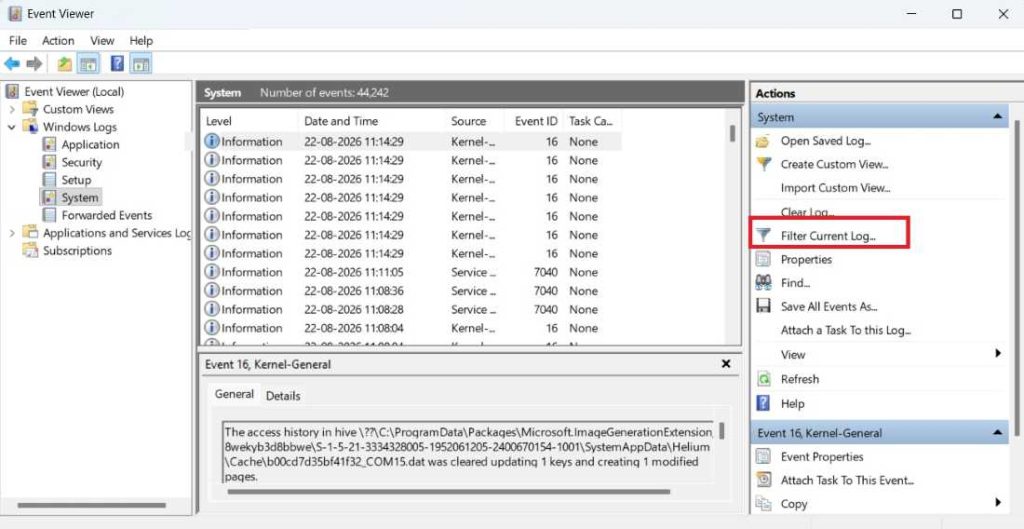
In the Event IDs field, enter:
41,1074,6005,6006,6008
Click OK.
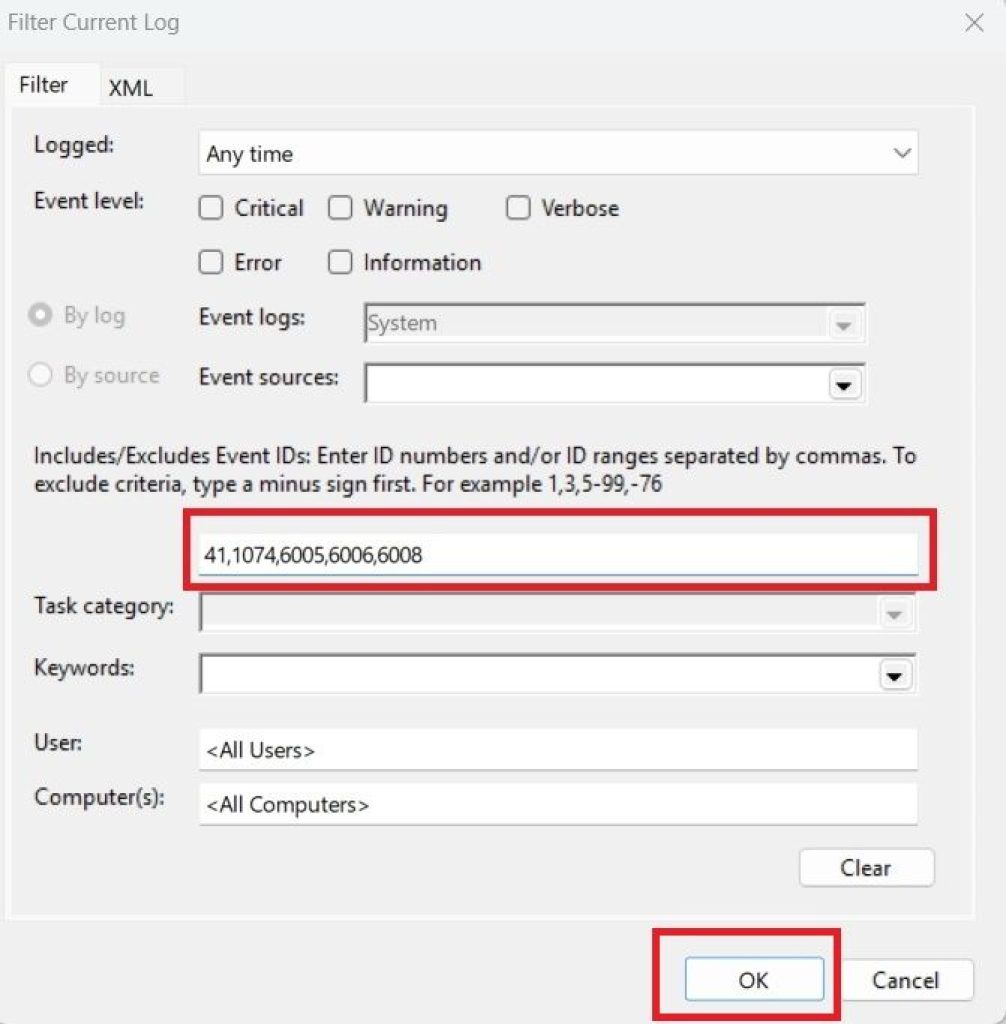
Event Viewer will now display only the events matching the IDs you entered.
This makes it much easier to create a timeline of when the computer started, shut down, restarted, or experienced an unexpected shutdown.
If you select an individual event, the lower section of Event Viewer displays additional information. You can also double-click the event to open its full details.
Method 2: Find the Exact Process That Shut Down or Restarted Windows
If your main goal is to determine who or what initiated a shutdown, Event ID 1074 is particularly useful.
Open Event Viewer and go to:
Windows Logs > System
Then filter the System log for:
1074
You can also open Filter Current Log and enter 1074 in the Event IDs field.
Double-click an Event ID 1074 entry.
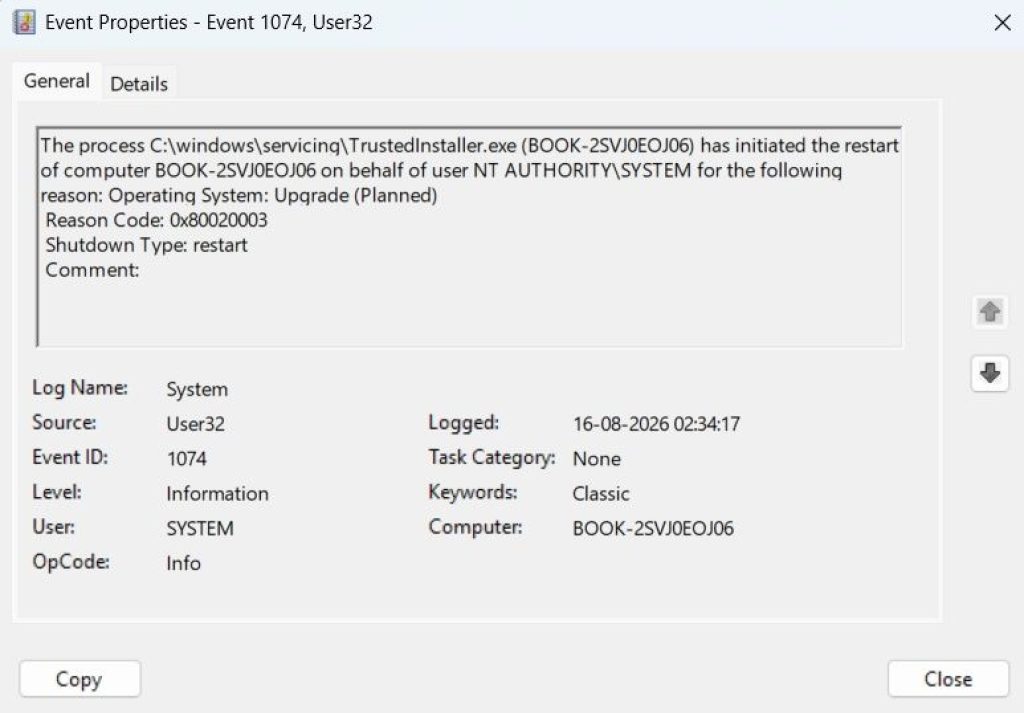
The event details can contain information about the process that initiated the shutdown or restart.
For example, the event may indicate that a Windows process such as svchost.exe initiated the action. It can also provide the user account associated with the request and information about the reason for the shutdown.
This is useful when your computer appears to restart by itself.
For example, suppose Windows restarts after installing an update. An Event ID 1074 event may provide information showing that the shutdown or restart was initiated by a Windows component.
Similarly, if you manually selected Restart from the Start menu, Windows can record the action as a user-initiated shutdown or restart.
The event can therefore help distinguish between a deliberate shutdown request and a situation where the computer suddenly lost power or crashed.
However, Event ID 1074 is not present for every type of shutdown. If power is suddenly removed or the system crashes before Windows can record the shutdown request, you may instead see Event ID 6008 or Event ID 41 after the next startup.
For this reason, it is best to examine multiple events rather than relying on one Event ID.
Method 3: Check Unexpected Shutdowns and Crashes
If your computer randomly turns off or restarts, check for Event ID 6008 and Event ID 41.
Start Event Viewer and open:
Windows Logs > System
Use Filter Current Log and enter:
6008,41
Click OK.
Now examine the events around the time the problem occurred.
An Event ID 6008 means Windows recorded that the previous shutdown was unexpected.
This can happen for several reasons. For example, the computer may have experienced a power interruption, the system may have crashed, someone may have forced the computer to turn off, or Windows may have become unresponsive and required a hard reset.
An Event ID 41 from Kernel-Power is also important.
Event 41 essentially tells you that Windows started again after detecting that the previous shutdown was not clean.
It is important not to interpret Event 41 as “the power supply is definitely faulty.” The event only establishes that Windows did not shut down normally. The actual cause could be power loss, overheating, hardware instability, a driver problem, a system crash, or another issue.
To investigate further, check the events immediately before the Event 41 or 6008 entry.
Look for warnings or errors involving:
- Drivers
- Disk or storage devices
- Hardware
- Windows Update
- BugCheck
- Display drivers
- Thermal or power-related components
- System services
For example, if a driver error appears immediately before the unexpected shutdown, that information may be more useful than Event 41 itself.
If the computer simply loses power without producing any useful event before the shutdown, the problem may require additional hardware and power troubleshooting.
Method 4: Check Startup and Shutdown History With PowerShell
PowerShell provides a faster way to examine shutdown and startup events, especially if you want to search through a large number of records.
Right-click the Start button and select Terminal (Admin) or Windows PowerShell (Admin), depending on your Windows version.
You can use the following command to retrieve common startup and shutdown events:
Get-WinEvent -FilterHashtable @{LogName='System'; Id=41,1074,6005,6006,6008} | Select-Object TimeCreated, Id, ProviderName, Message
Press Enter.
Windows will display the matching events along with their timestamps, event IDs, source, and message.
The TimeCreated column tells you when the event was recorded.
The Id column identifies the event.
The ProviderName column shows the source that generated the event.
The Message column contains additional information about the event.
If you want to see only recent events, you can use a command such as:
Get-WinEvent -FilterHashtable @{LogName='System'; Id=41,1074,6005,6006,6008; StartTime=(Get-Date).AddDays(-7)} | Select-Object TimeCreated, Id, ProviderName, Message
This example checks events from the previous seven days.
PowerShell is particularly useful when you want to quickly compare several shutdowns and startups without manually opening each event in Event Viewer.
For example, if your computer has restarted unexpectedly five times during the last week, PowerShell can provide a compact list of the relevant events and their timestamps.
You can then investigate the specific time periods in Event Viewer for additional errors and warnings.
Method 5: Use Reliability Monitor to Investigate Restarts and Shutdown Problems
Windows also includes Reliability Monitor, which provides a more visual way to investigate system problems.
Reliability Monitor is especially useful when Event Viewer contains too much information and you want a simpler timeline.
Press Windows + R.
Type:
perfmon /rel
Press Enter.
The Reliability Monitor window will open.
You will see a timeline showing the reliability of your Windows installation. Important events such as application failures, Windows failures, hardware problems, updates, and other system events can appear on the timeline.
Look for days showing red X marks or warning icons.
Click a particular day to view the events recorded during that period.
Reliability Monitor can help you identify when Windows experienced a failure or when an application stopped responding.
It is particularly useful when combined with Event Viewer.
For example, if Reliability Monitor shows a critical event at approximately 9:30 PM and Event Viewer shows an Event ID 41 shortly afterward, you can investigate the events around that time in the System log.
Reliability Monitor does not replace Event Viewer, but it provides an easier overview of the computer’s history.
For troubleshooting random shutdowns, a good approach is to first use Reliability Monitor to identify the date and approximate time of the problem and then use Event Viewer to examine the detailed events from that period.
How to Save Shutdown and Startup Logs
If you need to send the information to someone for troubleshooting, you can save events from Event Viewer.
Open:
Event Viewer > Windows Logs > System
Filter the log for the Event IDs you want to investigate.
After filtering the events, right-click the System log and choose Save Filtered Log File As.
Select a location and save the log.
The saved Event Viewer log can then be opened on another Windows computer for further investigation.
You can also use PowerShell to export filtered event information to a text or CSV file if you need to analyze multiple events.
This is particularly useful when troubleshooting a computer that restarts randomly because you can preserve the logs before making major changes to the system.
Best Way to Troubleshoot a Random Shutdown
If your Windows 11 or Windows 10 computer shuts down or restarts randomly, use the following sequence.
First, open Reliability Monitor using:
perfmon /rel
Find the date and approximate time of the failure.
Next, open Event Viewer and go to:
Windows Logs > System
Filter for:
41,1074,6008
Check the events surrounding the exact time of the problem.
If Event 1074 appears, inspect the process and user information.
If Event 6008 appears, Windows recorded an unexpected shutdown.
If Event 41 appears, Windows detected an unclean previous shutdown.
Then examine warnings and errors immediately before these events.
This approach is much more effective than searching for Event 41 and immediately assuming that a particular component is defective.
Frequently Asked Questions
How do I check when Windows 11 last shut down?
Open Event Viewer > Windows Logs > System and filter for Event IDs 6006, 6008, and 1074. Event 6006 commonly indicates a clean shutdown, while Event 6008 indicates that the previous shutdown was unexpected.
Which Event ID shows an unexpected shutdown?
Event ID 6008 indicates that Windows recorded the previous shutdown as unexpected. Event ID 41 (Kernel-Power) also indicates that Windows detected that the previous session did not shut down cleanly. These events do not, by themselves, identify the exact cause.
Which Event ID shows who restarted or shut down the PC?
Event ID 1074 is one of the most useful events for this purpose. Its details can show information about the process, user, and reason associated with the shutdown or restart request.
Can I check shutdown logs without Event Viewer?
Yes. You can use PowerShell and the Get-WinEvent command to retrieve shutdown and startup events. Reliability Monitor is another built-in Windows tool that provides a simpler timeline of system failures and important events.
Conclusion
Windows 11 and Windows 10 provide several built-in tools for checking startup, shutdown, restart, and unexpected system events. Event Viewer is the most detailed option because it provides access to the System log and allows you to filter events using specific Event IDs. For most shutdown troubleshooting, Event IDs 6005, 6006, 6008, 1074, and 41 are the most useful starting points.
If you want to know whether Windows shut down normally, look for Event 6006. If you want to determine whether a user or Windows process requested a shutdown or restart, examine Event 1074. If Windows reports that the previous shutdown was unexpected, check Event 6008 and Event 41. Remember that Event 41 does not automatically mean that your power supply or another specific hardware component is faulty. It simply indicates that Windows detected an unclean shutdown, so the surrounding events are important.
For a simpler overview, Reliability Monitor can help identify the date and approximate time when Windows experienced a critical failure. PowerShell is useful when you want to quickly retrieve a large number of shutdown and startup events.
By combining these tools, you can build a reliable timeline of what happened to your computer and determine whether a shutdown was normal, manually initiated, caused by Windows, or associated with an unexpected system failure. This makes Windows’ built-in logging tools extremely useful when troubleshooting random shutdowns, restarts, crashes, and other system stability problems.





