
 Sukhdev Kamboj
Windows 11 makes it easy to keep your favorite apps within quick reach by pinning them to the Taskbar or Start menu. Instead of searching for an application every time you want to use it, you can place frequently used programs in a convenient location and open them with just a click. At the same time, you can unpin applications that you no longer use to keep the Taskbar and Start menu organized.
The process is slightly different depending on whether you want to pin an app to the Taskbar, pin it to Start, or remove an existing icon. Windows 11 also provides several ways to perform these actions, including using the Start menu, Windows Search, the desktop, File Explorer, and the application’s shortcut menu. Some applications may also provide additional options depending on how they were installed.
In this guide, you will learn how to pin or unpin icons to the Taskbar and Start menu in Windows 11 using several simple methods. You will also learn how to pin apps from Search, remove icons from the Taskbar, manage Start menu pinned apps, and troubleshoot situations where the pinning options are missing.
What Does Pinning an App Mean in Windows 11?
When you pin an app, Windows creates a convenient shortcut to that application in either the Taskbar or the Start menu.
The Taskbar is the horizontal bar normally displayed at the bottom of the Windows desktop. It provides quick access to frequently used applications and system features.
The Start menu is the menu that appears when you click the Start button or press the Windows key. Windows 11 displays pinned applications in the Pinned section of Start.
Pinning an application does not move or duplicate the actual program. It simply creates a shortcut that lets you launch the application more quickly.
For example, if you frequently use Microsoft Edge, File Explorer, Settings, Calculator, or another application, you can pin it to the Taskbar. The icon will remain there even after you close the application.
Similarly, you can pin an application to Start so that it appears in the Pinned section whenever you open the Start menu.
You can also pin the same application to both the Taskbar and Start. These are separate shortcuts, so removing an app from one location does not normally remove it from the other.
Method 1: Pin an App to the Taskbar From the Start Menu
One of the easiest ways to pin an application to the Taskbar is through the Start menu.
Click the Start button on the Taskbar or press the Windows key.
If the application appears in the Pinned section, right-click its icon.
Select:
Pin to taskbar
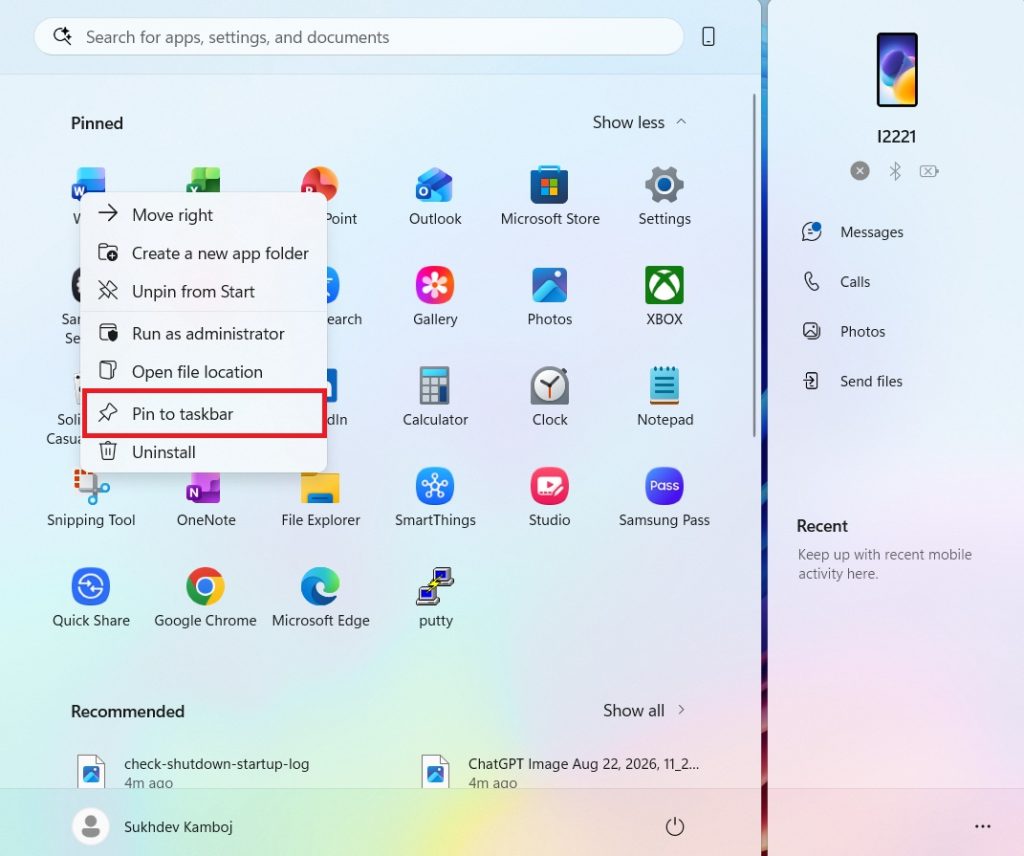
Windows will immediately add the application to the Taskbar.
If you cannot find the application in the Pinned section, click All apps.
Scroll through the list until you find the application you want to pin.
Right-click the application.
Select:
More > Pin to taskbar
Depending on the application and Windows 11 version, the Pin to taskbar option may appear directly in the context menu rather than under More.
Once pinned, the application icon will remain on the Taskbar even when the application is not running.
This is one of the simplest ways to customize your Taskbar because you can add frequently used programs without creating desktop shortcuts.
You can repeat the same process for other applications.
Method 2: Pin an App to Start From the Start Menu
Windows 11 also allows you to pin applications directly to the Start menu.
Click Start.
Select All apps.
Find the application you want to pin.
Right-click the application.
Select:
Pin to Start
The application will be added to the Pinned section of the Start menu.
You can then open Start and locate the application among your pinned apps.
If you have many pinned applications, Windows 11 organizes them across multiple pages. You can use the navigation controls in the Pinned section to move between pages.
Pinning applications to Start is useful when you want quick access to programs without occupying space on the Taskbar.
For example, you might keep only your most frequently used applications on the Taskbar and place less frequently used applications in the Start menu.
Method 3: Pin an App to the Taskbar Using Windows Search
Windows Search provides another quick way to pin applications.
Press:
Windows + S
or click the Search button on the Taskbar.
Type the name of the application you want to pin.
For example, you could search for:
Notepad
Calculator
Paint
Settings
or another installed application.
When the application appears in the search results, right-click it.
Look for:
Pin to taskbar
Select the option.
The application will now appear on your Taskbar.
You may also see an option to Pin to Start, depending on the application and Windows version.
This method can be particularly useful when you have many applications installed and do not want to manually browse through the All apps list.
For example, if you want to pin a program that you rarely use, searching for its name is usually faster than scrolling through the entire application list.
Method 4: Pin a Running App to the Taskbar
Windows 11 provides an especially quick way to pin an application that is already running.
Open the application you want to keep on the Taskbar.
Once it is running, you will see its icon on the Taskbar.
Right-click the application’s icon.
Select:
Pin to taskbar
The application will now remain on the Taskbar after you close it.
This method is useful when you are already using an application and suddenly realize that you want permanent quick access to it.
For example, suppose you open an application from a downloaded shortcut or through Windows Search and decide that you use it often. Instead of searching for it again later, simply right-click its running Taskbar icon and select Pin to taskbar.
The option may show as Pin to taskbar when the application is not already pinned.
If the application is already pinned, you will instead see an option such as Unpin from taskbar.
Method 5: Pin a Desktop Shortcut to the Taskbar
If an application has a shortcut on your desktop, you can also use that shortcut to access pinning options.
Right-click the application’s desktop shortcut.
Depending on the type of shortcut and Windows 11 configuration, you may find:
Show more options
Open it if necessary.
Look for an option related to pinning the application to Start or Taskbar.
Not every type of desktop shortcut provides exactly the same context menu options. For some applications, especially portable programs or custom shortcuts, Windows may not display Pin to taskbar directly.
In such cases, you can use Windows Search or the Start menu instead.
For a standard installed application, the Start menu method is generally more reliable.
Best Way to Organize the Windows 11 Taskbar
A clean Taskbar can make Windows 11 much easier to use.
Instead of pinning every application you have installed, keep only the programs you open frequently.
For example, you might keep:
- Your primary web browser
- File Explorer
- Settings
- Email application
- Office applications
- Media player
- Frequently used work applications
Applications that you use only occasionally can remain in Start.
This reduces clutter and makes the Taskbar easier to navigate.
The same principle applies to the Start menu. Pin the applications you use regularly and remove applications that you rarely open.
Frequently Asked Questions
How do I pin an app to the Taskbar in Windows 11?
Open Start > All apps, right-click the application, and select More > Pin to taskbar, if that option is shown. You can also search for the application using Windows Search, right-click it, and select Pin to taskbar.
How do I pin an app to Start in Windows 11?
Press the Windows key, select All apps, right-click the application, and choose Pin to Start. The application will appear in the Pinned section of the Start menu.
Does unpinning an app uninstall it?
No. Unpin from taskbar and Unpin from Start only remove the shortcut from those locations. The application remains installed and can still be opened through Search, Start, or another shortcut.
Can I pin the same app to both Start and the Taskbar?
Yes. You can pin an application to both locations. They are separate shortcuts, so removing the application from the Taskbar does not normally remove it from Start.
Conclusion
Windows 11 provides several simple ways to pin and unpin applications from the Taskbar and Start menu. You can use the Start menu, Windows Search, or a running application’s Taskbar icon to quickly add programs to the Taskbar. Similarly, applications can be added to the Start menu through the Pin to Start option.
Removing an application is equally straightforward. Right-click the icon and select Unpin from taskbar or Unpin from Start. Remember that unpinning an application does not uninstall it. It only removes its shortcut from the selected location.
For the best Windows 11 experience, keep the Taskbar reserved for applications you use frequently and use the Start menu for less frequently used programs. You can also rearrange pinned applications to place the most important tools where they are easiest to access.
If the Pin to taskbar or Pin to Start option is missing, try accessing the application through Start > All apps or Windows Search. For Taskbar-related problems, restarting Windows Explorer can also restore normal functionality.
With these built-in options, you can easily customize Windows 11 so that your most important applications are always available exactly where you need them.





