
 Geeksdigit Team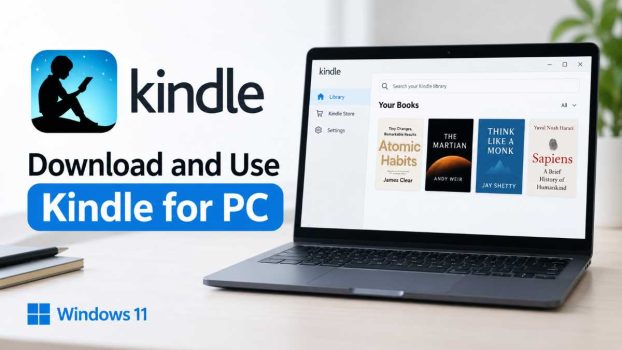
For millions of readers, the Kindle app has become the easiest way to carry an entire library without carrying a single physical book. While Amazon originally built a dedicated “Kindle for PC” application back in 2009, that legacy app has since been retired — Amazon officially discontinued support for it on June 30, 2026. In its place, Amazon now offers a modern Kindle app for desktop (Windows and Mac), along with the browser-based Kindle Cloud Reader / Kindle for Web, which requires no installation at all.
This guide walks through everything you need to know: how to download the current Kindle app on a Windows PC, alternative ways to read Kindle books on a computer, how to set it up and start reading, and answers to the questions people ask most often. Whether you’re switching from a physical Kindle device, reading eBooks purchased on Amazon, or just want a distraction-free reading window while you work, this guide will get you up and running in a few minutes.
A quick note before we start: if you’ve used Kindle for PC before and now find it won’t open or update, that’s expected — the legacy version is no longer supported, and you’ll need to install the current Kindle app described below.
Methods to Download and Use Kindle on a PC
There are three practical ways to read your Kindle books on a Windows computer today. Which one is best depends on your operating system, whether you can install software, and how you like to read.
Method 1: Download the Official Kindle App from Amazon (Recommended)
This is the most fully featured option and the one most people mean when they say “Kindle for PC.”
Steps:
- Open your web browser and go to Amazon’s official Kindle apps page: 👉 https://www.amazon.com/b?ie=UTF8&node=16571048011 (Free Kindle Reading Apps for PC, Mac, iOS, and Android)
- Click Download for PC & Mac, and confirm you’re downloading the Windows version.
- Once the installer (a
.exefile) finishes downloading, open your Downloads folder and double-click it. - If Windows shows a security prompt asking whether to allow the app to make changes, click Yes.
- Follow the on-screen setup wizard — accept the license terms and choose an install location (the default is fine for most people).
- When installation finishes, launch the Kindle app and sign in with your Amazon account credentials.
- Your purchased books, along with anything in your Kindle library, will appear automatically. Double-click any title to download it and start reading.
System requirement to note: the current Kindle desktop app is built for Windows 11. If you’re on an older version of Windows, the app may not install correctly, and you should use Method 3 (Kindle Cloud Reader) instead.
Method 2: Install Kindle via the Microsoft Store
If you’d rather avoid running a standalone .exe installer — or your PC is in S Mode, which restricts installations to Microsoft Store apps only — this method works well.
Steps:
- Open the Microsoft Store app on your PC (or go to the listing directly at https://apps.microsoft.com/detail/9p8jq0jjstll).
- Search for “Amazon Kindle” if you opened the Store app directly.
- Click Get or Install.
- Once installed, open the app from your Start menu and sign in with your Amazon account.
- Your library will sync automatically, and you can begin downloading and reading books.
This route is especially useful for locked-down work laptops, since it doesn’t require administrator permission to run an external installer, and it satisfies S Mode’s requirement that all apps come from the Microsoft Store.
Method 3: Use Kindle Cloud Reader (No Installation Needed)
If you can’t install any software at all — for example, on a restricted work computer, a public computer, a Chromebook, or a PC in S Mode where you don’t want to switch modes — Kindle Cloud Reader lets you read directly in your browser.
Steps:
- Go to https://read.amazon.com in any modern browser (Chrome, Edge, Firefox, or Safari).
- Sign in with your Amazon account.
- Your Kindle library loads automatically in the browser.
- Click any book cover to start reading — no download required.
- For offline access within the browser, Kindle Cloud Reader can cache recently opened books, though this is more limited than the full desktop app.
This method is the fastest way to get reading and works on virtually any device with a browser, but it lacks some features of the full app, such as more advanced formatting controls and full offline libraries.
Setting Up S Mode Devices
If your PC is running in Windows S Mode, you can only install apps from the Microsoft Store, which means Method 1’s direct .exe download won’t work. You have two choices:
- Use Method 2 (Microsoft Store) — no mode change required.
- Or switch out of S Mode entirely via Settings > System > Activation, then use Method 1. Note that switching out of S Mode is a one-way change.
To check which mode you’re on, go to Settings > System > Activation and look for “S Mode” in the list.
Troubleshooting Common Setup Issues
A few hiccups come up often enough to be worth covering directly:
- Blank library after signing in: Confirm your PC’s date and time are correct, then try Tools > Sync, or sign out and back in. Restarting the app — and your router if you’re on a VPN — often resolves this too.
- Installer blocked by Windows: Go to Settings > Apps > Advanced app settings, set “Choose where to get apps” to Anywhere, then run the installer again, right-clicking it and selecting Run as administrator.
- IT-restricted work computers: If your company’s IT policy blocks installers outright, Kindle Cloud Reader (Method 3) sidesteps the issue completely since nothing gets installed.
Using Kindle for PC Once Installed
After installation and sign-in, using the app is straightforward:
- Browsing your library: All purchased and previously downloaded titles appear on the home screen, organized by recent activity by default.
- Downloading books: Titles in your Amazon library that haven’t been downloaded to this device yet show a small download icon — click the cover to fetch them.
- Reading view: Use the Aa menu to adjust font, text size, line spacing, margins, and background color (including a night mode for low-light reading).
- Highlights and notes: Select text to highlight it or add a note; all annotations sync to your Amazon account and appear on other Kindle devices too, via Whispersync.
- Word lookup: Double-click or select any word while reading to see its dictionary definition instantly.
- Syncing progress: Whispersync keeps your furthest-read page in sync across the Kindle app, a physical Kindle device, and your phone, so you can put down a book on your PC and pick it up later on your Kindle e-reader without losing your place.
Conclusion
While the original “Kindle for PC” application has been retired, reading Kindle books on a Windows computer is still simple — often simpler than before. For most people, downloading the official Kindle app from Amazon’s apps page is the best route, giving you the fullest set of features including offline downloads, highlighting, and cross-device syncing. If your device is restricted to Microsoft Store installs, or you’re in S Mode, the Microsoft Store version covers the same ground without needing to change any system settings. And if you just need to read something right now without installing anything, Kindle Cloud Reader in your browser gets you there in seconds.
Whichever method you choose, signing into your existing Amazon account brings your entire library along automatically, so switching between your phone, e-reader, and PC is seamless. Pick the option that matches your setup, and you’ll be reading within minutes.
FAQ
1. Is the Kindle app for PC free? Yes. The app itself is completely free to download and use. You only pay for the books, magazines, or subscriptions (like Kindle Unlimited) you choose to purchase — many titles in the Kindle Store are also free.
2. Can I read EPUB or non-Amazon eBooks in the Kindle app? Not natively. The Kindle app is built around Amazon’s own formats (primarily AZW and Kindle-format eBooks purchased through Amazon). EPUB files aren’t supported directly; if you need to read EPUBs on your PC, a tool like Calibre or Adobe Digital Editions is a better fit.
3. Can I use Kindle for PC without an internet connection? Yes, once a book has been downloaded to your computer, you can read it fully offline. You’ll need an internet connection again only to sign in, sync your library, or download new titles.
4. What happened to the old Kindle for PC app, and do I need to reinstall anything? Amazon retired the legacy Kindle for PC app on June 30, 2026. If you were using that version, it will no longer receive updates or support, so you’ll want to uninstall it and install the current Kindle app (via Method 1 or 2 above) to keep reading, downloading new purchases, and syncing progress across your devices.
Official download links:
- Kindle apps (all platforms): https://www.amazon.com/b?ie=UTF8&node=16571048011
- Kindle app on Microsoft Store: https://apps.microsoft.com/detail/9p8jq0jjstll
- Kindle Cloud Reader (browser, no install): https://read.amazon.com





