Geeksdigit Team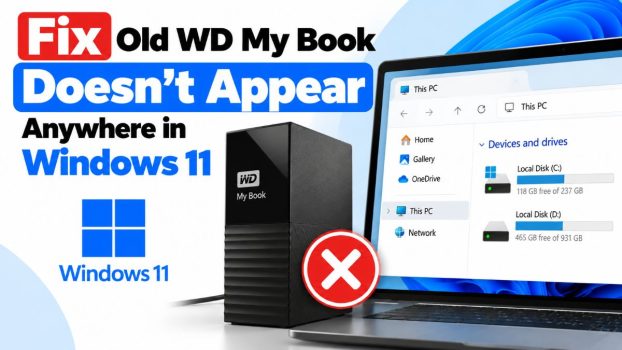
You plug in your old WD My Book, the front light glows, the platters spin up, and then nothing happens. The drive doesn’t show in File Explorer, Disk Management, or even Device Manager. If you have years of photos, documents, or backups on it, that silence is stressful.
This problem is common with older My Book drives on Windows 11. The causes range from trivial to serious: a worn cable, a failing power adapter, an aggressive USB power-saving setting, a corrupted driver, or a dead USB-to-SATA bridge board inside the enclosure. In rarer cases, the hard drive itself has failed mechanically.

The good news is that most of these problems are fixable, and your data is usually intact. The methods below run from the quickest checks to the more advanced repairs, so you can stop as soon as the drive reappears.
One rule matters more than any other: do not format, initialize, or reset the drive if Windows offers to, until you’ve tried to recover your data. Those prompts feel routine, but they can overwrite the structures that let recovery tools find your files.
Method 1: Check the power adapter, cable, and port
Desktop My Book models draw more power than a USB port can supply, so they rely on an external adapter. After several years, these adapters and the small DC connector on the drive are among the most common points of failure.
- Confirm the power adapter is firmly seated at both the wall and the drive. Try a different outlet, and skip power strips or surge protectors for now.
- Watch the LED. A steady light suggests power is arriving. A blinking, dim, or absent light points to the adapter or the enclosure’s power circuit.
- Listen for the drive spinning up. If you hear nothing, the adapter is the prime suspect.
- Swap the USB cable for a different one you know works. Old cables develop internal breaks, especially near the connectors.
- Use a port directly on the back of your PC rather than a hub, dock, or front-panel port, which often deliver less stable power and signal.
- Try a USB 2.0 port if you have one. Some older enclosures negotiate poorly with modern USB 3.x controllers, and a slower port can make the difference.
- If you have a spare adapter with the same voltage and amperage (check the label on the drive and the adapter; 12V is common), test with that. Never use an adapter with a different voltage.
Method 2: Test the drive on another computer
Before changing any Windows settings, find out whether the problem is your PC or the drive. Connect the My Book to a different Windows computer, or to a Mac or Linux machine if you have one.
- If it appears elsewhere: the drive is probably healthy, and the problem lies in your Windows configuration. Methods 3 to 6 should help.
- If it doesn’t appear anywhere: the fault is likely in the drive, its enclosure, or its power supply. Skip to Methods 7 and 8.
This single test saves a lot of wasted effort, so don’t skip it.
Method 3: Look in Disk Management
Windows sometimes detects a drive but doesn’t show it in File Explorer, because the volume is offline, has no drive letter, or lacks a recognizable file system.
- Right-click the Start button and choose Disk Management.
- Scan the list, including the bottom pane, for a disk that matches the My Book’s capacity.
- Act according to what you see:
- Offline: right-click the disk label on the left and choose Online.
- Healthy but no drive letter: right-click the partition, choose Change Drive Letter and Paths, click Add, and pick an unused letter.
- Not Initialized: do not initialize if your files matter. Go to Method 8 first.
- Unallocated: the partition table may be damaged or lost. Use recovery software before creating a new volume.
- RAW: the file system is unreadable. Again, recover data before formatting.
If the drive doesn’t appear in Disk Management at all, even after choosing Action > Rescan Disks, Windows isn’t seeing it as a storage device, so continue to Method 4.
Method 4: Update or reinstall USB drivers in Device Manager
A corrupted or mismatched driver can stop Windows from mounting the drive, especially after a major update.
- Right-click Start and open Device Manager.
- Expand Disk drives, Universal Serial Bus controllers, Portable Devices, and Other devices.
- Look for an entry named WD My Book, WD SES Device, USB Mass Storage Device, or an “Unknown device” with a yellow warning triangle.
- Right-click the entry, choose Update driver, then Search automatically for drivers.
- If that fails, right-click and choose Uninstall device, unplug the drive, restart the PC, and reconnect it. Windows will reinstall the driver on its own.
- Click View > Show hidden devices and remove any greyed-out entries related to old My Book or USB Mass Storage devices. These ghost entries can occasionally conflict with a new detection.
For the WD SES Device specifically, right-click it and choose Update driver > Browse my computer for drivers > Let me pick from a list, then select a compatible generic driver if one is offered. You can also download WD Drive Utilities or WD Discovery from Western Digital’s support site. Depending on the model, these tools provide drivers and let you check the drive’s status.
Method 5: Disable USB selective suspend and Fast Startup
Windows 11 aggressively saves power by cutting electricity to idle USB devices. Older drives sometimes fail to wake properly, which makes them seem to vanish.
- Open Control Panel > Power Options and click Change plan settings next to your active plan.
- Click Change advanced power settings.
- Expand USB settings > USB selective suspend setting and set both On battery and Plugged in to Disabled. Click OK.
- Back in Power Options, click Choose what the power buttons do, then Change settings that are currently unavailable, and uncheck Turn on fast startup. Save your changes.
- Restart the PC and reconnect the drive.
You can go a step further in Device Manager. Expand Universal Serial Bus controllers, double-click each USB Root Hub entry, open the Power Management tab, and uncheck Allow the computer to turn off this device to save power.
Fast Startup deserves a mention because it saves a partial hibernation state rather than fully shutting down. This can leave USB controllers in a bad state, and a true restart (not shutdown and power on) clears it.
Method 6: Run the troubleshooter and update Windows
Built-in tools won’t fix a dead drive, but they can repair configuration problems you can’t easily see.
- Press Win + R, type
msdt.exe -id DeviceDiagnostic, and press Enter. On some Windows 11 builds this tool has been removed. If so, go to Settings > System > Troubleshoot > Other troubleshooters and run the relevant device troubleshooter. - Follow the prompts and let Windows apply any suggested fixes.
- Open Settings > Windows Update and install everything pending, including optional driver updates.
- Visit your PC or motherboard manufacturer’s website and install the latest chipset and USB controller drivers. Outdated chipset drivers are a frequent cause of older USB devices misbehaving on newer systems.
Restart afterward and test the drive again.
Method 7: Check the bridge board or remove the drive from the enclosure
If the drive isn’t detected on any computer, the fault is often not the hard drive but the small USB-to-SATA bridge board that connects it to your PC. If the LED lights and you can hear the drive spin, yet no computer sees anything, this is a strong sign.
To test the drive itself:
- Unplug the My Book completely.
- Carefully open the enclosure. Many models are held by plastic clips and need a thin pry tool. Take photos as you go so you can reassemble it.
- Slide out the internal 3.5-inch (or 2.5-inch) SATA drive.
- Connect it to a PC using a SATA-to-USB adapter or dock, or directly to a spare SATA port and power connector inside a desktop.
- If the drive appears, copy your data off immediately.
Important caveat: many My Book models use hardware encryption tied to the enclosure’s bridge board, even if you never set a password. On those models, the data on the bare drive may be unreadable without the original board or one from an identical model. If the drive is detected but its contents look empty or unreadable, don’t format it. Look for a matching replacement board (same model number and firmware revision) or consult Western Digital’s recovery options. Opening the enclosure may also void any remaining warranty, though for an old drive this is usually a minor concern.
Method 8: Recover the data, then repair or replace
If the drive shows up in Disk Management as RAW, unallocated, or uninitialized, the hardware is probably working and the file system has been damaged. Your priority is to copy the data before making any repairs.
- Install data recovery software such as TestDisk (free), Recuva, Disk Drill, or EaseUS Data Recovery. Install it on your main drive, never on the affected one.
- Scan the My Book and save recovered files to a different drive with enough free space.
- Verify the recovered files open correctly before continuing.
- Only then repair or reset the drive. To fix file system errors, open Command Prompt as administrator and run
chkdsk X: /f, replacing X with the drive letter. Alternatively, initialize and format the drive in Disk Management for a fresh start.
If the drive clicks, grinds, beeps, or repeatedly spins up and down, or if it isn’t detected even when removed from the enclosure and connected directly, stop powering it on. Repeated attempts can cause further damage to the platters and heads. A professional data recovery service is then the safest choice. It can be expensive, so weigh the cost against the value of the data.
Conclusion
When an old WD My Book doesn’t appear anywhere in Windows 11, work from the simple to the complex. Start with the power adapter, cable, and port, since these account for a large share of cases. Then test the drive on another computer to determine whether the problem is Windows or the hardware. If it’s Windows, check Disk Management, reinstall the USB drivers, and turn off USB selective suspend and Fast Startup. If the drive is invisible everywhere, suspect the bridge board or the disk itself, and focus on getting your data out before you format or reinitialize anything.
Above all, treat the drive as fragile. Older My Book units are well past their most reliable years, and a drive that has just come back to life may not do so again. As soon as you regain access, copy your files to at least two other locations, such as a newer external drive and a cloud backup service, so a single failure never puts your data at risk again.
FAQ
1. Why does my WD My Book light up but not show in Windows 11?
A lit LED only tells you the enclosure is receiving power. It doesn’t mean the drive is communicating with your PC. The cause could be a faulty data cable, a bad USB port, a missing or corrupted driver, a volume that is offline or missing a drive letter, or a failed bridge board. Check Disk Management and Device Manager first to see whether Windows detects the device at all, then test it on another computer to narrow things down.
2. Is it safe to initialize or format the drive when Windows asks me to?
Not if you want to keep the data. Initializing writes a new partition table, and formatting builds a new file system, either of which can make recovery harder or impossible. Cancel the prompt, run recovery software to copy your files to a different disk, and only then initialize or format the drive if you plan to keep using it.
3. Can I remove the drive from the My Book enclosure and use it directly?
Often, but not always. Many My Book models encrypt data through the enclosure’s controller board, so the bare drive can be unreadable without the original board or an identical replacement. Look up your exact model before opening the case. Also be aware that opening the enclosure may void any warranty, and that a drive removed from its enclosure needs a SATA-to-USB adapter or a spare SATA port to connect.
4. How do I know if the drive itself is dead?
Warning signs include repeated clicking or grinding, the drive spinning up and down in a loop, and no detection on multiple computers, even when connected through a different adapter or directly to a SATA port. If you see these signs, stop powering it on, because each attempt can worsen the damage. For important data, contact a professional recovery service rather than experimenting further.