Geeksdigit Team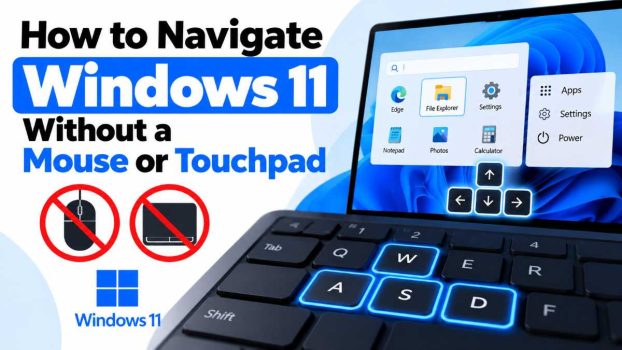
A dead battery, a spilled coffee, a driver that stops responding, or a touchpad that freezes mid-task can leave you staring at a screen you can’t control. For others, the keyboard is the preferred tool: power users, writers, and programmers often skip the mouse because it slows them down. And for people with motor impairments, repetitive strain injuries, or limited vision, keyboard navigation is a necessity.
Windows was built with keyboard access in mind. Almost everything you can do with a pointer can be done with keys, and some tasks are faster that way. This guide covers the essential methods, from basic movement between buttons to controlling the pointer with the number pad and voice commands. Once you know a handful of shortcuts, a missing mouse becomes a minor inconvenience.

The shortcuts below work on both Windows 10 and Windows 11 unless noted.
Method 1: Master the Core Navigation Keys
Before any fancy shortcuts, learn the small set of keys that move focus around the screen. Focus is the element Windows currently considers “selected,” usually shown by a dotted line or highlighted border.
- Tab moves focus forward to the next button, link, field, or option.
- Shift + Tab moves focus backward.
- Arrow keys move between items in a list, menu, grid of icons, or group of radio buttons.
- Enter activates the focused item, like a left click.
- Spacebar toggles checkboxes and presses focused buttons.
- Esc cancels a dialog, closes a menu, or backs out of the current action.
Most dialog boxes work well with just these keys. In a “Save changes?” prompt, for example, Tab cycles through Save, Don’t Save, and Cancel, and Enter confirms your choice. Many buttons also have an underlined letter (such as the S in Save). Press Alt + that letter to trigger the button directly.
Method 2: Use the Start Menu and Search
The Windows key is your gateway. Press it and the Start menu opens. On both Windows 10 and 11, you can start typing immediately, and Windows searches for apps, files, settings, and web results.
The fastest way to open nearly anything is:
- Press the Windows key.
- Type the name of the app or setting (“notepad,” “bluetooth,” “display”).
- Press Enter to open the top result, or use the Down arrow to select a different one.
You can also press Windows + S to open Search directly, or Windows + R to open the Run dialog. In Run, you can type commands like control (Control Panel), notepad, cmd, or ms-settings: (Settings) and press Enter.
This one habit of Windows key, type, Enter replaces most mouse trips to the Start menu, desktop icons, and folders.
Method 3: Switch Between Open Windows and Apps
Once you have several programs open, you need quick ways to move between them.
- Alt + Tab opens the app switcher. Hold Alt, tap Tab to cycle forward, and release to select. Add Shift to cycle backward.
- Windows + Tab opens Task View, which shows all open windows and virtual desktops. Use the arrow keys to select and Enter to open.
- Alt + Esc cycles through windows in the order they were opened, without showing a visual switcher.
- Windows + D shows or hides the desktop.
- Windows + M minimizes all windows. Windows + Shift + M restores them.
- Windows + number (1-9) opens or switches to the app pinned at that position on the taskbar. Windows + 1 is the first icon, Windows + 2 the second, and so on.
The Windows + number shortcut is worth memorizing. If your browser is the first taskbar icon, Windows + 1 always brings it to the front.
Method 4: Reach the Taskbar and System Tray
Sometimes you need to interact with the taskbar itself, such as jumping to a specific window or checking the clock.
- Press Windows + T to move focus to the taskbar. Use the arrow keys to move between icons and press Enter to open one. Press Shift + F10 on a focused icon to see its jump list or options.
- Press Windows + B to move focus to the notification area (system tray), where you’ll find Wi-Fi, volume, battery, and hidden icons. Use the arrows to move and Enter to open.
- On Windows 11, press Windows + A for Quick Settings (Wi-Fi, Bluetooth, brightness, volume) and Windows + N for the notification center and calendar.
- On Windows 10, Windows + A opens the Action Center.
Quick Settings is especially useful when your touchpad is the problem, since you can toggle Wi-Fi or Bluetooth (for connecting a spare wireless mouse) entirely from the keyboard.
Method 5: Manage and Arrange Windows
Windows includes shortcuts to resize, move, snap, and close windows without dragging anything.
- Windows + Up arrow maximizes the active window.
- Windows + Down arrow restores it, and pressing again minimizes it.
- Windows + Left / Right arrow snaps the window to the left or right half of the screen.
- Windows + Shift + Left / Right arrow moves a window to another monitor.
- Windows + Z (Windows 11) opens Snap Layouts, where you pick a layout with the number or arrow keys.
- Alt + F4 closes the active window or app. On the desktop with nothing selected, it opens the shutdown dialog.
- Alt + Space opens the window’s system menu, where you can choose Move, Size, Minimize, Maximize, or Close using the arrow keys and Enter. After choosing Move or Size, use the arrow keys to adjust and Enter to confirm.
For closing documents and tabs within an app, Ctrl + W or Ctrl + F4 usually closes the current tab or document without closing the whole program.
Method 6: Navigate File Explorer
File management is a common mouse-heavy task, but File Explorer has extensive keyboard support.
- Windows + E opens File Explorer.
- Ctrl + L or Alt + D focuses the address bar. Type a path like
C:\Users\Documentsand press Enter. - Ctrl + E or Ctrl + F jumps to the search box.
- Tab and Shift + Tab cycle between the navigation pane, file list, and address bar. Use the arrows to move within each.
- Alt + Left / Right arrow moves back and forward through your history. Alt + Up arrow goes up one folder.
- Enter opens the selected file or folder.
- F2 renames the selected item.
- Delete sends it to the Recycle Bin. Shift + Delete deletes permanently after confirmation.
- Ctrl + C, Ctrl + X, Ctrl + V copy, cut, and paste.
- Ctrl + Shift + N creates a new folder.
- Ctrl + A selects all. To select multiple items, hold Shift and press arrows for a range, or hold Ctrl while moving with arrows and press Spacebar to toggle individual items.
- Alt + Enter opens Properties.
Typing the first letters of a file name in the file list also jumps to the matching item, which is often the quickest way through a long folder.
Method 7: Open Menus and Right-Click Without a Mouse
Right-clicking is the action people miss most. There are a few keyboard equivalents:
- Shift + F10 opens the context menu (right-click menu) for the selected item.
- The Menu key, if your keyboard has one (usually between the right Alt and Ctrl keys), does the same thing.
- Alt or F10 activates the menu bar in classic apps such as Notepad, Word, and File Explorer’s legacy menus. Letters underlined in the menu names then open them directly, for example Alt + F for File.
Once a menu is open, use the arrow keys to move, Enter to select, and Esc to close. Many menu items also show their own shortcut on the right side, which is a good way to learn more over time.
Other system-level shortcuts that help when things go wrong:
- Windows + X opens the Power User menu, with quick links to Device Manager, Disk Management, Settings, Terminal, and shutdown options.
- Windows + I opens Settings.
- Ctrl + Shift + Esc opens Task Manager directly. This is the best tool for closing a frozen app.
- Ctrl + Alt + Delete opens the security screen with options to lock, sign out, or open Task Manager.
Method 8: Turn On Mouse Keys
If you need a pointer, for example in an app that only responds to clicks, Windows has a built-in feature called Mouse Keys that lets the number pad control the cursor.
To enable it with the keyboard:
- Press Left Alt + Left Shift + Num Lock.
- A dialog asks if you want to turn on Mouse Keys. Press Enter (or Tab to Yes and press Enter).
To enable it through Settings:
- Press Windows + I.
- Go to Accessibility > Mouse (Windows 11) or Ease of Access > Mouse (Windows 10).
- Use Tab and arrow keys to reach the Mouse keys toggle and press Spacebar.
With Num Lock on, the number pad works like this:
- 8, 2, 4, 6 move the pointer up, down, left, and right.
- 7, 9, 1, 3 move it diagonally.
- 5 clicks. Press / first to set left-click mode, – for right-click mode, and ***** for both.
- 0 holds the button down (for dragging), and . releases it.
- + double-clicks.
In the Mouse Keys settings, you can adjust pointer speed and acceleration, and hold Ctrl to jump in larger steps or Shift for finer movement. It takes some practice, but it’s a dependable fallback. If your keyboard has no number pad, Mouse Keys can be awkward, so consider one of the alternatives below.
Method 9: Use Voice Access and Other Assistive Tools
Modern Windows offers more ways to control the system beyond the keyboard.
- Voice Access (Windows 11 version 22H2 and later) lets you control the PC by voice. Turn it on in Settings > Accessibility > Speech. You can say things like “Open Chrome,” “Click Save,” or “Scroll down.” Saying “Show numbers” overlays a number on every clickable element so you can say “Click 12.” Saying “Show grid” divides the screen into sections for precise pointing.
- Narrator (Windows + Ctrl + Enter) reads the screen aloud and provides its own keyboard navigation model, which is helpful for users with low vision.
- On-Screen Keyboard (Windows + Ctrl + O) is useful if your physical keyboard also fails. It can be operated by a touchscreen, an alternative input device, or hover-to-type options.
- Touchscreens and styluses, where available, provide direct pointing without any mouse.
If you regularly rely on one of these tools, spend a few minutes in the Accessibility settings to tune it for your needs.
Method 10: Navigate Your Web Browser by Keyboard
Since so much time is spent in browsers, these shortcuts apply to Chrome, Edge, and Firefox alike:
- Ctrl + L or F6 focuses the address bar.
- Ctrl + T opens a new tab. Ctrl + W closes the current one.
- Ctrl + Tab and Ctrl + Shift + Tab cycle through tabs. Ctrl + 1-8 jumps to a specific tab, and Ctrl + 9 to the last.
- Ctrl + F searches the current page.
- Tab and Shift + Tab move between links, buttons, and form fields. Enter follows a link.
- Spacebar and Shift + Spacebar scroll down and up a page. Page Up, Page Down, Home, and End also work.
- Alt + Left / Right arrow goes back and forward.
- F7 toggles Caret Browsing in Chrome, Edge, and Firefox, letting you move a text cursor through the page with arrow keys.
Conclusion
Navigating Windows without a mouse or touchpad is very achievable. You don’t need to memorize every shortcut. Start with the fundamentals: Tab, arrow keys, Enter, and Esc for moving around, the Windows key plus typing for launching things, and Alt + Tab for switching. Add Shift + F10 for right-clicks, Ctrl + Shift + Esc for emergencies, and Mouse Keys or Voice Access as a backup when you truly need a pointer.
Then pick up more shortcuts as you go. Many people find that after a week of practice, the keyboard becomes faster than the mouse for everyday tasks. Whether your mouse is broken, you’re recovering from strain, or you simply want to work more efficiently, these skills are worth having.
Frequently Asked Questions
1. What should I do first if my touchpad suddenly stops working?
First, check whether it was accidentally disabled. Many laptops have a function key (often F5, F6, F7, or F9, marked with a touchpad icon) that toggles it, sometimes needing to be pressed with Fn. Next, press Windows + I to open Settings, go to Bluetooth & devices > Touchpad (Windows 11) or Devices > Touchpad (Windows 10), and make sure it’s turned on. If it still doesn’t respond, restart the PC using Windows + X, then U, then R. If the problem persists, update or reinstall the touchpad driver through Device Manager (Windows + X, then M).
2. How do I right-click with only the keyboard?
Select the item with Tab or the arrow keys, then press Shift + F10. If your keyboard has a Menu key (the one with a small menu icon, near the right Ctrl), that works too. Use the arrow keys to move through the menu and Enter to select an option.
3. Can I move the mouse pointer using the keyboard?
Yes. Enable Mouse Keys by pressing Left Alt + Left Shift + Num Lock and confirming the prompt. You can then move the pointer with the number pad (8, 2, 4, 6 for directions) and click with 5. If your laptop has no number pad, some models offer an embedded one (with Fn and Num Lock), or you can use Voice Access to say “Show numbers” or “Show grid” to click specific things.
4. How can I shut down or restart Windows without a mouse?
There are several ways. Press Windows + X, then U, and then U to shut down, R to restart, or S to sleep. Alternatively, press Alt + F4 while on the desktop to open the shutdown dialog, choose an option with the arrow keys, and press Enter. You can also press Ctrl + Alt + Delete, then Tab to the power icon in the lower-right corner and press Enter to choose an option.