
 Olivia Harper
Most Windows 11 users are used to removing software the familiar way: opening Settings > Apps > Installed Apps, finding the program, and clicking Uninstall. That works fine most of the time, but it isn’t always the best — or even the only — option. Sometimes an app refuses to show up in the Settings list. Sometimes the uninstaller freezes halfway through. Sometimes you’re managing a remote machine over SSH or a script and there’s no desktop to click on at all. In situations like these, Command Prompt becomes a genuinely useful tool rather than just a novelty for tech enthusiasts.
Uninstalling a program from Command Prompt gives you a few real advantages. It’s faster if you already know the exact name of the software you want removed, since you skip several menus. It’s scriptable, meaning you can automate the removal of software across multiple machines using batch files, which is especially handy for IT administrators managing a fleet of computers. It also works well as a troubleshooting method when the standard GUI-based uninstaller has become unresponsive or when leftover files and registry entries need a more thorough cleanup than the graphical tool provides.
That said, Command Prompt isn’t inherently “better” than the Settings app for everyday use — it’s a different tool suited to different situations. Windows 11 doesn’t include one single native command purpose-built for uninstalling any arbitrary program. Instead, there are a few different approaches depending on how the software was installed and what tools are available on your system. The two most reliable methods today are using the WMIC utility (a legacy but still functional command-line interface to Windows Management Instrumentation) and using winget, Microsoft’s official package manager, which now ships with Windows 11 by default and can be run directly from Command Prompt.
This guide walks through both methods step by step, explains when to use each one, and answers some of the most common questions people run into when trying to remove software this way. By the end, you’ll be comfortable uninstalling programs from the command line whether you’re clearing out a single stubborn app or managing several machines at once.
A quick note before diving in: always make sure you know exactly what you’re removing. Command line uninstalls don’t always show the same confirmation prompts or warnings that graphical uninstallers do, so double-check the program name before you hit enter. It’s also a good idea to create a system restore point beforehand if you’re uninstalling something you’re unsure about, just in case you need to roll back.
Method: Uninstalling Programs via Command Prompt
Step 1: Open Command Prompt as Administrator
Uninstalling software requires administrative privileges, so you need to launch Command Prompt with elevated rights. There are a few ways to do this in Windows 11:
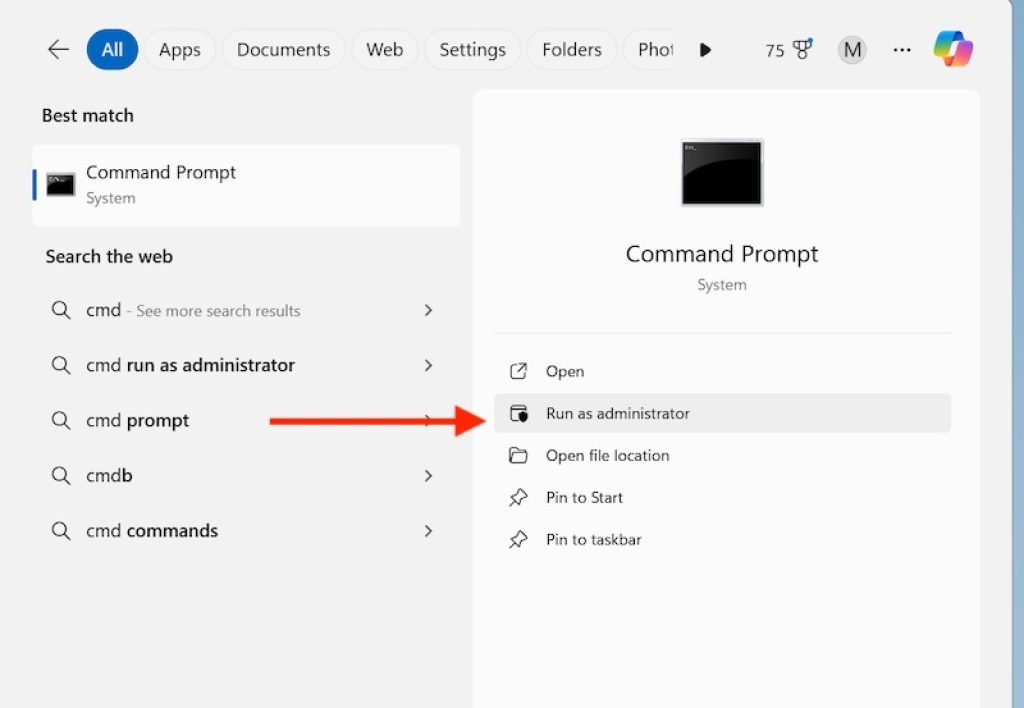
Click the Start button, type cmd, then right-click Command Prompt in the results and select Run as administrator.
Press Windows key + X and choose Terminal (Admin) or Command Prompt (Admin) from the Quick Link menu, depending on your default terminal setting.
Press Windows key + R, type cmd, and press Ctrl + Shift + Enter to launch it elevated.
You’ll see a User Account Control (UAC) prompt asking for permission — click Yes to continue. If you skip this step and try to uninstall from a non-elevated prompt, most commands will either fail silently or return an “Access Denied” style error.
Step 2: List Installed Programs
Before you can uninstall something, you need the exact name Windows has registered for it. There are two main ways to get this list, corresponding to the two uninstall methods covered below.
Using WMIC:
wmic product get nameThis returns a list of installed applications, though it’s worth noting that WMIC’s “product” class only reliably lists software installed via Windows Installer (MSI) packages. Programs installed through other means — including many modern apps — may not appear here at all. WMIC has also been marked as deprecated by Microsoft, and on some newer Windows 11 builds it may need to be manually re-enabled as an optional feature, or it may simply not be present.
Using winget:
winget list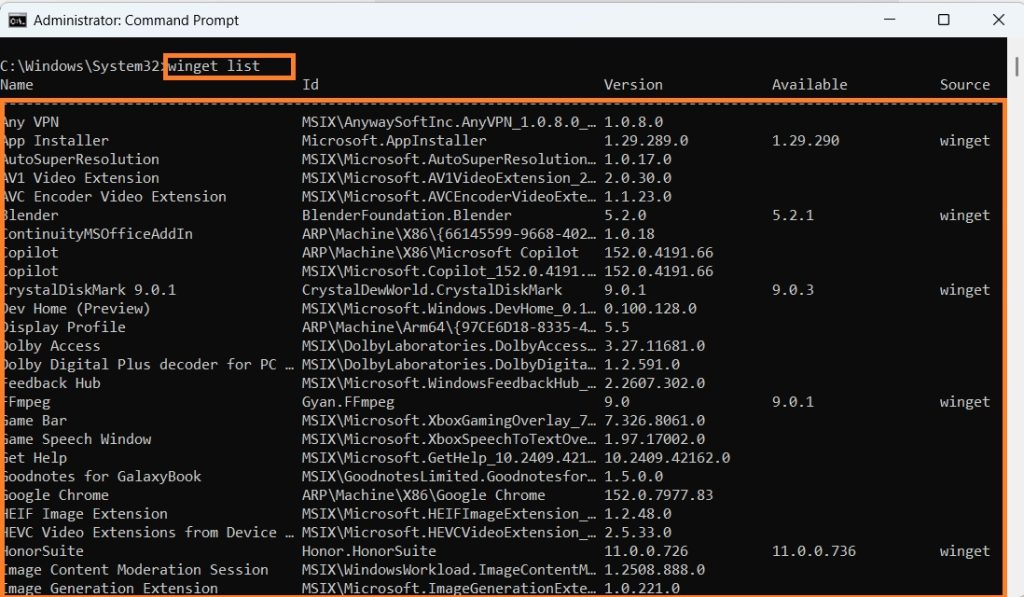
This is the more modern and generally more reliable approach, since winget can see a much broader range of installed software, including many Microsoft Store apps and programs installed through traditional installers. The output includes a Name, Id, Version, and often a Source column. The Id is what you’ll typically use in the uninstall command, since names can contain spaces or special characters that are easy to mistype.
Step 3: Uninstall Using WMIC (Legacy Method)
If your version of the program appears in the WMIC list, you can remove it with:
wmic product where name="Program Name" call uninstallReplace Program Name with the exact name as it appeared in Step 2, keeping the quotation marks in place. You’ll be asked to confirm with Y or N before it proceeds. Once confirmed, WMIC will attempt to run the program’s uninstaller silently in the background.
Two caveats are worth knowing here. First, WMIC’s product uninstall can be noticeably slow, sometimes taking several minutes even for small programs, because it re-evaluates the entire Windows Installer database as part of the process. Second, because Microsoft has deprecated WMIC in favor of PowerShell’s CIM cmdlets and winget, it’s not guaranteed to be available or supported in future Windows updates. It still works on most Windows 11 systems as of now, but it shouldn’t be treated as a long-term solution for scripts you plan to maintain for years.
Step 4: Uninstall Using Winget (Recommended Method)
Winget is Microsoft’s actively maintained package manager, and it’s generally the better choice going forward. To uninstall a program:
winget uninstall "Program Name"Or, using the Id from your winget list output, which avoids ambiguity if multiple programs have similar names:
winget uninstall --id ProgramIdWinget will run the program’s native uninstaller, and for many packages it can do so silently without requiring you to click through additional prompts. If a program has an interactive uninstaller that winget can’t bypass, a window may still pop up asking you to confirm — this depends on how the individual package was configured by its publisher.
If you get a result that seems to match multiple programs, winget will list them and ask you to narrow your search using the --id flag instead of the plain name.
Step 5: Verify the Uninstallation
After running either command, it’s good practice to confirm the removal actually worked. Run the list command again:
winget listor
wmic product get nameand check that the program no longer appears. If you want to be extra thorough, you can also check Settings > Apps > Installed Apps to confirm it’s gone from there as well, and optionally look in C:\Program Files or C:\Program Files (x86) to make sure no leftover folder remains. Uninstallers don’t always clean up every file, especially user-generated data like settings or saved documents, so a small residual folder isn’t unusual or necessarily a problem.
Conclusion
Command Prompt gives you a genuinely useful alternative to the standard graphical uninstaller in Windows 11, particularly when a program won’t remove cleanly through Settings, when you’re troubleshooting a stuck installation, or when you need to automate software removal across multiple machines. WMIC still works for many MSI-based programs today, but it’s a legacy tool on borrowed time, so it makes sense to lean on it mainly as a fallback. Winget, on the other hand, is actively developed by Microsoft, supports a much wider range of software, and is the method most likely to keep working smoothly as Windows continues to evolve.
Whichever method you choose, the core process is the same: open an elevated Command Prompt, list your installed programs to get the exact name or ID, run the appropriate uninstall command, and verify the result afterward. Once you’ve done it a couple of times, it becomes just as quick — if not quicker — than digging through the Settings app, and it gives you a repeatable process you can turn into a script if you ever need to do it again on another machine.
FAQ
1. Why doesn’t a program I know is installed show up when I run wmic product get name or winget list?
WMIC’s product list only reliably shows software installed via Windows Installer (.msi) packages, so anything installed through a standalone .exe installer, a portable app, or certain Microsoft Store apps may not appear at all. Winget has broader coverage but still isn’t perfectly comprehensive — some apps, particularly older or niche software, may not be registered as a recognized “package” in its database. In these cases, you may need to use the program’s own built-in uninstaller (often found in its installation folder) or remove it via Settings instead.
2. Is it safe to use WMIC if Microsoft has deprecated it?
For now, yes — WMIC still functions on most Windows 11 installations, and using it to uninstall a program isn’t inherently risky as long as you target the correct program name. The deprecation means Microsoft is no longer actively developing WMIC and recommends moving to PowerShell’s CIM cmdlets or winget instead, and on some newer or heavily trimmed Windows 11 builds, WMIC may not be installed by default and would need to be added back as an optional feature. It’s fine to use today, but it’s worth getting comfortable with winget as the longer-term replacement.
3. Can I uninstall multiple programs at once using Command Prompt?
Not directly with a single built-in command, but you can achieve this by writing a simple batch script. For example, you could create a .bat file containing several winget uninstall --id ProgramId lines, one per program, and run it with administrative privileges to remove them all in sequence. This is particularly useful for IT administrators setting up or cleaning multiple machines, since the same script can be reused across different computers.
4. What should I do if a program won’t uninstall through Command Prompt at all?
If both WMIC and winget fail to remove a stubborn program, a few fallback options exist. You can try running the Windows Program Install and Uninstall troubleshooter, which Microsoft provides specifically for fixing broken or incomplete uninstalls. You can also look for the program’s own uninstaller executable, often named something like uninstall.exe or unins000.exe, inside its installation folder in C:\Program Files or C:\Program Files (x86), and run that directly. As a last resort, third-party uninstaller utilities can forcibly remove leftover registry entries and files, though these should be used carefully, ideally after backing up your registry or creating a system restore point.





