
 Olivia Harper
Windows 11 is designed for users around the world, which means it supports hundreds of display and input languages. Whether you want to use Windows in your native language, add a second language for work or studies, or remove languages you no longer need, Windows 11 makes the process simple. Installing a language pack changes the Windows interface to the selected language, while adding a keyboard layout lets you type in different languages without changing the display language.
For multilingual users, students, travelers, and professionals, language support is one of Windows 11’s most useful features. You can install multiple languages, switch between them whenever needed, download handwriting or speech recognition features, and uninstall unnecessary language packs to free up storage.
In this guide, you’ll learn the easiest ways to install and uninstall languages in Windows 11. Each method includes clear, step-by-step instructions so you can quickly customize your PC according to your preferences.
What Are Language Packs in Windows 11?
A language pack is a collection of files that translates Windows menus, settings, apps, and other interface elements into another language. Besides changing the display language, Windows 11 also allows you to install additional language features such as:
- Keyboard layouts
- Speech recognition
- Text-to-speech
- Handwriting recognition
- Regional formatting
You can install as many supported languages as you need and switch between them whenever required.
Method 1: Install a New Language in Windows 11
The easiest way to add a new language is through the Settings app.
Steps
Press Windows + I to open Settings.
Select Time & language from the left pane.
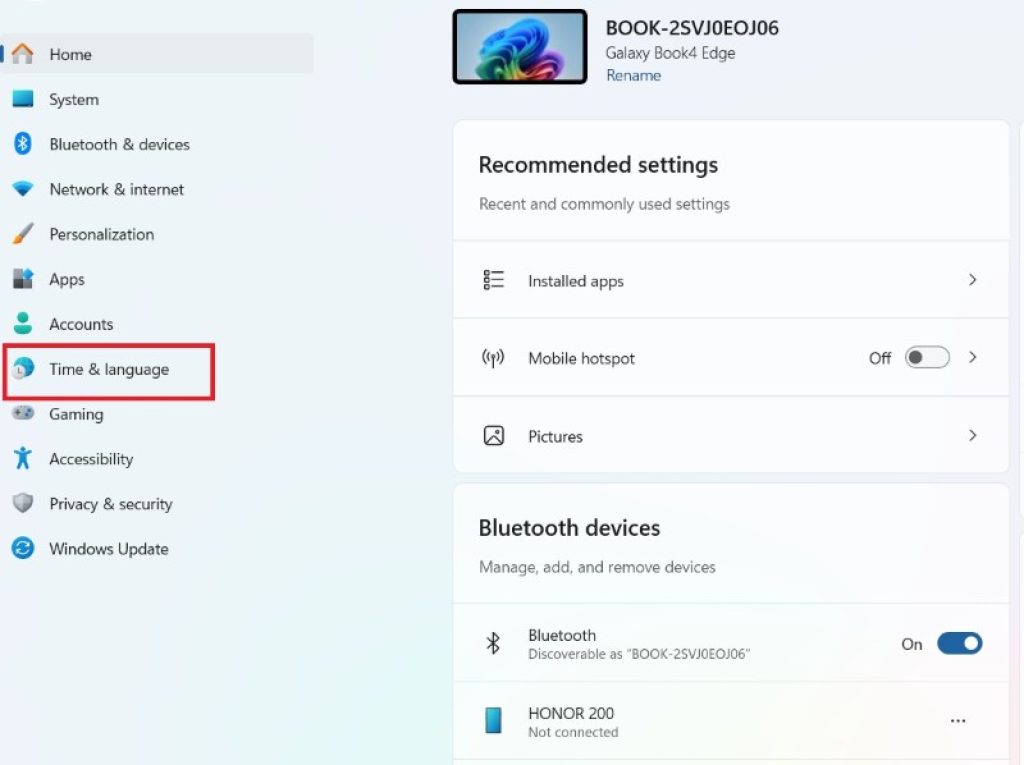
Click Language & region.
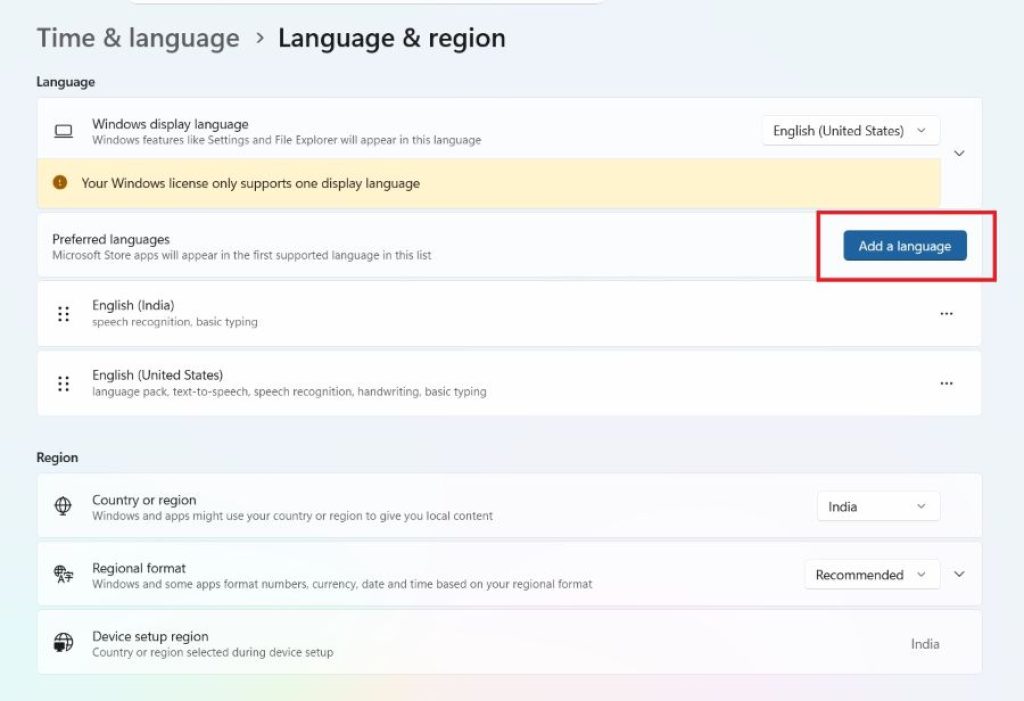
Under Preferred languages, click Add a language.
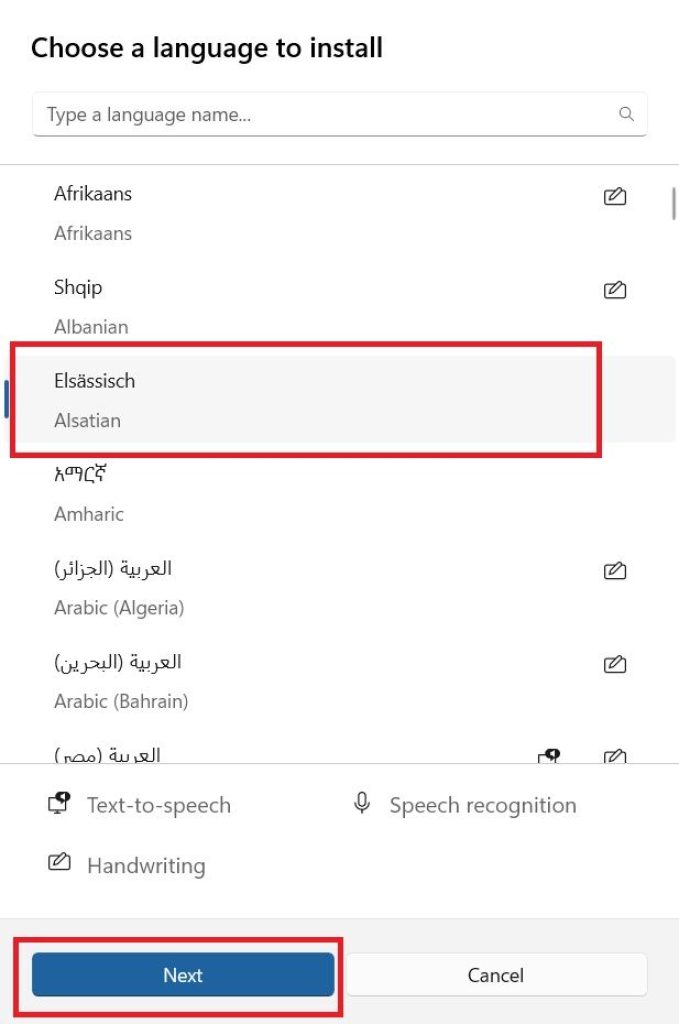
Search for the language you want to install.
Select the language from the list.
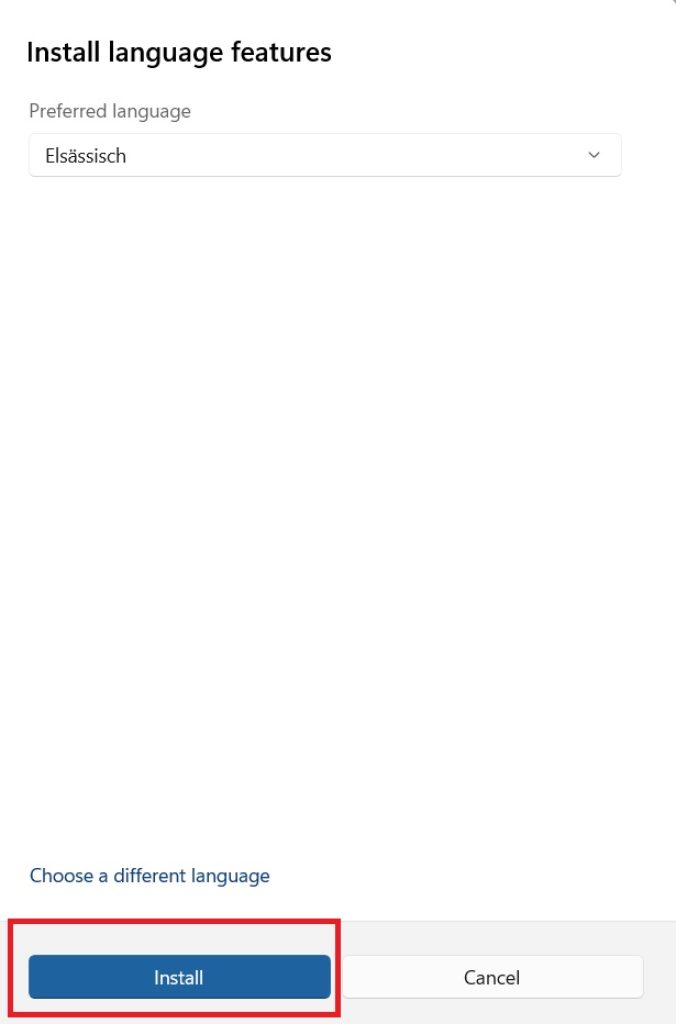
Click Next.
Choose the language features you want to install.
Click Install.
Windows will begin downloading the language pack. Depending on the language and your internet connection, the installation may take a few minutes.
If you selected the display language option, Windows may ask you to sign out and sign back in before the new language becomes active.
Method 2: Change the Windows Display Language
If you already have multiple languages installed, switching between them only takes a few clicks.
Steps
- Open Settings.
- Navigate to Time & language > Language & region.
- Locate Windows display language.
- Click the drop-down menu.
- Select your preferred language.
- Sign out and sign back in if prompted.
Once you log back into Windows, menus, File Explorer, Settings, and most built-in apps will appear in the selected language.
Keep in mind that some third-party applications may continue using their own language settings.
Method 3: Install or Remove Optional Language Features
Each language can include additional components such as handwriting recognition, speech support, or text-to-speech. If you don’t need these features, you can remove them individually without uninstalling the entire language.
Steps
- Open Settings.
- Go to Time & language > Language & region.
- Under Preferred languages, click the three-dot menu beside the language.
- Choose Language options.
- Under Language features, you’ll see installed and available features.
- Click Download beside features you want to install.
- To remove optional features, click Uninstall if available.
Downloading only the features you actually use helps reduce storage usage while keeping the language installed.
Method 4: Uninstall a Language in Windows 11
If you no longer use a language, removing it helps keep your system organized and may free up disk space.
Steps
- Press Windows + I.
- Open Time & language.
- Select Language & region.
- Find the language you want to remove.
- Click the three-dot menu next to it.
- Select Remove.
- Confirm the removal if prompted.
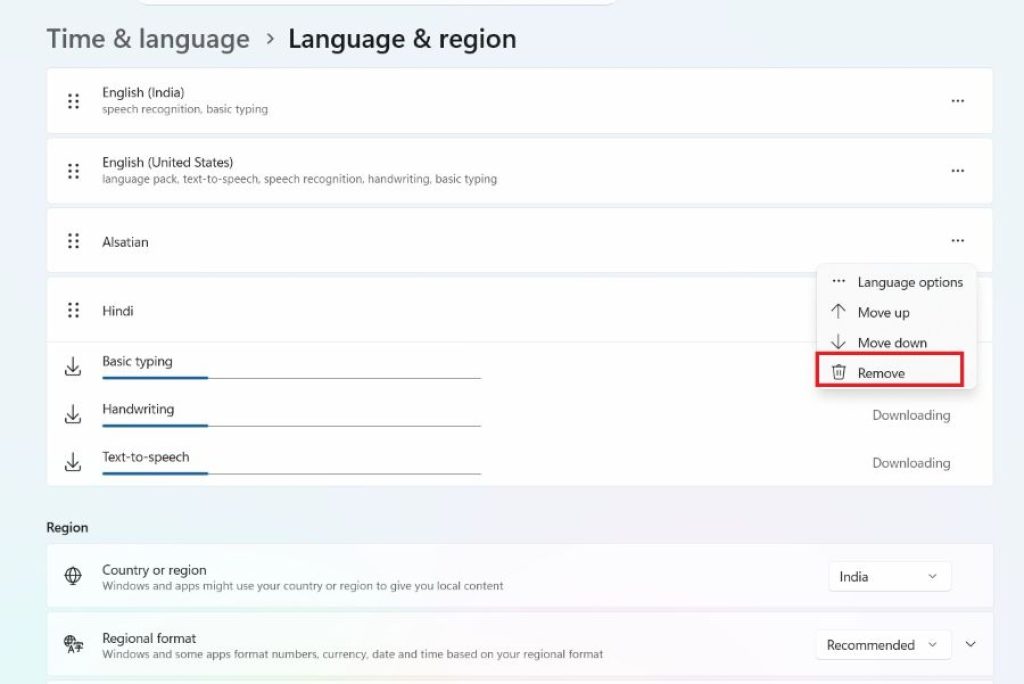
Windows will uninstall the language pack along with its associated keyboard layouts and optional language features.
Important: You cannot remove the language currently being used as your Windows display language. If you want to remove it, first switch to another installed display language.
Frequently Asked Questions
1. Can I install more than one language in Windows 11?
Yes. Windows 11 supports multiple display and input languages. You can install several languages and switch between them whenever needed.
2. Does changing the display language affect my files?
No. Changing the display language only changes the Windows interface. Your personal files, documents, and applications remain unchanged.
3. Why can’t I remove a language?
You cannot remove the language currently set as your Windows display language. Change the display language to another installed language first, then remove the unwanted one.
4. Do language packs require an internet connection?
Yes. Most language packs and optional language features are downloaded from Microsoft servers, so an internet connection is required during installation.
Conclusion
Windows 11 makes it easy to install, switch, and remove languages, allowing users to customize their PCs for work, education, or personal use. Whether you’re adding a new display language, installing an additional keyboard layout, or removing language packs you no longer need, the built-in Language & Region settings provide everything you need without requiring third-party software.
Keeping only the languages and features you actively use can help simplify your Windows experience while reducing unnecessary storage usage. If you frequently work in multiple languages, Windows 11 lets you switch between them quickly, making it an excellent choice for multilingual users. By following the methods in this guide, you can easily manage language packs and ensure your Windows installation matches your preferences.





