Sukhdev Kamboj
If you’ve recently worked on a document, spreadsheet, presentation, image, or any other file but can’t remember where it’s saved, Windows makes it easy to find it again. Both Windows 11 and Windows 10 keep track of recently opened files, allowing you to quickly access your most recent work without searching through multiple folders.
The Recently Opened Files feature is especially useful if you frequently switch between projects, work with files stored in different locations, or accidentally close a document without noting its folder. Windows offers several ways to view recent files, including File Explorer, the Start menu, Recent Items folder, Jump Lists, and Windows Search.

In this guide, we’ll explore five simple methods to view recently opened files in Windows 11 and Windows 10.
Why View Recently Opened Files?
Recently opened files help you quickly return to documents you’ve worked on without remembering their exact location.
Some common reasons to use this feature include:
- Reopen documents you’ve recently edited.
- Find files saved in unknown folders.
- Continue unfinished work.
- Access frequently used files faster.
- Recover files after accidentally closing them.
Using the Recent Files list can save time and improve productivity.
Method 1: View Recent Files in File Explorer
File Explorer provides one of the easiest ways to access recently opened files.
Steps
Press Windows + E to open File Explorer.
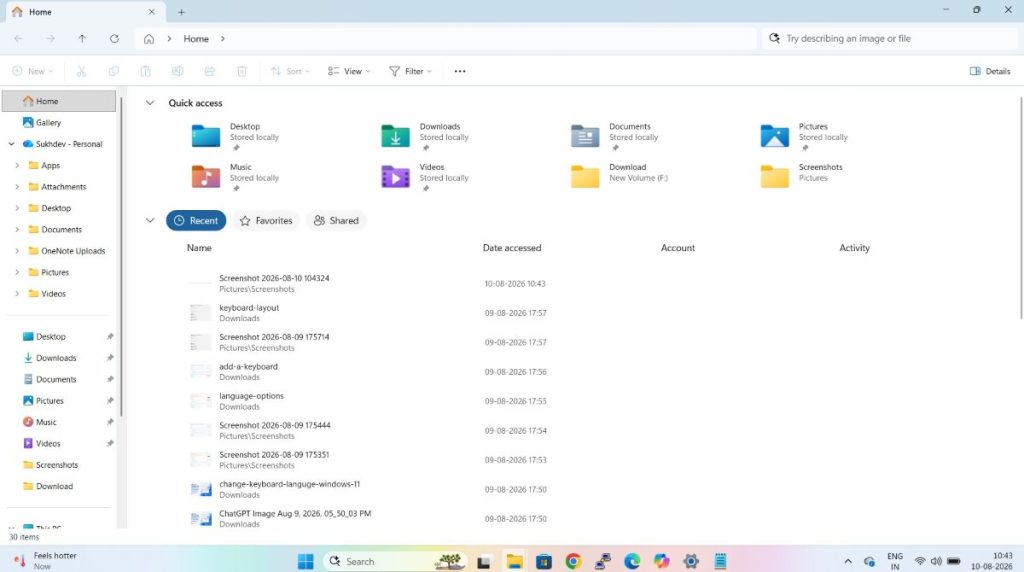
Click Home in the left navigation pane.
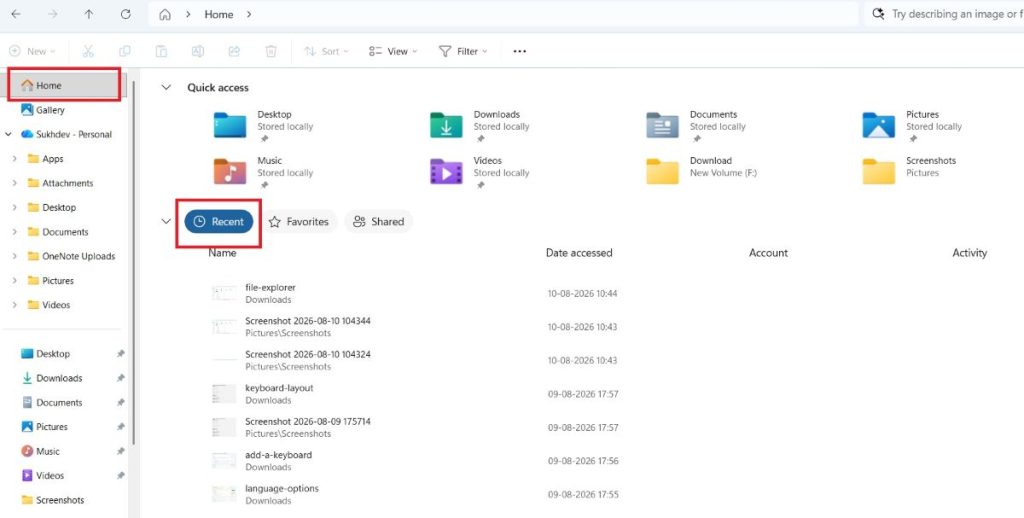
Under the Recent section, you’ll see files you’ve recently opened.
Double-click any file to open it.
Right-click a file for additional options such as opening its location or removing it from the list.
The Recent section updates automatically as you open new files.
Method 2: Open the Recent Items Folder
Windows stores shortcuts to recently opened files in a dedicated folder called Recent Items.
Steps
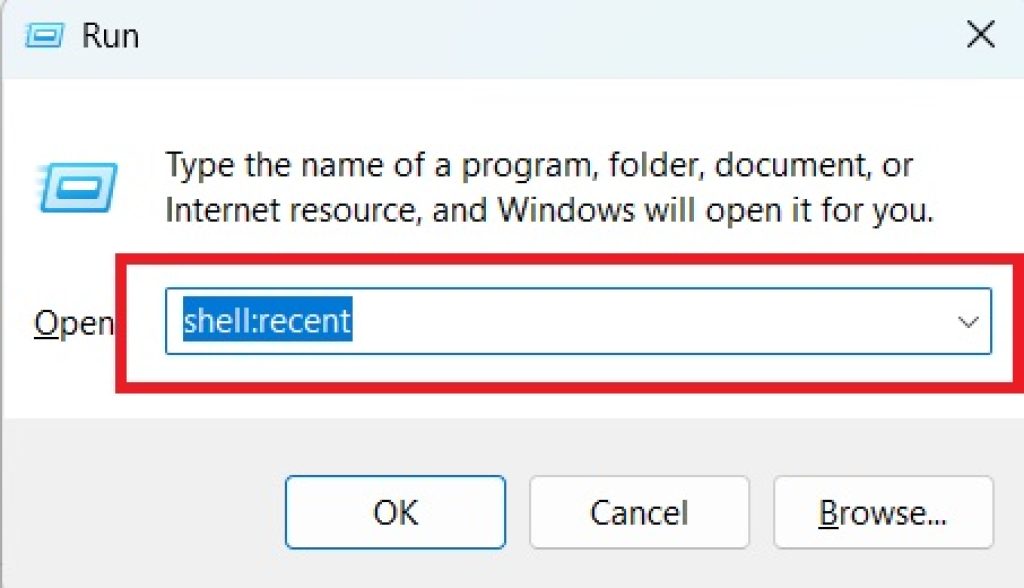
- Press Windows + R to open the Run dialog box.
- Type the following command:
shell:recent- Press Enter.
- The Recent Items folder opens.
- Browse the list of recently accessed files and folders.
- Double-click any item to open it.
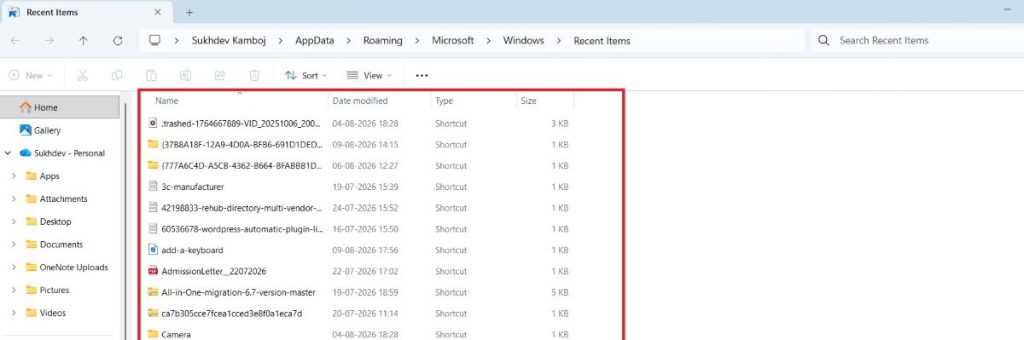
You can also sort the folder by Date modified to see the newest items first.
Method 3: View Recent Files from the Start Menu
Many applications display recently opened files directly in the Start menu.
Steps
- Click the Start button.
- Locate an application you’ve recently used, such as Microsoft Word or Notepad.
- Right-click the application.
- Review the Recent or Jump List section.
- Click a file to reopen it.
If you frequently use specific documents, you can also pin them to the Jump List for quicker access.
Method 4: Use Windows Search
Windows Search can help you locate recently modified files even if you don’t remember their names.
Steps
- Press Windows + S.
- Type part of the file name if you remember it.
- If you don’t know the name, search using a file type such as:
.docx.xlsx.pdf.jpg
- Click Documents or Files from the search filters if available.
- Sort the results by Date modified to view the most recently accessed files.
This method is particularly useful when you know the type of file but not its location.
Method 5: Check Recent Files Within Applications
Many applications maintain their own list of recently opened files.
Steps
- Open the application you used, such as Microsoft Word, Excel, PowerPoint, Paint, or Adobe Reader.
- Click File.
- Select Open.
- Choose Recent or Recent Documents.
- Click the file you want to reopen.
This list is maintained independently by each application and may contain more entries than Windows itself.
How to Enable Recent Files If They’re Missing
If the Recent Files section isn’t appearing, it may be disabled in File Explorer settings.
Steps
- Open File Explorer.
- Click the three-dot menu and choose Options (or open Folder Options from the Control Panel).
- Under the General tab, locate the Privacy section.
- Check the following options:
- Show recently used files in Home
- Show frequently used folders in Home
- Click Apply.
- Click OK.
After enabling these settings, Windows will begin displaying recently opened files again.
Tips for Managing Recent Files
Here are a few ways to make the most of the Recent Files feature:
- Pin frequently used files in application Jump Lists.
- Use descriptive file names to make searching easier.
- Organize documents into dedicated folders.
- Regularly back up important files.
- Clear the Recent Files history if you’re using a shared computer.
These practices help you stay organized while protecting your privacy when needed.
Frequently Asked Questions
Where are recently opened files stored in Windows?
Windows stores shortcuts to recently opened items in the Recent Items folder, which you can access by entering shell:recent in the Run dialog.
Can I clear the Recent Files history?
Yes. You can clear the history through File Explorer Options by clicking Clear in the Privacy section.
Why don’t I see recent files in File Explorer?
The feature may be disabled. Enable Show recently used files in Home from File Explorer Options to restore it.
Does Windows track recently opened folders too?
Yes. Windows can display both recently used files and frequently accessed folders, depending on your File Explorer settings.
Conclusion
Windows 11 and Windows 10 offer several convenient ways to access recently opened files, making it easy to resume your work without remembering where each document is stored. Whether you use File Explorer’s Home page, the Recent Items folder, the Start menu’s Jump Lists, Windows Search, or the recent file list within an application, these tools can save you time and reduce frustration.
If the Recent Files list isn’t visible, enabling it in File Explorer settings usually restores the feature. By learning these methods and keeping your files organized, you can quickly locate and reopen important documents whenever you need them.