
 Sukhdev Kamboj
A working microphone is essential for voice searches, online meetings, video calls, voice typing, and websites that use voice input. If your microphone isn’t working in Microsoft Edge, you may find that websites can’t detect your voice, the browser asks for microphone permission repeatedly, or your voice sounds muted during calls. This issue can occur on both Windows 11 and Windows 10 and may affect built-in laptop microphones as well as external USB or Bluetooth microphones.
In most cases, the problem isn’t caused by the microphone itself. Incorrect browser permissions, disabled Windows privacy settings, the wrong input device being selected, outdated audio drivers, or browser extensions can prevent Microsoft Edge from accessing your microphone. Occasionally, website-specific permissions or corrupted browser settings may also be responsible.
Fortunately, you can usually resolve the issue by checking a few Windows and Edge settings. In this guide, we’ll walk you through the best ways to fix a microphone that’s not working in Microsoft Edge on Windows 11 and Windows 10.
Why Is My Microphone Not Working in Microsoft Edge?
Microsoft Edge may not detect or use your microphone due to several reasons, including:
- Microphone access disabled in Windows
- Website microphone permissions blocked
- Incorrect input device selected
- Outdated or corrupted audio drivers
- Browser extensions interfering with audio
- Microphone muted
- Exclusive control by another application
- Corrupted Edge settings
- Outdated Microsoft Edge version
- Faulty microphone hardware
Identifying the cause will help you apply the correct solution.
Method 1: Check Microphone Permissions in Microsoft Edge
If Edge doesn’t have permission to access your microphone, websites won’t be able to use it.
Follow these steps:
Open Microsoft Edge.
Click the three-dot menu in the upper-right corner.
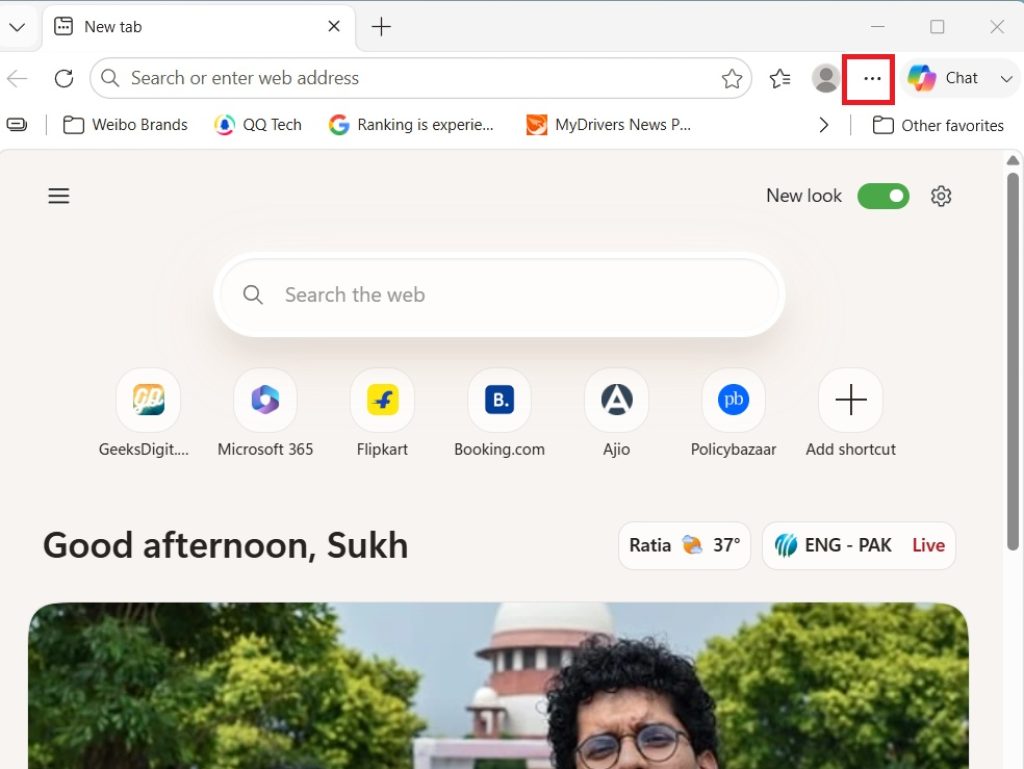
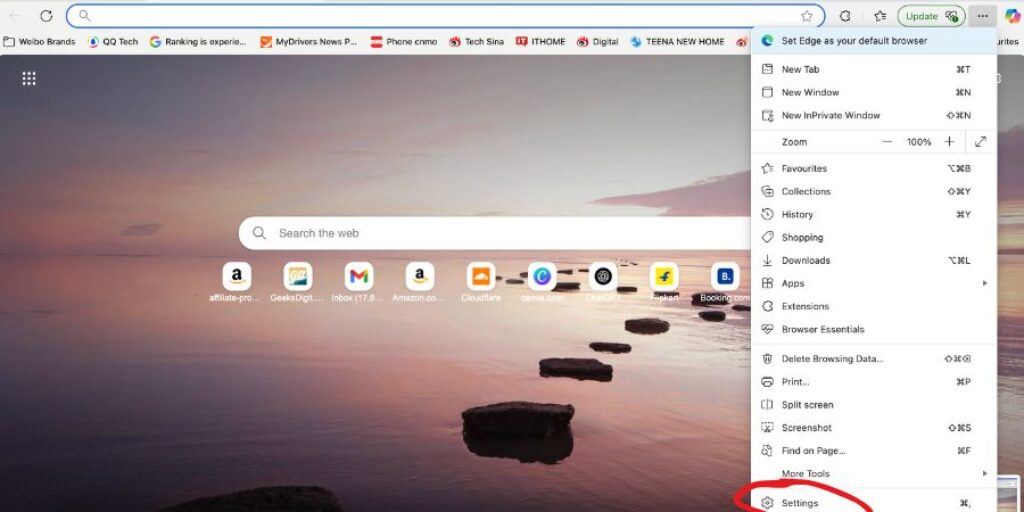
Select Settings.
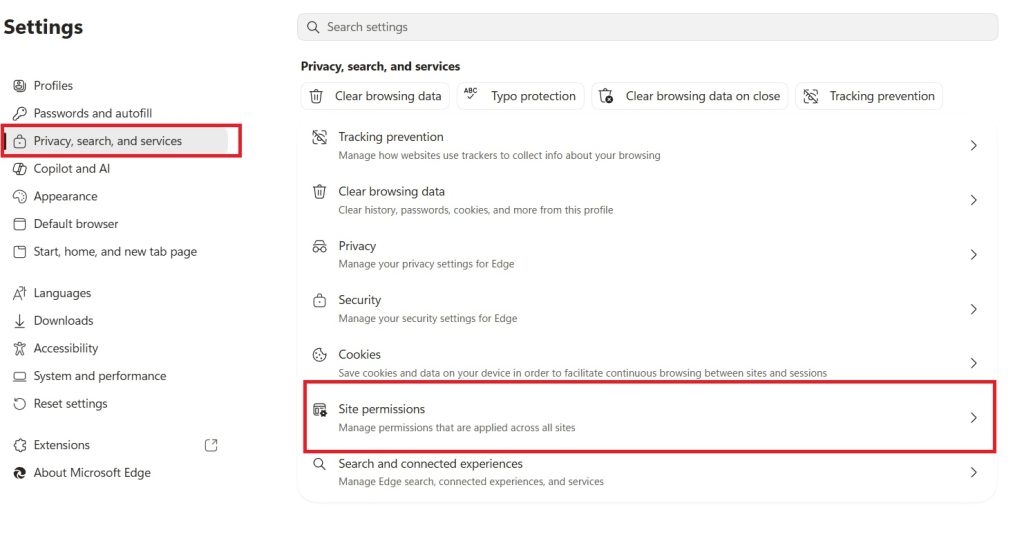
Click Privacy, search, and services > Site permissions.
Select Microphone.
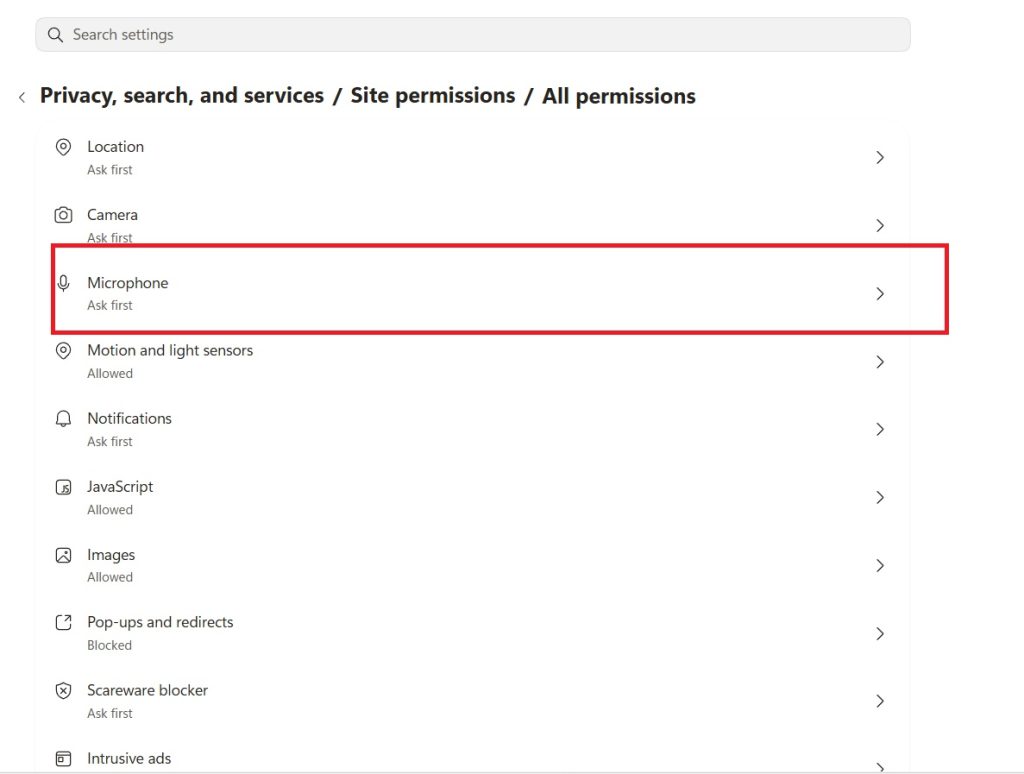
Ensure Ask first is turned on.
Verify the correct microphone is selected.
Check the Blocked list and remove any websites that should be allowed.
Reload the website after making the changes.
Method 2: Allow Microphone Access in Windows
Windows privacy settings can prevent all desktop apps, including Edge, from accessing your microphone.
To enable microphone access:
- Press Windows + I to open Settings.
- Go to Privacy & security > Microphone (Windows 11) or Privacy > Microphone (Windows 10).
- Turn on Microphone access.
- Turn on Let desktop apps access your microphone.
Restart Edge and test the microphone again.
Method 3: Select the Correct Input Device
If multiple microphones are connected, Edge may use the wrong one.
To select the correct microphone:
- Open Settings.
- Go to System > Sound.
- Under Input, choose the microphone you want to use.
- Speak into the microphone and verify that the input level moves.
If the wrong device is selected, Edge may receive no audio.
Method 4: Test the Microphone Outside Edge
Before troubleshooting the browser, confirm that the microphone works in other applications.
Try using:
- Voice Recorder
- Camera app
- Microsoft Teams
- Zoom
- Windows Sound Recorder
If the microphone doesn’t work anywhere, the issue is likely related to Windows, the driver, or the hardware rather than Edge.
Method 5: Check Website Permissions
Each website can have its own microphone permission.
If a website previously blocked microphone access:
- Open the website.
- Click the padlock icon beside the address bar.
- Locate Microphone.
- Change the permission to Allow.
- Refresh the page.
Some websites require permission each time you visit.
Method 6: Disable Problematic Extensions
Some browser extensions can interfere with microphone access.
To test:
- Open Edge.
- Click the Extensions icon.
- Disable extensions one at a time.
- Restart Edge after disabling them.
Privacy, security, VPN, and recording-related extensions are the most common causes.
If the microphone works after disabling an extension, you’ve found the source of the problem.
Method 7: Update Microsoft Edge
Using an outdated browser can lead to compatibility issues with newer websites and web APIs.
To update Edge:
- Open Edge.
- Click the three-dot menu.
- Go to Help and feedback > About Microsoft Edge.
- Edge automatically checks for updates.
- Install any available updates.
- Restart the browser.
Keeping Edge updated also improves security and stability.
Method 8: Update the Audio Driver
A faulty or outdated audio driver can prevent browsers from accessing the microphone correctly.
To update the driver:
- Right-click the Start button.
- Select Device Manager.
- Expand Audio inputs and outputs.
- Right-click your microphone.
- Select Update driver.
- Choose Search automatically for drivers.
If Windows doesn’t find a newer driver, check your PC or motherboard manufacturer’s support website.
Method 9: Reset Microsoft Edge
Corrupted browser settings may prevent microphone access.
To reset Edge:
- Open Edge Settings.
- Click Reset settings.
- Select Restore settings to their default values.
- Confirm the reset.
This removes customized browser settings but preserves your bookmarks, passwords, and browsing history.
After resetting, revisit the website and grant microphone permission again.
Method 10: Check for Hardware Problems
If none of the previous methods resolve the issue, inspect the microphone itself.
For external microphones:
- Reconnect the USB cable.
- Try another USB port.
- Test the microphone on another computer.
- Replace the cable if removable.
For Bluetooth microphones:
- Ensure they’re connected properly.
- Charge the battery.
- Remove and pair the device again.
For built-in laptop microphones:
- Check whether the microphone has been disabled in the BIOS or by a hardware switch.
- Inspect the microphone opening for dust or debris.
If the microphone fails on multiple devices, it may require replacement.
Additional Tips
To avoid microphone problems in Microsoft Edge:
- Keep Windows and Edge updated.
- Allow microphone access only for trusted websites.
- Avoid connecting multiple microphones unless necessary.
- Regularly review site permissions.
- Keep audio drivers up to date.
- Disconnect unused audio devices.
These practices help ensure consistent microphone performance across websites.
Conclusion
A microphone that isn’t working in Microsoft Edge is usually caused by permission settings, incorrect input device selection, or software-related issues rather than hardware failure. By checking Edge’s microphone permissions, enabling Windows privacy settings, selecting the correct input device, updating your browser and drivers, and resetting Edge if necessary, you can resolve most microphone problems without reinstalling Windows.
If the microphone still doesn’t work after trying all the methods in this guide, test it in other applications and on another computer. This will help determine whether the issue lies with Microsoft Edge, Windows, or the microphone hardware itself.
Frequently Asked Questions
Why can’t Microsoft Edge detect my microphone?
This is commonly caused by blocked microphone permissions, disabled Windows privacy settings, the wrong input device being selected, or outdated audio drivers.
How do I allow microphone access in Microsoft Edge?
Open Edge > Settings > Cookies and site permissions > Microphone, enable Ask before accessing, and make sure the website isn’t listed under Blocked.
Why does my microphone work in other apps but not in Edge?
The website may not have permission to use your microphone, or Edge’s site permissions may be blocking access. Check both the browser’s microphone settings and the website’s individual permissions.
Will resetting Microsoft Edge fix microphone issues?
Resetting Edge can resolve problems caused by corrupted browser settings or conflicting configurations. It won’t affect your bookmarks, saved passwords, or browsing history, but you’ll need to grant website permissions again afterward.
![Fix Microphone Not Working in Microsoft Edge [Windows 11/10]](https://www.geeksdigit.com/wp-content/themes/rehub-theme/images/default/noimage_70_70.png)
![Fix Microphone Not Working in Microsoft Edge [Windows 11/10]](https://www.geeksdigit.com/wp-content/uploads/thumbs_dir/touchpad-not-responding-windows-11-rsnpzka0hdhb4cd0w2o7w1jbp27gyqc3a8e4jt9s8s.jpg)



