
 Sukhdev Kamboj
A non-responsive touchpad can make using your laptop difficult, especially if you don’t have an external mouse available. You may notice that the cursor doesn’t move, gestures stop working, clicks aren’t recognized, or the touchpad suddenly becomes unresponsive after a Windows update or driver installation. This problem can occur on laptops from Dell, HP, Lenovo, ASUS, Acer, MSI, Samsung, Microsoft Surface, and other manufacturers running Windows 11 or Windows 10.
In many cases, the touchpad isn’t physically damaged. It may have been accidentally disabled using a keyboard shortcut, turned off in Windows Settings, affected by outdated or corrupted drivers, or disabled after connecting an external mouse. Hardware issues, BIOS settings, or system file corruption can also prevent the touchpad from working correctly.
Fortunately, Windows provides several built-in troubleshooting options that can help restore touchpad functionality without requiring professional repair. In this guide, you’ll learn the best ways to fix a touchpad that’s not responding in Windows 11 and Windows 10.
Why Is My Touchpad Not Responding?
A touchpad may stop responding for several reasons, including:
- The touchpad is disabled using a keyboard shortcut.
- The touchpad is turned off in Windows Settings.
- An external mouse has disabled the touchpad automatically.
- Outdated or corrupted touchpad drivers.
- Recent Windows updates.
- BIOS or UEFI settings have disabled the touchpad.
- Corrupted system files.
- Hardware failure.
- Dust, moisture, or physical damage.
Identifying the cause will help you choose the most effective solution.
Method 1: Check the Touchpad Function Key
Many laptops include a dedicated keyboard shortcut that enables or disables the touchpad.
Look for a function key with a touchpad icon, usually one of the F1–F12 keys.
Common examples include:
- Fn + F5
- Fn + F6
- Fn + F7
- Fn + F9
- Fn + F11
The exact key combination depends on your laptop manufacturer.
Press the appropriate Fn key combination once, wait a few seconds, and test the touchpad again.
Method 2: Enable the Touchpad in Windows Settings
The touchpad may have been disabled through Windows Settings.
To check:
Press Windows + I to open Settings.
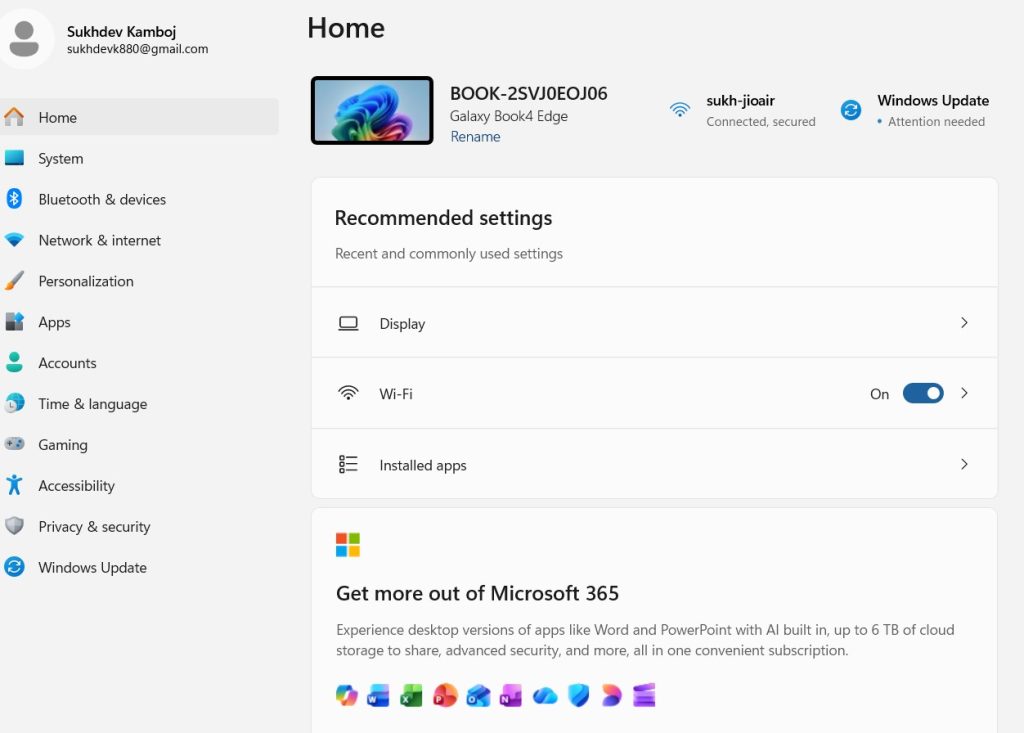
Go to Bluetooth & devices (Windows 11) or Devices (Windows 10).
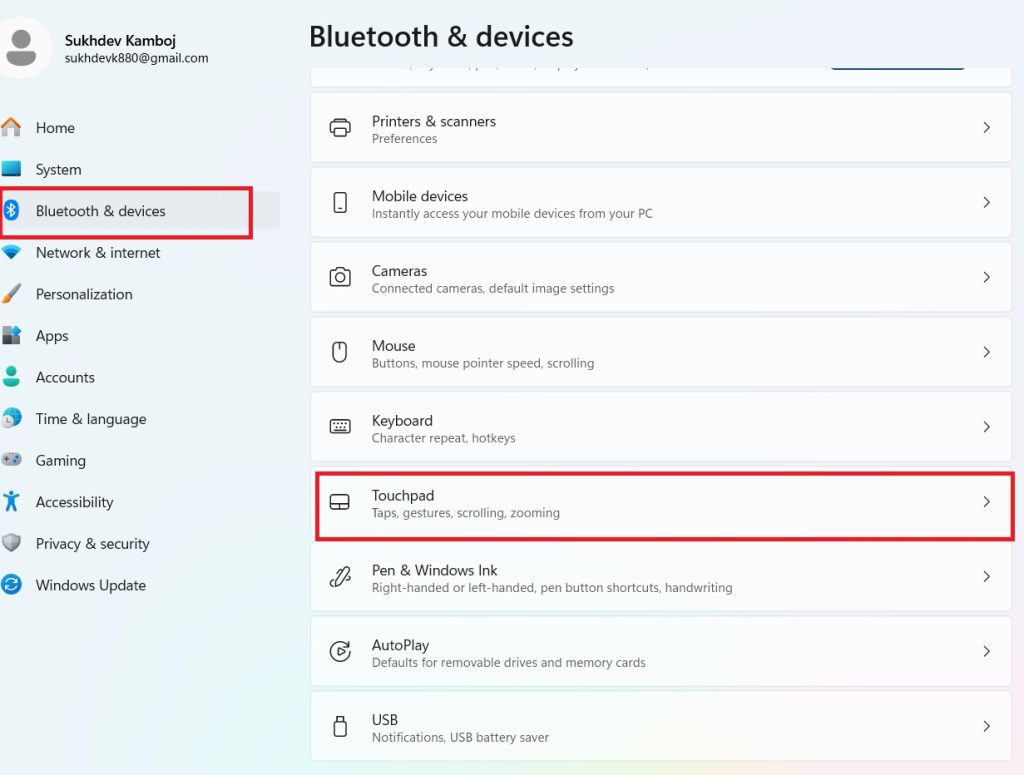
Click Touchpad.
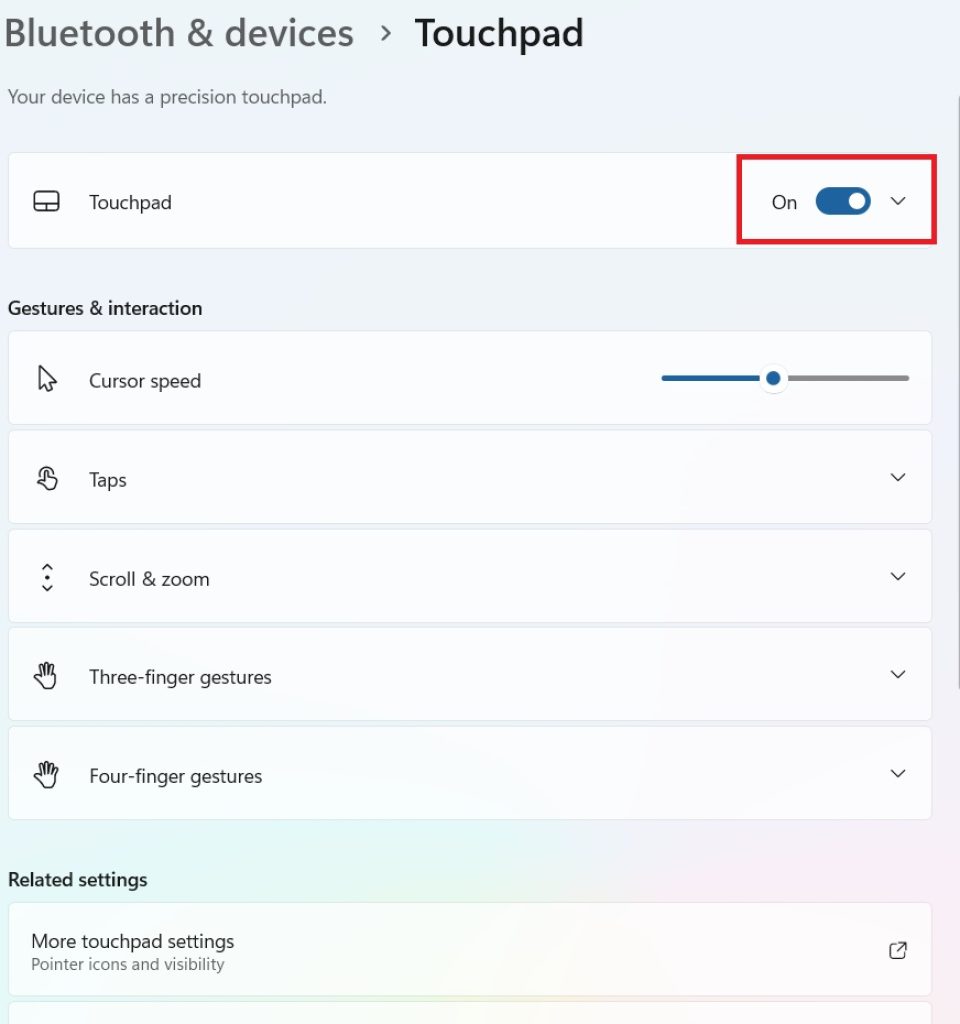
Turn on the Touchpad switch if it’s disabled.
If available, also enable:
- Leave touchpad on when a mouse is connected
This prevents Windows from automatically disabling the touchpad when an external mouse is plugged in.
Method 3: Restart Your Laptop
Temporary software glitches can cause the touchpad to stop responding.
Restart your laptop:
- Save your work.
- Open the Start menu.
- Click Power.
- Select Restart.
After Windows loads, check whether the touchpad works normally.
Method 4: Remove External Devices
Some laptops automatically disable the touchpad when a USB or Bluetooth mouse is connected.
Disconnect:
- USB mouse
- Wireless mouse receiver
- Bluetooth mouse
- Docking station
Then restart your computer and test the touchpad again.
Method 5: Update or Reinstall the Touchpad Driver
A corrupted driver is one of the most common causes of touchpad issues.
To update the driver:
- Right-click the Start button.
- Select Device Manager.
- Expand Mice and other pointing devices or Human Interface Devices.
- Right-click your touchpad.
- Select Update driver.
- Choose Search automatically for drivers.
If updating doesn’t help:
- Right-click the touchpad driver.
- Choose Uninstall device.
- Restart your computer.
Windows will reinstall the appropriate driver automatically.
Method 6: Install the Latest Driver from the Laptop Manufacturer
Windows drivers don’t always provide full touchpad functionality, especially for gesture support.
Visit your laptop manufacturer’s support website and download the latest touchpad driver for your exact model.
Manufacturers often provide drivers for:
- Precision Touchpad
- Synaptics
- ELAN
- Alps
- I2C HID devices
Install the latest driver, restart your laptop, and test the touchpad.
Method 7: Check BIOS or UEFI Settings
Some laptops allow the touchpad to be disabled directly in the BIOS or UEFI firmware.
To check:
- Restart your laptop.
- Press the BIOS key during startup (commonly F2, Delete, F10, or Esc).
- Locate the Touchpad, Internal Pointing Device, or Advanced settings.
- Ensure the touchpad is Enabled.
- Save the changes and exit.
If you’re unsure about other BIOS settings, avoid changing them.
Method 8: Run the Hardware and Devices Troubleshooter
Although Windows no longer includes a dedicated Hardware and Devices troubleshooter in Settings, you can still access it using a command.
- Press Windows + R.
- Type:
msdt.exe -id DeviceDiagnostic- Press Enter.
- Click Next.
- Follow the troubleshooting steps.
If your version of Windows doesn’t support this command, use the Get Help app and search for touchpad problems.
Method 9: Repair Corrupted System Files
Corrupted Windows system files can prevent hardware from working correctly.
Open Command Prompt as Administrator.
Run:
sfc /scannowWait until the scan finishes.
If Windows repairs corrupted files, restart your computer.
If SFC reports errors it cannot fix, run:
DISM /Online /Cleanup-Image /RestoreHealthAfter DISM completes, run SFC again.
Method 10: Check for Hardware Problems
If the touchpad still doesn’t respond after trying all software solutions, inspect the hardware.
Look for signs such as:
- Physical damage
- Liquid spills
- Swollen battery pressing against the touchpad
- Loose or lifted touchpad
- Intermittent cursor movement
- Clicking sounds without cursor movement
If the touchpad doesn’t work even in the BIOS or during Windows installation, the hardware may require professional repair or replacement.
Check Whether the Touchpad Works in Safe Mode
Booting into Safe Mode can help determine whether third-party software is causing the issue.
To enter Safe Mode:
- Hold Shift while selecting Restart.
- Go to Troubleshoot > Advanced options > Startup Settings.
- Click Restart.
- Press 4 or F4 to start Safe Mode.
If the touchpad works in Safe Mode, a recently installed application, driver, or startup program is likely causing the problem.
Additional Tips
To keep your touchpad working properly:
- Install Windows updates regularly.
- Update touchpad drivers from your laptop manufacturer.
- Keep the touchpad clean and dry.
- Avoid placing heavy pressure on the touchpad.
- Use a protective laptop case during travel.
- Restart your laptop after installing driver updates.
- Avoid downloading unofficial driver software.
Conclusion
A touchpad that stops responding in Windows 11 or Windows 10 is usually caused by disabled settings, outdated drivers, software conflicts, or temporary system glitches rather than permanent hardware failure. Checking the touchpad shortcut key, enabling it in Windows Settings, updating drivers, repairing system files, and reviewing BIOS settings can resolve most issues without requiring technical assistance.
If none of these methods restore touchpad functionality, testing the laptop in Safe Mode or checking for physical damage can help determine whether the issue is hardware-related. In such cases, contacting your laptop manufacturer’s support team or visiting an authorized service center may be the best solution.
Frequently Asked Questions
Why did my laptop touchpad suddenly stop working?
A touchpad may stop working due to accidental disabling, outdated drivers, Windows updates, software conflicts, or hardware issues. Checking Windows Settings and updating the touchpad driver often resolves the problem.
How do I turn my touchpad back on?
Press the appropriate Fn key combination for your laptop or go to Settings > Bluetooth & devices > Touchpad and enable the touchpad.
Why does my touchpad stop working when I connect a mouse?
Some laptops automatically disable the touchpad when an external mouse is connected. You can usually change this behavior in the Touchpad settings by enabling the option to keep the touchpad active while a mouse is connected.
How do I know if my touchpad is physically damaged?
If the touchpad doesn’t respond in the BIOS, Safe Mode, or during Windows installation, or if there are signs of physical damage, liquid exposure, or a swollen battery, the problem is likely hardware-related and may require repair or replacement.





